Microsoft Cloud Database Testing


Project Huron, one of Microsoft’s group of cloud-based teams, are asking customers to get involved with testing a first release of their online database synchronization effort; which will be done via the Azure platform & SQL Data Services.

The Huron team said “We are looking for are any customers that are looking to share SQL Server or SQL Compact databases via the cloud and have an existing project that would warrant this functionality…”

The team’s blog says “The goal is to remove the typical complexities (configuration, scalability, security, etc) involved with sharing database information between local databases such as SQL Server and SQL Compact and provide simple UI tools for configuration and sync components developers can embed in existing applications.”

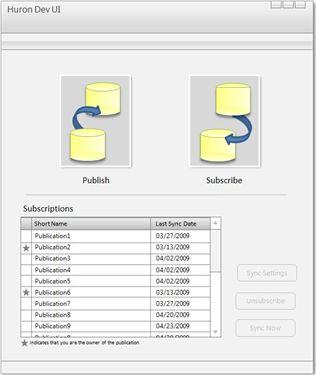
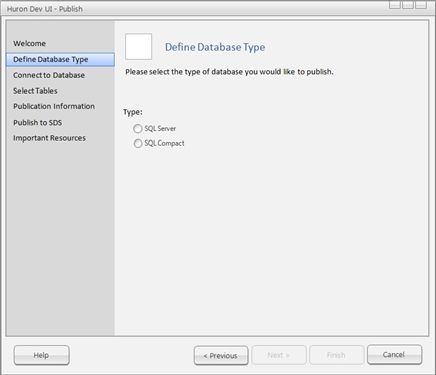
Screen mockups:

huron1huron2

For those of you that are interested in being an early adopter for this-fill in this short email form here:

Project Huron Early Adopter Contact Form

Windows 7 XP Mode Pre-requisite


The inclusion of “XP Mode” in Windows 7 is great news, the ability to run legacy apps inside the Windows 7 desktop is going to allow so many more people to upgrade to Microsoft’s awesome new Desktop OS. There is however, one pre-requisite that might mean that not everyone can use this new feature-and that is the need for Hardware Assisted Virtualization (HAV) which is a property of the physical processor.

Intel call this Intel-VT(x) and AMD call it AMD-V and it is tricky because not all processors include this feature. Certainly most (if not all) processors older than 3-4 years won’t be HAV capable and it seems there are still some CPU’s available now that don’t have it. I have seen on blogs (Gizmodo/Engadget etc) and heard from co-workers and the like that finding which processors are compatible can be quite difficult so below is my attempt to clarify the situation. I would like to point out that I’m purely software so CPU’s aren’t my forte-thus if you see any errors/omissions in the below, please let me know 🙂

Intel Processors that support HAV:

Intel’s site is really rather good with great feature comparison charts for all their processors. I’ve made an Excel sheet (which I then had to convert in to a .ppt for WordPress) showing which do/don’t support Intel-VT which is here. Intel’s page is here.

AMD Processors that support HAV:

AMD’s site isn’t anywhere near as good and I had a tough time finding much useful info. The AMD-V page contained this:

amd

and Wikipedia says:

“AMD-V operates on AMD Athlon 64and Athlon 64 X2 with family “F” or “G” on socket AM2 (not 939), Turion 64 X2, Opteron 2nd generation[1] and 3rd-generation,[2] Phenom, and all newer processors. Sempron processorsdo not include support for AMD-V.

On May 23, 2006, AMD released the Athlon 64 (“Orleans”), the Athlon 64 X2 (“Windsor”)and the Athlon 64 FX (“Windsor”)as the first AMD processors to support AMD-V. Prior processors do not have AMD-V.”

If anyone can shed any more definitive light on the AMD chips, please let me know.

**Update** I’ve got some more info and resources to help see if you can benefit from XP Mode.

I don’t know which Processor I have:

Not to worry, the document I put together above tells you which processors support Intel-VT and this link tells you if the CPU in your machine is one of those 🙂

http://www.intel.com/support/processors/tools/piu

Just download the small app and run it to find out if your Intel chip supports VT.

XP Mode still isn’t working:

Hardware Assisted Virtualization isn’t as straightforward as it perhaps could be, so there’s quite possibly one more step you need to take even if your CPU supports it. Often, HAV is turned off in the BIOS by default and so needs to be activated before you can start. This isn’t the same for every PC so Microsoft have put together some general instructions for Dell, HP & Lenovo here. (The AMD CPU Checker should also be available via that link but it’s not currently working for me).

As you can see, the vast majority of Intel chips that will be in use do support hardware assisted virtualization, and thus Windows 7 XP Mode, but it’s best to check to make sure.

If you find your processor doesn’t support HAV, I’d strongly recommend getting a new CPU/machine that does so you can fully take advantage of the new features of Windows 7.

I hope that helps 🙂

Office 2007 SP2 is available


As you may already have seen-SP2 for Office 2007 is out and available now. MS have stated it will be added to Windows updates within 3 months but I seem to have it available today…which is nice 🙂 If you haven’t got it and you can’t wait, head over here to grab it now.

It makes all kinds of improvements but the big one is it gives Outlook a great boost, up to 35% faster at starting up, switching between folders etc! It also helps bring the Excel charting more in line with Excel 2003…

What is XP Mode?


XP Mode is new feature of Windows 7 that will be available in the Release Candidate (it wasn’t in the beta) and I think it wil be a game changer.

It is a simple, yet quite brilliant, concept-using Virtual PC 7 as a base, it lets you run XP only applications inside Windows 7 🙂 You might think, “Well why not just use Virtual PC?”…the biggest problem with using Virtual PC, VMWare Workstation etc is that you have 2 separate desktop entities causing you to switch back and forth without much interoperability but that’s not an issue here. XP Mode lets you run the legacy applications actually inside Windows 7, this screenshot from Paul Thurrott’s Supersite for Windows shows IE 8 & IE 6 running alongside each other in Windows 7:

vxp_ie_windows

As a feature this really is a biggie. So many people, especially corporate, are still running on XP and the vast majority of them are doing so becuase of app compatability. For example, our CRM system doesn’t work with Vista so as much as I’d love to have that as my work OS I simply can’t…however that’s all changed now. I’ll be able to use Windows 7 with XP mode and, like Hannah Montana, have the best of both worlds 😉

From a licensing perspective, it’s worth noting that XP mode will only be available in Pro, Enterprise & Ultimate editions.

From a technical perspective, Windows 7 XP Mode requires processors with Hardware Assisted Virtualization. Not all CPU’s have this, so a list of those that do is here.

Windows 7 RC New Features


The Windows 7 Release Candidate will be available via Technet/MSDN on 30/04/09 and to the general public 05/05/09 but the leaked version is floating around El Torrento’s right now and Gizmodo have been checking out it’s new features…and these have got me EXCITED!

1) Stream your Windows Media Player library over the internet! You need a Windows Live ID that you associate with your Windows 7 user account using a tool you have to download. You need to have WMP 12 at both ends and then your home library will be listed under “other libraries”..as Giz says “Can’t do this in iTunes, buddy” 🙂

2) XP Mode: To encourage enterprise people to let loose and rock Windows 7, it runs a full-fledged Windows XP virtual environment using Microsoft’s Virtual PC. (Requires additional download)…this could be excellent for large corporates and increasing their adoption rates. More info on XP Mode here.

It also has loads of new , crazy backgrounds like this one:

windows7background

Upgrade Windows 7 Beta to RC


The Windows 7 Release Candidate will be released to the world on May 5th and the many millions of beta testers will definitely want to download and use it; however upgrading straight from the beta to the RC won’t be easy.

Microsoft would prefer that you go back to Vista and then upgrade to Windows 7 RC, that way will give them the correct metrics to analyse the upgrade process. That’s fair enough but it’s a bit of a hassle doing that so there is a way to get from A to B without going via Vista:

Here’s what you can do to bypass the check for pre-release upgrade IF YOU REALLY REALLY NEED TO:

  1. Download the ISO as you did previously and burn the ISO to a DVD.
  2. Copy the whole image to a storage location you wish to run the upgrade from (a bootable flash drive or a directory on any partition on the machine running the pre-release build).
  3. Browse to the sources directory.
  4. Open the file cversion.ini in a text editor like Notepad.
  5. Modify the MinClient build number to a value lower than the down-level build. For example, change 7100 to 7000 (pictured below).
  6. Save the file in place with the same name.
  7. Run setup like you would normally from this modified copy of the image and the version check will be bypassed.

clip_image002_thumb

See more over @ the Engineering Windows 7 blog here.

Microsoft Exchange Online Domain Verification Video


Microsoft Exchange Online gives users a temporary domain like @yourcompanyname.microsoftonline.com which is fine for testing but a bit long and unwieldy for full day to day corporate use; luckily Exchange Online lets you add your own domain. This is done by a couple of easy to use wizards and simply involves adding a CNAME record to your DNS server. While it’s pretty straightforward, it’s always good to see someone else do it first and Arvind Suthar from MSOnline Technet has created a great walkthrough video:

The original post and more info can be found here.

Microsoft BPOS available from Monday!


The much hyped, very exciting Microsoft Online Services will be available to order via the MOCP (Microsoft Online Customer Portal) from Monday 27/04/09!

Find more Microsoft Online here:

https://richardgibbonsuk.wordpress.com/ms-onlinebpos/

Office Communicator Mobile for Java


Microsoft Office Communicator Mobile for Java is a new enterprise messaging client built on the Java Platform Micro Edition. Thanks to John Westworth for the heads up on this.

 When deployed together with Office Communications Server 2007 R2, Communicator Mobile for Java enables several mobile phones that are otherwise not supported by native clients but have the capability to run Java applications to function as unified communications endpoints, providing instant messaging (IM), presence, and telephony to create a familiar experience for users of Microsoft Office Communicator.

Like Office Communicator users, Communicator Mobile for Java users can:

  • View Contact List and click to call.
  • View contacts’ presence.
  • Search enterprise directory and click to call.
  • Directly dial enterprise-routed calls from a mobile phone.
  • Benefit from Single Number Reach, where a user can be reached on the mobile phone like all other endpoints when contacted through one phone number assigned to the user.
  • Control incoming enterprise-routed cellular voice calls and choose to redirect them to Unified Enterprise Voice Mail.
  • Receive notifications of unread voice mail count and respond by calling voice mail (on selected models).
  • Initiate IM conversations with individuals and also add more participants to escalate conversations to IM Conferences.
  • Retrieve the phone book contacts from the phone into Communicator Mobile for Java and call those numbers from Communicator Mobile for Java

The following are prerequisites for installing the Communicator Mobile for Java client.

  • Nokia S60
  • Nokia S40
  • Motorola RAZR V3xx

Each of the mobile phones must also meet the following prerequisites:

  • Capable of running Java applications greater than 512 KB, and with a heap size of 2 MB.
  • Mobile Information Device Profile 2.0 (MIDP 2.0).
  • Connected Limited Device Configuration 1.1 (CLDC 1.1).
  • Screen resolution:
    240×320 for Nokia S40 and Motorola RAZR V3xx phones.
    240X 320 or 320×240 for Nokia S60 phones.
  • Data-connection-enabled (GPRS, Edge, or 3G connection) mobile device. Subscription to an unlimited data plan on the mobile device is recommended, because the client and server will be exchanging messages even when they are in an idle state.

More info can be found on Technet here.

Outlook Auto-Complete


This isn’t a problem I’ve ever experienced but I had to help a colleague out with it today, and it seems to be relatively common.

The problem is where Outlook’s AutoComplete feature for remembering previously used email addresses just doesn’t work, each time you open Outlook-they’re all gone which is pretty annoying. It all comes down to the “.NK2” file that Outlook 2003/2007 uses and there are 2 likely causes:

1) Your .NK2 file has become corrupted somehow

2) You upgraded from Outlook 2000 and the new file wasn’t created.

Outlook 2000 used a “.NICK” file which is unreadable to later versions of the email client, but it seems that an upgrade from 2000 to 2007 doesn’t replace it with the required “.NK2” file. This was the case at work so we simply closed Outlook/deleted the “.NICK” file (some prefer to rename the file rather than deleting it)/re-opened Outlook/sent an email/hey presto a new “.NK2” file appeared and all was well 🙂

The file can be found here:

C:\Documents and Settings\<your username>\Application Data\Microsoft\Outlook

I hope this helps!