It might seem that this question has already been answered with “October 22nd” but there are numerous different ways for people to access Microsoft software these days so here’s a complete list:
OEM’s: 2 days after RTM (Release to Manufacture)
Technet and MSDN Subscribers: August 6th in English and October 1st for other languages. *Update* The download will appear, as if by magic (!), at 6pm GMT tonight…so not long left!
MS Partners via the Partner Network: August 16th in English and October 1st for other languages
MS Action Pack Subscribers: August 23rd in English and October 1st for other languages
Volume Licence customers with Software Assurance: August 7th in English and a couple of weeks later for other languages
Volume Licence customers without Software Assurance: September 1st
Home Pack Confirmed:
Microsoft have confirmed (via the Windows Team Blog) that there will be a Windows Home Premium Family Pack, which can be installed on up to 3 machines! However-they have said it will be available in “selected markets” and no more…I’m waiting to hear back as to whether the UK has been selected 🙂 21-07-09 Microsoft have told me they’ll be releasing “more details on the family pack in the near future” so keep checking back for updates!
Virtual Desktop Infrastructure (VDI) is a subject that is becoming more and more popular but it can be quite a tricky concept to newcomers, my aim here is to give some clarification and information on the topic!
What is VDI?
VDI is the younger, not as cool cousin of server virtualization and the bigger, better brother of Terminal Services (TS) 🙂
Rather than running the desktop instances on local machines, they are held on servers in the datacenter and each user accesses them centrally. However, unlike Terminal Services “each user gets access to their personal desktop from any authorized device, thereby improving desktop flexibility”.
The VDI FAQ from Microsoft offers a good overview of VDI as a technology-download the PDF here.
What’s the point?
Storing desktop images on central servers can have many benefits:
Management: VDI gives you true central management of users desktops and true control over what is/isn’t installed on them and, as I’m sure you know, that can be a real issue in corporates today! You can manage a single instance of the OS no matter how many people are using it-vastly reducing management time & costs.
OS deployment: VDI can make the provisioning of new desktops much quicker than usual and can also enable organizations to test/adopt new Operating Systems in a much easier fashion. One big scenario where I see this being particularly useful:
Testing multiple Operating Systems: Say you have a number of users that are testing various different desktop OS’s such as XP, Red Hat Linux and Windows 7. Currently you would need to either:
provide the users with multiple machines, all separately configured and offering their own security concerns.
or
have users multi-booting their machines-again presenting it’s own set of problems around hardware with people needing more RAM etc
Alternatively you could have one image of each OS in the Datacenter and users can access them as needed-with much less hassle 🙂
You can also keep a “library” of images for different situations that can be deployed at the drop of a hat!
Security: Again, the central management aspect comes in to play allowing you to block external devices and prevent copying of data from the image to a local device-a great way of preventing data leakage.
Downsides:
Despite all the benefits above there are, as with everything, downsides and negatives too.
VDI really isn’t suitable for media intensive tasks
Doesn’t suit mobile working as it requires a constant connection to the corporate network.
Negative feedback from users
The last point is perhaps the most important for companies to consider-all the streamlined management processes and more flexible admin environments don’t really count for anything if the workforce is unhappy. Certainly I would hate to work in a VDI infrastructure (or Terminal Service/Citrix) as I install and use a LOT of applications that wouldn’t be part of a corporate standard such as Office 2010, CCleaner,TweetDeck, numerous Outlook addins, Groove, OneNote (and I don’t know how many more!); also I often run things that require admin rights on the machine. In a VDI environment I would have to go through the hassle of getting these added to an image which would be just for me-so I might as well have a standard desktop. The alternative is that I couldn’t use the applications which would reduce my produtivity as well as my happiness as a worker-2 things that a company definitely doesnn’t want to be happening 🙂
What VDI can do to some users!
An actual comment from a user over at Tech Republic:
“the fact that I can take my work anywhere doesn’t matter to me if I can’t install what I need when I need it”
How is it licensed?
Microsoft’s VDI licensing structure is comprised of 2 parts:
VECD allows you to licence virtual copies of Microsoft’s desktop OS’s in a VDI environment and offers the following:
Ability to run a copy of Windows in a datacenter
Rights to move virtual machines between servers for increased reliability
Unlimited backup of virtual machines
Ability to access up to 4 running VM instances per device.
Rights to access corporate desktops from home for a user that has already been licensed at work
Availability of volume licensing keys, such as KMS (Key Management Service) / MAK (Multiple Activation Keys)
How is VECD licensed?
VECD is a monthly subscription per device licence which comes in 2 flavours:
VECD (for users without SA)
VECD for SA (for users with SA)
They offer the same functionality, it’s just the VECD for SA is available at a reduced cost as a thank you to current SA customers 🙂 I’ve not got UK pricing to hand but the pricing on the MS website is:
VECD (for users without SA) = $110 per device per year
VECD for SA (for users with SA) = $23 per device per year
VECD is required for any VDI solution that will be running Windows Operating Systems, regardless of the the BDI technology provider (VMWare, Citrix etc).
Microsoft VDI Suite:
This is a new addition to the world of licensing, having been announced at the WorldWide Partner Conference (WPC) last week. While MS have had the technologies to provide a cohesive, efficient and secure VDI environmentfor quite some time now, it has been hard for customers to know what products they need and which things fit together. The VDI Suites are simply a collection of technologies at a reduced price, and they are:
Hyper-V Server
System Center Virtual Machine Manager (VMM)
System Center Configuration Manager (SCCM)
System Center Operations Manager (SCOM)
Remote Desktop Services (RDS) CAL (formerly Terminal Service CAL)
Microsoft Desktop Optimization Pack (MDOP)
For a fuller more in depth look at the VDI Suites, including expected pricing, please see my other blog post here.
A 100 device company looking to implement VDI would need the following:
100 x VECD @ $110/£67 per device per year = £6700
100 x VDI Suite @ $21/£13 per device per year = £1300
So £8000* per year to run a Microsoft VDI infrastructure with what is fast becoming a truly top-notch hypervisor as well as leading class management software-sounds pretty good to me 🙂
*The £ prices above were attained by putting the $ prices through www.xe.com , but the final pricing may well be different!
I hope that has gone some way to informing newcomers as to what VDI is as a concept and also helping people who know the technology make sense of the licensing. As always, I’m happy for feedback & comments 🙂
I got my invitation to the Office 201 Technical Preview the other day and, quite excitedly, started to install it on my laptop but after about 10 minutes it failed and stated that the previous version of Office (2007) couldn’t be upgraded. I had a look on Twitter and couldn’t see anyone else with the issue so I figured it was specific to my machine, and I was right! My next move was to uninstall the existing Office 2007 and go for a clean install but oh no, “the uninstall has failed”…”WHAT?!”…I was now in the unenviable position of being unable to remove or upgrade Office 2007.
I got Office 2010 installed alongside 2007 but it wasn’t ideal as I could only have 1 copy of Outlook (2007) and having 2 versions of Office takes up a fair amount of room etc so I wasn’t massively happy about it. I did a quick Bing (yes-I Bing everything now!) and found the following Knowledge Base article:
This covered the very topic I was having (which proved it wasn’t just me!) and gave step by step instructions on how to get Office 2007 removed from my machine. If you’re having the same issue I won’t bother repeating the steps here but I do have a couple of points to add:
1) This isn’t a quick process-it took about 2 hours of manually deleting files and registry entries.
2) Point 2 of Step 5 (the Uninstall Registry key) didn’t exist on my machine but that didn’t cause any problems.
3) Some of the steps involve deleting folders from your hard drive and while most of these were fine, at least one refused to go down without a fight! I got the somewhat common problem of being told I “don’t have permission to delete the folder”, even though I was the admin on my machine. This threw a spanner in the works so back to Bing it was…and it came up trumps again 🙂
Over on petri.co.il there is a post on how to add a “Take Ownership” option to the right click menu in Vista, through creating a quick registry file. The details are there to be pasted into the file, it’s easy to do and it definitely works, the post is here:
With the KB article and the above addin-you should have all you need to sort out your Office installation and be in a position to re-install a properly working edition…I hope this helps and good luck 🙂
I had hoped to get a full post together on the first day the tech preview became available but I had some issues with the installation, and that took a good few hours to sort out.
I have, somehow, ended up with a seemingly corrupt install of Office 2007 as Office 2010 is unable to upgrade it and I can’t remove it either! Eventually I tried installing 2010 alongside 2007 and it worked, the downside is that you can’t have 2 versions of Outlook together so I’m stuck on 2007 for that…however I’ll install it on another machine ASAP and hopefully Outlook will work on that 🙂 I managed to get rid of Office 2007 after 2 hours of deleting and registry editing so I now have it all installed! (I’ll do a separate post on how I did it).
Excel 2010:
That’s Excel 2010 opened for the first time-not much difference although I think it looks a bit “cleaner”.
Sparklines:
These were one of the big features from the WPC demo of Office 2010 and they’re as awesome as they seemed. This feature is going to make Business Intelligence and the sharing of information so much easier (to understand and present) and more worthwhile; I think this is going to make a real difference in the world of work-it certainly will for me! I’ve got a spreadsheet at work that covers all our major software vendors and includes sales and profit for each one as well as overall totals, various comparisons between years and more. Currently this has multiple tabs that just contain trending charts, making it awkward to present and impossible to screenshot/print. With Sparklines in Excel 2010, I can show the trend in a single cell at the end of the data range, allowing me to consolidate it down to just one sheet!
There is an excellent post on Sparklines over on the Excel team blog here which features some great examples of how they can be used.
OneNote 2010:
I haven’t had much of a play with OneNote yet but one thing I have noticed is it seems that OneNote no longer auto copies screen clippings into the Unfiled Notes section…I think I like that 🙂
Word 2010:
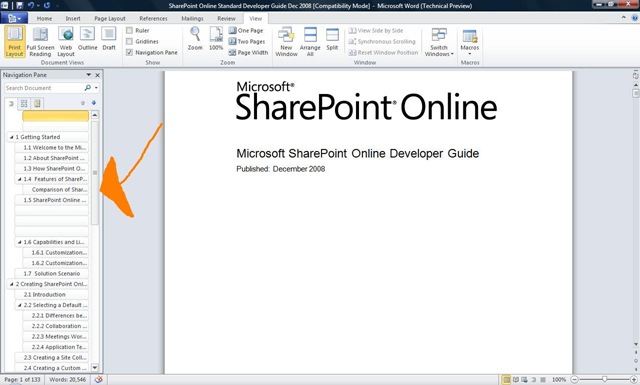
I don’t actually use Word that much and when I do it’s usually pretty basic, so it may well take me a while to find all the new features. However one that I’ve found straight away and is very useful is the Navigation Pane, which makes it much easier to read and work with large documents.
As you can see on the left hand side, the Navigation Pane has identified all the section headers in the document and allows you to jump around simply by clicking them-no more slightly random scrolling up and down 🙂 This is a truly great addition!
Outlook 2010:
I’ve not yet got any good screenshots of Outlook 2010 as I’ve discovered that the Hotmail connector doesn’t work with the new version, which is a shame. I’m sure that will be resolved by the final release though! I’ll get some screenshots from work but I’ll need to block out any confidential/customer info etc first so that’ll be next week.
I can however attest that Outlook 2010 is great. I was a BIG fan of the improvement in Outlook 2007 and the new version builds on those very well. There are no huge new killer features but there are lots of little ones such as:
Quick Steps: A set of handy time savings shortcuts which allow you to, for instance, forward a mail directly to your manager with 1 click, send an email just to your team, forward a mail and automatically add “FYI” to the subject line and more. It’s also possible to create your own Quick Steps, just like macros.
Calendar: When you receive a meeting invite, you can now see a preview of your calendar inside the mail-handy!
PowerPoint 2010:
Powerpoint has always been full of features I’ve never quite got round to using and I’m sure that is true of 2010 too, but one that I like is the ability to “Broadcast Slideshow”. This allows you to quickly and easily share your presentations with others in remote locations:
This will be useful for informal collaboration with colleagues where you just want/need quick opinions and helps further Microsoft’s Collaboration through Office strategy.
General Features
Backstage: Gone is the menu/sub-menu structure for print preview, open, save as etc and in it’s place is Backstage:
The Office Sync Center:
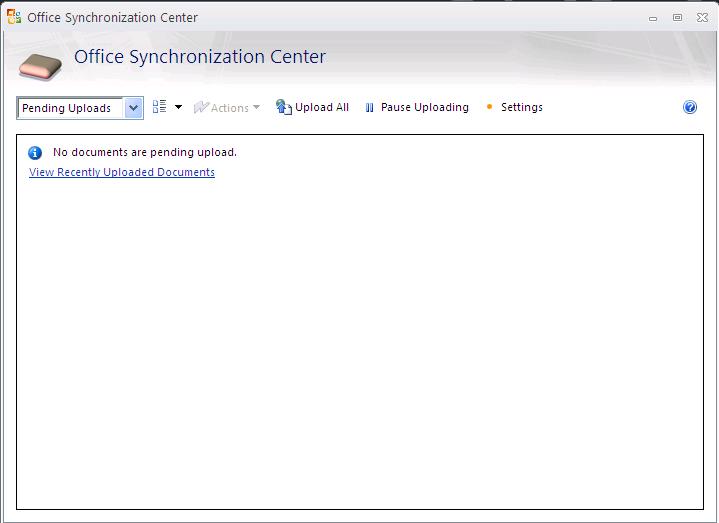
This is a new thing AFAIK that I noticed when uploading some documents to our Sharepoint Online BPOS installation.
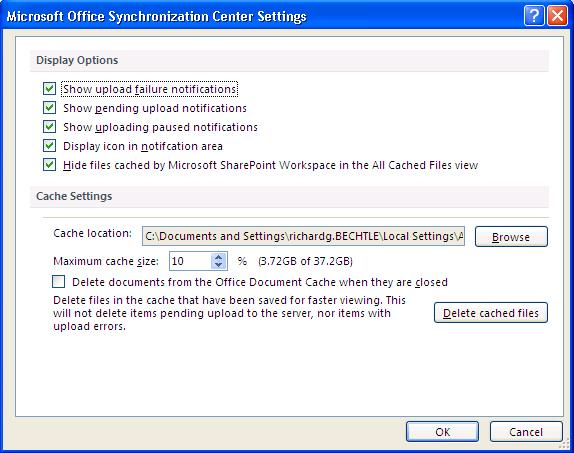
This gives you a great overview of which files have been uploaded and if they were successful or not. It also shows a history of recently uploaded files which works well for me as I often forget whether I’ve done it or not 🙂 This seems like yet another great addition in Office 2010…
Summary:
This post isn’t finished, at the very least I’ll be adding in some screenshots and more info on Outlook. However as I come across new features in the various programs I’ll add them into this post as I go.
All in all, Office 2010 looks like a solid forward move for the Office suite and should see good adoption across the board-although perhaps more in the business rather than home space. The inclusion of more business intelligence, more collaboration and more time saving tricks is a sure winner and Sharepoint Workspace Manager (SWM formerly Groove) will only further that I’m sure.
Another new licensing model from Microsoft is the Application Platform Agreement (APA) which will be available from October 1st. This is an add-on to the existing Enterprise Agreement (EA) and gives companies a subscription to a set of products defined as the “Application Platform”-these are:
SQL Server
BizTalk Server
Windows Server
Sharepoint Server
Visual Studio Team Edition
System Center Server Management Suite Enterprise
There are then 2 further enrolments available:
Enrolment for Application Platform(EAP)
*Update* More info on this has come out of MS, including the following:
What is available on EAP?
Benefits of EAP include:
Low Upfront Costs
Savings of up to 40%
Rapid adoption of the latest technology
Unlimited Deployment Rights for the included products
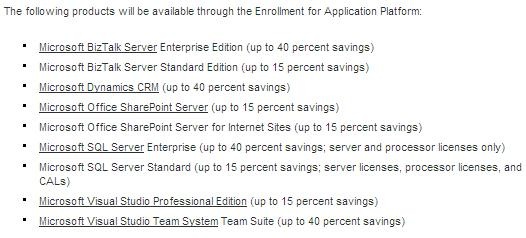
This screenshot is taken from the MS Partner site. The Enrolment for Application Platform allows customers to obtain perpetual licences rather than non-perpetual subscription licences.
Enrolment for Core Infrastructure (ECI)
This isn’t mentioned on the Partner site but is referenced elsewhere (silicon.com) as including:
Windows Server
System Center
Forefront Client Security
*Update* I’ve now seen more info on this from Microsoft which includes the following:
Suites included on ECI:
The Standard edition allows you to run and manage up to one OSE
The Enterprise edition lets you run, manage, and secure up to 4 OSEs on a 2-processor box
The Datacenter edition allows you to do the same for an unlimited number of OSEs on a 2+ processor box
It also states that from November 1st, there will be special SKU’s available to allow end users to migrate from existing stand-alone products to the new ECI versions.
This image is a good initial indicator if ECI will fit your organisation:
You can see more over at Emma Healey’s “Lady Licensing” blog here.
I have seen people worrying about the non-perpetual nature of these subscription licences such as ZDNet, where the article starts:
“Microsoft (unsurprisingly) doesn’t tout the fact, but its newest licensing agreement could leave enterprise customers product-less if they don’t renew it.”
However I think it’s pretty clear that it’s a subscription model and it’s well known that all MS subscription licences are non-perpetual (OVS, Schools Agreement, EAS etc); it isn’t MS trying to “trick” people at all which is what I feel some people are trying make out. Also, the APA customers will be in contact with their LAR’s and also Microsoft account managers to work on the details of the agreement and if it is feasible etc-so the subscription aspect will be made clear at this point if not before…it’s not the kind of thing a customer could just buy on a whim without any advice.
For large customers, this could definitely be a great way to save money and streamline software adoption & standardization. However, from a licensing/information point of view it is something of a mess at the moment with no single place having all the information a customer (or a MS partner) requires. Hopefully this will be rectified quickly and certainly before October!
During this year’s Worldwide Partner Conference in New Orleans, Microsoft announced 2 new VDI licensing models. Although this is pretty big news if you’re in that space, VDI isn’t really a technology of the masses so this news hasn’t been hugely reported-but hopefully I can change that just a little bit 🙂
There are two new licences available:
Microsoft Virtual Desktop Infrastructure Standard Suite
Microsoft Virtual Desktop Infrastructure Premium Suite
Microsoft’s aim is for these to
“make it simple for customers to purchase the comprehensive Microsoft VDI technologies while providing excellent value compared with competing VDI offerings.”
What do they include?
Both version contain the essential products for setting up, configuring and managing an efficient and effective VDI environment:
Hyper-V Server
System Center Virtual Machine Manager (VMM)
System Center Configuration Manager (SCCM)
System Center Operations Manager (SCOM)
Remote Desktop Services (RDS) CAL (formerly Terminal Service CAL)
Microsoft Desktop Optimization Pack (MDOP) <– Further clarification shows that MDOP is an optional extra.
The Premium version will also include:
Additional use rights for RDS
App-V for RDS
to
“enable mixed environments with not only VM-based remote desktops, but also session-based desktops and applications.”
The RDS CALs in the Standard bundle can only be used for VDI and not regular Terminal Server instances or “session based desktops” as they’re known now.
Once you have one of these bundles, the only other thing you need to correctly licence VDI is Virtual/Vista Enterprise Centralised Desktop (VECD)-for more info on that see my other post here.
How is it licensed?
The licensing could have become quite complicated as the components can be licensed in various ways but, quite possibly in reaction to general feedback on licensing, have made this nice and simple:
“As with VECD, the number of VDI Suite licenses equals the total number of client devices that accesses the VDI environment.”
Also, as it’s a subscription you’ll always be up to date with new releases.
What does it cost?
The licences are set to be made available in Q4 2009 so from October onwards. The only pricing I’ve seen is in dollars (and not a definite final figure) but that is $21 per year per device for Standard and $53 for premium…that is some awesome pricing! Even if the usual “swap the $ for a £” happens, that’s still much cheaper than licensing them separately and it seems much cheaper than competitors (i.e. VMWare).
Summary:
This is a great move on Microsoft’s part and will really help drive VDI adoption-particularly in the mid-market sector as it’s not only more cost effective but much easier to manage than buying the components separately.
The Technet blog article can be found here and thanks to Brian Madden too.
Microsoft today announced that customers who purchase via Volume licensing (which is the majority of businesses I’d have thought) will be able to order Windows 7 from September 1st!
Another Windows 7 announcement from the 1st day of Microsoft’s Worldwide Partner Conference 2009 was that there will be a 6 month promotion making Windows 7 up to 15% cheaper than Vista.
Already this year’s Microsoft Worldwide Partner Conference (WPC) is seeing great announcements and, if my time conversion is right it only started no more th an 1 hour ago!
These first announcements are around Microsoft BPOS and primarily concern MS Partners who resell Microsoft’s Online Services.
Partner Order on Behalf Of: This is a feature that I and pretty much every other BPOS partner has been waiting for; the ability to place BPOS orders on behalf of our customers. The current model of sending the customer off to purchase online themselves is quite alien to how this is usually done and can lead to confusion all around. Being able to order ourselves makes it easier for partners to be truly Value Added Resellers.
“..The feature allows partners to initiate trials, specify the services and quantities they recommend for their customers, pre-configure orders for their customers to complete..”
Partner Commerce Dashboard: This is again a great addition for Partners. This gives a consolidated view of the status of trials and orders for all the partner’s customers. The data can be exported to CRM systems via Excel too.
They have also announced that Delegated Administration to Partners will be available by (Oct-Dec) Q4 2009. This means that customers will be able to let their Value Add Reseller (VAR) perform certain tasks on their behalf, this again fits in better with the current model a lot of Partners/Customers have.
Original post over on the MS Online team blog here.
Microsoft have made more details on the Office web products available, a little before this year’s Worldwide Partner Conference kicks off.
Office Web Applications will include:
Word
Powerpoint
Excel
OneNote
will work on Macs as well as PCs and will run in Firefox too 🙂
It looks like Neowin may have seen something they weren’t yet supposed to as the link to the Office Web demo video isn’t currently working…
However one video that is working is this here on Mobile Office 2010. It shows that documents can be rendered server side meaning that “just about” every smart phone out there can view them…yep that includes Blackberry & iPhone too.
You may have seen that, a few weeks ago, Microsoft announced the beta of Microsoft Security Essentials (MSE); their free anti-virus/anti-malware software aimed at home users. The beta was limited to 75,000 downloads so I registered within 20 minutes of it going live on MS Connect and got ready to download it…unfortunately the website had a different idea. It told me that I wasn’t eligible to download the beta and that was that-I logged out empty handed 😦
I kept checking over the following days to no avail while, at the same time, Microsoft emailed me to see how my trial was going…I couldn’t believe they were mocking me so! I just logged in now to see if there had been any update on my application for the Office 2010 trial-it’s gone from “Pending” to not being there anymore- but as an unexpected bonus the download for MSE was there 🙂
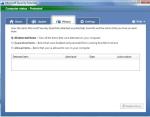
I’ve just got it installed and had it run it’s first scan and it’s looking good. It was a quick 5/6 click install process and it was scanning already-very impressive…here are some screenshots:
Something I’m quite surprised to see is that MSE contains Real Time Protection, helping protect users from zero-day attacks even without pre-defined virus signatures; for a free product-that’s pretty cool!
The Settings tab allows you to:
Set scan schedule
Change the default actions
Turn Real Time Protection on/off
Exclude files & locations
Exclude File Types
Exclude Processes
Choose to scan archive files
Choose to scan removable drives
Change Microsoft Spynet access
Spynet is something I hadn’t heard of before and it is Microsoft’s Online Community that collects, collates and processes information on malware and how it is affecting user’s machines. There are 2 levels of “membership” availalable, Basic & Advanced where advanced sends back more information such as file names and locations of affected software etc. It’s default setting is Basic…although it does say that “…personal information might unintentionally be sent to Microsoft” which, while I don’t really mind will probably upset some people 😉
I’ve only had it installed for about half an hour but so far, it seenms to be pretty comprehensive in what it covers as well as being clear and easy to use. The fact that it provides real time protection AND scans removable drives as well as the basic cover makes me consider if, honestly, there’s any need for home users to look elsewhere.
Microsoft’s Forefront Business security software shows they’ve got the skills in this area and a lot of other products (Norton, F-Secure etc) are notorious for slowing PC’s down until they’re nigh on unusable-so this seems like a great alternative. When it comes to Anti-Virus I’m a Kaspersky fan but MSE looks to be a worthy competitor…good work once again from Microsoft 🙂








 Cloudy with a chance of Licensing