Application Virtualization (App-V)


Microsoft App-V is what was formerly known as SoftGrid and it’s some pretty clever stuff 🙂

It’s main feature is to virtualize applications, this isolates them on the users workstation and reduces application conflicts-thus reducing end user downtime. However the apps can still fully interact with each other such as copy & paste etc so still giving the users the experience they’re used to.

The latest version is 4.5 and major highlights include:

  • HTTP streaming. Support for streaming virtual applications from an IIS server (v6 or v7) providing dramatic performance and scalability improvements for large App-V deployments.
  • Re-designed Sequencer. Simplifies the process and reduces the complexity of creating virtual application packages.
  • Dynamic Suite Composition (DSC) for MSI packages. Consolidate virtual environments, control virtual application interaction, enable faster, easier administration.
  • Seamless integration with System Center Configuration Manager 2007 R2. Allows customers to easily deploy virtual applications through the System Center Configuration Manager 2007 R2 infrastructure and scale their deployments.
  • Client cache improvements. The maximum size of the client cache has been increased to 1 TB.
  • Improved Manageability. Integration and support for VSS writer, Operations Manager management pack, ADM template.
  • Accessibility. The product is now Section 508 compliant, bringing App-V in line with Microsoft shipping requirements.
  • Most conversations I have with schools include App-V as they often have odd bits of software like “Science for GCSE 1997” and “Maths is brilliant V 2.3” that don’t play nice with each other-and App-V is a great way to solve that.

    See the Technet MDOP page here.

    Advantages of using App-V:

  • Streams applications on demand over the Internet or via the corporate network to desktops, terminal servers, and laptops.
  • Automates and simplifies the application management lifecycle by significantly reducing regression and application interoperability testing.
  • Accelerates Windows and application deployments by reducing the image footprint.
  • Reduces the end-user impacts associated with application upgrades, patching, and terminations. No reboots required, no waiting for applications to install, and no need to uninstall when retiring applications.
  • Enables controlled application use when users are completely disconnected.
  • Integrates with System Center Configuration Manager to enable physical and virtual deployments through the same people, process and technologies.
  • Licensing:

    It needs to be noted that there are 2 version of App-V available to buy.

    App-V as part of MDOP: For use in standard environments.

    App-V for Terminal Services: For use in Terminal Service environments only. App-V’s application virtualization allows any application to run alongside any other—even applications that normally conflict, multiple versions of the same application, and many applications that previously could not run under Terminal Services.

    Terminal Services

    When is Windows Svr 2008 R2 RTM out?


    With all the interest in Windows 7, Server 2008 R2 is getting as much love as it was perhaps expecting. However as many of the best features of Windows 7 rely on Svr R2-it’s a good idea to know when you can get your hands on it:

    ISV & IHV Partners: August 14th

    Microsoft Certified/Gold Certified Partners: August 19th

    Microsoft Action Pack Subscribers: August 23rd

    OEMs: July 29th

    Volume Licensing customer with Software Assurance: August 19th

    Volume Licensing customer without Software Assurance: September 1st

    TechNet/MSDN Subscribers: August 14th

    Retail Channel: September 14th

    According to Twitter-it could be August 19th for Technet/MSDN…

    One thing I do find funny is that Microsoft are still telling customers it’s release date is January…but if you really push them, they’ll go to November 🙂

    Technet blog is here.

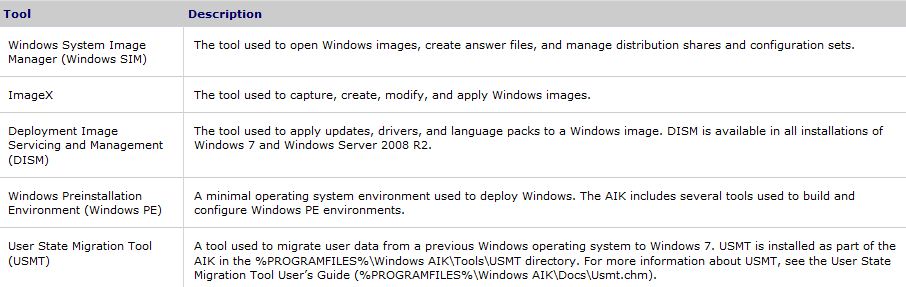
    Windows Automated Installation Kit (WAIK) for Windows 7


    I was out at a customer site today working on some Windows 7 deployment stuff and saw a great example of how Windows Automated Installation Kit (WAIK) can be used to make OS deployments a whole lot easier.

    WAIK

    You can download the WAIK here.

    *Update* The original link I posted has stopped working-I guess there is a new version of WAIK now the RTM is available. The new download link is here.

    I want to apologise to the people who’ve followed the original link and got a "Page cannot be found" error-sorry! It’s a shame MS couldn’t re-direct the link but hey ho 🙂

    As I get a chance to play around with it, I’ll post more but what I saw today was pretty amazing 🙂

    There is a great Technet article on using WAIK here. Although it is focussed on Vista it seems that everything will still apply-happy playing!

    Microsoft BPOS New Features – August 2009


    August sees yet more additions to the feature list of Microsoft Exchange Online-helping make it an even better choice for customers. This month sees:

    SMTP Relay: This allows SMTP enabled applications to send emails via Exchange Online. I’ve been asked about this a few times now so it’s good to be able to say “yes” 🙂

    Journaling: Exchange Online emails can now be journaled, both to Exchange Hosted Archiving and other 3rd party solutions*. Journaling can be turned on by contact Support and opening a service request.

    *It’s worth noting that MS do not support or certify any of the 3rd party offerings.

    The MS Online blog can be found here.

    Windows 7 Family Pack


    Windows 7 news keeps on coming and unfortunately, it isnt always good.

    First of all is more info on the “Family Pack“. It will cost $150 to upgrade 3 Pcs in the same house to Windows Home Premium which is great value but:

    • It still hasn’t been announced if it’s available in the UK
    • It is a “limited time only” offer so once the stock is gone-that’s it.

    I don’t understand why it’s not a proper, standard Windows 7 edition-it would surely increase the take up of WIndows 7 AND reduce the chance of people being tempted by pirated copies.

    The second piece of news was pricing for the Windows Anytime Upgrades (WAU). These are an easy way for users to move from one edition of Windows 7 to another such as Home Basic to Home Premium and, in most cases, it is quite cost effective too.

  • Windows 7 Starter to Windows 7 Home Premium: $79.99 · €74.99 · £69.99
  • Windows 7 Starter to Windows 7 Professional: $114.99 · €184.99 · £119.99
  • Windows 7 Starter to Windows 7 Ultimate: $164.99 · €204.99 · £139.99
  • Windows 7 Home Premium to Windows 7 Professional: $89.99 · €179.99 · £119.99
  • Windows 7 Home Premium to Windows 7 Ultimate: $139.99 · €189.99 · £124.99
  • Windows 7 Professional to Windows 7 Ultimate: $129.99 · €134.99 · £84.99
  • As you can see, the dollar vs GBP prices don’t compare particularly well-coming out at almost DOUBLE in some cases!

    As much as I am a fan of Microsoft and their products, it is often the pricing and promotions side of things that they fall down on. They’ve really seem to have stuck it to UK users with the WAU pricing; things are always cheaper in the States but this seems to be a little extreme.

    ZDNet’s Ed Bott has more info here and NeoWin’s article on the WAU is here.

    Windows 7 WILL have IE


    The EU fuelled saga of IE8 in Windows 7 has taken another turn now-it seems Windows 7 WILL included Internet Explorer here in Europe. Microsoft have instead agreed with the EU’s idea of having a “ballot screen” allowing users to choose and download other competing browsers such as Firefox or (the instigators of this whole thing) Opera…This is a bit of an about-turn as MS were dead set against this idea initially.

    The interesting thing is how this affects the availability of Windows 7 upgrades in Europe. The last minute creation of “Windows E” meant that an upgrade version wouldn’t be available in Europe so users would need to do a clean install-which wasn’t an ideal situation. However with this change, perhaps we will get the ability to upgrade after all?

    It seems that Microsoft will continue with Windows 7 “E” until the EU formally accepts the Ballot proposal. Hopefully that won’t take too long (in the work of international law) to go through and Europe will be able to get it’s upgrade on! The RC installation of Windows 7 doesn’t expire until March 2010 so if they can get it wrapped up before then-that should suit everybody…expect those who’ve pre-ordered!

    Thanks to Mary Jo for this and as she updates, I’ll update 🙂

    *Update* It seems that Windows 7 E may well still be the plan!

    *Update* There is now an official statement on the Microsoft PressPass site here. The most exciting bit is:

    “Under our new proposal, among other things, European consumers who buy a new Windows PC with Internet Explorer set as their default browser would be shown a ‘ballot screen’ from which they could, if they wished, easily install competing browsers from the Web. If this proposal is ultimately accepted, Microsoft will ship Windows in Europe with the full functionality available in the rest of the world.” (Bold mine).

    The EU should accept it as it was their/Opera’s idea in the first place so hopefully we’ll all be doing nice upgrade installs on our machines soon-whoo hoo!

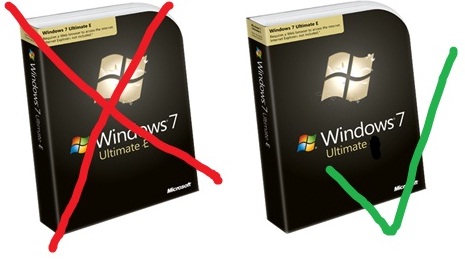
    Windows 7 e

    Check out my sweet photo editing skills 😉

    *Update* Opera now want the Ballot screen to be logo free (See techflash)! I’ve said it before that Opera are, and pardon my French, taking the piss…as formerly funny fellow Northerner Peter kay once said “Too far (Tony), too far”!

    Applocker & Windows 7


    What is Applocker?

    Applocker allows you to prevent programs from executing on desktop machines, through central administration. It is one of the many new features of Windows 7, although it is only included in the Enterprise version of the OS.

    It is similar to the “Software Restriction Policies” (SRP) from previous incarnations of Windows but much improvement with more power and greater flexibility.

    How does it work?

    There are 3 kinds of rules available with Applocker:

    Path Rules: Allows you to restrict program execution to certain directory paths, such as Program Files etc but is only effective if users are unable to install their own applications. Monitoring and tracking allowed folders can be time consuming and difficult.

    Hash Rules: Uses cryptographic hashes of executables to identify them. Very secure but can be time consuming as the hash must be updated after any updates to the program.

    Publisher Rules: Identify applications based on digital signatures issued by the publisher. While these are similar to “Certificate Rules” in SRP, they are more sophisticated. You can restrict execution to the:

    Publisher (I.e. Microsoft)

    Product name (such as Office 2007)

    File name (office2007.exe)

    File version (14.0.1.1 for example)

    All 3 rules can be applied to:

    Executables (.exe)

    Installer Files (.bat, .cmd etc)

    System Libraries (.dll etc)

    and all three rules allow the creation “exceptions” such as:

    “Allow Publisher “Microsoft” except file name mediaplayer.exe”

    In the Windows 7 deployment I’m working on, and I’m sure many, many more, AppLocker is if great interest to System Administrators. It’s ability to block programs will lead not only to increased security but could also be used for increased productivity-particularly in schools.

    You can see Microsoft’s Paul Cooke talking about AppLocker here.

    For a great look at the technical aspects of using and setting up Applocker-head over to 4Sysops here.

    When will I get Windows 7?


    It might seem that this question has already been answered with “October 22nd” but there are numerous different ways for people to access Microsoft software these days so here’s a complete list:

    OEM’s: 2 days after RTM (Release to Manufacture)

    Technet and MSDN Subscribers: August 6th in English and October 1st for other languages. *Update* The download will appear, as if by magic (!), at 6pm GMT tonight…so not long left!

    MS Partners via the Partner Network: August 16th in English and October 1st for other languages

    MS Action Pack Subscribers: August 23rd in English and October 1st for other languages

    Volume Licence customers with Software Assurance: August 7th in English and a couple of weeks later for other languages

    Volume Licence customers without Software Assurance: September 1st

    Home Pack Confirmed:

    Microsoft have confirmed (via the Windows Team Blog) that there will be a Windows Home Premium Family Pack, which can be installed on up to 3 machines! However-they have said it will be available in “selected markets” and no more…I’m waiting to hear back as to whether the UK has been selected 🙂 21-07-09 Microsoft have told me they’ll be releasing “more details on the family pack in the near future” so keep checking back for updates!

    Virtual Desktop Infrastructure (VDI)


    Virtual Desktop Infrastructure (VDI) is a subject that is becoming more and more popular but it can be quite a tricky concept to newcomers, my aim here is to give some clarification and information on the topic!

    What is VDI?

    VDI is the younger, not as cool cousin of server virtualization and the bigger, better brother of Terminal Services (TS) 🙂

    Rather than running the desktop instances on local machines, they are held on servers in the datacenter and each user accesses them centrally. However, unlike Terminal Services “each user gets access to their personal desktop from any authorized device, thereby improving desktop flexibility”.

    The VDI FAQ from Microsoft offers a good overview of VDI as a technology-download the PDF here.

    What’s the point?

    Storing desktop images on central servers can have many benefits:

    Management: VDI gives you true central management of users desktops and true control over what is/isn’t installed on them and, as I’m sure you know, that can be a real issue in corporates today! You can manage a single instance of the OS no matter how many people are using it-vastly reducing management time & costs.

    OS deployment: VDI can make the provisioning of new desktops much quicker than usual and can also enable organizations to test/adopt new Operating Systems in a much easier fashion. One big scenario where I see this being particularly useful:

         Testing multiple Operating Systems: Say you have a number of users that are testing various different desktop OS’s such as XP, Red Hat Linux and Windows 7. Currently you would need to either:

    • provide the users with multiple machines, all separately configured and offering their own security concerns.

    or

    • have users multi-booting their machines-again presenting it’s own set of problems around hardware with people needing more RAM etc

    Alternatively you could have one image of each OS in the Datacenter and users can access them as needed-with much less hassle 🙂

    You can also keep a “library” of images for different situations that can be deployed at the drop of a hat!

    Security: Again, the central management aspect comes in to play allowing you to block external devices and prevent copying of data from the image to a local device-a great way of preventing data leakage.

    Downsides:

    Despite all the benefits above there are, as with everything, downsides and negatives too.

    • VDI really isn’t suitable for media intensive tasks
    • Doesn’t suit mobile working as it requires a constant connection to the corporate network.
    • Negative feedback from users

    The last point is perhaps the most important for companies to consider-all the streamlined management processes and more flexible admin environments don’t really count for anything if the workforce is unhappy. Certainly I would hate to work in a VDI infrastructure (or Terminal Service/Citrix) as I install and use a LOT of applications that wouldn’t be part of a corporate standard such as Office 2010, CCleaner,TweetDeck, numerous Outlook addins, Groove, OneNote (and I don’t know how many more!); also I often run things that require admin rights on the  machine. In a VDI environment I would have to go through the hassle of getting these added to an image which would be just for me-so I might as well have a standard desktop. The alternative is that I couldn’t use the applications which would reduce my produtivity as well as my happiness as a worker-2 things that a company definitely doesnn’t want to be happening 🙂

    What VDI can do to some users!
    What VDI can do to some users!

    An actual comment from a user over at Tech Republic:

    “the fact that I can take my work anywhere doesn’t matter to me if I can’t install what I need when I need it”

    How is it licensed?

    Microsoft’s VDI licensing structure is comprised of 2 parts:

    • Vista/Virtual Enterprise Centralised Desktop (VECD)
    • Microsoft VDI Suite Standard/Premium

    VECD allows you to licence virtual copies of Microsoft’s desktop OS’s in a VDI environment and offers the following:

  • Ability to run a copy of Windows in a datacenter
  • Rights to move virtual machines between servers for increased reliability
  • Unlimited backup of virtual machines
  • Ability to access up to 4 running VM instances per device.
  • Rights to access corporate desktops from home for a user that has already been licensed at work
  • Availability of volume licensing keys, such as KMS (Key Management Service) / MAK (Multiple Activation Keys)
  • How is VECD licensed?

    VECD is a monthly subscription per device licence which comes in 2 flavours:

    • VECD (for users without SA)
    • VECD for SA (for users with SA)

    They offer the same functionality, it’s just the VECD for SA is available at a reduced cost as a thank you to current SA customers 🙂 I’ve not got UK pricing to hand but the pricing on the MS website is:

  • VECD (for users without SA) = $110 per device per year
  • VECD for SA (for users with SA) = $23 per device per year
  • VECD is required for any VDI solution that will be running Windows Operating Systems, regardless of the the BDI technology provider (VMWare, Citrix etc).

    Microsoft VDI Suite:

    This is a new addition to the world of licensing, having been announced at the WorldWide Partner Conference (WPC) last week. While MS have had the technologies to provide a cohesive, efficient and secure VDI environmentfor quite some time now, it has been hard for customers to know what products they need and which things fit together. The VDI Suites are simply a collection of technologies at a reduced price, and they are:

  • Hyper-V Server
  • System Center Virtual Machine Manager (VMM)
  • System Center Configuration  Manager (SCCM)
  • System Center Operations Manager (SCOM)
  • Remote Desktop Services (RDS) CAL (formerly Terminal Service CAL)
  • Microsoft Desktop Optimization Pack (MDOP)
  • For a fuller more in depth look at the VDI Suites, including expected pricing, please see my other blog post here.

    A 100 device company looking to implement VDI would need the following:

    100 x VECD @ $110/£67 per device per year = £6700

    100 x VDI Suite @ $21/£13 per device per year = £1300

    So £8000* per year to run a Microsoft VDI infrastructure with what is fast becoming a truly top-notch hypervisor as well as leading class management software-sounds pretty good to me 🙂

    *The £ prices above were attained by putting the $ prices through www.xe.com , but the final pricing may well be different!

    I hope that has gone some way to informing newcomers as to what VDI is as a concept and also helping people who know the technology make sense of the licensing. As always, I’m happy for feedback & comments 🙂

    Fixing a Corrupt Office installation


    I got my invitation to the Office 201 Technical Preview the other day and, quite excitedly, started to install it on my laptop but after about 10 minutes it failed and stated that the previous version of Office (2007) couldn’t be upgraded. I had a look on Twitter and couldn’t see anyone else with the issue so I figured it was specific to my machine, and I was right! My next move was to uninstall the existing Office 2007 and go for a clean install but oh no, “the uninstall has failed”…”WHAT?!”…I was now in the unenviable position of being unable to remove or upgrade Office 2007.

    I got Office 2010 installed alongside 2007 but it wasn’t ideal as I could only have 1 copy of Outlook (2007) and having 2 versions of Office takes up a fair amount of room etc so I wasn’t massively happy about it. I did a quick Bing (yes-I Bing everything now!) and found the following Knowledge Base article:

    How to manually uninstall the 2007 Office system if you cannot uninstall it by using the “Add or Remove Programs” feature

    This covered the very topic I was having (which proved it wasn’t just me!) and gave step by step instructions on how to get Office 2007 removed from my machine. If you’re having the same issue I won’t bother repeating the steps here but I do have a couple of points to add:

    1) This isn’t a quick process-it took about 2 hours of manually deleting files and registry entries.

    2) Point 2 of Step 5 (the Uninstall Registry key) didn’t exist on my machine but that didn’t cause any problems.

    3) Some of the steps involve deleting folders from your hard drive and while most of these were fine, at least one refused to go down without a fight! I got the somewhat common problem of being told I “don’t have permission to delete the folder”, even though I was the admin on my machine. This threw a spanner in the works so back to Bing it was…and it came up trumps again 🙂

    Over on petri.co.il there is a post on how to add a “Take Ownership” option to the right click menu in Vista, through creating a quick registry file. The details are there to be pasted into the file, it’s easy to do and it definitely works, the post is here:

    http://www.petri.co.il/add-take-ownership-context-menu-vista.htm

    With the KB article and the above addin-you should have all you need to sort out your Office installation and be in a position to re-install a properly working edition…I hope this helps and good luck 🙂