Microsoft BPOS & Messagelabs


Can Exchange Online co-exist with Messagelabs or other 3rd party scanning tools?

That is the question I have been investigating for the past week or so…and I have an answer…sort of…nearly.

First things first, yes I know Exchange Online includes ForeFront Online Protection for Exchange (FOPE) and I also know that it is a very good product.

However there are a number of situations where customers would like a2nd option too. This could be because they’re mid way through a contract, because they’d like a “safety net” or indeed because they just don’t like Forefront.

I first looked into it last year and got a definite “Yes it can be done”; I used that as the basis for a customer conversation around 3rd party support. The customer then spoke with BPOS support around how to implement it…and they advised that it couldn’t be done! This was something of an issue and set me off on a quest to get a concrete answer, one way or the other.

I posted a question up on the Technet Exchange Online Forum but didn’t get a response so after much confusion internally at Microsoft, conversations with business groups and technical support teams, the final answer was:

“It isn’t supported but it should work”

So this wasn’t as good as my original “yes” but a vast improvement over “No”, which is something.

This is yet another issue that will be resolved with the arrival of Wave 14:

An update to FOPE, scheduled for release at the same time as BPOS wave 14, will include new connector functionality that will enable this scenario.

So within the next 6 months we’ll have full support for 3rd party mail scanning tools, which will be one less thing to worry about 🙂

BPOS 2010 aka Wave 14


BPOS (Business Productivity Online Suite), Microsoft’s Online Services offering has been somewhat successful over the last year or so, but it is about to become a much more robust platform. Over the next few months the “Wave 14” rollout will begin, with an aim to being completed by the end of 2010.

The biggest update is that the products will match the versions that are available to purchase “on-site”. That is, BPOS will offer Exchange 2010 and Sharepoint 2010 with near feature parity; removing one of the biggest hurdles to BPOS adoption…at least in my experience.

However, there are a number of other additions and improvements coming…

Identity and authentication has been an issue for many people, as this whole area is quite clunky & “un-modern”. As Program Manager Dan Kershaw says:

“the password policy isn’t configurable, you can’t use the same credentials used inside the company for single sign-on with BPOS so admins have to maintain separate credentials, there’s no two-factor authentication and no role-based administration”.

The fact that Microsoft recognise these limitations is great as that means they’re also working on fixes. The update will bring:

  • Password Policy controls
  • Five admin roles
  • Federated ID’s w/ 2 factor authentication for single sign-on
  • New Admin Console
  • Service connector for managing Pcs & apps.


Powershell is definitely the way forward for 21st century system admins and, while it can be used for certain things with the current iteration of BPOS, more is coming soon.

I covered off some of the new features of Sharepoint Online 2010 in this post but now there is more information on what’s coming for Office Communications Online (OCO) over the next year.

Currently OCO gives IM and presence, along with peer to peer video, only within the customer’s domain. One of it’s biggest limitations is the inability to “federate” with on-premise OCS servers…this slightly puzzling block will be removed with Wave 14.

It’s said there will be “full integration” with Exchange & Sharepoint, both on-site and online.

This will lead to:

  • using the calendars on Exchange/Sharepoint to determine someone’s IM availability
  • voicemail in Exchange Online
  • IM functionality in OWA 2010.

One of the biggest questions people have is whether Office Comms Online will have VOIP/Voice capabilities.

"it might be more than a year later," says Ziv Fass, Senior Product Manager in the OCS team "but it won’t be years".

From a reseller AND a customer point of view, the updated versions of Microsoft’s Online Services will be a real benefit to us all.

Microsoft Licensing: Do I need a Volume Licence Key (VLK)?


Microsoft Volume Licence Keys (VLK) are needed to install any Microsoft product.

If you buy box copies (FPP) or OEM, you’ll get the licence key on the machine/disc.

If you purchase through Volume Licensing (Open, Open Value, Select, Schools etc) you go to the VLSC website, go to the product keys section and away you go. While this is true for the vast majority of products, there are a few exceptions to this rule. These products won’t have a VLK listed in the VLSC site. One that usually surprises people is SQL…this doesn’t have a licence key available online.

Rather than trying to list any & all products that this applies to, I’m going to give you the link to the:

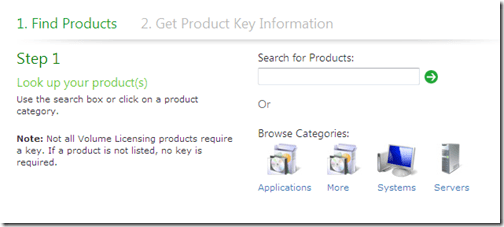
Product Activation & Key Information

page on the Microsoft site.

Here you can search for the product in question and if it doesn’t return a result, it doesn’t need a licence key.

image

Hope this helps 🙂

OneNote 2010: RTM Upgrade


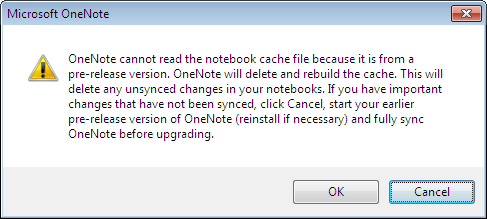
I upgraded to the final release version of Office 2010 yesterday and opened up my newly installed RTM version of OneNote this morning, to be greeted by this message:

image

This didn’t cause me any issues as I haven’t been syncing OneNote and I imagine that people who do would usually sync everything each day so this wouldn’t really come up.

However I can also imagine that this would be really annoying if it DID affect you as you’d need to:

  1. Uninstall Office 2010 RTM
  2. Re-Install Office 2010 Beta
  3. Sync One Note
  4. Uninstall Office 2010 Beta
  5. Re-Install Office 2010 RTM


which is quite a long winded process!

So, moral of the story is:

If you’re going to move up to the Office 2010 RTM, SYNC ONENOTE FIRST! 🙂

I hope that helps someone…

Office 2010: Installing the RTM


The Office 2010 Beta was downloaded and used by millions of people the world over and I imagine that most of them, like me, used it in a live environment; at home and/or at work. (I’ve never met anyone with a dedicated beta machine!)

Well the RTM (Release to Manufacture) version is available now to those of us with Software Assurance, TechNet or MSDN and from June 15th for FPP (Fully Packaged Product) boxed copies. This is great news as there are a few new additions and tweaks, plus you don’t have to worry about it expiring halfway through an important presentation in the future 🙂 There is however a downside to this:

There is no upgrade path from Office 2010 Beta to Office 2010 RTM

What do I do?

You need to completely uninstall the Office 2010 beta from your machine, but in itself, this often isn’t enough. You must also uninstall a number of other products, otherwise you’ll have problems! The total products you must remove are:

  1. Office 2010 Pro Plus Beta
  2. Sharepoint Designer 2010
  3. Project 2010
  4. Visio 2010
  5. Hotmail Connector for Office 2010
  6. SQL PowerPivot


I don’t think it would ever have occurred to me that PowerPivot was going to cause me issues, but it did! Luckily I got this list from a friendly neighbourhood Microsoftie before I lost my entire afternoon 🙂

Also, on my home machine I’m pretty sure the Hotmail Connector would have caught me out…but not now, oh no!

Hopefully you’ll see this before you start your RTM install process and potentially lose your afternoon/day/hair/mind 😉

Office 2010 Components


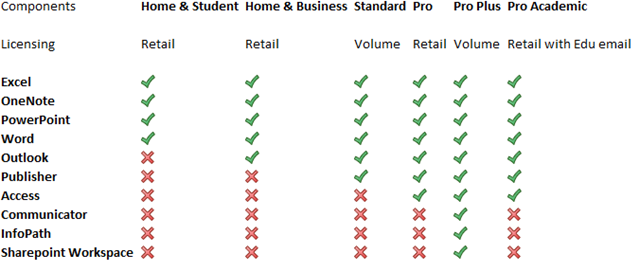
Office 2010 has hit RTM (Release To Manufacturing) and is just about to start making itself available to users in it’s final version. Most people are aware that there have been some changes with what is included in which Office editions but I don’t think I’ve seen a full breakdown yet, so here you are 🙂

image

A couple of major changes are:

No more Office Enterprise

New Pro Academic Option

and one that is quite big but isn’t really getting mentioned:

OneNote is now in ALL versions of Microsoft Office 2010 (except Starter); previously it appeared in just the Enterprise SKU. OneNote is a great application (What is OneNote?) and this will help increase it’s adoption among home users and also within Corporate Environments.

You can see more on Technet here.

Windows Azure: Free Developers Course


Windows Azure is a key part of Microsoft’s “Cloud” strategy moving into the future but of course, it needs people to use it and develop for it for it to be truly successful. They are piloting a new way of training developers & architects Azure, via self paced, web based training…best of all it’s FREE!

The method is one that I’m quite familiar with which aims to offer the best features of classroom training without the hassles and expense of travel, hotels, being out of the office for days etc. It utilises:

  • Interactive Live Meeting sessions with a tutor
  • On-line videos
  • Hands on Labs
  • E-Learning
  • Weekly Assessments

to cover off the topics, and you don’t need to go anywhere! The course lasts for 6 weeks from:

May 10th – June 18th

and covers:

Week 1 – Windows Azure Platform
Week 2 – Windows Azure Storage
Week 3 – Windows Azure Deep Dive and Codename "Dallas"
Week 4 – SQL Azure
Week 5 – Windows Azure Platform AppFabric Access Control
Week 6 – Windows Azure Platform AppFabric Service Bus

and did I mention it’s FREE?!

This is aimed at developers, architects, programmers and system designers and recommends at least 6 months experience programming in .NET and Visual Studio.

It will take around 4 to 5 hours a week to research and complete the tasks and there are timelines etc for submitting the work. However, successful completion gets you a “Microsoft Certificate of Completion” 🙂

This is a new approach from Microsoft and one that I hope will be expanded out to other product areas.

Register:

You can find more information and sign up here:

https://msevents.microsoft.com/CUI/EventDetail.aspx?EventID=1032449971&Culture=en-GB

If you’re technically minded and interested in Azure, sign up…and get any colleagues/friends that would be interested to sign up too!

I’ve registered and am looking forward to it so hopefully I’ll see you there 🙂

Windows Intune


Windows Intune is the newest addition to the Microsoft Online Services stable…and it’s a biggie! Do you remember System Center Online Desktop Manager (SCODM)? Did you notice that it all went quiet on that front? Well here it is with a new name…

What is it?

Windows Intune is a cloud based, central management system aimed at SMB’s of up to 250 machines (or so).

“Windows Intune simplifies how businesses manage and secure PCs using Windows cloud services and Windows 7—so your computers and users can operate at peak performance, from virtually anywhere.”

Intune covers many of the areas that IT Managers find difficult and time consuming such as:

  • Managing Updates
  • Pro-active monitoring
  • Malware Protection
  • Asset Tracking (Hardware & Software)
  • Remote Assistance
  • Setting Security Policies

Windows Intune screenshot

Extra Features:

It’s not just great central systems management that Intune gives you also get:

Software Assurance: Subscribing to InTune allows you to upgrade all your machines to Windows 7 Enterprise and take advantage of features including:

    • Bit Locker to Go
    • Federated Search
    • Direct Access
    • and more

You also receive

“new features or updates to Windows Intune or the Windows operating system automatically as long as your subscription is active”

so say “Hello” to Windows 8 further down the line 🙂

Despite this, you can run Vista, or even XP, as your corporate desktop OS.

MDOP: The Microsoft Desktop Optimization Pack is a great set of tools including MED-V & App-V that make managing your environment easier and more cost effective. See more info here. The Asset Inventory Service (AIS) component of MDOP is already included as part of InTune.

How can I get it?

It’s currently in beta, limited to 1000 customers in US, Canada, Mexico & Puerto Rico. If one of those is you locale, go sign up here:

http://www.microsoft.com/online/windows-intune.mspx


Relation to existing Products.

Microsoft have had on-site management products for years. First SMS & MOM and now the System Center family such as:

  • SCCM (System Center Configuration Manager)
  • SCOM (System Center Operations Manager)
  • SCE (System Center Essentials)

These products are becoming more and more popular among both corporate customers and the education sector, and have been marked by Steve Ballmer as an area of big focus for the coming years. Microsoft have also put a lot of effort into their Online Services but could still do with a real killer product to help those small to medium businesses (SMB’s) fully embrace “The Cloud”. Thus it make sense that they’ve combined the 2 and created InTune.

My thoughts are all around how InTune will sit alongside products and offering that already exist. It is very much an online version of System Center Essentials, although InTune can’t do Application Deployment and SCE doesn’t include any ForeFront Protection. A breakdown is below:

image

However I do think that it could cause a lot of confusion when it comes to Software Assurance. As a Channel Licensing Specialist I, and my company, have done a lot of work around Software Assurance – especially as it relates to Windows 7. It seems to me that InTune may well undermine a lot of the work we (and other partners) have done in this area to show the whole range of benefits that SA offers…many of which aren’t included with the new offering.

It will also muddy the waters when it comes to purchasing Windows 7 & SA now. InTune is slated to be available in many more countries with 12 months of the beta; so companies considering Software Assurance within the next 6-12 months (say) may now push the projects back in order to evaluate InTune. Not great for partners or the channel.

Conclusion

As a product, I think InTune is great. I’m a big of BPOS (as a concept, although it hasn’t reached its potential yet) and adding management tools to the Suite is really good way of both bolstering the Online offering and helping more people reap the benefits of Microsoft’s management expertise.

I am however, more cautious about it’s effect on the perception of SA and project timelines over the coming 12 to 18 months.

To find out more about Windows InTune, go here:

http://www.microsoft.com/windows/windowsintune/default.aspx

Windows 7 Deployment Learning Portal


Windows 7 deployment is definitely a hot topic. The larger/more technically minded end end users are looking to get their IT teams skilled up and more Microsoft partners than ever before are looking to acquire these skills, and offer the services. Add into this the number of consultants and techie home users and there’s a real appetite for information across the board.

Microsoft have already made a lot of great information available via Technet as well as the MS Press books etc. For me, although Technet is great, I do sometimes struggle to find what I need for a certain situation/question and end up none the wiser. I also like online exams as a way of testing/tracking my level of knowledge, and also my (hopeful) improvements. Thus, I got pretty excited (more excited than a Rydberg atom in fact :-)) when I discovered the

Windows 7 Deployment Learning Portal

It’s aim is

“to help you identify the strengths and gaps in your knowledge around Windows 7 deployment and provide some targeted learning to help you reach the top of your game”

and, in my opinion, it does just that…and very well too. Going through the 11 modules showed me there were a few areas that I was already quite strong in as well as a number of modules I needed to work on. <—This is where the targeted Technet materials came in very handy. Rather than leaving me to my own devices, after each question I answered incorrectly there were a few links to specific Technet pages relating to the topic in hand; I was able to quickly read up on the subject, identify my mistakes, find the right answer and then re-take the module.

image

image

Learning Style

I really like the way that Microsoft Technet have approached this site. It’s much more about identifying, and then filling, any knowledge gaps you may have rather than simply passing/failing an assessment; this is a much better approach for all involved.

I failed a few of the modules and hugely benefitted from being able to read through the Technet articles straight away, and then re-take the modules. Once I’d read through the various suggested articles including how to guides/step by step procedures etc, I passed each module but, more importantly, retained the knowledge. If it had simply said “You’ve failed”, I wouldn’t have improved my skill levels anywhere near as much.

For anyone looking to become more au fait with Windows  deployment methods, be it for personal interest or work necessity, this site is a great place to start. Equally, if you’re looking (as I am) to complete the Windows 7 70-680 exam, there is a wealth of information available through this site and I would definitely recommend it! On the subject of the 70-690 exam, Microsoft are running an:

Early Bird Promotion

“The first 150 individuals to pass all modules will receive a free Microsoft Press Microsoft Certified IT Professional (MCITP) self-study guide. The first 500 individuals to pass all modules will receive a free certification exam voucher.”

I have no idea if it’s still within the 150 pass limit (or the 500 for that matter) but if I was you, I’d head over to:

http://technet.microsoft.com/en-gb/windows/ff470986.aspx

get registered and get taking those modules. Worst case you get a great, solid grounding in Windows 7 Deployment tactics and best case you’ll get some great free gifts 🙂 Friendly word of advice, make sure you select the “I want to be included” tick otherwise you won’t be eligible for the free book or voucher 😉

I hope you have fun over there and I just want to say, Thank You Microsoft Technet, for a great resource 🙂

Microsoft Volume Licensing Service Center (VLSC) 3.5


The change to VLSC (from eOpen & MVLS) in December 2009 didn’t go as smoothly as anyone hoped, with a couple of weeks of downtime, various issues and ongoing user confusion over the last 4 months. You can see the full run down of issues, as well as partner and customer comments here:

Read Microsoft Volume Licensing Service Centre (VLSC)

but this post is to cover the changes that are coming in April 2010 with VLSC 3.5.

Current VLSC

I’ve used the VLSC a number of times from the viewpoint of both a partner, and a customer and one of the biggest problems is the new layout. The location of menu options isn’t always particularly intuitive, leading to a lot of “random clicking” and menu surfing; clearly not what anyone wants. This has led to a lot of frustrated customers, angry that things are more difficult than they used to be, especially as most customers don’t enjoy licence management anyway!

Feedback

Microsoft ran a series of feedback sessions with customers and partners via Live Meeting, Phone interviews etc to see what problems people were experiencing and how they would change it.

I took part in one of the usability scenario Live Meetings, which involved me performing various tasks in VLSC while the Softies observed (Live Meeting Share Desktop feature FTW!). There were a few instances where, even though I’d done it before, I couldn’t remember where certain functions were and resorted to clicking through all the menus! I felt that the people in the meeting really were listening to what I said and that they really valued my feedback…the fact that a couple of the changes I suggested have now been implemented show this to be true 🙂

VLSC 3.5

VLSC 3.5 is being rolled out this month (April 2010) with a number of changes, facelifts and new features including:

Improved Navigation Bar:

The 2 main things customers need/want to do in VLSC are:

Download product media

Access licence keys

Under the old menu, it isn’t 100% clear where these are located but the new VLSC gives 2 new menu choices, just for these actions.

Improved Key Management:

There are a number of changes and improvements being made here with 2 of the biggest being:

Enabling customers to download all their VLK’s (Volume Licence Keys) to a local file, giving them easy offline access to all their keys. This will be a huge benefit to just about everyone 🙂

Providing the ability to see VLK’s relating to a specific licence ID. When companies have dozens of agreements, it can often be useful to see which keys relate specifically to which ID’s…and thus perhaps to which orders.

Manage on Behalf of:

This is a great change for Partners. Often we’ll get customers who don’t want to be involved with the day to day management of VLSC and so they ask us to “look after it” for them.

The new “Add Open Licence” feature gives non-administrative rights to the agreement, enabling partners to:

  • Download media
  • View VLK’s
  • Manage SA benefits

and more.

You can see the whole range of changes and more information over on Eric Ligman’s blog here:

http://blogs.msdn.com/mssmallbiz/archive/2010/03/29/announcing-microsoft-vlsc-3-5-with-add-open-license-coming-in-april.aspx

Although the initial launch of VLSC was something of an issue, Microsoft have done a great job of asking the right questions of the right people, listening to their feedback and implementing it in a timely manner. It’s great to seem them listening to customers and partners and taking action on what we say… 🙂

If you’ve had issues with the VLSC I’d love to hear what you think of these new changes…especially if you commented on my original VLSC post in December.

Will they make your life easier, are there any changes you’d still like to see?