Microsoft Kinect & Sky Player


Microsoft Kinect is coming, and it’s going to be awesome.

Sky Player on Xbox 360 is already available and can be pretty awesome.

Microsoft’s Channel 9 have revealed that you’ll be able to combine the two. Yes that’s right, in a little under 6 weeks, you’ll be controlling Sky with Kinect…nice Smile

“Kinect for Sky Player on Xbox 360 will also let viewers control TV with their voice to pause, fast forward, rewind and play content.”

Microsoft Enrolment for Education Solutions (EES)


Microsoft licensing has a new family member, Enrolment for Education Solutions AKA EES.

Currently, there are 2 education specific licensing programs, Schools Agreements & Campus Agreements (I’m not including Open Academic & Select Academic as specific). These offer huge savings over standard licence costs but there are certain requirements that don’t always please people, mainly the requirements to cover ALL eligible desktops, even if they’re already licenced or not to be used for that purpose.

Last year, Microsoft introduced a pilot licensing scheme for education called SESP, which I covered here:

Read Microsoft Licensing- Subscription Enrollment for Schools

Not much has been heard about SESP since then, but it’s influence can definitely been seen in EES.

It’s interesting to note that Live@EDU, the free email+ service for Further/Higher Education establishments will be fully integrated into EES.

What’s different?

The big change is that EES is based on an FTE (Full Time Employee) count, rather than the number of desktops. This will, for almost all schools and colleges, dramatically reduce the number of licences needed.

Another change is the ability to add “non-platform” products in any quantity at any stage of the contract. This will reduce costs as well as help reduce complexity and perceived “pointlessness” of licensing. A good example of this is one we had with a customer a year or 2 ago, where they wanted 70 something Terminal Service CALs but they were required to purchase 700+ as that was their desktop count! Many grumbles were made about that as 600+ of them were never used and seen as a complete waste of money.

Something else that will help organizations further reduce costs is the ability to pro-rate the pricing of additional products, with a minimum charge of 6 months. For example:

Product added in month 3 = full price x 0.75

Product added in month 9 = full price x 0.5

You can also define an organization in a much more granular fashion so it could be:

  • Entire school district
  • Entire school
  • Just Year 11
  • Just the science departments

or more…much more flexible Smile

However you define the organization, the minimum entry point is still 300 units.

What exactly is FTE?

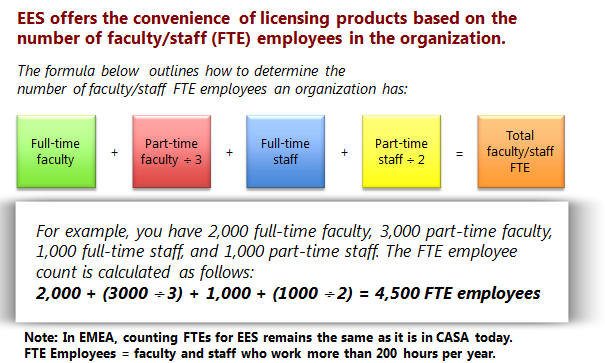
Perhaps not surprisingly, FTE isn’t quite as straight forward as just “Full Time Employees”! The actual calculation is:

image

“Non desktop PC Users” such as maintenance or food service staff can be excluded from the count. MS point out that you must include “student employees”, although I’m not sure what they are?!

Launch

EES is being made available at different time in different regions, and also through different channels. December 2010 will see the limited launch of EES.

In the US & Canada = December launch of EES under Campus Agreement via Distribution & Value Add Resellers (VARs).

In EMEA = December launch of EES to Campus Customer only via Large Account Resellers (LARs) only.

In APAC = December launch of EES under Campus Agreement via LAR only.

It won’t be available to primary & secondary schools in EMEA until March 1st 2011.

Microsoft XP OEM Downgrade discontinued


Microsoft Windows XP is still used by the majority of business around the world and it’s proving hard to get some people away from it. Well, Microsoft and it’s hardware partners are moving to make it more difficult to stick on XP and this is, in my opinion, a good thing.

What’s Happening?

From October 22nd 2010, downgrade restore media will not ship in PCs or Notebooks from HP.

If customers still require XP downgrade media, they will need to speak to HP support. A key bit of information is that this service will

“be available through HP Support until the end of July 2011”

which suggests in 10 months time, this service will be discontinued completely.

This isn’t specific to HP and is in fact a Microsoft directive that applies to all hardware OEM partners, although I believe the cut off dates may vary slightly.

Microsoft Windows Phone 7: RTM


Microsoft’s new Mobile Operating System – Windows Phone 7 – has been “Released to Manufacturing”. That means it’s done and the work of the “internal engineering team is largely complete” according to Terry Myerson, Corporate Vice President of Windows Phone Engineering.

Terry’s blog post on the Windows Team Blog gives some fascinating examples of how Microsoft have been testing this new release:

“We had nearly ten thousand devices running automated tests daily, over a half million hours of active self-hosting use, over three and a half million hours of stress test passes, and eight and a half million hours of fully automated test passes”

That is a LOT of testing hours!

The full blog post can be read over at:

http://windowsteamblog.com/windows_phone/b/windowsphone/archive/2010/09/01/windows-phone-7-released-to-manufacturing.aspx

Microsoft Zune Pass available internationally


Microsoft are making the Zune Pass available in countries other than the US. That gets a big:

from me and I’m sure, 1000’s of others across the world too!

The imminent arrival of Windows Phone 7, which has the Zune player built in, means making this available worldwide is high on the list of things Microsoft need to do Smile

The Zune Pass is something I’ve been looking at for a long time as it represents great value for money. In the UK, it will be £8.99 a month which will give you full access to stream the huge library of music available in the Zune Marketplace. That in itself wouldn’t be enough to sway me as I have enough music already (!) but here’s the kicker:

Each month, you can permanently download and keep 10 tracks.

Which works out as 89.9p per track. So the streaming AND the keeping – that’s a winner right there!

Also, it will probably mean I will use Spotify very infrequently…

Microsoft Windows Phone 7 Funeral Parade


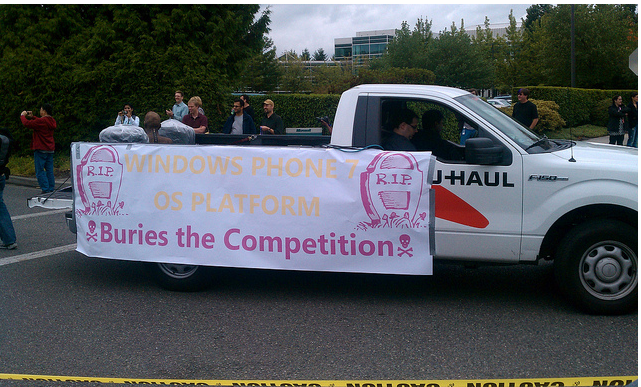
Microsoft have announced that Windows Phone 7 has been RTM’d (Released to Manufacturing) and to mark the occasion they held a great parade through their Redmond campus.

There were jugglers, unicyclists, fancy dressers and a funeral parade for Microsoft’s competitors such as the iPhone! Flickr member, and I assume MS employee, “Trioculus” has a great set of pictures on his Flickr account:

imageimageimageimage

Lots of fun with a great turn out of people but the funeral parade has received quite a few negative comments on Twitter from people such as EdBott & MaryJoFoley. I can see both side of the argument to be honest…yes it’s just a bit of fun and done very much tongue in cheek but perhaps it wasn’t the most appropriate thing for Microsoft to do. People are quick to criticise Microsoft for almost anything so this just seems like they’re asking for it! Also, Apple and their other competitors will use this as “proof” that Microsoft are focused simply on beating them, are scared of them etc. That said, let’s have a look at some pictures Smile

imageimage

Head over to http://www.flickr.com/photos/trioculus/ to see more pics of the event,

Your thoughts on this – fun or foul ?!

Microsoft Vine beta to end


Microsoft Vine, their online service aimed at helping people stay in contact during times of emergency, is coming to an end on October 11th 2011.

I signed up to the beta when it was announced and had a cursory look around…and then never logged in again. I suspect this is what the majority of people did and that will be a big factor in it being shut down.

I think the problem comes in that it isn’t really needed on a day-to-day basis; people have Twitter/Facebook etc to stay in contact and then, in times of emergency, logging into Microsoft Vine is almost certainly the last thing anyone will think of. No –one is quite sure what it does, it isn’t ubiquitous at all (in the way Twitter is) and so never gets used.

The full email sent out is:

Thank you for your valuable collaboration and participation in the Microsoft Vine beta program over the past year.
Releasing products and services in beta form gives us a way to learn and adapt our technologies in a real world environment, to gather valuable feedback from our customers and partners and ensure that new models are sustainable. And more specifically, the Microsoft Vine invitation-only beta program was designed to garner participation and subsequent feedback from consumers, communities and governments about the challenges they face today and explore how technology can improve and enhance communications.
Despite positive feedback from customers like you over the course of Vine’s private beta, Microsoft has made the decision to discontinue Microsoft Vine effective October 11, 2010. After this date, you will no longer be able to access Microsoft Vine. We suggest that you record any contact information currently stored in Vine, prior to October 11th.
The decision to discontinue future development of Microsoft Vine was not easily made. Multiple options were thoroughly explored and evaluated with rigor and in the end it was determined that Microsoft Vine is not sustainable as a standalone offering.
Thank you again for your valuable feedback on this product. The key learnings acquired over the past year from the Vine beta will be used to inform and strengthen future product concepts and offerings.  If you have any questions or concerns, please email vinemail@microsoft.com.

“determined that Microsoft Vine is not sustainable as a standalone offering”

This could well mean that parts of this experiment will be integrated into future offerings…perhaps Office Talk (should that ever come about)…maybe even Outlook and Sharepoint?

If you used Vine – let us know!

Microsoft Sharepoint 2010 and VMWare Error


I installed Sharepoint 2010 on a Virtual Server last week, set up some new site collections and then when I came to use it, got a very strange error:

”The trial period for Sharepoint Foundation has expired”

Strange because this wasn’t a trial and because it wasn’t Sharepoint Foundation…it was full server 2010!

I did a little searching round the web and saw something on the Microsoft forum that suggested it might be related to Windows Web Server. I checked and yes, our System Admin had built the VM with Windows Web Server…but than itself was weird…why did he do that?

I went downstairs and asked him…he didn’t make a web server, it was Windows Server Std 2008 R2 but by the time it got to me, it had magically morphed into a Web server…WTF?

The media being used was from MSDN and contained Std, Ent & Web in one image and you choose which one you want during the installation. The Sys Admin built a Svr Std machine, converted it to a VMWare template, deployed it again and gave it to me…and there was the problem. We tried again and this time, COPIED it to a template (rather than converting) and hey presto, it all worked perfectly. The VM was a Svr Std box and, after re-installing it, Sharepoint 2010 was up & running straight away Smile

I don’t know if this is a known problem and perhaps it seems really obvious to some, but it had me stumped for a while so I thought I’d share it on here…just in case.

Microsoft Windows InTune: Computers Overview


image

This is the second screen in the Windows InTune Console:

Computers

On the left you can see a list of all the computer groups that I’ve created. These machines are on 3 different networks but they all appear in this one central view, which makes administration very easy!

Selecting a group on the left takes you into a new view where you can see much more granular detail on the machines. At the minute, I’ve only got one machine in each group but you get the idea Smile

image

The “View Properties” button takes you deeper into that machine, with more sections available to view:

image

The first few tabs are all quite self explanatory…but the final two are very interesting.

Hardware

This gives an amazingly detailed list of the hardware in and related to the machine. For my laptop, this information includes:

  • Model
  • Serial Number
  • BIOS Name & Version
  • CPU Name/Type/Speed
  • Number of disks
  • Disk model
  • Disk Size
  • Number of partitions
  • Network adapter
  • IP Address
  • MAC Address
  • Monitor Resolution
  • Printers (including Soft printers like OneNote)

and more. It’s similar to the free ware program CPU-Z (which you may be familiar with) in that it gets really deep into you machine to give you all the information you could possibly need!

Software

This gives a list of all software installed on the machine…in this case:

image

It then gives you an idea of the category such as Browser, OS, Utility etc and also tells you if it’s a Virtual Application.

You can export these lists to either .csv or .html files for use with other applications and systems.

This feature fits really well in to the whole Software Asset Management piece, as organizations will have a complete, current list of all software installed on all machines. It’s very quick to update with added/removed software which will enable companies to be confident of compliance at all times.

Groups:

Creating a group is very straight forward. It has 3 sections, each with just one selection to make:

image

Details = Group name (and an optional description field)

Parent Group = Choose which group this will link off from. Either “All Computers” or one of your own.

Members = Choose which machines to add to the group.

Done.

I’ll cover deploy software to machines etc in a later post.

Microsoft Windows Intune: Online Systems Management


Microsoft Windows InTune is the new Cloud based systems management tool from Microsoft, formerly known as “System Center Online” and has been long awaited. The ability to manage multiple locations/organizations from one central, online point is attractive to a lot of people for a lot of reasons…so let’s take a look @ InTune.

There are at least 10 sections inside InTune so I’m going to cover them in a number of posts, we’ll start with – System Overview:

image

image

This is the first screen you see when you log in to the Windows InTune Admin Console and it immediately gives you a great overview of yours systems. It shows:

  • If Machines are infected/unprotected
  • If there are updates for your machines
  • A number of other alerts

Malware Protection:

From here you can see which machines have Malware protection turned off completely and also if they have overdue scans or specific parts of the protection, such as USB device scanning, turned off.

1 click takes you to a list of machines, from where you can turn on protection.

Updates:

This, not surprisingly, gives you a list of all the updates that are available for you machines be they for the OS or applications.

One issue with this is that, as default, it shows you ALL possible updates:

image

however, these can easily be filtered:

image

image

Another problem I have noticed is that it wants to give my laptop updates for Office 2007, as well as Office 2010; oddly, this doesn’t happen with my other 2010 machines. I had a number of issues when upgrading Office versions and I’m inclined to believe that there are some Office 2007 remnants on the machine that are being picked up by Intune.

Should you choose to approve an update for a machine/machines, you then reach this screen:

image

Choose the groups on which you want to install the updates, click approve and job done!

I feel it would be a smoother experience and require less clicks, if you could see the machine names on the same screen as all the updates. Currently, you must:

  • Select the update
  • click on “x computers need this update”
  • Check the groups/machines
  • Go back to the previous screen
  • Approve Update

Showing the machines names/groups on the initial screen would remove a lot of that.

You can also access the updates via the individual machine screen, I’ll cover that in a later post.

Alerts by Type:

This section, as well as the above, also includes other types of alerts…not just updates and malware. This is where InTune starts to differentiate itself from other products, for example:

image

If I click through, it tell me:

image

That is pretty cool, and something that is very useful for System Admins. I didn’t expect InTune to cover things like this, certainly not in the beta, so I’m pleasantly surprised Smile However, you can’t initiate the defrag from InTune.

The 2 options on the right hand side “Create Computer Group” and “View a Report” will be covered in later posts.

Summary:

This is a brief look at just the first screen of Microsoft Windows InTune but I’m sure you will agree that it already looks very interesting. So stay tuned for the remaining posts in this series (at least 9!) and ask any questions you may have in the comments Smile

Cheers

Rich