Microsoft Student Advantage


Microsoft have announced another great benefit available to education customers:

“Any academic institution that licenses Office for staff & faculty can provide Office 365 Office Pro Plus to students AT NO ADDITIONAL COST”

This, known as Student Advantage, starts from December 1st.

Its aim is to help give students the skills they’ll need to be successful out in the world of work, whilst helping schools manage costs – certainly a worthy aim!

You can read more here:

http://blogs.technet.com/b/microsoft_on_the_issues/archive/2013/10/14/microsoft-announces-new-student-advantage-program-to-prepare-students-for-tomorrow-s-jobs.aspx#!

Server & Cloud Enrollment


Microsoft make yet another change to their licensing programs, aimed at making it easier for organizations to license what they need.

The Server & Cloud Enrollment (SCE) is related to an EA (Enterprise Agreement) offers four components:

  • Core Infrastructure
  • Application Platform
  • Developer Platform
  • Windows Azure

Customers can choose any of these components individually or group them as needed. When choosing any of the first three components, customers will also have access to Windows Azure at the best pricing available.

How to get started

To enroll in an SCE, customers make an enterprise-wide commitment to one or more components.  This means committing to full Software Assurance coverage across the installed base of an SCE component and in the case of System Center, committing to full System Center coverage on their Windows Server installed base through Core Infrastructure Suites (CIS).

Benefits include:

  • 15% off L+SA products and 5% off SA products, as well as 5% off Azure when another component is included.
  • New subscription-based licensing options are available alongside perpetual licenses.  This gives customers access to more flexibility when they need to retire workloads, consolidate, or migrate to the cloud.
  • Core Infrastructure Suite (CIS) committed customers receive incremental rights to use System Center to manage Azure virtual machines and resources at no additional cost.
  • Microsoft Premier Service’s customers may also qualify for unlimited problem resolution support for SQL Server, Windows Server and System Center, BizTalk Server and SharePoint Server.
  • All the benefits of Software Assurance (SA).  This includes access to License Mobility for many of our applications, which enables even more seamless migrations to the cloud.

The SCE makes it easier for customers to standardise on MS technologies, easier for customers to migrate to the Cloud and simplifies the licensing involved.

More info is available in the datasheet here:

Server and Cloud Enrollment Datasheet and FAQ

What’s new in Windows Server 2012 R2


Microsoft’s latest server operating system, Windows Server 2012 R2, is due with us on October 18th so let’s take a look at what’s new in the upcoming release.


People Centric IT (PCIT): Borne out of/related to Bring Your Own Device (BYOD), PCIT is a key component of all Microsoft’s upcoming server releases including System Center and Intune.

The Workplace Join feature will enable users to register their devices in Active Directory (AD) and then to enroll them for management in System Center / Intune.

As part of that Workplace Join, we’ve created a user@device record in the Active Directory. In this way, we’re enabling your existing AD infrastructure to be extended to accommodate mobile devices. This allows us to provide the IT Pro with an inventory of devices and their users, and to audit the access that will be subsequently granted to those users on those devices. The certificate issued to the device includes both the identity of that device and the identity of the authenticated user. Access to resources published via our Web Application Proxy (see below), or to any other resource that relies on AD FS for authentication, will rely on this certificate for authentication.

One thing worth noting: The act of registering the device to Active Directory does not allow IT to control the device in any manner — that’s is covered by enrollment. Workplace Join is only used to govern access to corporate resources and to enable SSO.

The new Company Portal gives users a central place to perform common tasks such as:

  • Access internal apps
  • Manage their devices with remote wipe etc.
  • Access their data with Work Folders integration

What are Work Folders you may ask, well:

Work Folders address the bring-your-own device (BYOD) scenario, enabling users to store and access work files on personal PCs and devices as well as corporate PCs. Users gain a convenient location to store work files and access them from anywhere, while organizations maintain control over corporate data, storing the files on centrally managed file servers and optionally specifying user device policies such as encryption and lock screen passwords.

Work Folders can be deployed alongside existing deployments of Folder Redirection, Offline Files, and home folders. Work Folders stores user files in a folder on the server called a sync share, and you can specify a folder that already contains user data, enabling you to adopt Work Folders without migrating servers and data or immediately phasing out your existing solution.

This all makes it easier for users to be able “work anywhere” as:

As part of enrolling for management, users can have their devices provisioned with certificates, WiFi profiles, VPN profiles, and DirectAccess configuration. The VPN profiles can be associated with DNS names or specific applications so that they automatically launch on demand. This allows users to work remotely and always be connected to the corporate network without the need to initiate a VPN connection.

A new feature in Server 2012 R2, SCCM 2012 2 and Windows 8.1 enables apps to initiate the VPN connection when launched.

Another big BYOD addition is this:

With the R2 wave of releases, we have added the ability to selectively wipe corporate information while leaving personal data intact.

That’s a huge thing with BYOD, if users are using their personal devices for work it stands to reason their will be personal data on the device – holiday pictures, music etc. – and the risk of losing all that due to a corporate wipe has put many people off. Some may say that is the price one pays for BYOD but it doesn’t have to be the case and it’s great to see it baked into the new MS products.

Other areas added to in Windows Server 2012 R2 include:

  • Identity Management
  • IAAS (Infrastructure As A Service)
  • Hybrid Networking
  • Cloud Integrated Disaster Recovery

To see much more in depth, technical info around all the above (and more) head over to:

http://blogs.technet.com/b/in_the_cloud/archive/tags/what_2700_s+new+in+2012+r2/

Switching between Office 365 plans


It was announced at WPC 2013 that Microsoft would be making it easier for Office 365 customers to move between the various plans and now, less that 4 weeks later, the first move has been made.

This first update makes it MUCH easier to move to a higher plan within the same family. Considering that this scenario is the customer saying “I want more features and will give you more money for them” it was an oddly difficult process; it required a call to support, cancelling subscriptions and manually re-assigning licenses! Now it is all done with a simple, automated self-service wizard in the Admin portal – happy days! The current options are:

image

NB: As the moment, only subscriptions of 300 or fewer users can be switched with this method. Also, this is only available to those with the new portal – if you’re still waiting for the upgrade this won’t be there.

Future Updates

Microsoft are also working on expanding the switching options to make it possible to move between families. Later this year the following will be available:

image

Giving people the ability to easily move from Midsize Business to E3 will be a great option.

For more info head over to http://blogs.office.com/b/office365tech/archive/2013/08/01/office-365-customers-can-more-easily-switch-plans.aspx

Cheers

Rich

Windows 8.1 for the Enterprise


There have been a number of announcements about the upcoming Windows 8.1 and now we have more information around how the latest Windows OS update will help enterprises.

BYOD – Bring Your Own Device

This is a huge area of interest for a huge number of people and organizations right now. Even if they’re just at the research stage, well over 60% of the people that I speak to are looking at how BYOD may/will impact their business…whether they want it to or not. Microsoft have announced a number of key additions in this area:

  • Workplace Join – This feature allows a middle ground between all or nothing access, allowing a user to work on the device of their choice and still have access to corporate resources. With Workplace Join, IT administrators now have the ability to offer finer-grained control to corporate resources. If a user registers their device, IT can grant some access while still enforcing some governance parameters on the device to ensure the security of corporate assets.
  • Work Folders – Work Folders allows a user to sync data to their device from their user folder located in the corporation’s data center. Files created locally will sync back to the file server in the corporate environment. This syncing is natively integrated into the file system.  IT can enforce Dynamic Access Control policies on the Work Folder Sync Share (including automated Rights Management) and require Workplace Join to be in place.
  • NFC tap-to-pair printing – Tap your Windows 8.1 device on an NFC enabled printer and boom – you’re printing!
  • Wi-Fi Direct Printing – No additional drivers or software are needed to connect to Wi-Fi Direct printers.
  • Native Miracast support – Connect to a Miracast enabled projector with no cables or dongles.
  • Web App Proxy – This new service in the Windows Server Remote Access role provides the ability to publish access to corporate resources, enforce multi-factor authentication and more.
  • Multiple VDI Enhancements – Various additions to Windows Server 2012 R2 will make it easier and more cost effective to support VDI environments.

Mobility Enhancements

  • VPN – Added support for a wider range of VPN clients – in Windows AND Windows RT.
  • Mobile Broadband – Windows 8.1 supports embedded radios for this, giving longer battery life as well as thinner and cheaper devices.
  • Broadband Tethering – Use your Windows 8.1 device as a WiFi hotspot.
  • Auto VPN – When an app requires VPN access, one click sign in will now be possible.

Security Enhancements

  • Remote Business Data Removal – This gives organizations greater control over their content; being able to mark it as corporate and then wiping it when the relationship between company & user ends.
  • Improved Biometrics – End to End biometric support as well as optimization for fingerprint biometrics. Access to apps and their content can be restricted based on their biometric identity.
  • Pervasive Device Encryption – The encryption found in Windows RT & Windows Phone 8 will now be available in all editions of Windows.
  • IE 11 – faster page load times, side by side browsing, 3D graphics, and more all in Windows 8.1.
  • Assigned Access – This new Windows 8.1 feature will allow you to set a single (Windows store) app on a device. This can be for  in store experiences as well as educational uses and more.

Modern UI Experience

  • Variable Snap Views – Resize apps, share the screen between 2 apps or have up to 3 apps on each monitor (depending on resolution)
  • Boot to Desktop – Perhaps the #1 reason I hear for why a business isn’t moving to Windows 8 and it has now been addressed.
  • Desktop & Start Screen – Improvements have been made to better support the mouse & keyboard experience within Windows 8.1.

More info can be found here:

http://blogs.windows.com/windows/b/springboard/archive/2013/06/03/what-s-new-for-the-enterprise-in-windows-8-1.aspx

These improvements are all excellent additions to what is (I feel) a great OS, and will serve to make Windows 8 even more popular with existing users and open it up to a whole new section of users and organizations.

Windows Blue Update


Microsoft have confirmed a few things we already knew about Windows Blue, so not new news but good to have it as a definite nonetheless.

Tamie Reller, Windows CFO (pictured below), said today that Windows Blue will indeed officially be Windows 8.1 and that it will be free to existing users of Windows 8 & Windows RT.

 image

The rumours that it would be a chargeable add-on were growing in strength in some corners of the internet; it’s good to see Microsoft moving to correct the chatter and let everyone know how the land lies.

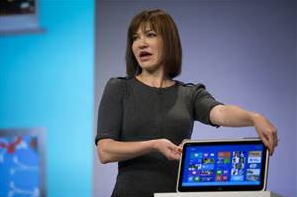
Earlier this month, Reller also revealed that Blue would be available by “holiday 2013”. Also, Julie Larsson-Green (pictured below), Head of Windows Engineering, confirmed that a public preview of Windows Blue will be available by the end of June 2013 – making it’s appearance at the BUILD conference on 26th June.

image

See more about the announcements here.

See more about Windows Blue and its features here.

Windows 8 Blue


Windows 8 has been with us for around 6 months now, and for a lot of that time, rumours of Windows Blue have been with is as well. (Mary Jo had a post about it on August 13th 2012 – http://www.zdnet.com/windows-next-just-call-it-blue-7000002535/)

Well, this week saw an early build of Windows Blue leak online and – thanks to early early adopters – we’ve got a great look at what it has to offer.

What new things are on offer?

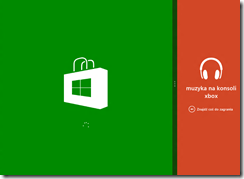
Side by Side Snap

Windows 8 currently offers a snap view where one app takes up 2/3 of the screen and another makes up the other 1/3. I find it very useful and use it regularly but not everyone seems to agree on it’s usefulness. HP, for example, claim it is a “consumer feature” and purposefully built their business focused Windows 8 tablet, the ElitePad 900, with a screen resolution incapable of snapping; as they don’t feel that business users need it.

Windows 8 Blue brings new snap capabilities, giving 50/50 snapping (as per desktop mode & Windows 7) but also allowing 3 and 4 apps to be snapped simultaneously.

Current Snap:
image

New Snap:

image

These improvements also extend to multi-monitor support, allowing you to run individual Windows 8 apps across multiple monitors.

As the current Windows 8 snap features requires a minimum resolution of 1368×768, will the additional 3 & 4 app snap capability require an even higher resolution?

Internet Explorer 11

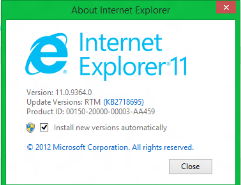
The latest revision of Internet Explorer will be available as part of the Blue update:

image

The word on the street/online is that tab synchronization will be introduced in IE11 and Windows Blue, allowing users to continue internet browsing across devices. You’re looking at a page on your desktop pc and need to leave the office, you can pull out your tablet on the train and pick up where you left off…it should also be possible to continue the browsing on a Windows Phone 8 device.

Oddly enough I was talking to someone who’s quite the Apple fan the other day (hi Mat!) and they mentioned this as something they really like about the iOS universe. I wasn’t aware that it was a thing and had never really thought about it so it wasn’t something that I missed…that said, since our conversation and now it’s rumoured inclusion in Windows Blue, I can see myself using it a lot between laptop/desktop and tablet. Something I wonder is this – will it be possible to do it across devices that don’t share MS accounts? For example, people won’t have their Hotmail account linked to their work machine but they may wish to continue their browsing on a personal device, which will have the MS account rather than corporate details – will this be possible?

New Live Tile sizes

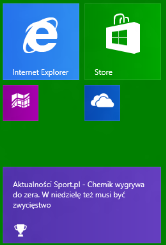
In a move that brings it in line with Windows Phone 8, Windows 8 Blue will support smaller live tiles. This please me and I’m sure many others, as it enables one to have many more things easily accessible without creating a huge start screen to scroll through. That change between WP7 & 8 was one of the biggest and most beneficial for me.

image

The Desktop tile is the only one to have a special “extra large” offering too:
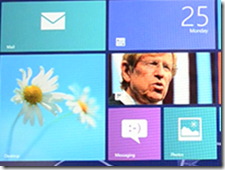
image (courtesy of The Verge)

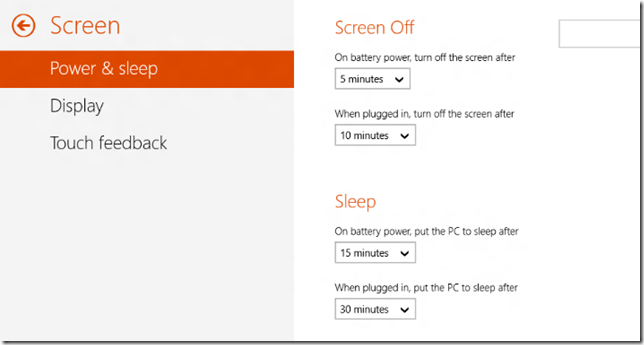
New options in Settings

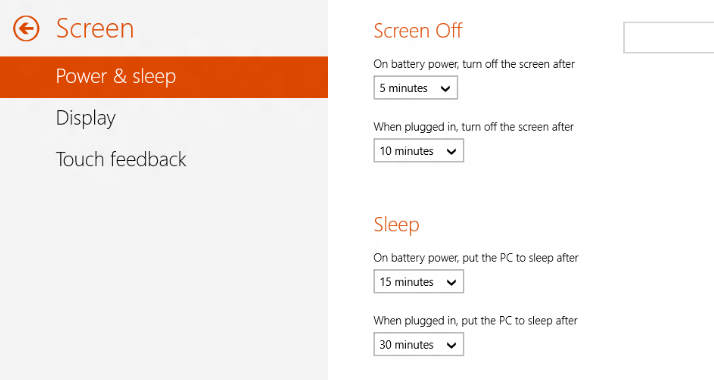
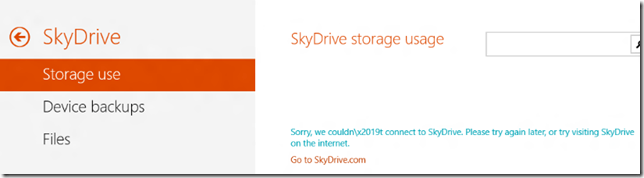
Microsoft have made many of the Control Panel features now available in the Windows 8 mode, rather than forcing the user into the desktop. This is a brilliant move, the switching between modes is one of the biggest complaints I hear and I find it very jarring myself, so steps to reduce it’s frequency can only be a good thing. I’d be happy to spend all my time in the Windows 8 interface if I could do everything I needed to (and I’m sure many others would) so this is definitely a step in the right direction.
image

image

You can see here the ability to backup a device to SkyDrive. I imagine this will be pretty useful although quite a slow process!

image

Charm Updates

The Devices Charm features a new “play to” option.

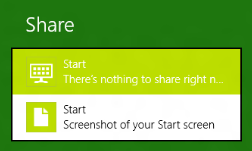
The Share Charm lets you quickly take a screenshot:

image

Other new features

The Verge tells us that “On the Start Screen you can swipe up from the bottom to bring up a list of all apps, and in the desktop mode you can swipe up or down to reveal a desktop app bar that provides access to snap, projector settings, and more” which sounds like a great addition.

The new Apps section in settings lets you see how much storage each app is using.

There is a new, quick way to add VPN settings.

A “Quiet Mode” has been introduced, allowing you to set periods when notifications are subdued.

New built in apps include:

  • Alarm
  • Sound Recorder
  • Windows 8 style calculator
  • Movie Moments – a Movie Maker replacement.

When will we get it?

Microsoft today announced their BUILD conference, the Windows Developer event, will be held in San Francisco on June 26-28 2013. It seems likely that we will see the first public preview of Windows Blue around this time – so not that long to wait really, yay!

Registration for BUILD begins 09:00am PST April 2nd here – www.buildwindows.com.

Thanks to Winforum.eu for the screenshots and The Verge for some of the extra info.

Microsoft volume licensing customers get access to Surface devices


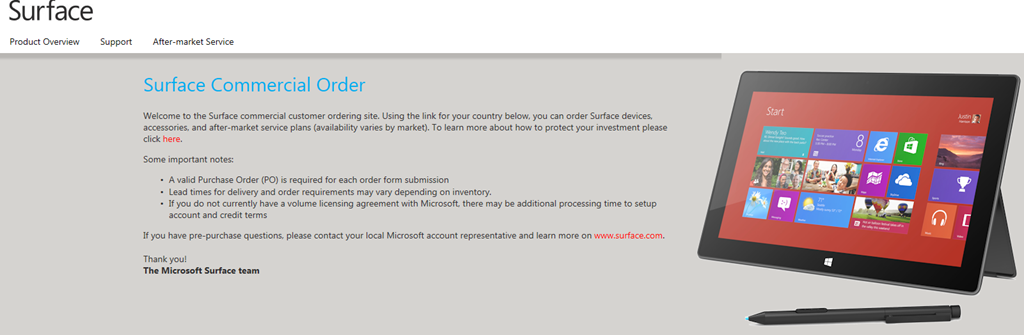
As reported by Mary Jo Foley of ZDNet, Microsoft have made it a little easier for volume licensing customers to get their hands on the Surface RT & Surface Pro devices with a new website –

https://microsoftedweblive.com/sites/BHO/default.aspx


image

image

Text from the site:

Welcome to the Surface commercial customer ordering site. Using the link for your country below, you can order Surface devices, accessories, and after-market service plans (availability varies by market).

Some important notes:

  • A valid Purchase Order (PO) is required for each order form submission
  • Lead times for delivery and order requirements may vary depending on inventory.
  • If you do not currently have a volume licensing agreement with Microsoft, there may be additional processing time to setup account and credit terms

Protect your Investment

While Surface devices come with a standard one-year limited warranty, you may want to consider purchasing a Surface Extended Hardware Service Plan. This plan is available for both Surface Pro and Surface RT devices and includes an extension of the hardware warranty up to 3-years.
The plan includes shipping a replacement unit out prior to your product return to minimize downtime. The Extended Hardware Service Plan can be purchased up to 45 days after device purchase. For details on what is and is not covered in the Extended Hardware Service Plan for Surface devices, please see the Terms and Conditions.
The Extended Hardware Service Plan is priced at $200 per device for Surface Pro and $150 per device for Surface RT. At this time, the Extended Hardware Service plans are available only in the US and Canada and via direct purchase from Microsoft.

You need to log into the website to see the above screens and move through to the pricing & ordering sections. I’d expect that any login that can access the VLSC (Volume License Service Center) will be able to sign into this site.

This is an interesting move from Microsoft – still not involving their channel partners but at least making it easier for corporations to purchase these devices! It’s interesting to note that they’re not offering a discount via this new site – the prices are the same as those on the public website.

Also, the Surface Pro isn’t listed on the UK page but it is on the US page, so it conforms to the current availability schedule. No early Pro goodness, even for volume licensing customers Smile

BizTalk licensing changes in April


Some BizTalk changes coming next month:

Biztalk 2013 will be on the pricelists from April and is moving to a per-core licensing model. As with SQL 2012, 1 license will cover 2 cores.

BztlkSvrStd 2013 ALNG MVL 2Lic CoreLic

BztlkSvrEnt 2013 SNGL OLP 2Lic NL CoreLic

BztlkSvrBrnch 2013 ALNG MVL 2Lic CoreLic

Office 365 & Remote Desktop Services


Office Pro Plus has been available via Office 365 for a while but using it via an RDS server has never been allowed…until now.

With the recent update to Office 365, Microsoft have relaxed the licensing rules to allow RDS use of Office 365 licenses. Under “Installation & Use Rights” on page 82 of the January PUR:

Each user may also use one of the five activations on a network server with the Remote Desktop Services (RDS) role enabled

and from the March Product List:

Media Eligibility with Remote Desktop Services (RDS)

If the user to whom you have assigned an Office 365 ProPlus license uses the software on a network server with RDS role enabled, in lieu of installing a copy of the software provided with Office 365 ProPlus on one of the five permitted devices pursuant to the Product Use Rights for Office 365 ProPlus, that user may 1) install one copy of the Office Professional Plus 2013 software on a network server and 2) access the Office Professional Plus 2013 software from any device.  Upon termination of your Office 365 ProPlus subscription you must uninstall Office Professional Plus 2013 software from the network server.

I’m glad they’ve done this as it makes the messaging of “same product, different delivery method” a much truer statement and reduces any possible confusion for customers.