Microsoft Office Web Revealed


Microsoft have made more details on the Office web products available, a little before this year’s Worldwide Partner Conference kicks off.

Office Web Applications will include:

  • Word
  • Powerpoint
  • Excel
  • OneNote

will work on Macs as well as PCs and will run in Firefox too 🙂

It looks like Neowin may have seen something they weren’t yet supposed to as the link to the Office Web demo video isn’t currently working…

However one video that is working is this here on Mobile Office 2010. It shows that documents can be rendered server side meaning that “just about” every smart phone out there can view them…yep that includes Blackberry & iPhone too.

Microsoft Security Essentials beta


You  may have seen that, a few weeks ago, Microsoft announced the beta of Microsoft Security Essentials (MSE); their free anti-virus/anti-malware software aimed at home users. The beta was limited to 75,000 downloads so I registered within 20 minutes of it going live on MS Connect and got ready to download it…unfortunately the website had a different idea. It told me that I wasn’t eligible to download the beta and that was that-I logged out empty handed 😦

I kept checking over the following days to no avail while, at the same time, Microsoft emailed me to see how my trial was going…I couldn’t believe they were mocking me so! I just logged in now to see if there had been any update on my application for the Office 2010 trial-it’s gone from “Pending” to not being there anymore- but as an unexpected bonus the download for MSE was there 🙂

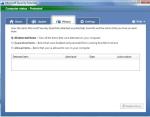
I’ve just got it installed and had it run it’s first scan and it’s looking good. It was a quick 5/6 click install process and it was scanning already-very impressive…here are some screenshots:

Something I’m quite surprised to see is that MSE contains Real Time Protection, helping protect users from zero-day attacks even without pre-defined virus signatures; for a free product-that’s pretty cool!

The Settings tab allows you to:

  • Set scan schedule
  • Change the default actions
  • Turn Real Time Protection on/off
  • Exclude files & locations
  • Exclude File Types
  • Exclude Processes
  • Choose to scan archive files
  • Choose to scan removable drives
  • Change Microsoft Spynet access

Spynet is something I hadn’t heard of before and it is Microsoft’s Online Community that collects, collates and processes information on malware and how it is affecting user’s machines. There are 2 levels of “membership” availalable, Basic & Advanced where advanced sends back more information such as file names and locations of affected software etc. It’s default setting is Basic…although it does say that “…personal information might unintentionally be sent to Microsoft” which, while I don’t really mind will probably upset some people 😉

I’ve only had it installed for about half an hour but so far, it seenms to be pretty comprehensive in what it covers as well as being clear and easy to use. The fact that it provides real time protection AND scans removable drives as well as the basic cover makes me consider if, honestly, there’s any need for home users to look elsewhere.

Microsoft’s Forefront Business security software shows they’ve got the skills in this area and a lot of other products (Norton, F-Secure etc) are notorious for slowing PC’s down until they’re nigh on unusable-so this seems like a great alternative. When it comes to Anti-Virus I’m a Kaspersky fan but MSE looks to be a worthy competitor…good work once again from Microsoft 🙂

Microsoft Exchange Online and Shared Folders


As previous visitors will probably have noticed, I’m quite a fan of Microsoft’s Online Services AKA Business Productivity Online Suite (BPOS). I spend a fair amount of my time talking to customers about how they can online services to better serve their business and how BPOS can fit their needs.

Something that everyone needs to be aware of is that the online versions of the products aren’t quite as fully featured as their regular, on-site relatives. This means there can be certain situations where the MS hosted version just isn’t a viable option…however MS are constantly working to give them parity with the on-site versions, but it takes time transferring them into a multi-tenant environment. Exchange Online is very nearly feature complete but the biggest missing feature is Public Folders…

What are Public Folders?

“Public folders provide an effective way to collect, organize, and share information with others in your organization. They are central, shared folders that anyone can view to share information and ideas. Public folders can contain any Outlook item type, such as messages, appointments, contacts, tasks, journal entries, notes, forms, files, and posts.”

We use them at work for a number of purposes but once common use is as a repository for licence certificates, agreement details etc that can be accessed by the software team, sales account managers, customers services dept etc-without there being any duplication. Different people have different permissions so us in the software team have full permissions while others have just read only access. Sure, we could do this with Sharepoint (and for some things we do) but as these documents are all emailed-it is, at the minute, easier to keep them within Outlook.

A good guide to Public Folders can be found here.

Other things that aren’t technically Public Folders tasks but are inextricably linked are:

E-Mail Delegates: Delegate access to your mailbox to another individual, or delegate access to particular data with particular privileges. For example, allow an administrative assistant to accept or create calendar appointments on behalf of a manager.

Send As: Allow someone else to send mail from your mailbox. Your name will appear on the sent from line. For example, allow an administrator to send e-mail as a user (not on behalf of).

Shared Mailbox: Provide a group of people common access to a specific mailbox. For example, allow a single support alias to be monitored by multiple users.

Up until a few days ago-these were all impossible to do with Exchange online and that was often a stumbling block in discussions with customers. As the beginning of that sentence suggests-this has now changed 🙂

I was speaking to a customer last week who was looking for the Shared Mailbox functionality and, after a call with MS, I was able to determine that this feature will become available “this quarter” so by the end of September. This made the customer very happy 🙂

Shared mailboxes and email delegates will be available as standard functionality whereas Send As will need to be enabled via a Support escalation request.

A great whitepaper on Public Folders and BPOS can be found here.

Exchange Online & Sharepoint Online:

While the lack of Public Folders can at first, seem like a big hurdle to adopting BPOS-in many cases using Sharepoint Online instead is as good if not better!

Scenario Description

Exchange public folders are frequently used to set up calendars, task lists, and contact lists for team or company-wide collaboration. People with appropriate permissions are able to view and edit the lists.

While the Shared Mailbox feature is the traditional way of doing this and, for many people, will continue to be-it can also be done with Sharepoint Online:

Benefits
  • SharePoint lists provide more contexts for the data, and more flexible ways of working with the data, including combining data from multiple lists and rolling up summaries for reporting.
  • Moderation workflows are built into SharePoint lists, so items can be optionally made visible only after they are approved.
  • Item-level version history can be optionally enabled to track changes to individual items in these lists.
  • Users can subscribe to alerts and feeds to have change notifications automatically sent to them.

There are many different ways of using Sharepoint Online as a replacement for Exchange Public Folders which are covered in the whitepaper here.

Licensing Sharepoint in Education


Microsoft licensing can often be a confusing subject and it is perhaps in the education arena where most confusion can occur, with it’s mix of staff, students, parents, connected yet separate academic bodies etc. I today saw a great post on Educational Sharepoint licensing that helps clear up some confusion and show the extras that Microsoft can offer.

The most basic schools licensing covers staff and students while at school, but you can also purchase separate “Student” CALs which cover them for access from non-school owned (I.e their own) PC’s and so access from home. Where students are covered in this way, the Sharepoint Server access is extended to the student’s parents/guardians without any extra licences being needed.

So a customer can prove that they are entitled to this right, they can download the “Parent/Guardian CAL grant letter” to keep in their records here.

Parent-Guardian CAL Letter.

This applies to licences purchased via Open Academic, Select Academic, Schools Agreement and Campus Agreement.

Another great benefit is the “External Connector Grant“. If an educational establishment has:

  1. A product for which an External Connector licence is available (Exchange, Windows Svr, Sharepoint etc) and
  2. Covered all faculty/staff with CALs and
  3. Covered all Student s with “Student Option” CALs too

then access rights will also be granted to:

  • Prospective Students
  • Alumni
  • Student/Staff at collaborating Academic and Government bodies

at no extra cost!

Again, a grant letter can be downloaded to prove entitlement to this benefit here:

External Connector Grant Letter

This benefit is available via Schools Agreements and Campus Agreements.

These are two excellent extra benefits that MS licensing provides that will certainly help make it easier and cheaper for schools to have a truly collaborative environment. However I do think MS need to do a better job at publicising things like this or, at least making sure all their Partners are fully aware of them but that said-it’s good to see that the benefits of MS volume licensing just keep coming 🙂

The source post on the MSDN Schools blog is here.

Sharepoint & Outlook Oddity Number 2


After finally getting around to setting up Alerts in Sharepoint for our users, I’ve come across a new issue where users can’t open the alerts in Outlook.

This is Sharepoint 2007 sending alerts to Outlook 2007 and yet they alerts can’t be opened at all, which struck me as quite odd. However it only took a quick Bing search to uncover the issue…it all comes down to Exchange.

Even though Sharepoint & Outlook are on 2007, if the alerts are being sent via an Exchange 2003 server this problem will occur “because Exchange 2003 cannot convert the MIME-type properties to MAPI-type properties correctly if the names of the properties begin with X-.”

Although Outlook needs to be running in Cached mode for this to occur I believe…

There is a hotfix that needs to be applied to the Exchange 2003 server (with SP2) and that is available here.

Big thanks to Joel Oleson for his blog post which gave me the answer here.

Microsoft Licensing: Subscription Enrollment for Schools


Microsoft have today launched a new licensing program specifically for education-Subscription Enrollment for Schools AKA SESP (for those wondering, the “P” stands for “Pilot”). This is response to comments made by Becta (British Educational Communications and Technology Agency) on Microsoft’s current licensing offerings; specifically the need to licence ALL machines even if the licences won’t be used on them all.

SESP Overview:

You can use SESP to licence a singel school, multiple schools or an entire school system and it includes all the usual benefits:

  • Assessment of software needs once per year
  • One annual payment for all software at academic prices
  • Access to the most current version of licensed software
  • Ability to downgrade to an earlier version of software
  • Broad product selection available in all languages
  • Microsoft Windows or Apple Macintosh platform
  • Options for student licensing at home
  • Automatic media fulfilment

The entry requirements are consistent with the current Schools Agreement program so:

50 Unit minimum entry point

Level A = 50 Units

LEvel B = 2500 PCs

SESP Benefits:

The 2 big new benefits here are:

  • User & Device based pricing
  • No Institution wide commitment required.

User/Device Pricing: This allows schools to choose the licensing model that is most beneficial to their set-up. The ability to licence by device can show a significant saving, for example:

If there are 50 machines in an IT suite that are used by 150 different people (different classes etc) then you can, under SESP, purchase just 50 Device CALS while previously the only option would have been 150 user CALs.

No Institution wide commitment required: Under a Schools Agreement, the customer must licence ALL eligible machines even if the software will be used on just a sub-set of those. For example,

You need Office on 150 of your 400 machines-you are required to buy 400 licences.

However with SESP, you can buy just the licences you need, so in the above example-150. This again will make Microsoft licensing more cost effective and easier to manage for schools and their administrators.

Licensing Options:

SESP brings with it a few new ways that schools can licence their Microsoft software:

SESP

Of course the big addition is the Non-Institution wide offering, allowing you to licence just specific Users or Devices, such as “The Science Dept.”, “Year 11” etc.

FAQ’s:

What is a Qualified Desktop PC? 

Qualified Desktop PC means any personal desktop computer, portable computer, workstation, or similar device that the institution uses for educational purposes that meets the minimum requirements for running any of the enterprise products.
What is an eligible user?

  1. Eligible users include all full- or part-time students enrolled at the institution.
  2.  


  3. Eligible users include the full time equivalent (FTE) faculty and staff members categorized as ―employed more than 200 hours per annum.
  4.  


Can I have a subscription for servers only?

Yes, if your order meets the server 300-unit minimum requirement.


The full Microsoft SESP page can be found here.

One thing to note is that SESP can only be sold via EdLARs (Educational Large Account Resellers).

Microsoft Online Services Diagnostics And Logging: MOSDAL


Microsoft Online Services Diagnostics And Logging AKA MOSDAL is a support toolkit that “performs network diagnostics and collects system configuration, network configuration, and logging information for service-based products.”

If that’s all you need to know then you can download it here.

However, if you’d like a little more info-here you go 🙂

Functionality:

  • MOSDAL can be used to run network diagnostics against a particular data center where data resides.
  • MOSDAL can be used to collect system, network, and service-enabled application configuration information, logs, registry keys, file versions, and other related data.

Network Diagnostics:

  • Configuration information that is captured includes the computer’s IP address, the subnet mask, the default gateway, the DNS servers, ARP tables, the Host file, static routes, and other similar information.
  • Network diagnostics data includes output of pings, pathpings, nslookups, port queries, and HTTP server responses for cloud servers in a particular data center.

Data Collection:

The data collection component of MOSDAL collects data about the user’s system configuration, the network configuration, and the following applications:

  • Microsoft .NET Framework
  • Microsoft Online Service (Sign In) Client
  • Microsoft Live Meeting 2007
  • Microsoft Live Meeting Conferencing Add-in for Microsoft Office Outlook 2007
  • Windows Internet Explorer 7
  • Microsoft Office Communicator 2007 R2
  • Microsoft Office Outlook 2007
  • Microsoft Online Directory Synchronization tool
  • Microsoft Online Migration Tool

For more information including Verbose Logging and Use Instructions-head over to the MS KB article here.

Also thanks to Microsoft’s Peter De Haas for this…

Microsoft BPOS New Features: July 2009


Microsoft Online/BPOS has been getting new features and improvement each month since launch, and July is no different! This month sees:

Increase in the size of Sharepoint Uploads: The max. file size you can upload to Sharepoint Online has increased from 50MB to 250MB. This is a great improvment as it’s been causing me problems recently-(it seems all the files I need to use are 60MB +) and affecting my evangelism of the product…I can’t see me needing to go over this new limit though.

Live Meeting Attendee Increase: You can now have 250 meeting attendees, this is increased from 15 previously. This will be available to new customer from July 13th and existing customers from August 13th.

Worldwide User Provisioning: Administrators can now assign licences to worldwide users-this new feature will be of great interest to BPOS users with international locations. Previously you could only deploy BPOS to users in countries where BPOS was available to purchase, but not anymore…this gives much more freedom to bigger corporates.

Also, BPOS is available in India now and the trial sign up process has been significantly streamlined-with user actions being reduced by 75%! It also integrates with Live ID better, so I guess you won’t have to enter all your details again now.

The MS Online blog post is here.

Windows 7 Upgrade Coupon Limit


As you have probably seen, new PC’s are now shipping with Vista AND an Upgrade Coupon to give users a copy of Windows 7 too. This is a great offer, however it’s been discovered that the offer has a maximum limit of 25 machines.

This isn’t anywhere near as bad as some people will no doubt try and make out. The upgrade coupon offer is aimed primarily at small businesses, for whom 25 PC’s is a pretty decent number. Larger companies will be more likely to purchase their Vista/Windows 7 via Volume Licensing (Open, Select etc) and so have access to Software Assurance…and one of the many benefits it gives is Upgrade protection.

All in all, it’s a good deal for all involved I think 🙂

Windows 7 Pricing Revealed


Windows 7 news is coming pretty thick and fast at the moment and now we’ve got word on the official pricing structure for the latest OS-and it’s pretty good 🙂

Windows 7 Home Premium = £149.99

Windows 7 Professional = £219.99

Windows 7 Ultimate – £229.99

The Home edition represents a £20/12% reduction in price when compared to Vista, while the others are the same…

The biggest change is that there won’t be an upgrade version available in Europe. “WHAT-NO UPGRADES??!!” I hear you cry…don’t worry-the Full version will be the same cost as the equivalent upgrade sku’s available in other countries.

The reason behind this is…THE EU (duhn duhn duhn). As a result of their “investigations”, MS have had to create a Windows 7 “E” edition that doesn’t contain IE8. This has pushed back the schedule for the European release,m eaning there won’t be a specific upgrade version ready in time. MS had to choose between delaying the European release of Windows 7 or not having an upgrade version…I think they chose right!