Microsoft Licensing Changes


Microsoft licensing is an ever changing world and there have been a few changes recently that I think you could do with knowing.

Removal of Grace Periods:

Previously, all Microsoft licence programs gave customers a 30 day grace period on Software Assurance (SA) renewals…but not any more.

There is no longer a grace period for the following programs:

  • Enterprise Agreement (EA)
  • Enterprise Agreement Subscription (EAS)
  • Select
  • Select Plus
  • Open Value Perpetual
  • Open Value Subscription
  • The exceptions are:

    Open Licensing (OLP)

  • Schools Agreement
  • Campus Agreement

This doesn’t impact current agreements so current customers will still receive a grace period until the end of the contract they have at the moment.

Change of Channel Partner:

The Change of Channel Partner (CoCP) forms are used when a customer wants to move their agreement from one reseller to another and applies to all agreements except OLP. They currently take 30 days to process which, in my opinion is too long so when I heard there was a change coming-I was cautiously optimistic…however I was also wrong!

The CoCP forms now take 90 days to be processed, which is frankly ridiculous. That is 1/4 of a year just to change resellers and I don’t think it is in the interests of resellers or customers. It is due to an “increasing volume of CoCP forms” but I can’t believe there are so many forms flying around that a company the size of Microsoft can’t process them in less that 3 months.

The form is about 1 side of A4 and contains very few details so I struggle to see why it takes so long. I can only assume it’s done as a manual process and that makes it slower…so I suggest making it do-able online. Either:

1) A customer does it via MCLS/VLSC

2) The reseller does it via those or another tool. It is then emailed to the customer for verification.

Bada-Boom, Bada-Bing, job done 🙂

If anyone from MS can explain why it takes so long, please do.I think this is possibly the part of dealing with Microsoft that infuriates me the most!

Zune 4.0 Desktop Software


I’ve always been a big Windows Media Player (WMP) fan. I never bothered with any of the alternatives as WMP has always had most/all the features I’ve needed, and I despise iTunes (for way too many reasons to go into here!).

When I first got the beta of Windows 7 back in Feb/March (?), one of the first things I did was check out WMP 12. I was very pleased with what I found…it’s quicker and smoother and has got numerous great new features such as “Play To” for streaming to other devices, the ability to be played remotely to another Windows 7 machine, the ability to preview songs and more. It works really well and is much improved over V11 but recently I’ve been thinking about checking out something different.

I’ve been wanting a Zune for years but as they aren’t properly available here in the UK, I’ve not got one. While thinking on possible replacements for WMP 12, I remembered hearing the Zune desktop software getting good reviews; so I thought – will it work without a Zune? Perhaps obviously, yes it will…and it is truly great!!! 🙂

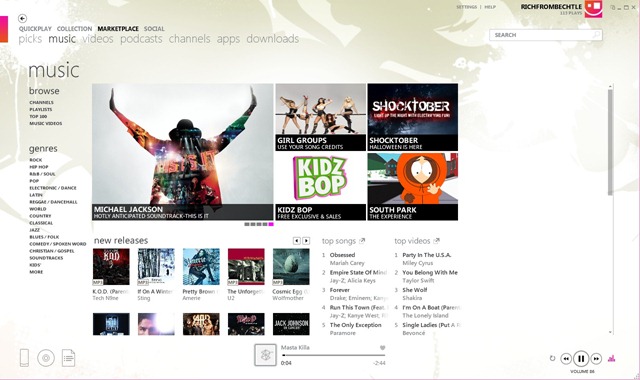
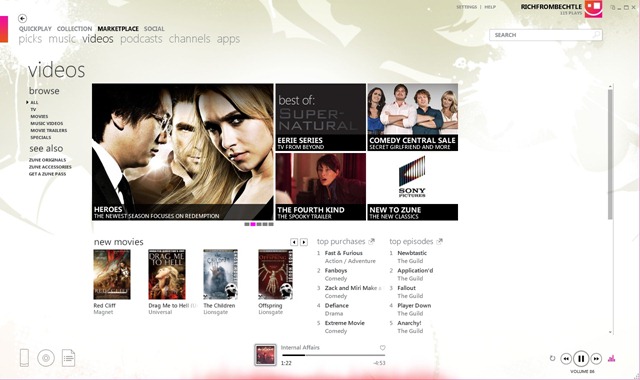
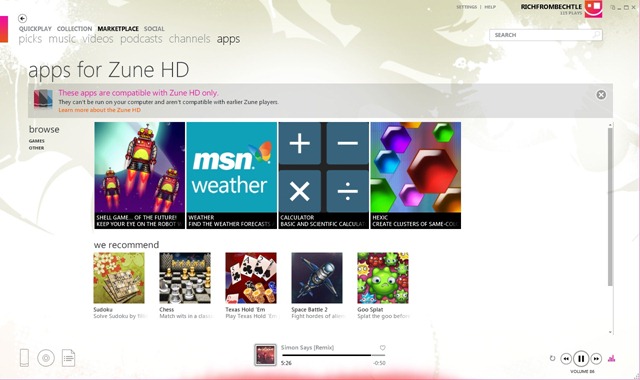
I’ve only been using it for a little under 24 hours but so far, I’m a huge fan of it. I’ve taken a bunch of screenshots so you can see the elegant, modern, media centre style vibe it’s got going on.

This is the Welcome Screen I get when I load it up:

Zune Quickplay View

It’s divided into four sections:

New: This section contains any news tracks added into the library

History: This contains the tracks/albums that have previously been listened to.

Pins: You can “pin” albums/singles to the front page with a simple right click

Smart DJ: Automatically generates playlists based on your library.

Smart DJ

This I’ve heard a lot about. It creates playlists all on its own, based on artists that you give it as a reference after analysing your music. It’s just finished analysing my music and has given me a Smart DJ playlist based on Wu-Tang Clan and it’s excellent:

image

As you can, it’s not just other Wu-Tang songs – it’s got Nas and Canibus in there too, artists who are indeed related.

This Smart DJ based on “Onyx” is even more impressive:

image

Every artist is different there-great stuff 🙂

Collection

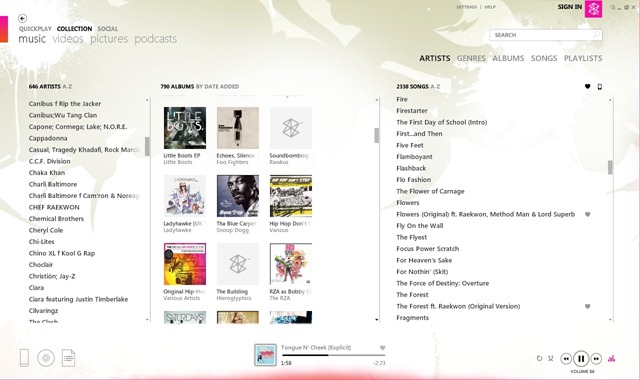
This is where you can see all the songs/albums/artists/genres etc in your library, much like Windows Media but just better.

Zune Artists View

Rather than them being separate section as in WMP, you can see Artists, Albums and individual songs all at once. This section has got a very current, web 2.0 app style feel and I’m a big fan.

The “Songs” section also includes a “Play Count” column which is what I was originally looking for. I know it’s pretty gimmicky and all the rest of it, but I like the idea of being able to see what songs get played the most. This features aligns quite nicely with today’s IT drive towards ever deeper data mining too 😉

Album View:

This is clearly taken from Media Centre but that’s no bad thing:

Zune Album View

I love the tiled album art background and the changing colour schemes that it moves through…also, the tiles in the background flip round – small things eh?! 🙂

Another nice touch is the ever-present yet subtle graphic equalizer down at the bottom of the screen:

image

There are a few things that aren’t in there when compared to WMP 12-inc most/all the new Windows 7 features (play to, stream, preview etc) but I don’t really mind that. The biggest downside for me is that I can’t sync my Windows Mobile device with it. I know that seems logical as it’s designed for the Zune but as it can work without one – it’d be nice to have that option. The mobile syncing is the only thing keeping WMP12 in the picture…and I never thought I’d say that…

All in all, I’m a HUGE fan of Zune 4.0 Desktop software and I highly recommend you go and download it here right now!

Microsoft Research & Guitar Hero


Guitar Hero is awesome (and Rockband-don’t worry!) and Microsoft Research are pretty great too. So what happens when you put the two together? I’ll tell you…playing Guitar Hero without a controller!

This would definitely reduce the amount of space that all the guitars take up, and make it easier to carry them around (should you wish). They also show the technology being used to control an MP3 player whilst out jogging…just move a finger to skip, pause, play etc…something that would definitely take off 🙂

Again, more great work from Microsoft Research 🙂

Windows 7 Stuff


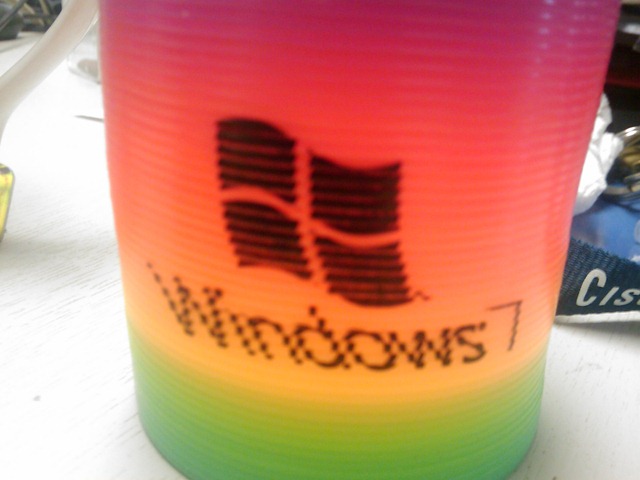
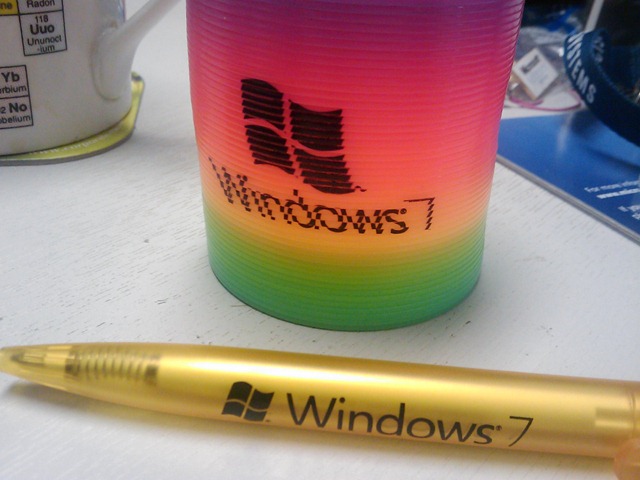
We had our Windows 7 launch day at work last week and we all got Windows 7 pens and Windows 7 slinkies…which are officially awesome!

The slinky and pen:

IMAGE_837IMAGE_838

The posters we got up around the office:

SDC10745

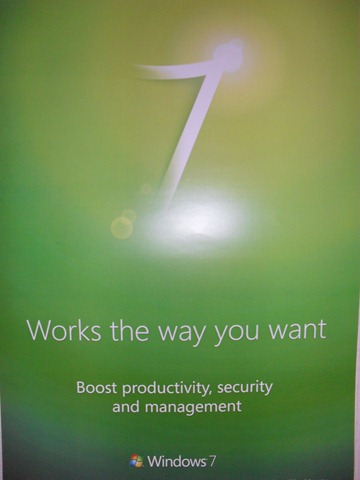
They’re nice and clean and simple-I like them.

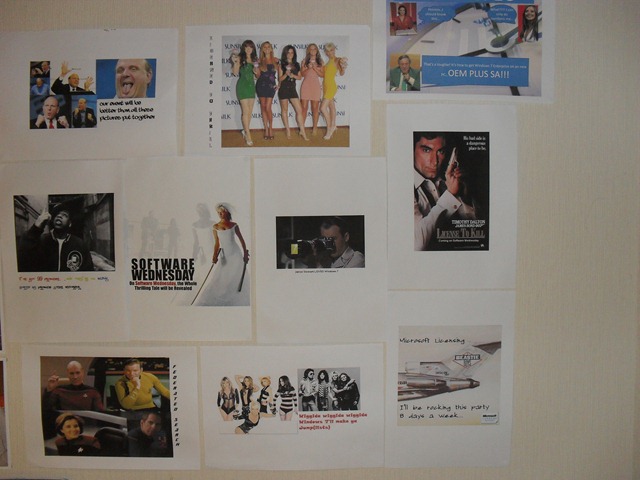
As an added bonus, here’s my software poster wall:

 SDC10744 <—This isn’t the only one!

Hope you like it 🙂

There is a picture of me in front of the big Windows 7 stand thing we had but I, oddly, can’t find that one anymore 😉

MS Exam 70-680 training videos


Exam 70-680 is the new Microsoft MCTS exam for Configuring Windows 7 that builds towards the MCITP accreditations.

I’ve been thinking of taking this exam for a little while and now there is what’s shaping up to be an excellent series of training videos available from @Bibbleq. He’s an IT Admin and has started putting these videos together in his spare time to help out anyone looking at this exam – so ‘nuff respect for that 🙂

I’ve watched the 1st 2 videos that are available and they’re really good. Well presented, clear and I’ve definitely picked up a thing or two, which is what it’s all about isn’t it?! I’m not sure how many will be in the series but I’m confident that once you’ve seen them all, you’ll be in a position to pretty much go and take the exam straight away!

First video is here.

Second video is here.

Third video is here.

Fourth video is here. This is the start of Section 2.

Section 2 Module 2 is here. This covers DISM & ImageX.

Homepage is here.

Nice one Bibbleq!

Microsoft Total Recall


This is a great piece on the work going on inside Microsoft Research called MyLifeBits. Gordon Bell and his colleague Jim Gemmell have been working to digitally record nearly everything that goes in in Gordon’s life…and make it a useful data repository. As Graham said:

“I was saving everything, but it became clear that the problem was a search problem. You could save everything…but the big problem was organizing and then searching…”

They created a database to store all this data and then wrote software to collect, scan and label all the things captured, which include emails, pictures, phone calls, web pages visited, documents, scanned receipts and more!

A real life example:

“If I’ve ever seen a Web page, I’ve got a copy of it, and I can find it again quickly because I only have to search my own corpus, not the entire Web.”

That sounds pretty great to me 🙂 The number of times that I know I’ve seen something on a site and I either can’t remember which one, or I get the right site but just can’t find the page is crazy…and this’d be a good way to sort that out. Not sure about storing EVERY web page though you know 😉

This work is a great example not just of what Microsoft Research get up to, but also a great example of what IT in general can do for the world. 10-15 years down the line when MyLifeBits is commonplace-finding information will be so much easier!

Check out the full article over at MS Research here.

Microsoft open up .PST files


Microsoft have announced that they are opening up the technology behind their .PST files- the files that hold all the email, calendar and contact info that Outlook archives. While many people aren’t fans of .PST files (products such as Symantec’s Enterprise Vault have whole modules aimed at eradicating them), they are still prevalent and so anything that makes interacting with easier has got to be good 🙂

While developers have been able to work with .PST files in the past through MAPI and the Outlook Object Model, it required that Outlook was installed on the machine. However once this new documentation is released it will:

“will allow developers to read, create, and interoperate with the data in .pst files in server and client scenarios using the programming language and platform of their choice. The technical documentation will detail how the data is stored, along with guidance for accessing that data from other software applications. It also will highlight the structure of the .pst file, provide details like how to navigate the folder hierarchy, and explain how to access the individual data objects and properties.”

This is another move by Microsoft to increase interoperability between their products and those of other manufacturers, and is to be applauded I think. Some say this might lead to more people moving away from Exchange but I doubt that anyone was sticking with Microsoft’s email platform simply because of .PST’s 😉

The full post can be found here.

Windows 7 & AutoDesk: Project Cooper


Windows 7 has officially been launched. Today is general availability (GA) day (which means you can pop down to Comet/PC World etc and get it off the shelf) and we’ve seen a number of launch events all around the world. Numerous other manufacturers have been presenting alongside Microsoft to show how their technologies inter-operate but one that caught my eye was AutoDesk.

AutoDesk are makers of CAD (Computer Aided Design) software, most notably AutoCAD & AutoCAD LT. I have to say I’ve never really considered that they would have any kind of relationship with Microsoft, so I was a little surprised to see that they were taking part in today’s launch event in New York, presenting Project Cooper. This new product:

“will allow users to easily and quickly create professional-looking drawings and sketches, or precise drawings with real-world dimensions, and share this information with others”

according to AutoDesk Senior Director, Emerging Products Amjad Hanif.

It has been

“engineered to take full advantage of Windows 7 support for multi-touch, including panning, zooming, rotation and flick functionality”

and is designed for those times that a mouse/keyboard just isn’t going to work. With it being CAD software this will be architects, interior designers, building planners etc when they’re on site. They’ll be able to sketch out ideas there and then, increasing productivity and collaboration – 2 key messages from Microsoft.

From a software reseller’s point of view, this represents yet another opportunity for Wondows 7 to open up new revenue streams and help us create better, stronger relationships with our customers.

You can see the original post on the Windows Blog here.

... When You've Got Alice Cooper

Office 2010 Background removal


The new background removal tool in Office 2010 is fantastic!

I hadn’t played around with it before but I just saw a tweet about some of the technology inside it, and my interest was piqued! This new ability is inside Word, Excel, Powerpoint and Outlook and helps bring out the part of the picture that you actually want to use in your document. It’s pretty clever, methinks a demo is needed:

Original Picture:

Insert the picture into Word (in this example) and hit the “Background Removal” button:

image

Which brings up the “marquee”:

image

The rectangle can be moved, stretched and extended to cover the exact area you need and then it cuts away all the background to give you:

image

That is pretty amazing how it’s taken out the sea etc in the background but there are a few issues…there’s that patch under it’s flipper that’s still there and you might notice that he’s now missing his tail!

That isn’t the end of it though, there are a couple of extra tools that enable you to correct the above:

image

With these you can mark specific areas to be included/removed despite what the algorithm might suggest 🙂

image

You can see the markers on it’s flipper and the tail and now the picture looks like this:

image

Perfectly formed turtle with none of the background…nice 🙂

I did however discover that simply tightening up the rectangle in the original picture caused the missing/extra bits of picture to correct themselves!

This is a great addition and some really clever work from Microsoft Research-well done guys!!! 🙂

You can see the original MS post here.

Bing Twitter Search


Bing Twitter search is live!

Over the last few weeks, we’ve seen rumours that Twitter would be licensing data to Bing and Google, earlier today it was announced that Bing had definitely signed it up…and now it’s all up and working…for the US at least.

Head over to www.bing,com/twitter and change your location to United States (top right hand corner)…this will allow you to search live Twitter data…and it’s pretty cool. I did a search for myself (of course!) and got:

image

There you can see how I found out to change the location (cheers JNathan!) and some other tweets sent to me…you can also see at the bottom a tweet from me with a “top link” in it.

You’ll also notice that each tweet has a small “RT” icon, allowing you to Re-tweet it on Twitter…that’s a pretty nice feature!