Microsoft Security Essentials: Thoughts on AV


Microsoft Security Essentials (MSE) is available to everyone and it’s getting very favourable reviews from most people. The only nay-sayers so far seem to be the dedicated AV companies such as Symantec.

I’m not going to bother analysing the comments as it’s pretty obvious that most AV companies will say:

a) It’s rubbish

or

b) We don’t care because ours is so much better

and I’ve got an older post about how good I find it to be.

I think Microsoft’s introduction of a very good, easy to use, free anti-malware solution is a blessing and a breath of fresh air for home users. Just like the corporate market, there are now:

  • Too many manufacturers
  • Too many products
  • Too many features in each one

The number of machines I’ve seen that have at least 2 overlapping programs installed is pretty high. This is usually down to all the FUD (Fear Uncertainty Doubt) causing people to panic a little bit and over-protect themselves…this often causes the machine to run poorly.

Then you have the the sheer number of vendors-who all say their product is the best:

  • Symantec/Norton
  • Panda
  • Eset
  • Kaspersky
  • AVG
  • Bullguard
  • Avast
  • F-Secure

and that’s not all of them. Yes-you could argue that Microsoft have made this worse by offering a real contender but I don’t think that is the case…I think it will streamline this situation of over-choice. Microsoft is obviously a well respected brand and so many people will choose MSE because they’re familiar with the name. As it’s all free-it can’t really be anti-competitive really can it? All it can be is easier and better for the average home user…and that should be everyone’s focus in the world of consumer security.

I’m pretty sure that non-web savvy people searching the internet for “free anti-Virus” often leads to them downloading the opposite-a package full of bloatware, trojans, key loggers and more. However, people going to:

http://www.microsoft.com/security_essentials

will stop all that.

The idea that people having a manufacturer’s free product at home leads to them purchasing that vendor’s corporate offering at work isn’t particularly true, in my opinion. I speak to a lot of customers who run AVG at home…but none of them use AVG at work-they go with Symantec, Mcafee, Microsoft etc. I’ve also spoken to people who, after using Norton at home (usually as bloatware on a new machine) have removed Symantec from the workplace due to the bad experience!

All in all, I see this making it easier & safer for everyone involved 🙂

Microsoft Security Essentials


Microsoft Security Essentials (MSE), Microsoft’s free home user anti-malware tool, was today released in all it’s final glory to the world at large.

I’ve been running the beta for a few months now and I find it to be brilliant…it’s easy to install, easy to use, un-obtrusive and hasn’t let any nasties through (touch wood!). I was a Kaspersky user previously but I started to have some issues with the Windows 7 RC so MSE came along at just the right time 🙂 I’d definitely recommend that you give it a go, so download it from:

http://www.microsoft.com/security_essentials/

For more in-depth info and screenshots-see my July post here.

A look at Exchange 2010


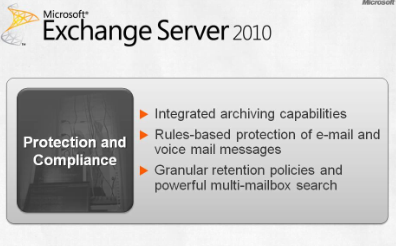
I’ve been looking around the Microsoft New Efficiency site (blog post here) today and there are a number of great videos giving an overview and introduction to the new features of Exchange 2010. One of the key ideologies behind the new version of Exchange has been that it will behave the same whether it’s on-site or hosted in the cloud. The slide below shows the main pillars of Exchange 2010:

image

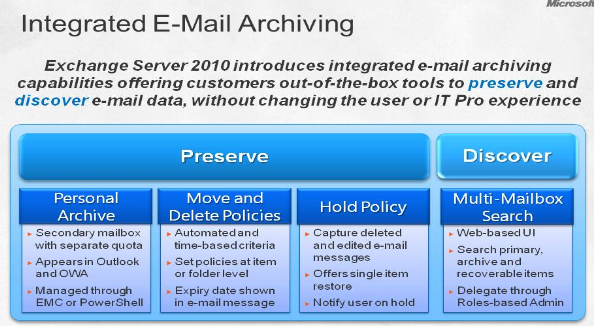
The following screenshots go into more detail on the features behind the above:


image


image

image

You’ll see here that Exchange 2010 now has integrated archiving capabilities. As you can see below, it gives users a 2nd mailbox which can be used to store archived data with all the familiarity and ease of Outlook.

image

image

It also has a new “Legal Hold” feature which tracks all edits etc on a user’s email-even those that are deleted.

Other features/news:

I saw this week that Exchange 2010 has the ability to migrate users during an upgrade (from 2007) without any downtime! A huge bonus to System Admins everywhere 🙂

Outlook Web Access is now called Outlook Web App, so still the same initials but it shows a different approach. Rather than it simply being a way to get your emails when you’re without Outlook…it is now a proper, defined entity in it’s own right. That is also shown by the fact that OWA 2010 will have around 95% feature parity with the full Outlook client. I don’t know what the percentage is currently but certainly in my opinion OWA 2007 is lacking a lot; so roll on OWA 2010! This will be of big interest to people looking at Exchange Online aswell…

Microsoft: The New Efficiency


At today’s “New Efficiency” launch event, Microsoft CEO Steve Ballmer spoke about Windows 7 deployments and how customers can save money with the latest OS. He particularly mentioned that Windows 7 “will bring $90-$160 saving per pc per year”.

He also discussed the “Consumerisation of IT”, where users bring/force change in Corporate IT via their expectations from using software at home. He said that it isn’t a new phenomenon (it just has a new name) and that it will continue to be a huge driving force in the way that software is designed and used-such as the extra social networking features being added into Office, Exchange & Sharepoint.

This all led to the launch of a new website:

http://vepexp.microsoft.com/thenewefficiency

which contains dozens of videos from MS execs covering topics such as:

  • Discover Windows Optimized Desktop
  • Learn about Optimized Server
  • Experience Unified Communications
  • Explore Business Ready Security

There are a bunch of videos on Exchange 2010 such as:

  • Upgrade & Deployment
  • High Availability
  • Mobility & Active Sync
  • Email Archiving

and more. These are a great source of information on Exchange 2010, some of which I’ve collected here.

The banner below is a great representation of the products & ideas behind the New Efficiency.

image

There are way too many sessions to list here but MS have put together some suggested sessions listings for:

  • Enterprises
  • Mid-Size
  • SMB’s

They contain links to the videos on the New Efficiency site and can be downloaded from my SkyDrive here.

Microsoft & Virtual Licensing


Microsoft and virtual licensing is definitely a hot topic at the minute. In particular an article written by Paul DeGroot from Direction on Microsoft keeps being re-tweeted on Twitter by all manner of people. Personally, I think people are being a little short-sighted and thus not being quite fair to Microsoft-or the people they’re advising.

Reading this article by Bridget Botelho over at www.searchservervirtualization.com, the crux of it seems to be that Microsoft licensing

 “defeats the purpose of building a dynamic data center”

due to the rules around re-assigning Windows server licences. True, if you’re using Windows Server Std or even Enterprise licences, licence re-assignment has the potential to cause a few issues. However, the example used is of a datacenter…and MS have a product called “Windows Server DataCenter”-which is aimed at customer running a “proper” datacenter. The example DeGroot uses is:

"You might want to run an automated data center with rules like ‘Move a VM when the CPU hits 90%,’ but that move may violate the 90-day rule…”

What’s the problem?

Example A:

Say you are licensed for 3 VM’s on server A and 2 VM’s on server B. The above rule could potentially leave you with 2 VM’s on server A and 4 VM’s on server B. If you’re licensed with Windows Server Std-that would leave you incorrectly licensed.

Example B:

Say you are licensed for 3 VM’s on server A and 4 VM’s on server B. The above rule could potentially leave you with 2 VM’s on server A and 5 VM’s on server B. If you’re licensed with Windows Server Enterprise-that would leave you incorrectly licensed.

However, Windows Server Datacenter gives you unlimited virtual licensing rights-rendering the above examples moot.

Check out this great video explanation:

Other analysts join in:

Chris Wolf from Burton Group said at this year’s VMWorld that “one of the most important changes Microsoft needs to make is to remove the mobility restrictions associated with Standard Edition Windows Server OS licenses”. He goes on to say

“Most enterprises wind up purchasing Datacenter edition licenses as part of a virtualization project…”

and he says this as though it is a bad thing! He only seems to be looking at the upfront costs and basing it on the assumption that there are no benefits associated with Datacenter licensing other than being able to move VM’s around; in my experience that isn’t true.

If a customer were to use Standard licences to cover every VM in their datacenter, It would also slow down expansion as each time you need to deploy a new VM-what do you need to do…that’s right, go and order a new licence.

You urgently need to provision a new server to cope with extra load etc but you haven’t got a spare licence-the proper thing to do is wait until a licence has been ordered from your reseller and then deploy the VM. What will actually happen is that the VM will get deployed anyway and the licence will get ordered after the fact…leaving the company non-compliant but “hey-it’s only for 24 hours” will be the mentality.

Then, once people become familiar with that “process” they may well not bother reporting the new deployment as, let’s be fair, most techies aren’t up on the licensing rules and so might not even realise there’s anything to report. On top of that maybe people will simply forget to mention it or the Asset management guy is on holiday so they’ll tell him when he’s back…but a fortnight’s a long time and it never gets done.

Even with Software Asset Management monitoring is place, it will be a job to keep track of it and may well still lead to non-compliance.

Alternatively, you can purchase Datacenter edition and use as many VM’s as your servers can handle. These days ease of management, and thus a reduction in management costs, is a huge focus for most companies so while Datacenter is more expensive that Std (or Enterprise) it gives cost savings in many other areas.

Wolf also said:

“The leap to licensing per VM instead of per physical machines is going to take a lot of pressure on the company," Wolf said. "But keep holding them to the fire, because it is working."

To me it would seem that licensing per VM would be more expensive, more complicated and more fraught with potential pitfalls. I’d be interested to see what you think on this subject…

Technical Differences:

Also, on a slight side note, Windows Server Datacenter is much more technically suited to that environment with features such as:

  • Hot Add Processors
  • Hot Replace Memory
  • 64 X64 sockets (against 8 for Ent)

when compared to Enterprise and:

Failover cluster nodes

  • Cross File Replication
  • 2TB X64 RAM (against 32GB)
  • 64 X64 sockets (against 4)

when compared to Std.

See more comparisons here.

Fixing wmv files in IE8


I just clicked a link to play a .WMV video and was greeted by a “Page can’t be displayed” window. This was odd as I’ve done it plenty of times before, although I couldn’t remember the last time.

I did a quick Bing and came across a blog post from Eric Richards, an Office developer over at MS Redmond.

He too had that issue and points towards MS KB article KB974538. The inability to play .wmv files seems to be a knock on effect of installing the latest version of Windows Live Photo Gallery.

The KB article gives you some text to copy into a reg file which, and I can confirm this, will fix the problem. The fix for Windows 7 is:

This issue can be avoided if the following registry keys are present, which reset the file associations to original Windows 7 settings:

  1. On an account with Administration privileges, choose Start and type notepad.exe.
  2. Copy and paste the contents of the box below.
  3. Save the file as fix.reg.
  4. Double-click on the fix.reg file to add it to your registry.
    ——————————————————————
    Windows Registry Editor Version 5.00
    [HKEY_LOCAL_MACHINE\SOFTWARE\Classes\.asf]
    @="WMP11.AssocFile.ASF"
    [HKEY_LOCAL_MACHINE\SOFTWARE\Classes\.asx]
    @="WMP11.AssocFile.ASX"
    [HKEY_LOCAL_MACHINE\SOFTWARE\Classes\.avi]
    @="WMP11.AssocFile.AVI"
    [HKEY_LOCAL_MACHINE\SOFTWARE\Classes\.wmv]
    @="WMP11.AssocFile.WMV"
    ——————————————————————

(Copy the text between the dashed lines)

More info and the fix for Vista can be found by in the full article.

I’m glad it was such a quick fix and thanks to Eric 🙂

Ice Cube Flow Chart


If you like Ice Cube and you like Flow Charts-then this is awesome! It’s a flowchart of Ice Cube’s seminal classic “Today was a good day” and it’s really well done-props to the creator!

The original can be found on Geekologie here but I’ve also made a SeaDragon version-which rocks 🙂 Unfortunately I don’t seem able to embed it into this blog so the link for all the zooming and panning goodness is:

http://seadragon.com/view/aje

Bing Visual Search


Today sees another great addition that makes Bing an even stronger competitor to Google, and that is Visual Search.

This gives you search results as images (which has been shown to speed up searches by around 20%), rather than just a list of text. You can then filter and re-arrange the image results based on various criteria. It’s still in Beta at the moment but it has quite a few “featured galleries” that give you an idea of how it works and it’s all based on Silverlight. Here’s an example:

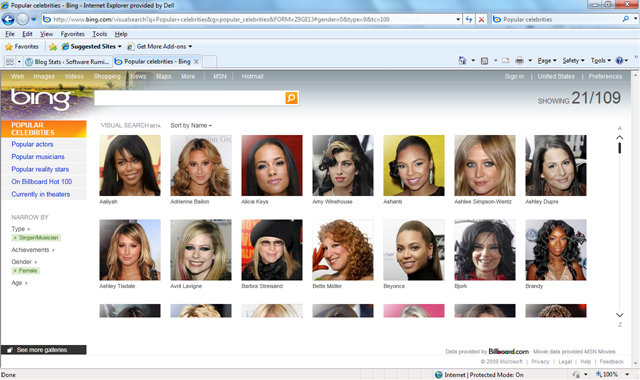
Say you’re searching for a certain celeb but you can’t remember their name. Got to the “Popular Celebrities” gallery:

image

You know it’s a female singer you’re thinking of so using the filters on the left, you can tighten in up:

image

That’s cut it down from 915 to 109 but that’s still quite a few pictures to go through; luckily there’s one filter that I think is particularly awesome…the age range filter. The singer you’re thinking of is somewhere in here 30’s so:

image

Here (if you open up the bigger picture) you’ll see the age is set to 29-41, which has further narrowed it down to 31, which is an easy amount of pics to quickly flick through. Once you’ve found the person you’re looking for, simply click the image to be taken to a Bing search page for them:

image

Even in it’s Beta form, this is clearly a powerful new tool in Microsoft’s assault on the world of search and it can only get better. What’ll be great is when you can get the Visual Search results for any query so next time someone’s arguing that it’s Laurence Fishburne in 187, not Samuel L Jackson-you can Bing it and get Visual Proof-nice 😉

Well done Microsoft…now here’s my request for the next version of Visual Search…the ability to generate a search query with a picture. Say you’ve got a JPEG of a building/person/car and you just don’t know what or who it is, imagine being able to upload that to Bing and it identifying it for you…that’s be pretty sweet 🙂

If you can’t access the page www.bing.com/visualsearch then change your country to the US (in the top right corner) and you should be all good!

Windows Server 2008 TS/RDS


I’m sure you’re aware that Windows Server 2008 R2 has now been released, but not everyone is aware that Terminal Service (TS) is no more and has been replaced by Remote Desktop Services (RDS).

RDS offers all the same functionality as TS as well as a whole host of new benefits. These new additions include:

  • Simplified management with a unified and scalable connection broker for both Session Desktops and VDI Desktops providing:
  • Unified Remote Desktop Web Access (RD Web Access) and ‘RemoteApp and Desktop Connection’ feature for access to VDI and Session Desktops
  • Ensures users can only see the apps they are supposed to with per-user RemoteApp permissions and filtering
  • Provides the user a rich remote experience, bringing the experience closer to that enjoyed by users accessing local computing resources such as:
  • True multi-monitor support
  • Windows Media® Player redirection,
  • Bidirectional audio,
  • Enhanced bitmap acceleration for 3D applications and rich media content such as Silverlight and Flash.
  • Improved application compatibility and management of RD session host servers with the inclusion of Microsoft Application Virtualization for TS

This last point is especially interesting-“App-V for Terminal Service” is included with the CAL and is no longer a separate product. This applies not only to the 2008 R2 RDS CALs but also 2008 TS CALs. (I’m going to look into if and how it works with existing CALs and post an update here). *Update* I’ve investigated this today and, despite the blog’s wording, it doesn’t apply to Server 2008 TS CALs…it is Server 2008 R2 RDS CALs only.

*Update 2*I received a mail from Alex, the author of the original blog post, today telling me that my previous update was wrong and that is true*. Looking at the FAQ’s here shows that customers who currently have the Windows Server 2008 TS CAL will receive the App-V for TS functionality too-great news 🙂

Customers should find that the App-V for TS software is now available via the Volume Licensing Service Centre (VLSC) from September 1st.

It’s to be noted that “App-V for Desktops” isn’t included in this and is still separately licensed through MDOP.

Because of these extra features, the cost of the CALs will increase by around 5%. However MS are offering them at an equivalent price to the previous CALs until 31/12/09 (again, I’ll check where this promo is running and let you know).

This is another thing that makes Windows Server 2008 R2 an excellent step forward 🙂

The MS RDS Blog is here.

*I’ve apologised to Alex and I aim to correct the source of the incorrect information too. I also want to apologise to anyone who read the incorrect info on here-sorry!

Microsoft MDOP


MDOP AKA the Microsoft Desktop Optimization Pack is one of the least well known Microsoft products, and that’s a shame as it’s packed full of goodness!

It’s only available to customers who have Software Assurance on Windows Desktop OS licences (Vista, Windows 7 etc) and contains the following:

Application Virtualization (App-V)

Microsoft Enterprise Desktop Virtualization (MED-V)

Diagnostics & Recovery Toolset (DaRT)

Advanced Group Policy Management (AGPM)

Asset Inventory Services (AIS)

System Center Desktop Error Monitoring (SCDEM)

These tools can help make managing systems so much easier in so many ways!

They are licensed on a per user per month basis which means they’re not available on all licensing programmes-namely MDOP is missing from Open licensing. If MDOP is attractive to you, you should look at the Open Value Program to get MDOP and other benefits too.

There’s a whole host of MDOP videos from Tech-Ed available here. Be warned though-they require a TechEd Online subscription.