Microsoft OCS & Roundtable


I had a great Live Meeting with a customer day where we discussed how Microsoft Office Communications Server 2007 and the MS Roundtable device is helping them in their organization…and I have to say it was one of the most positive chats I’ve had with a customer for quite a while!

They are a very large international organization with operations on pretty much every continent (save Antarctica I believe) with 100’000s of users across 100’s of countries. As you can imagine, that means there are a lot of meetings to be had and thus a lot of flights to be made and hotels to be stayed (in). There international travel costs come to 1,000’000’s of Euro’s a year and that is something they wanted/needed to cut-especially in the recent climate.

Using Live Meeting and Roundtable for Video Conferencing means some individual sites are saving over £1,000 per week in travel costs alone! Certain people were flying to Europe 3 times a month and that has now been reduced to once every 2 months at the most…as well as the cost savings, the reduction in carbon emissions is phenomenal 🙂 Since it’s installation, OCS has been used for 12,000,000 minutes of remote conversation!!!

The customer termed Live Meeting/OCS & Roundtable as “the dog’s bollocks” 😉

Live Meeting’s ability to share desktops and applications as well as Powerpoint slide shows makes it the perfect medium for showing remote workers how to use a new system, showing technicians the error you’re experiencing as well as standard presentations etc. Also, the fact that you can take control of a remote desktop means Helpdesk’s can use it to quickly see and solve user’s issues. The Roundtable, with it’s full 360 degree panoramic display helps remote users feel more connected to the information being delivered and the people delivering it!

One situation where Video Conferencing comes in very handy is with pregnancy. Both us internally and the customer I was talking to have got staff who’s wives are very close to giving birth…but there are also important European meetings close on the horizon…”ruh roh” as Scooby may say! Usually the choice would be:

    • Don’t go
    • Go and risk missing the birth

Neither of these are brilliant solutions, so Video Conferencing gives us a 3rd option:

    • Stay here and conference in with full video and VOIP audio.

That way the user can still make their contributions as well as learn from everyone else, while being close enough to home to dash off to the hospital at a moment’s notice!

New Raekwon Joint


I’ve just been watching the new Raekwon video for one of the tracks of his upcoming “Only Built 4 Cuban Links II” album and it’s freakin awesome!

I’ve been a fan of the Wu-Tang ever since 36 Chambers so a good 16 years now (blimey!) but even I have to admit that the last few albums haven’t been as classic as those of yesteryear. 8 Diagrams had a couple of good tracks and some wicked samples but we’ve not seen a “Protect Your Neck”, “Wu-Tang Ain’t Nuttin to F**K Wit”, “It’s Yourz”, “Hellz Windz Staff”, “Incarcerated Scarfaces” or “Liquid Swords” for quite some time…but I think that might be about to change 🙂

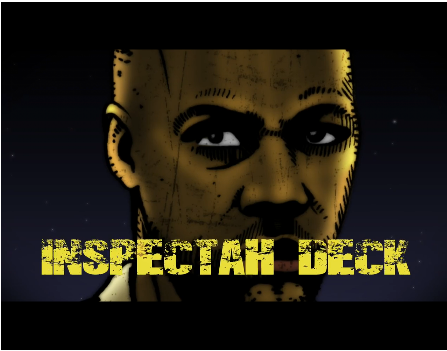
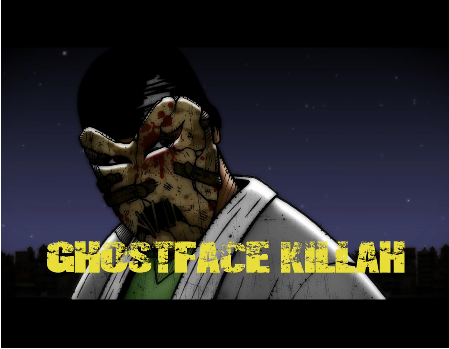
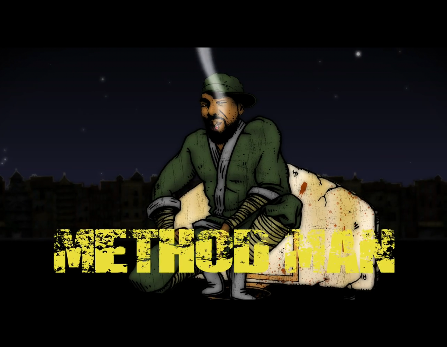
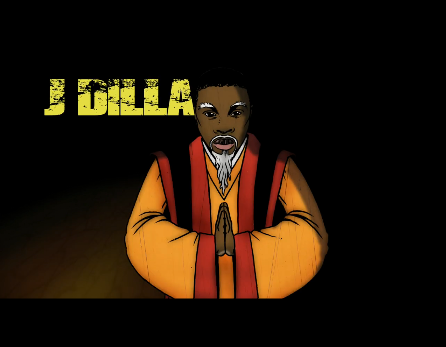
This new track is called “House of Flying Daggers” and features Raekwon, Inspectah Deck, GZA, Ghostface and Method Man-with production by the late J-Dilla and RZA’s in there too hooking it up with some fly kung-fu flick soundbites! This song really takes me back to the good old days of the Wu, I couldn’t keep my head form nodding 😉

I can’t embed it so go check it out over at Vapors Magazine here.

image image image image image image image image

ps: The album drops September 7th according to HMV’s site!

Free Microsoft Virtualization e-book


Microsoft books are usually pretty excellent with great content covering great products in great details…but they can often be pretty expensive too. However Microsoft have made available, for free-yep completely gratis-a wonderful e-book on their Virtualization technologies. Called “Understanding Microsoft Virtualization Solutions”, it covers:

  • Hyper-V
  • App-V
  • MED-V
  • Virtual Machine Manager (VMM)

and more…and is fantastic! It’s full of great information, how-to’s & descriptions aswell as diagrams such as:

image

Go and download right now here.

Microsoft Virtualization Questions


Hi!

Through the awesomeness that is Twitter, I’ve managed to connect with some of the Virtualization experts who work at Microsoft HQ in Redmond. They’ve very kindly offered to answer any and all questions that you guys can think of…as long as it related to Microsoft virtualization 😉

The main thing people think of with this is Hyper-V and, while that will be a big part of this, there are other elements too. Things such as:

  • Application Virtualization (App-V)
  • Presentation Virtualization (TS/RDS)
  • Desktop Virtualization (VDI)
  • XP Mode
  • MED-V
  • Virtual PC

However, as well as product/feature specific questions, if you’re wondering about Microsoft’s long term strategy etc-please ask too.

This is a great chance to get your feedback directly to MS HQ and to get those burning questions answered straight from the horses’ mouth 🙂 We’re hoping to get this Q & A done by the end of this month (August) so please, add your questions in the comments below and we’ll get started!!!

Cheers

Rich

Diagnostic and Recovery Tool (DaRT)


DaRT is what was previously known as WINternals and is a great piece of software, a real boon to any IT admin’s toolkit. It comes with all kinds of tools and tricks to troubleshoot unresponsive PCs and get them back up and running by removing malware, fixing drivers and more.

The first part is the Crash Analysis Wizard, which looks at .dmp files (crash dumps) and pulls out the relevant info to tell you why the crash has happened.

The next part is ERD Commander. This lets you create a start up image that you will use in the future on seemingly unbootable machines. Once you have given it an OS (which it can extract from your install disk), you choose which tools you want to include on the disk…the choice is:

  • Computer Management
  • Crash Analyzer
  • Disk Commander
  • Disk Wipe
  • Explorer
  • File Restore
  • Hotfix Uninstall
  • Locksmith
  • Registry Editor
  • Solution Wizard
  • Standalone System Sweeper
  • System File Repair
  • TCP/IP Configuration
  • You can then add any specific .inf files (drivers) that you would need, if you have specific extra hardware requirements in your organization.

    Brandon LeBlanc from the Windows Blog has got a great post on DaRT here.

    Advanced Group Policy Management (AGPM)


    What is it?

    AGPM is a core component of MDOP and “helps customers overcome challenges that affect Group Policy management in any organization, particularly those with complex information technology (IT) environments”.

    It’s three key features are:

    Change Control: These concepts will be familiar to most, if not all, server administrators-particularly those who use Sharepoint.

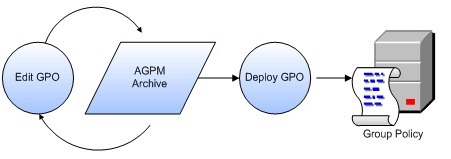
    The steps necessary to change and deploy a GPO are as follows:

    1. Check out the GPO from the archive.

    2. Edit the GPO as necessary.

    3. Check in the GPO to the archive.

    4. Deploy the GPO to production.

    Change Control keeps a version history of the GPO’s, allowing you to quickly roll back to a previous version if needed. Another neat feature is it’s ability to compare different GPO versions, quickly showing what changes were made.

    Change Control

    Offline Editing: This allows you to test new/altered GPO’s without the worry of messing up your production environment!

    AGPM

    Role Based Delegation:  This feature differs from standard Group Policy in that it can prevent Admins from approving their own changes. To do this it provides 3 new roles:

    · Reviewer. Administrators assigned to the Reviewer role can view and compare GPOs. They cannot edit or deploy them.

    · Editor. Administrators assigned to the Editor role can view and compare GPOs. They can check out GPOs from the archive, edit them, and check them in to the archive. They can also request deployment of a GPO.

    · Approver. Administrators assigned to the Approver role can approve the creation and deployment of GPOs. (When administrators assigned to the Approver role create or deploy a GPO, approval is automatic.)

    Delegation

    The whitepaper can be found here.

    Updates in MDOP 2009:

    The new version of MDOP will be released late October 2009 and makes the following enhancements to AGPM:

    Manage Group Policies across different domain forests: ability to copy Group Policy Objects (GPOs) from one domain forest to another, even if the two domains are not physically connected, easily creating a new controlled GPO or replacing an existing one.

    Easier GPO tracking with search & filter: ability to filter GPOs according to various attributes, such as name, state, or comment. You can also search for GPOs that were last changed by a particular administrator or on a particular date.

    The MDOP Blog post is here.

    System Center Desktop Error Monitoring (SCDEM)


    SCDEM is the newest addition to the MDOP family and it’s a corker!

    What does it do?

    SCDEM captures all application & OS failures across your enterprise and stores them in one central location, to enable your technicians to track, monitor and pro-actively respond to issues.

    This is like a local version of the “Send error report to Microsoft” box you sometimes get when apps crash and hang. While it’s good for MS to have this information, in a larger enterprise it’s more immediately useful for the in-house IT team to have it. This way they can identify error trends and match them up to recent changes they’ve made to the network, desktops, 3rd party software etc-thus quickly identifying, and (hopefully) fixing, the problem.

    It also enables you to create a company specific knowledge base of fixes for errors.

    Advantages of SCDEM

    Increase productivity of users: Once SCDEM has been running for a while, IT will have had a chance to identify and correct the vast majority of common issues. That means that there will be less errors on the desktops and thus less downtime for users. The internal knowledge base will also make it easier for end users to be pro-active and solve their own issues without having to log a ticket with the help desk.

    Easy Deployment: Due to it using the standard Windows error reporting system, all it takes to get SCDEM deployed to however many 1000’s of PC’s you have with a single Group Policy in Active Directory-nice huh? 🙂

    Advanced Reporting: SCDEM provides many different reports to show which applications crash most, when they crash etc so that IT can make well informed decisions when it comes to patching and fixing.

    For anyone who is using SCDEM and having problems, I’ve just found a great whitepaper on Troubleshooting this program. Download here. The Technet blog post is here.

    If you head over to this Technet blog, you can see a great video of SCDEM in action-here.

    Windows Server 2008 R2 Licensing


    Every new version of a Microsoft product comes with changes to the licensing 🙂 So let’s see what the new Server OS release will bring…

    • As this is an R2 release-if you already have Windows Server 2008, you will NOT need to purchase new CALs. The existing Server 2008 CALS will continue to work.
    • There will be no more “without Hyper-V” editions.
    • When running Windows Server 2008 R2 in just the Hyper-V role-you do NOT need to upgrade to Server 2008 CALs.
    • Terminal Services (TS) is becoming Remote Desktop Services (RDS). TS CALs and RDS CALs can be used interchangeably between Server 2008 and Server 2008 R2.

    What does this mean to me?

     The biggest thing for end users here is the first point-not needing to upgrade to R2 CALs. As Windows Server 2008 R2 is such an integral part of any Windows 7 environment for things such as Direct Access, BitLocker, Branch Cache etc-this is a great way to facilitate uptake of the new technology. For most customers the main cost of a server upgrade is in the CALs-that is almost universally the reason that people I talk to are still running Server 2003!

    This means that customers can move to Windows Server 2008 R2 at minimal cost, thus helping drive adoption of Windows 7-which is always good!

    Another CAL related bit of goodness is the 3rd point-that if you have Server 2008 R2 solely to run Hyper-V, you can continue using your existing CALs for say Server 2003 to access applications on those virtual servers. Again a great move that helps increase adoption of Hyper-V which, don’t forget, has Live Migration in R2 🙂

    The Microsoft page is here.

    MED-V


    MED-V or Microsoft Enterprise Desktop Virtualization is like SUPER XP mode 🙂

    As great as XP Mode is, it has caused a few problems where people are now wondering if MED-V has been replaced-it hasn’t.

    First up-MED-V is used for virtualizing legacy applications so they can be run on new OS’s like Vista and Windows 7. Yes that sounds a lot like XP Mode but MED-V introduces a whole extra management layer for use in the corporate world-specifically:

    “MED-V provides important centralized management, policy-based provisioning and virtual image delivery to reduce the cost of Virtual PC deployment”

    Stephen L Rose has got a great post over on the Windows Team Blog about the differences between these 2 technologies so, rather than re-invent the wheel I’m going to respectfully copy & paste 😉

    How does MED-V adds management to Windows Virtual PC?

    To provide a managed, scalable solution for running virtual Windows XP applications, MED-V addresses many of the IT challenges around deployment and management including:

    • Deployment – deliver virtual Windows images and customize per user and device settings
      • Automate first-time virtual PC setup based on an IT customized script – including assignment of a unique computer name, joining to AD domain
        (for instance: assign the virtual PC a name that is derived from the physical device name or the username to simplify identification and management)
      • Adjust virtual PC memory allocation based on available RAM on host, so that the virtual PC does not take significant resources from the user
    • Provisioning – define which applications and websites are available to different users
      • Assign virtual PC images according to users and groups
      • Define which Windows XP applications will be available to the user through the start menu
      • Define which websites (e.g. internal sites that requires a previous version of Internet Explorer) are redirected automatically to Windows XP
    • Control – assign and expire usage permissions and Virtual PC settings
      • Control the network settings of the Virtual PC (e.g. whether it connects through NAT or DHCP, whether its DNS is synchronized with host)
      • Authenticate user before granting access to the Virtual PC
      • Set expiration date, after which the Virtual PC is not accessible to the end user
    • Maintenance and Support – update images, monitor users and remotely troubleshoot
      • Update images using TrimTransfer network image delivery – update a master Virtual PC image, and MED-V will automatically distribute and apply the changes to all endpoints
      • Centralized database aggregates events from all users, and provides troubleshooting information on malfunctioning virtual PCs
      • Administrator diagnostics mode allows faster resolution of Virtual PC issues
      • Run on multiple platforms – MED-V will work on both Windows 7 and Windows Vista, and will not require processor-based virtualization support

    MED-V is available only as part of MDOP and thus is only available to certain volume licence customers with active Software Assurance.

    This technology builds on Microsoft Virtual PC and the new version has got some great new features including:

    USB Support: Access USB devices connected to your Windows 7 machine directly from the Virtual Machine.

    Clip Board Sharing: Copy and paste between your Windows 7 desktop and your Virtual desktop.

    Printer Redirection: Print directly from your Virtual PC.

    More can be found over at The Windows Team Blog.

    Application Virtualization (App-V)


    Microsoft App-V is what was formerly known as SoftGrid and it’s some pretty clever stuff 🙂

    It’s main feature is to virtualize applications, this isolates them on the users workstation and reduces application conflicts-thus reducing end user downtime. However the apps can still fully interact with each other such as copy & paste etc so still giving the users the experience they’re used to.

    The latest version is 4.5 and major highlights include:

  • HTTP streaming. Support for streaming virtual applications from an IIS server (v6 or v7) providing dramatic performance and scalability improvements for large App-V deployments.
  • Re-designed Sequencer. Simplifies the process and reduces the complexity of creating virtual application packages.
  • Dynamic Suite Composition (DSC) for MSI packages. Consolidate virtual environments, control virtual application interaction, enable faster, easier administration.
  • Seamless integration with System Center Configuration Manager 2007 R2. Allows customers to easily deploy virtual applications through the System Center Configuration Manager 2007 R2 infrastructure and scale their deployments.
  • Client cache improvements. The maximum size of the client cache has been increased to 1 TB.
  • Improved Manageability. Integration and support for VSS writer, Operations Manager management pack, ADM template.
  • Accessibility. The product is now Section 508 compliant, bringing App-V in line with Microsoft shipping requirements.
  • Most conversations I have with schools include App-V as they often have odd bits of software like “Science for GCSE 1997” and “Maths is brilliant V 2.3” that don’t play nice with each other-and App-V is a great way to solve that.

    See the Technet MDOP page here.

    Advantages of using App-V:

  • Streams applications on demand over the Internet or via the corporate network to desktops, terminal servers, and laptops.
  • Automates and simplifies the application management lifecycle by significantly reducing regression and application interoperability testing.
  • Accelerates Windows and application deployments by reducing the image footprint.
  • Reduces the end-user impacts associated with application upgrades, patching, and terminations. No reboots required, no waiting for applications to install, and no need to uninstall when retiring applications.
  • Enables controlled application use when users are completely disconnected.
  • Integrates with System Center Configuration Manager to enable physical and virtual deployments through the same people, process and technologies.
  • Licensing:

    It needs to be noted that there are 2 version of App-V available to buy.

    App-V as part of MDOP: For use in standard environments.

    App-V for Terminal Services: For use in Terminal Service environments only. App-V’s application virtualization allows any application to run alongside any other—even applications that normally conflict, multiple versions of the same application, and many applications that previously could not run under Terminal Services.

    Terminal Services