VStudio 2008 Edition Comparison


Visual Studio 2008 has got a few different versions and working out which one is right for you can sometimes be a bit tricky. Microsoft have made some very useful comparison charts but, as is often the case, they haven’t made them that easy to find!

The different editions are:

  • Architecture
  • Development
  • Database
  • Test
  • Team Suite (This includes all 4 version above)

A nice “at a glance” comparison can be found on the Microsoft site here.

A more in-depth version can be downloaded here.

Hat tip to Softie Rob Caron…

Microsoft VECD: Diagrams


Microsoft VECD (Virtual Enterprise Centralised Desktops) is their required licensing offering for companies looking to run Virtual Desktop Infrastructure (VDI) setups. For more general info on VDI, see my posts here and here and my VECD post is here.

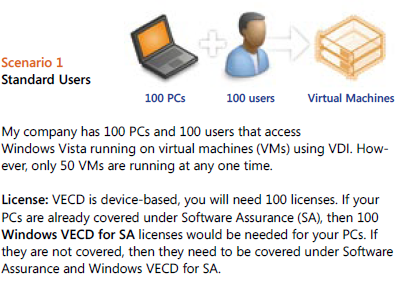
VECD licensing can be quite confusing to get right for the various different scenarios that might pop up, so Microsoft have made a handy pdf to show how it works for a variety of different possible situations.

Scenario 1:

image

Scenario 2:

image

You’ll notice in scenario 2 that although there are 150 VM’s (Virtual Machines) being accessed, you only need to licence the number of machines, in this case 100. You can have an unlimited number of instances (of the OS) stored on the server and each machine can access up to 4 running instances at a time.

Scenario 3:

image

This is an interesting scenario and I in fact answered a question about this on Twitter just today 🙂 VECD is a device based licence BUT it gives Work at Home (WAH) rights to a specific named user of that machine; this mixing of device/user, while perfectly sensible, does lead to some confusion. These WAH rights help make VECD and VDI nice and flexible.

There are more scenarios on the pdf (which is why my scenario 3 is their 4!) as well as a lot more great info, and you can download it from:

http://www.microsoft.com/windows/enterprise/solutions/virtualization/licensing.aspx

For me at least, I had to save the pdf and then open it; if I tried to open it from the site it gave me an error. It’s down near the bottom, the “VDI Licensing Brochure” mentioned 5 lines from the end 🙂

A great example of Crystal Xcelsius


Crystal Xcelsius is a fantastic product and some of the things that people do with are amazing…huge data visualizations laid out on maps with automatically refreshing data and various gauges, sliders, graphs and all sorts:


Thanks to http://dashboardsbyexample.com/

I’m pretty sure that the Wall Street Journal Election Calculator was created in Xcelsius-you can find it here.

It does a great job of making boring, grey spreadsheets and reports much more engaging, interesting and effective. However, I’ve never found an example I can use on a regular basis…but now i have 🙂

Web 2.0 Presentation Tools from SAP – this set of tools from SAP’s Timo Elliott is great. They use Crystal Xcelsius to integrate Twitter into your Powerpoint presentations-how great does that sound?!

I had a little play around with it earlier and used it to show tweets about MS licensing, scrolling live across the bottom. Twitter keeps increasing in popularity as a way of interacting with presenters and of giving feedback during a talk, when it can still make a difference. These tools mean you don’t need to have separate apps running on your machine or even a separate machine used solely to receive & manage Twitter feedback.

You can download the Powerpoint with guides and the tools to integrate it yourself here:

http://www.sapweb20.com/blog/2009/10/web-20-presentation-tools-from-sap-integrate-twitter-into-powerpoint/

I really like this. It’s very useful, current and a great advert for SAP’s Xcelsius technology.

New features of Exchange 2010


Microsoft Exchange 2010 is nearly here so I’ve just been going through some of the free e-learning that’s available (here) to see what’s new.

Unified Communications:

There have been many improvements around the Unified Messaging piece including:

SMS Notification of missed calls

Message waiting indicators

Personal Auto Attendant

Users can have voicemail transcribed into their chosen language

Voice mails are now protected from unauthorised forwarding, copying and extracting

These enhancements should lead to the UC aspects of Exchange gaining more traction. Previously they’ve been seen as quite superfluous and “nice to have” rather than a “need to have” (at least in my experience); now however the user productivity gains are apparent.

Another big one is Federated Calendar Sharing, allowing you to easily share info with 3rd party organisations, using Windows Live as the trust broker. You need an internet accessible Client Access Server (CAS) as calendar sharing is done via web services – thusno special ports need opening.

Microsoft Clustering Services are no longer needed to get High Availability (HA) with Exchange 2010.

Things to know for deployment:

Can upgrade from 2003 to 2010

AD must be at least in

Windows Server 2003 forest functionality mode

Also, you must have at least one Windows 2003 Service Pack 2 Global Catalog server in every Active Directory site that will have an Exchange 2010 server.

Note that Read-only domain controllers (RODC) and read-only global catalog (ROGC) servers are not supported.

Exchange 2010 does NOT support in place upgrades.

Read-only domain controllers (RODC) and read-only global catalog (ROGC) servers are not supported

Storage:

Microsoft have made a number of changes in this area and, at least to me, they seem like great improvements. They’ve worked hard to reduce the I/O traffic and this is done via:

IOPS changed to write more data at fewer intervals

Merged I/O instances

Both of these reduce the number of operations and improving performance. Two more improvements include:

Larger cache size (32kb)

Sequential data storage reduces I/O

They have also removed the Database maintenance windows by pushing the defrag process into the background.

All that and more, along with moving diagrams and voiceovers can be found here:

http://www.microsoft.com/learning/en/us/training/exchange-server.aspx

Microsoft Licensing: Too difficult?


Steve Ballmer was hosting a Q&A today (05/10/09) and was asked about plans to simplify Microsoft’s licensing. Brilliantly, he said they have no plans to do such a thing; somewhat expectedly, Twitter has lit up with person after person commenting that it’s all too hard and Ballmer should sort it out. However…

I don’t understand why people expect Microsoft licensing to be super simple and laid out so that everyone, no matter their field of expertise, can easily understand every part of it.

I don’t know how an engine is all put together, so I rely on mechanics. I don’t know how to re-program a washing machine,so I rely on engineers. I’m not 100% au fait with all the accounting procedures, so I rely on our Finance dept. At no stage do I expect that I should be able to work out & know all these things; much less do I demand that someone does something about it!

Yes-it is important and integral to an end users business that they get the correct licences, in the correct way, as cost-effectively as possible. However the same is true of servers…and VOIP…and storage…and the list goes on but I have never seen anyone moan about how confusing speccing up a SAN solution is…and that can be pretty complicated. People are perfectly happy to accept that these things are handled by experts, people with years of experience and the time to work out all the different ways of doing something…so why not software licensing?

In fact, it’s not software licensing as a whole…in reality, it’s just Microsoft licensing that people seem to have a problem with. If someone needs help working out whether Adobe TLP or CLP suits them best – fine. Help on whether they need a Backup Exec agent for each File server or should they get a virtual agent for the server – fine. Help on whether they need CALs or NULs for Crystal Reports server – fine. However, if they need help on whether OLP or OVP is best, or if they need Windows Server Std or Enterprise or if they should get CALs or a processor licence – then it’s a whole different story. Then it’s too complicated, it’s made to confuse and rip off end users and all it does is generate more money for Bill & Steve.

Yes, I’m a Microsoft fan and yes, my job is to provide licensing solutions to customers but I really think people are being over the top now. It’s similar to what happened with Vista, it’s become cool to slate MS licensing. Just like with the ill-fated OS, I suspect many people who are complaining haven’t had any bad experiences with it, or perhaps haven’t experienced it at all, but it’s cool to moan so everyone’s joining in!

If you’ve read this and there’s some part of MS licensing that’s confusing you-please leave a comment/drop me a tweet/send me an email and I’ll be happy to help 🙂

Adobe Flash 10.1 for Windows Mobile


Adobe Flash 10.1on Windows Mobile aims to bring and end to the myriad issues experienced when trying to use the two products together! It has always been a bit of a joke and has never really worked properly, despite Flash becoming ever more ubiquitous on sites across the globe; a real fix to this would be great.

From Adobe’s statement (bold mine):

“A public developer beta of the browser-based runtime is expected to be available for Windows® Mobile, Palm® webOS and desktop operating systems including Windows, Macintosh and Linux later this year… Flash Player 10.1 is the first consistent runtime release of the Open Screen Project that enables uncompromised Web browsing of expressive applications, content and high definition (HD) videos across devices.”

I’m a big Windows Mobile fan but it does annoy me not being able to view flash content on my device, so this is really something. Adobe made no mention of supported WinMo versions but PCMag say it will be 6.5 and above…which sucks a bit. I’m sure there will be a lot of 6.1 devices around for quite some time, I’m stuck on it until my contract ends) so it’d be nice to back it backdated at least that far 🙂

WHat MS really ought to do is get full Silverlight up and running on WinMo devices-that’s be awesome!

Still, we’ll see how it goes when the Flash beta arrives. The full Adobe release can be seen here.

Thanks to Mary Jo for the pcmag link.

Microsoft Security Essentials: Thoughts on AV


Microsoft Security Essentials (MSE) is available to everyone and it’s getting very favourable reviews from most people. The only nay-sayers so far seem to be the dedicated AV companies such as Symantec.

I’m not going to bother analysing the comments as it’s pretty obvious that most AV companies will say:

a) It’s rubbish

or

b) We don’t care because ours is so much better

and I’ve got an older post about how good I find it to be.

I think Microsoft’s introduction of a very good, easy to use, free anti-malware solution is a blessing and a breath of fresh air for home users. Just like the corporate market, there are now:

  • Too many manufacturers
  • Too many products
  • Too many features in each one

The number of machines I’ve seen that have at least 2 overlapping programs installed is pretty high. This is usually down to all the FUD (Fear Uncertainty Doubt) causing people to panic a little bit and over-protect themselves…this often causes the machine to run poorly.

Then you have the the sheer number of vendors-who all say their product is the best:

  • Symantec/Norton
  • Panda
  • Eset
  • Kaspersky
  • AVG
  • Bullguard
  • Avast
  • F-Secure

and that’s not all of them. Yes-you could argue that Microsoft have made this worse by offering a real contender but I don’t think that is the case…I think it will streamline this situation of over-choice. Microsoft is obviously a well respected brand and so many people will choose MSE because they’re familiar with the name. As it’s all free-it can’t really be anti-competitive really can it? All it can be is easier and better for the average home user…and that should be everyone’s focus in the world of consumer security.

I’m pretty sure that non-web savvy people searching the internet for “free anti-Virus” often leads to them downloading the opposite-a package full of bloatware, trojans, key loggers and more. However, people going to:

http://www.microsoft.com/security_essentials

will stop all that.

The idea that people having a manufacturer’s free product at home leads to them purchasing that vendor’s corporate offering at work isn’t particularly true, in my opinion. I speak to a lot of customers who run AVG at home…but none of them use AVG at work-they go with Symantec, Mcafee, Microsoft etc. I’ve also spoken to people who, after using Norton at home (usually as bloatware on a new machine) have removed Symantec from the workplace due to the bad experience!

All in all, I see this making it easier & safer for everyone involved 🙂

Microsoft Security Essentials


Microsoft Security Essentials (MSE), Microsoft’s free home user anti-malware tool, was today released in all it’s final glory to the world at large.

I’ve been running the beta for a few months now and I find it to be brilliant…it’s easy to install, easy to use, un-obtrusive and hasn’t let any nasties through (touch wood!). I was a Kaspersky user previously but I started to have some issues with the Windows 7 RC so MSE came along at just the right time 🙂 I’d definitely recommend that you give it a go, so download it from:

http://www.microsoft.com/security_essentials/

For more in-depth info and screenshots-see my July post here.

A look at Exchange 2010


I’ve been looking around the Microsoft New Efficiency site (blog post here) today and there are a number of great videos giving an overview and introduction to the new features of Exchange 2010. One of the key ideologies behind the new version of Exchange has been that it will behave the same whether it’s on-site or hosted in the cloud. The slide below shows the main pillars of Exchange 2010:

image

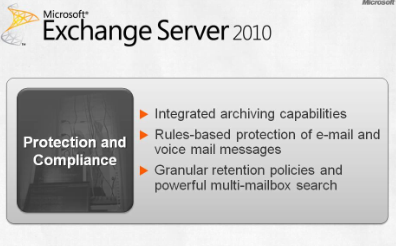
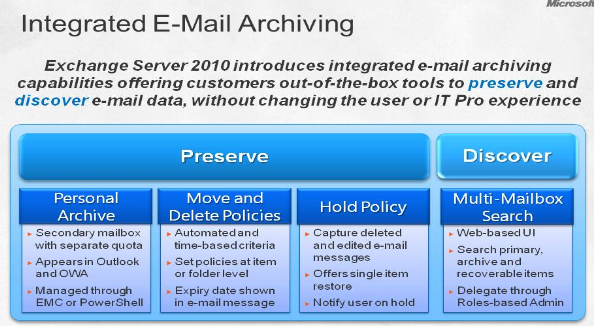
The following screenshots go into more detail on the features behind the above:


image


image

image

You’ll see here that Exchange 2010 now has integrated archiving capabilities. As you can see below, it gives users a 2nd mailbox which can be used to store archived data with all the familiarity and ease of Outlook.

image

image

It also has a new “Legal Hold” feature which tracks all edits etc on a user’s email-even those that are deleted.

Other features/news:

I saw this week that Exchange 2010 has the ability to migrate users during an upgrade (from 2007) without any downtime! A huge bonus to System Admins everywhere 🙂

Outlook Web Access is now called Outlook Web App, so still the same initials but it shows a different approach. Rather than it simply being a way to get your emails when you’re without Outlook…it is now a proper, defined entity in it’s own right. That is also shown by the fact that OWA 2010 will have around 95% feature parity with the full Outlook client. I don’t know what the percentage is currently but certainly in my opinion OWA 2007 is lacking a lot; so roll on OWA 2010! This will be of big interest to people looking at Exchange Online aswell…

Microsoft: The New Efficiency


At today’s “New Efficiency” launch event, Microsoft CEO Steve Ballmer spoke about Windows 7 deployments and how customers can save money with the latest OS. He particularly mentioned that Windows 7 “will bring $90-$160 saving per pc per year”.

He also discussed the “Consumerisation of IT”, where users bring/force change in Corporate IT via their expectations from using software at home. He said that it isn’t a new phenomenon (it just has a new name) and that it will continue to be a huge driving force in the way that software is designed and used-such as the extra social networking features being added into Office, Exchange & Sharepoint.

This all led to the launch of a new website:

http://vepexp.microsoft.com/thenewefficiency

which contains dozens of videos from MS execs covering topics such as:

  • Discover Windows Optimized Desktop
  • Learn about Optimized Server
  • Experience Unified Communications
  • Explore Business Ready Security

There are a bunch of videos on Exchange 2010 such as:

  • Upgrade & Deployment
  • High Availability
  • Mobility & Active Sync
  • Email Archiving

and more. These are a great source of information on Exchange 2010, some of which I’ve collected here.

The banner below is a great representation of the products & ideas behind the New Efficiency.

image

There are way too many sessions to list here but MS have put together some suggested sessions listings for:

  • Enterprises
  • Mid-Size
  • SMB’s

They contain links to the videos on the New Efficiency site and can be downloaded from my SkyDrive here.