Microsoft BPOS Updates for November


Microsoft are constantly improving BPOS and adding new features each month, and November is no different.

Mailbox Access Permissions

Powershell commandlets are being added to increase the range of mailbox permission settings that can be done by BPOS administrators including:

  • Full Mailbox Access
  • Delegate Send As
  • Send On Behalf

These provide capabilities including:

“up shared mailboxes, granting “send as” permissions for administrative assistants, and enabling full mailbox access for third party applications, such as archiving applications and fax servers”

No more opening a ticket with support!

The CMDlets are:

Add Mail Permission

Remove Mail Permission

These will require an update to the Transporter/Migration tools which will be downloadable from MS Download Centre once the update is deployed across all datacenters; this should be completed by early December.

Bulk User Management

A new set of CMDlets for bulk adding and removing users have been added too. These will also rely on the updated Transporter tool being made available. The CMDlets are:

Sharepoint Auditing

Admins will soon be able to view data and reports on site collection activities including:

  • items added
  • changes to permissions
  • documents viewed

Having access to this information can help track the utilisation of the Sharepoint investment within the company and so will be very useful. Companies will be able to see how users are interacting with the system and identify any areas that need improving or conversely, which areas are a roaring success 🙂

Partners on Invoices

Customers who use a Partner of Record will soon see that partner named on their invoices. From a Partner’s point of view, this is a great addition as it helps solidify the relationship between the Partner and the customer and reduces any confusion as to points of contact for support etc.

Once again, the updates have given BPOS an even stronger message and this, coupled with this week’s price cuts, should definitely see an increase in BPOS takeup.

The full MS Online blog post is here.
Exchange 2007 & Server 2008 R2


Windows Server 2008 R2 doesn’t support Exchange 2007. That is a fact and it has caused confusion, consternation & anger among many of Microsoft’s customers and indeed partners (I can confirm that!).

The big question was “Why"?”…as when Server 2008 R2 was released in September, Exchange 2007 was the current version. While Exchange 2010 is almost upon us it is still unlikely that companies will instantly move to the new version…particularly on something as important as their email infrastructure. So that meant either:

a) Customers stayed on Exchange 2007 and Server 2008

b) Customers had a mixed Server 2008/2008 R2 environment

and, aside from the technical aspect, many people viewed it as a cynical ploy by Redmond to force them to upgrade. The message alongside Windows 7 is “Deploy with Server 2008 R2, they’re better together” (which is true!) but then it seemed a little like “Gotcha! Now you’re got R2…you’ve got to buy Exchange 2010”. While that wasn’t the case, that’s how it seemed to customers and really-that’s what matters. Vista wasn’t anywhere near a terrible as a lot of people say it is…but it didn’t do very well did it…and that was because of user perception.

Now however, that’s all changed! This post on the Exchange Team Blog (You had me at EHLO) reveals that:

“In the coming calendar year we will issue an update for Exchange 2007 enabling full support of Windows Server 2008 R2”

They say that customers spoke, Microsoft listened and the change is happening…brilliant 🙂

Good work Microsoft!

Thanks to @JohnFontana for the tweet that flagged this up…

MS BPOS Connectivity Test


The Microsoft Online (BPOS) team have released an excellent tool, which measures the upload/download speeds of your connection to show how it would fare with using BPOS services.

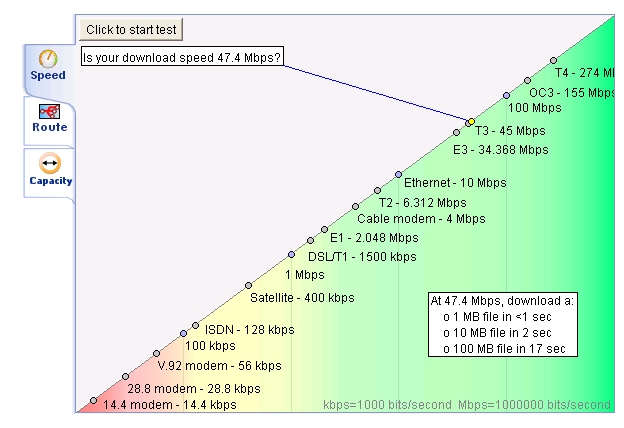
This tests the speed of your connection:

image

This looks at the routes:

image

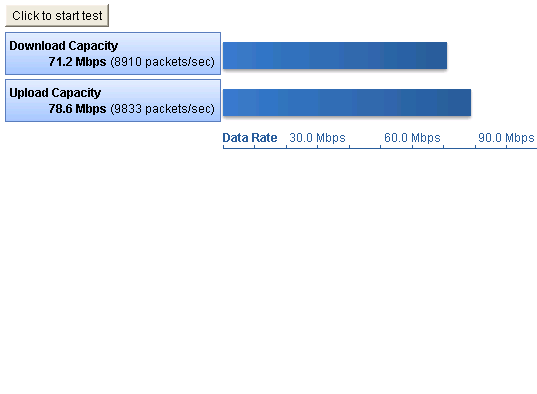
This analyses the capacity:

image

Details:

This tool helps you understand the quality of the Internet connection between your environment and Microsoft Online Services. It does not measure your environment compatibility with Microsoft Online Services. The tool performs three tests:

  • Speed: This test measures your actual download and upload speeds, quality of data, and TCP efficiency. It uses TCP/20000 for download testing and TCP/20001 for upload testing.
  • Route: This test validates your connection quality, including packet loss, latency, round trip, and ISP peering points. It uses Internet Control Message Protocol (ICMP).
  • Capacity: This test measures your potential maximum download and upload speeds. It uses UDP/8090.


Thoughts:

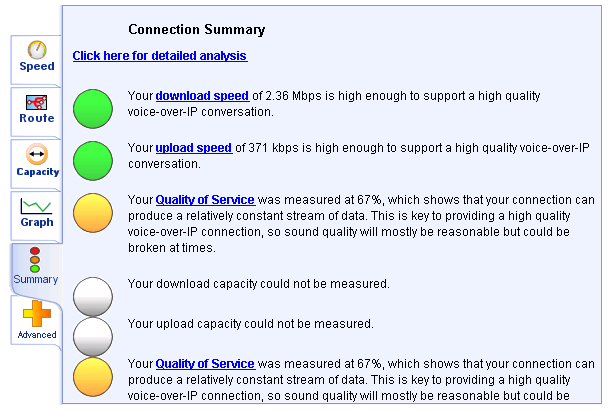
Potentially this is going to be very useful when speaking to customers about BPOS, as one of the big worries that many people have is there connection not being good enough. They worry that suddenly throwing all their internal email, as well as Sharepoint uploads/downloads could be too much for their existing networks; this could be an easy way of showing exactly what it can and can’t handle. The reason I say “potentially” and “could” is this:

image

The results seem to be aimed solely at VOIP traffic for using Office Communications Online (OCO). However, it still shows them that their bandwidth etc is, so it’s definitely useful but it would be nice if it had a separate answer for each of the products.

That said, the above does point towards something else…currently OCO only contains the Presence and Instant Message (IM) features. I’ve heard on the grapevine that VOIP calls will be coming to OCO but this is the first definite sign that this is underway 🙂

Being able to use Office Comms Online for Voice calls will be a huge selling point for customers as the on-site version (Office Communications Server (OCS)) can be quite tricky to install and get running correctly. Normally I’d guess we’ll see this in the US first and not here for a while but the URL for this tool is:

http://speedtest.emea.microsoftonline.com/

Note the EMEA (Europe, Middle East & Africa) part…looks like we’ll be getting it pretty soon too…I’ll see what further info I can find out from MS 😉

As Paul from Worktivity points out in the comments, if you’re outside of EMEA the links you need are:

For the APAC region: http://speedtest.apac.microsoftonline.com/
For America’s region: http://speedtest.microsoftonline.com/

Thanks to @worktivity who’s tweet alerted me to this…

MS Exam 70-680 training videos


Exam 70-680 is the new Microsoft MCTS exam for Configuring Windows 7 that builds towards the MCITP accreditations.

I’ve been thinking of taking this exam for a little while and now there is what’s shaping up to be an excellent series of training videos available from @Bibbleq. He’s an IT Admin and has started putting these videos together in his spare time to help out anyone looking at this exam – so ‘nuff respect for that 🙂

I’ve watched the 1st 2 videos that are available and they’re really good. Well presented, clear and I’ve definitely picked up a thing or two, which is what it’s all about isn’t it?! I’m not sure how many will be in the series but I’m confident that once you’ve seen them all, you’ll be in a position to pretty much go and take the exam straight away!

First video is here.

Second video is here.

Third video is here.

Fourth video is here. This is the start of Section 2.

Section 2 Module 2 is here. This covers DISM & ImageX.

Homepage is here.

Nice one Bibbleq!

New features of Exchange 2010


Microsoft Exchange 2010 is nearly here so I’ve just been going through some of the free e-learning that’s available (here) to see what’s new.

Unified Communications:

There have been many improvements around the Unified Messaging piece including:

SMS Notification of missed calls

Message waiting indicators

Personal Auto Attendant

Users can have voicemail transcribed into their chosen language

Voice mails are now protected from unauthorised forwarding, copying and extracting

These enhancements should lead to the UC aspects of Exchange gaining more traction. Previously they’ve been seen as quite superfluous and “nice to have” rather than a “need to have” (at least in my experience); now however the user productivity gains are apparent.

Another big one is Federated Calendar Sharing, allowing you to easily share info with 3rd party organisations, using Windows Live as the trust broker. You need an internet accessible Client Access Server (CAS) as calendar sharing is done via web services – thusno special ports need opening.

Microsoft Clustering Services are no longer needed to get High Availability (HA) with Exchange 2010.

Things to know for deployment:

Can upgrade from 2003 to 2010

AD must be at least in

Windows Server 2003 forest functionality mode

Also, you must have at least one Windows 2003 Service Pack 2 Global Catalog server in every Active Directory site that will have an Exchange 2010 server.

Note that Read-only domain controllers (RODC) and read-only global catalog (ROGC) servers are not supported.

Exchange 2010 does NOT support in place upgrades.

Read-only domain controllers (RODC) and read-only global catalog (ROGC) servers are not supported

Storage:

Microsoft have made a number of changes in this area and, at least to me, they seem like great improvements. They’ve worked hard to reduce the I/O traffic and this is done via:

IOPS changed to write more data at fewer intervals

Merged I/O instances

Both of these reduce the number of operations and improving performance. Two more improvements include:

Larger cache size (32kb)

Sequential data storage reduces I/O

They have also removed the Database maintenance windows by pushing the defrag process into the background.

All that and more, along with moving diagrams and voiceovers can be found here:

http://www.microsoft.com/learning/en/us/training/exchange-server.aspx

Microsoft: The New Efficiency


At today’s “New Efficiency” launch event, Microsoft CEO Steve Ballmer spoke about Windows 7 deployments and how customers can save money with the latest OS. He particularly mentioned that Windows 7 “will bring $90-$160 saving per pc per year”.

He also discussed the “Consumerisation of IT”, where users bring/force change in Corporate IT via their expectations from using software at home. He said that it isn’t a new phenomenon (it just has a new name) and that it will continue to be a huge driving force in the way that software is designed and used-such as the extra social networking features being added into Office, Exchange & Sharepoint.

This all led to the launch of a new website:

http://vepexp.microsoft.com/thenewefficiency

which contains dozens of videos from MS execs covering topics such as:

  • Discover Windows Optimized Desktop
  • Learn about Optimized Server
  • Experience Unified Communications
  • Explore Business Ready Security

There are a bunch of videos on Exchange 2010 such as:

  • Upgrade & Deployment
  • High Availability
  • Mobility & Active Sync
  • Email Archiving

and more. These are a great source of information on Exchange 2010, some of which I’ve collected here.

The banner below is a great representation of the products & ideas behind the New Efficiency.

image

There are way too many sessions to list here but MS have put together some suggested sessions listings for:

  • Enterprises
  • Mid-Size
  • SMB’s

They contain links to the videos on the New Efficiency site and can be downloaded from my SkyDrive here.

Microsoft Virtualization Questions


Hi!

Through the awesomeness that is Twitter, I’ve managed to connect with some of the Virtualization experts who work at Microsoft HQ in Redmond. They’ve very kindly offered to answer any and all questions that you guys can think of…as long as it related to Microsoft virtualization 😉

The main thing people think of with this is Hyper-V and, while that will be a big part of this, there are other elements too. Things such as:

  • Application Virtualization (App-V)
  • Presentation Virtualization (TS/RDS)
  • Desktop Virtualization (VDI)
  • XP Mode
  • MED-V
  • Virtual PC

However, as well as product/feature specific questions, if you’re wondering about Microsoft’s long term strategy etc-please ask too.

This is a great chance to get your feedback directly to MS HQ and to get those burning questions answered straight from the horses’ mouth 🙂 We’re hoping to get this Q & A done by the end of this month (August) so please, add your questions in the comments below and we’ll get started!!!

Cheers

Rich

Diagnostic and Recovery Tool (DaRT)


DaRT is what was previously known as WINternals and is a great piece of software, a real boon to any IT admin’s toolkit. It comes with all kinds of tools and tricks to troubleshoot unresponsive PCs and get them back up and running by removing malware, fixing drivers and more.

The first part is the Crash Analysis Wizard, which looks at .dmp files (crash dumps) and pulls out the relevant info to tell you why the crash has happened.

The next part is ERD Commander. This lets you create a start up image that you will use in the future on seemingly unbootable machines. Once you have given it an OS (which it can extract from your install disk), you choose which tools you want to include on the disk…the choice is:

  • Computer Management
  • Crash Analyzer
  • Disk Commander
  • Disk Wipe
  • Explorer
  • File Restore
  • Hotfix Uninstall
  • Locksmith
  • Registry Editor
  • Solution Wizard
  • Standalone System Sweeper
  • System File Repair
  • TCP/IP Configuration
  • You can then add any specific .inf files (drivers) that you would need, if you have specific extra hardware requirements in your organization.

    Brandon LeBlanc from the Windows Blog has got a great post on DaRT here.

    System Center Desktop Error Monitoring (SCDEM)


    SCDEM is the newest addition to the MDOP family and it’s a corker!

    What does it do?

    SCDEM captures all application & OS failures across your enterprise and stores them in one central location, to enable your technicians to track, monitor and pro-actively respond to issues.

    This is like a local version of the “Send error report to Microsoft” box you sometimes get when apps crash and hang. While it’s good for MS to have this information, in a larger enterprise it’s more immediately useful for the in-house IT team to have it. This way they can identify error trends and match them up to recent changes they’ve made to the network, desktops, 3rd party software etc-thus quickly identifying, and (hopefully) fixing, the problem.

    It also enables you to create a company specific knowledge base of fixes for errors.

    Advantages of SCDEM

    Increase productivity of users: Once SCDEM has been running for a while, IT will have had a chance to identify and correct the vast majority of common issues. That means that there will be less errors on the desktops and thus less downtime for users. The internal knowledge base will also make it easier for end users to be pro-active and solve their own issues without having to log a ticket with the help desk.

    Easy Deployment: Due to it using the standard Windows error reporting system, all it takes to get SCDEM deployed to however many 1000’s of PC’s you have with a single Group Policy in Active Directory-nice huh? 🙂

    Advanced Reporting: SCDEM provides many different reports to show which applications crash most, when they crash etc so that IT can make well informed decisions when it comes to patching and fixing.

    For anyone who is using SCDEM and having problems, I’ve just found a great whitepaper on Troubleshooting this program. Download here. The Technet blog post is here.

    If you head over to this Technet blog, you can see a great video of SCDEM in action-here.

    Application Virtualization (App-V)


    Microsoft App-V is what was formerly known as SoftGrid and it’s some pretty clever stuff 🙂

    It’s main feature is to virtualize applications, this isolates them on the users workstation and reduces application conflicts-thus reducing end user downtime. However the apps can still fully interact with each other such as copy & paste etc so still giving the users the experience they’re used to.

    The latest version is 4.5 and major highlights include:

  • HTTP streaming. Support for streaming virtual applications from an IIS server (v6 or v7) providing dramatic performance and scalability improvements for large App-V deployments.
  • Re-designed Sequencer. Simplifies the process and reduces the complexity of creating virtual application packages.
  • Dynamic Suite Composition (DSC) for MSI packages. Consolidate virtual environments, control virtual application interaction, enable faster, easier administration.
  • Seamless integration with System Center Configuration Manager 2007 R2. Allows customers to easily deploy virtual applications through the System Center Configuration Manager 2007 R2 infrastructure and scale their deployments.
  • Client cache improvements. The maximum size of the client cache has been increased to 1 TB.
  • Improved Manageability. Integration and support for VSS writer, Operations Manager management pack, ADM template.
  • Accessibility. The product is now Section 508 compliant, bringing App-V in line with Microsoft shipping requirements.
  • Most conversations I have with schools include App-V as they often have odd bits of software like “Science for GCSE 1997” and “Maths is brilliant V 2.3” that don’t play nice with each other-and App-V is a great way to solve that.

    See the Technet MDOP page here.

    Advantages of using App-V:

  • Streams applications on demand over the Internet or via the corporate network to desktops, terminal servers, and laptops.
  • Automates and simplifies the application management lifecycle by significantly reducing regression and application interoperability testing.
  • Accelerates Windows and application deployments by reducing the image footprint.
  • Reduces the end-user impacts associated with application upgrades, patching, and terminations. No reboots required, no waiting for applications to install, and no need to uninstall when retiring applications.
  • Enables controlled application use when users are completely disconnected.
  • Integrates with System Center Configuration Manager to enable physical and virtual deployments through the same people, process and technologies.
  • Licensing:

    It needs to be noted that there are 2 version of App-V available to buy.

    App-V as part of MDOP: For use in standard environments.

    App-V for Terminal Services: For use in Terminal Service environments only. App-V’s application virtualization allows any application to run alongside any other—even applications that normally conflict, multiple versions of the same application, and many applications that previously could not run under Terminal Services.

    Terminal Services