Office 2010 Background removal


The new background removal tool in Office 2010 is fantastic!

I hadn’t played around with it before but I just saw a tweet about some of the technology inside it, and my interest was piqued! This new ability is inside Word, Excel, Powerpoint and Outlook and helps bring out the part of the picture that you actually want to use in your document. It’s pretty clever, methinks a demo is needed:

Original Picture:

Insert the picture into Word (in this example) and hit the “Background Removal” button:

image

Which brings up the “marquee”:

image

The rectangle can be moved, stretched and extended to cover the exact area you need and then it cuts away all the background to give you:

image

That is pretty amazing how it’s taken out the sea etc in the background but there are a few issues…there’s that patch under it’s flipper that’s still there and you might notice that he’s now missing his tail!

That isn’t the end of it though, there are a couple of extra tools that enable you to correct the above:

image

With these you can mark specific areas to be included/removed despite what the algorithm might suggest 🙂

image

You can see the markers on it’s flipper and the tail and now the picture looks like this:

image

Perfectly formed turtle with none of the background…nice 🙂

I did however discover that simply tightening up the rectangle in the original picture caused the missing/extra bits of picture to correct themselves!

This is a great addition and some really clever work from Microsoft Research-well done guys!!! 🙂

You can see the original MS post here.

Microsoft Office 2010: New offerings


Microsoft Office 2010 will be with us next year and there are lots of great new things happening with it. I’ve been running the technical preview for a couple of months now and there are countless new features that I love – you can see more on that here and here.

There are 3 new announcements regarding ways that Office 2010 will be available:

Microsoft Office 2010 Starter:

This is my favourite of the 3, an ad-supported, cut down version of Office 2010 containing Word & Excel…for FREE. It will include the ability to view files as well as creation and basic editing functions and will be easily upgradeable to a full version of Office 2010.

This is of course aimed at increasing Office’s exposure in emerging markets as well as taking market share from Sun’s OpenOffice package; in my opinion that’s a good thing. OpenOffice, while a commendable Open Source effort, just isn’t as good as Microsoft Office. It’s not just me as a Microsoft fan saying that-friends and colleagues who are Mac and/or Linux fans agree too 🙂

The situation I can see Office Started being of most use to me is when I’m setting up new PC’s for friends/family and I get the almost obligatory “Where’s MS Word?”…”What? What do you mean it’ doesn’t come with the computer?!” tirade. It always seems that people buy new machines sans Office and then immediately need to start creating/editing documents…why, I’m not sure! Currently in these case, I recommend they download OpenOffice for the time being and then they can get Office at a later date…but I’d much rather download Office 2010 Starter edition for them! In fact, in the vast majority of cases this will be pre-installed on PC’s by the OEM manufacturer allowing users to get working straight away.

I guess a lot of people just stick with OpenOffice once it’s on their machine-something that Microsoft would clearly like to change. I can imagine that once someone has seen what is possible with Office Starter, quite a high percentage of people will upgrade to Office Home & Student which:

“has been the top selling PC software title at US retail for the last two years”

and is a great value way of getting Office at home. It’s worth noting that MS Works will be discontinued when Office 2010 is released.

Also, to combat what seems to be a common misconception, although Starter will be pre-installed by OEM’s, it WILL also be available for users to download themselves.

Product Key Card:

This is a new way to purchase Office from retail outlets (PC World, Comet,  Currys.digital etc) which is simply a card with an Office licence key on it (no dvd media); allowing you to easily convert trials that are pre-installed on machines. It hits the green mark too by using less packaging 🙂

Click to Run:

This is a new way to download, try and buy Office on existing machines. It uses virtualization technologies (which seem to be based on their corporate App-V technology) to allow multiple version of Office to co-exist. This means consumers can try Office 2010 while still keeping their current 2007 installation with no risk of conflicts.

All in all-these are yet more reasons for Office 2010 to be the best release to date 🙂

The Official Office 2010 Technet post (with videos) is here:

http://blogs.technet.com/office2010/archive/2009/10/07/new-ways-to-try-and-buy-microsoft-office-2010.aspx

Microsoft: The New Efficiency


At today’s “New Efficiency” launch event, Microsoft CEO Steve Ballmer spoke about Windows 7 deployments and how customers can save money with the latest OS. He particularly mentioned that Windows 7 “will bring $90-$160 saving per pc per year”.

He also discussed the “Consumerisation of IT”, where users bring/force change in Corporate IT via their expectations from using software at home. He said that it isn’t a new phenomenon (it just has a new name) and that it will continue to be a huge driving force in the way that software is designed and used-such as the extra social networking features being added into Office, Exchange & Sharepoint.

This all led to the launch of a new website:

http://vepexp.microsoft.com/thenewefficiency

which contains dozens of videos from MS execs covering topics such as:

  • Discover Windows Optimized Desktop
  • Learn about Optimized Server
  • Experience Unified Communications
  • Explore Business Ready Security

There are a bunch of videos on Exchange 2010 such as:

  • Upgrade & Deployment
  • High Availability
  • Mobility & Active Sync
  • Email Archiving

and more. These are a great source of information on Exchange 2010, some of which I’ve collected here.

The banner below is a great representation of the products & ideas behind the New Efficiency.

image

There are way too many sessions to list here but MS have put together some suggested sessions listings for:

  • Enterprises
  • Mid-Size
  • SMB’s

They contain links to the videos on the New Efficiency site and can be downloaded from my SkyDrive here.

Fixing a Corrupt Office installation


I got my invitation to the Office 201 Technical Preview the other day and, quite excitedly, started to install it on my laptop but after about 10 minutes it failed and stated that the previous version of Office (2007) couldn’t be upgraded. I had a look on Twitter and couldn’t see anyone else with the issue so I figured it was specific to my machine, and I was right! My next move was to uninstall the existing Office 2007 and go for a clean install but oh no, “the uninstall has failed”…”WHAT?!”…I was now in the unenviable position of being unable to remove or upgrade Office 2007.

I got Office 2010 installed alongside 2007 but it wasn’t ideal as I could only have 1 copy of Outlook (2007) and having 2 versions of Office takes up a fair amount of room etc so I wasn’t massively happy about it. I did a quick Bing (yes-I Bing everything now!) and found the following Knowledge Base article:

How to manually uninstall the 2007 Office system if you cannot uninstall it by using the “Add or Remove Programs” feature

This covered the very topic I was having (which proved it wasn’t just me!) and gave step by step instructions on how to get Office 2007 removed from my machine. If you’re having the same issue I won’t bother repeating the steps here but I do have a couple of points to add:

1) This isn’t a quick process-it took about 2 hours of manually deleting files and registry entries.

2) Point 2 of Step 5 (the Uninstall Registry key) didn’t exist on my machine but that didn’t cause any problems.

3) Some of the steps involve deleting folders from your hard drive and while most of these were fine, at least one refused to go down without a fight! I got the somewhat common problem of being told I “don’t have permission to delete the folder”, even though I was the admin on my machine. This threw a spanner in the works so back to Bing it was…and it came up trumps again 🙂

Over on petri.co.il there is a post on how to add a “Take Ownership” option to the right click menu in Vista, through creating a quick registry file. The details are there to be pasted into the file, it’s easy to do and it definitely works, the post is here:

http://www.petri.co.il/add-take-ownership-context-menu-vista.htm

With the KB article and the above addin-you should have all you need to sort out your Office installation and be in a position to re-install a properly working edition…I hope this helps and good luck 🙂

Microsoft Office 2010 Tech Preview: First Hand Look


I had hoped to get a full post together on the first day the tech preview became available but I had some issues with the installation, and that took a good few hours to sort out.

I have, somehow, ended up with a seemingly corrupt install of Office 2007 as Office 2010 is unable to upgrade it and I can’t remove it either! Eventually I tried installing 2010 alongside 2007 and it worked, the downside is that you can’t have 2 versions of Outlook together so I’m stuck on 2007 for that…however I’ll install it on another machine ASAP and hopefully Outlook will work on that 🙂 I managed to get rid of Office 2007 after 2 hours of deleting and registry editing so I now have it all installed! (I’ll do a separate post on how I did it).

Excel 2010:
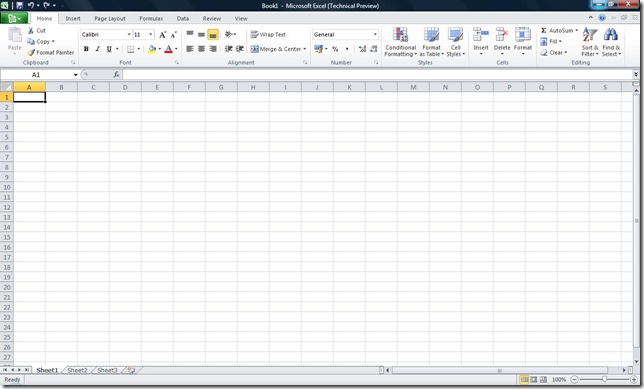
Excel 2010 First Opened

That’s Excel 2010 opened for the first time-not much difference although I think it looks a bit “cleaner”.

Sparklines:
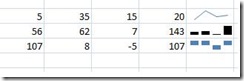
Excel 2010 Sparkline

These were one of the big features from the WPC demo of Office 2010 and they’re as awesome as they seemed. This feature is going to make Business Intelligence and the sharing of information so much easier (to understand and present) and more worthwhile; I think this is going to make a real difference in the world of work-it certainly will for me! I’ve got a spreadsheet at work that covers all our major software vendors and includes sales and profit for each one as well as overall totals, various comparisons between years and more. Currently this has multiple tabs that just contain trending charts, making it awkward to present and impossible to screenshot/print. With Sparklines in Excel 2010, I can show the trend in a single cell at the end of the data range, allowing me to consolidate it down to just one sheet!

There is an excellent post on Sparklines over on the Excel team blog here which features some great examples of how they can be used.

OneNote 2010:

One Note 2010 New Features

I haven’t had much of a play with OneNote yet but one thing I have noticed is it seems that OneNote no longer auto copies screen clippings into the Unfiled Notes section…I think I like that 🙂

Word 2010:

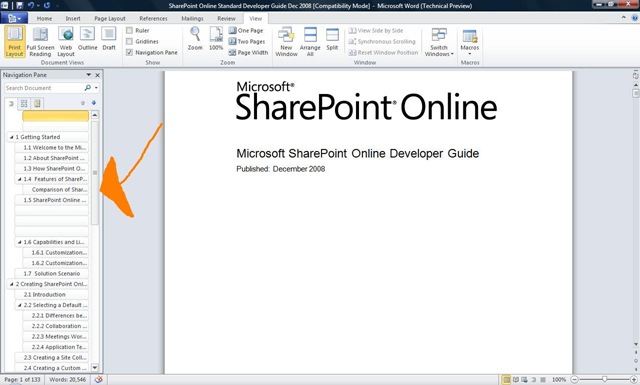
I don’t actually use Word that much and when I do it’s usually pretty basic, so it may well take me a while to find all the new features. However one that I’ve found straight away and is very useful is the Navigation Pane, which makes it much easier to read and work with large documents.

Word 2010 Navigation Pane Arrow

As you can see on the left hand side, the Navigation Pane has identified all the section headers in the document and allows you to jump around simply by clicking them-no more slightly random scrolling up and down 🙂 This is a truly great addition!

Outlook 2010:

I’ve not yet got any good screenshots of Outlook 2010 as I’ve discovered that the Hotmail connector doesn’t work with the new version, which is a shame. I’m sure that will be resolved by the final release though! I’ll get some screenshots from work but I’ll need to block out any confidential/customer info etc first so that’ll be next week.

I can however attest that Outlook 2010 is great. I was a BIG fan of the improvement in Outlook 2007 and the new version builds on those very well. There are no huge new killer features but there are lots of little ones such as:

Quick Steps: A set of handy time savings shortcuts which allow you to, for instance, forward a mail directly to your manager with 1 click, send an email just to your team, forward a mail and automatically add “FYI” to the subject line and more. It’s also possible to create your own Quick Steps, just like macros.

Calendar: When you receive a meeting invite, you can now see a preview of your calendar inside the mail-handy!

PowerPoint 2010:

Powerpoint has always been full of features I’ve never quite got round to using and I’m sure that is true of 2010 too, but one that I like is the ability to “Broadcast Slideshow”. This allows you to quickly and easily share your presentations with others in remote locations:
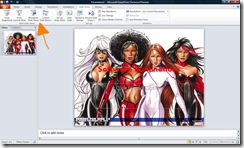
Powerpoint 2010 Broadcast 1

 Powerpoint 2010 Broadcast 2 Powerpoint 2010 Broadcast 3

This will be useful for informal collaboration with colleagues where you just want/need quick opinions and helps further Microsoft’s Collaboration through Office strategy.

General Features

Backstage: Gone is the menu/sub-menu structure for print preview, open, save as etc and in it’s place is Backstage:

Word 2010 Backstage

 The Office Sync Center:

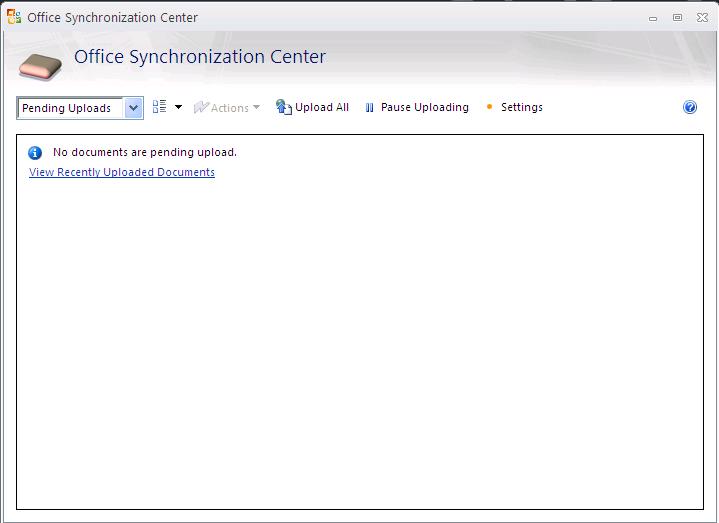
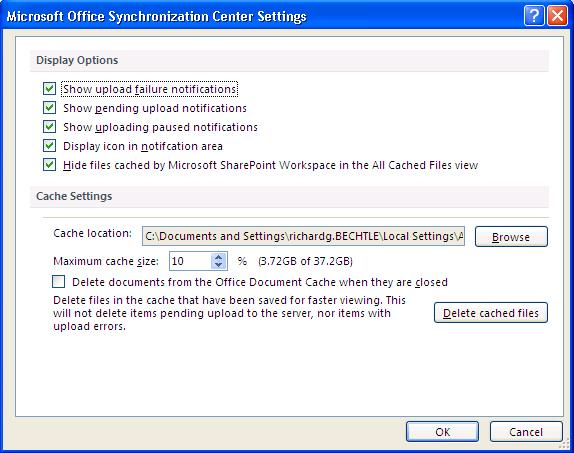
This is a new thing AFAIK that I noticed when uploading some documents to our Sharepoint Online BPOS installation.
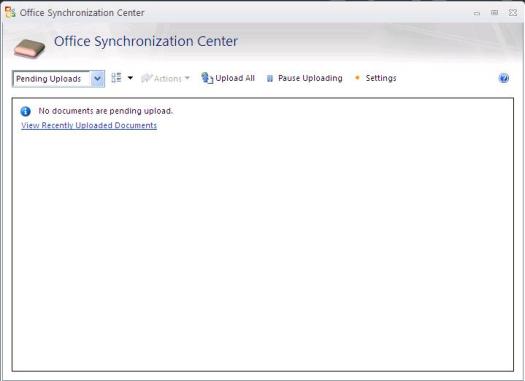
Office 2010 Sync Center

Office 2010 Sync Center Settings

This gives you a great overview of which files have been uploaded and if they were successful or not. It also shows a history of recently uploaded files which works well for me as I often forget whether I’ve done it or not 🙂 This seems like yet another great addition in Office 2010…

Summary:

This post isn’t finished, at the very least I’ll be adding in some screenshots and more info on Outlook. However as I come across new features in the various programs I’ll add them into this post as I go.

All in all, Office 2010 looks like a solid forward move for the Office suite and should see good adoption across the board-although perhaps more in the business rather than home space. The inclusion of more business intelligence, more collaboration and more time saving tricks is a sure winner and Sharepoint Workspace Manager (SWM formerly Groove) will only further that I’m sure.

Microsoft Office Web Revealed


Microsoft have made more details on the Office web products available, a little before this year’s Worldwide Partner Conference kicks off.

Office Web Applications will include:

  • Word
  • Powerpoint
  • Excel
  • OneNote

will work on Macs as well as PCs and will run in Firefox too 🙂

It looks like Neowin may have seen something they weren’t yet supposed to as the link to the Office Web demo video isn’t currently working…

However one video that is working is this here on Mobile Office 2010. It shows that documents can be rendered server side meaning that “just about” every smart phone out there can view them…yep that includes Blackberry & iPhone too.

A few Sharepoint 2010 tidbits


A few more bits of info about Sharpeoint 2010 have come out of TechEd through blogs and tweets.

The 2 big ones are:

Groove is to be renamed “Sharepoint Workspace Manager”. I think this will help drive an increase in people using this technology as currently, most people don’t know that Groove & Sharepoint can be used together.

Sharepoint 2010 is going to be 64bit only-and will require a wholly 64bit environment I.e. “64-bit Windows Server 2008 or 64-bit Windows Server 2008 R2 to run. It also will require 64-bit SQL Server 2008 or 64-bit SQL Server 2005”.

Another point is that it won’t support Internet Explorer 6 but will be “targeting standards based browsers (XHTML 1.0 compliant) including Internet Explorer 7, Internet Explorer 8 and Firefox 3.x. running on Windows Operating Systems. In addition we’re planning on an increased level of compatibility with Firefox 3.x and Safari 3.x on non-Windows Operating Systems”.

All info via Mary Jo Foley

Office 2010 Movie on Twitter


This morning man people, Engadget & Gizmodo included, saw tweets from @officethemovie claiming that:

First of today's Zune tweets
Second of the Zune tweets

and this got people all across the internet excited, but not everyone was convinced. Gizmodo expressed their distrust here and it turns out they were right-the account is actually run by a Mac fanboy who is, in some bizarre way, trying to highlight iphone piracy…ah well…I think we all knew those tweets weren’t real…deep down!

One thing that does confuse me a little is that Gizmodo say that the offical http://www.office2010themovie.com/ page was linking to the afore mentioned twitter account, but I don’t see how that could be the case. MS do link to the official @office2010movie account…is it just people confusing the 2 similar account names…or were MS somehow fooled too?!