Office 2010 New Feature Videos


One of the main things I did in preparation for BETT 2010 was create a bunch of videos showing some of the new features in Office 2010. I can talk about them ‘til the cows come home, but it’s always better to see things where possible. The videos were very well received and Office 2010 got a LOT of positive feedback…June should be an exciting time 🙂

Anyway, I thought I’d put the videos up on here too and hopefully you’ll find them just as interesting & useful as our stand visitors did last week…enjoy!

Background Removal:

This is a great feature in Word 2010, making in nice and easy to remove all or part of a picture’s background.


Broadcast PowerPoint:

This feature lets you “broadcast” your presentation over the net by giving you a link to share with whoever you need to…allowing people to see your .pptx as long as they have an internet connection:

Insert Web Video:

Inserting videos from sites such as YouTube has always been a bit of a pain in Powerpoint…but no more! Powerpoint 2010 makes it super easy…teachers loved this at BETT.

Edit video inside Powerpoint:

Inserting videos into Powerpoint has been available for ages, but any editing you needed to do-even basic stuff-has required a 3rd party product. Again, Powerpoint 2010 makes it easier by enabling you to edit the video without leaving the program. Here I’m trimming a bit of Shooting Stars 🙂

Powerpoint Video Effects:

More built in video editing here with shadows, borders, reflections and more being easily applied within Powerpoint 2010.

Create a Video:

You’ve made a presentation and now you need to make it available as a video file, rather than a slideshow. I believe most people use Windows Movie Maker to do this currently but, with 2010, it’s again all done inside Powerpoint.

Save to Skydrive/Sharepoint:

This is a great new feature. It lets you save to your Live Skydrive (25GB free storage!) directly from the Office applications…no more save to folder then upload to Skydrive…it’s all one nice, smooth action 🙂 I don’t do it in the video but you can see there is also exactly the same thing to save to Sharepoint, which should really help drive adoption of Sharepoint in schools. From various discussions I’ve had, many people see Sharepoint as an extra step so:

Create Document > Save to Folder > Upload to Sharepoint

and this leads to many people just not bothering as it’s more work and they perhaps don’t see the point of it. Having the ability to save directly to their MOSS site will cut that out and make it just as easy as it’s always been 🙂

Word Navigation Pane:

This is quite a small new feature, but I love it! The navigation pane picks up all the  headings, sub-headings etc and enables you to use them to navigate documents; making large documents much less painful!

Office 2010 line up revealed


Office 2010 is a little bit closer as today Microsoft announced the FPP (Full Packaged Product aka Box Copy) SKU lineup, along with US retail pricing.

The Tech Preview & Beta have been very well received with the current beta being downloaded over 2,000,000 times already! Now consumers & small businesses can see what versions are available and which Office products they will contain.

Office Home & Student:
This version has proved very popular on Office 2007, giving great flexibility for home users & students while also offering great value for money. The 2010 release includes:

Word 2010
Excel 2010
PowerPoint 2010
OneNote 2010
Office Web Apps

It will continue to allow installation on three PCs in one house; which is a huge draw for everyone 🙂

Office Home & Business:
This is aimed at small businesses and includes all the above plus Outlook 2010.

Office Professional:

This is the top level version of Office available outside of Volume Licensing, and is comprised of:

Word 2010
Excel 2010
PowerPoint 2010
OneNote 2010
Outlook 2010
Publisher 2010
Access 2010
Office Web Apps

You’ll notice that Sharepoint Workspace (the new name for Groove) isn’t included…that’s included in Office Pro Plus on Volume Licensing.

Office Professional Academic:

This contains the same products as the regular Office Pro but with Educational pricing, so around 1/5 the cost! The inclusion of Outlook et al make this a great offering for more advanced students such as those in Higher Education.

Although not mentioned in today’s announcement, Standard & Professional Plus will still be available in Volume Licensing with Office 2010. Don’t forget that we will also have Office 2010 Starter as the free, ad supported replacement for MS Works!

I’m excited for Office 2010 both as a user and a partner…how about you?

Office Web Apps on Sharepoint 2010


I’ve recently started building the demo server for our stand at the BETT show 2010 and it’s been a fantastic experience! Installing server 2008 R2 was a breeze and Sharepoint 2010 went on with just one (easily fixable) issue related to a missing hotfix. Once I’d got those up and running, I decided to get Office Web Apps installed…that too, was pretty easy…although I had the help of a great Technet article and a blog over on MSDN to guide me.

First of all, the technet article to installation is:

http://technet.microsoft.com/en-us/library/ee695758(office.14).aspx#bkmk_install_standalone

As you can see, I was putting it on a standalone server – for ease of demonstration if nothing else 🙂

The initial steps are few and simple but nothing appeared to be working. However, if you scroll a little down the page, you’ll see a bunch of

Powershell

scripts like this one:

$machinesToActivate = @(“contosoapp1”,”contosoapp2”)
$serviceInstanceNames = @(“Word Viewing Service”, “PowerPoint Service”,
“Excel Calculation Services”)
foreach ($machine in $machinesToActivate) {
foreach ($serviceInstance in $serviceInstanceNames){
     $serviceID = $(Get-SPServiceInstance | where
         {$_.TypeName -match $serviceInstance} | where
         {$_.Server -match "SPServer Name="+$machine}).ID
     Start-SPServiceInstance -Identity $serviceID
}
        }

image

As the note above shows, these Powershell scripts are only required in certain instances…and of course, I had that instance 🙂 Luckily, just copying the scripts from Technet and pasting into the Powershell window worked perfectly…which was good!

At this point I could see that everything was where it should be and services seemed to be running etc, so I headed over to the demo site I’d set up to test it. Unfortunately I kept getting an error message…so back to Bing, where I found this extremely helpful post:

http://blogs.msdn.com/officewebapps/archive/2009/11/18/9924525.aspx

I had a read through and quickly saw the problem. It was simple and obvious but had confounded me for about 45 minutes (don’t say it!)…it was:

“Activate “Office Web Apps,” listed under SharePoint’s Site Collection Features, on each site collection for which Office Web Apps should be available.”

So that was the missing step…activating it inside Sharepoint…D’oh! Homer Simpson

A deeper look @ PowerPivot


PowerPivot for Excel

PowerPivot for Excel supports self-service business intelligence in the following ways.

  • Current row-and-column limitations in Excel are removed so that you can import much more data. This goes far beyond 1,000,000 rows!
  • A data relationship layer lets you integrate data from different sources and work with all of the data holistically. You can enter data, copy data from other worksheets, or import data from corporate databases. You can build relationships among the data to analyze it as if it all originated from a single source.
  • Create portable, reusable data. Data stays inside the workbook. You do not need manage external data connections. If you publish, move, copy, or share a workbook, all the data goes with it.
  • PowerPivot data is fully and immediately available to the rest of the workbook. You can switch between Excel and PowerPivot windows to work on the data and its presentation in PivotTables or charts in an interactive fashion. Working on data or on its presentation are not separate tasks. You work on both together in the same Excel environment.

PowerPivot lets users build relationships between completely different data sources and still have all the data held entirely within the workbook.

Try it out:

You can download PowerPivot for Excel here. Note: It requires Office 2010 beta.


3 tier diagram of client, middle, backend add-ins


PowerPivot for Sharepoint:

“PowerPivot for SharePoint adds services and infrastructure for loading and unloading PowerPivot data”. The PowerPivot System Service tracks usage of PowerPivot workbooks across the app servers on the farm and deals with “setting up new connections to data that is already loaded in memory, and caching or unloading data if it is no longer used or when there is contention for system resources.” It then presents server health and usage data in reports, enabling admins to see how well the system is performing.

Excel Services renders the Presentation layer of a Pivot workbook  while the Analysis Services instances detect, extract and process the Pivot data. Here’s a diagram showing how a query request is processed:

Data processing request diagram

You can see a full overview over on the MSDN site here.

Try it out:

You can download PowerPivot for Sharepoint here. Note: It requires the CTP of SQL 2008 R2  AND Sharepoint 2010 beta.

Installing PowerPivot for Sharepoint

There are a number of pre-requisites and steps to installing the product, and they can all be found here:

http://msdn.microsoft.com/en-us/library/ee210708(SQL.105).aspx

Office 2010 coming in June


Office 2010 will be with us in June. This was confirmed by a (now vanished) MS web page, stating that Office 2010 would be released in June 2010. I nearly didn’t bother posting this as it doesn’t seem, to me at least, to be news. I’ve been stating to colleagues and customers that Office 2010 will be here around April/June for a while…based on info already released by Microsoft.

However, I thought I’d better mention it so I don’t look like I’ve missed something 😉

Outlook 2010 Social Connector


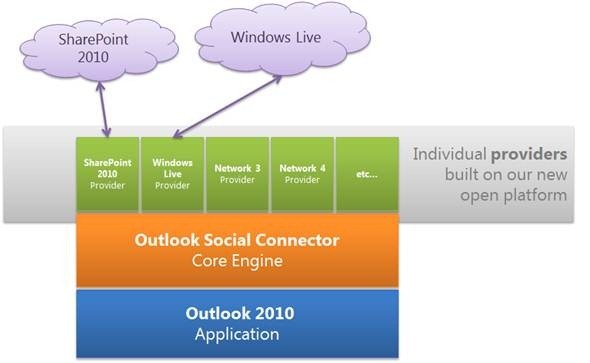
Outlook Social Connectors have been announced for Outlook 2010; these will allow you to connect with social media sites directly from your email client.

clip_image008_thumb

The initial announcement is that a connector to business networking site LinkedIn will be announced early next year:

“Simply click on a message from a co-worker to discover what new connections they’ve made on LinkedIn, or click the LinkedIn badge underneath a photo to jump right to a person’s profile page on the Web.”

I have to say I’m surprised that Twitter isn’t in there from the start but perhaps that would seem a little gimmicky? However, don’t worry as:

anyone can build a provider to connect the OSC to a social network, their company’s line-of-business applications, or literally any system that can produce streams of activity about its users”

That’s right! Just as numerous 3rd parties have built some excellent apps for Twitter, people will soon be able to create connectors to give us Twitter in Outlook…which will be awesome! Plus I imagine that FaceBook will be added in pretty sharpish too, for all you FB’ers out there 🙂 You will be able to download the SDK from MSDN tomorrow (19-11-09).

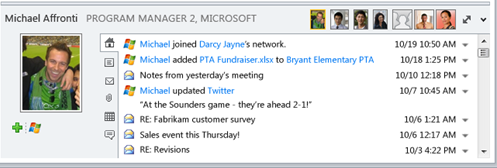
image

This screenshot from Microsoft (which might be a mockup?) shows what it will look like further down the line…you can see emails, Live updates, Twitter updates, documents…pretty fantastic!

I’m very excited about this and will be very interested to see what connectors people start making. If you’re a dev and you’re looking for testers – let me know 😉

Go check out the Office blog here for more details.

Microsoft Office Web Apps


Microsoft’s Office Web Apps have garnered a lot of interest recently as a new way of interacting with Office, and as a competitive move against Google Docs. Despite me having had the Tech Preview of Office for a while (and indeed, I installed the beta tonight), I’ve just got Web Apps in my Windows Live SkyDrive…so let’s take a look 🙂

I now have a button entitled “New”:

image

Excel Workbook:

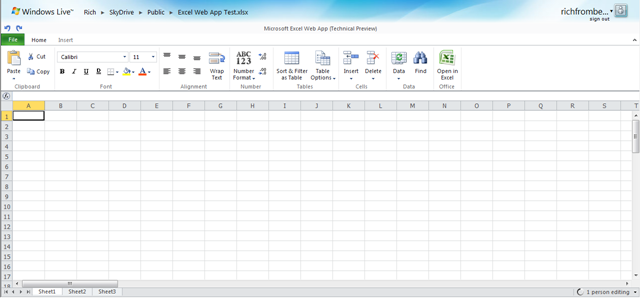
After giving the workbook a name, you’re presented with what is easily recognisable as an Excel Workbook:

image

You can see that most of the ribbons tabs are missing, here we have just “Home” and “Insert”, but I can do pretty much everything I generally need to do in Excel. Admittedly I’m nowhere near a Power User but I think I’m probably a typical user..

FAQs:

Can I do Sums? Yes:

image

Can I drag a formula down into other cells? No

Can I create Charts? No

Can I change font size, colour and type? Yes

Can I insert tables? Yes

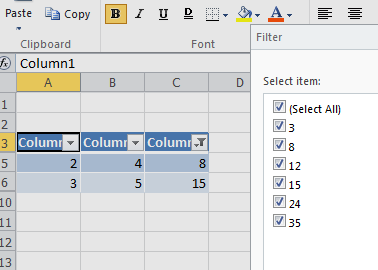
Can I do filters? Yes, if you insert the data into a table:

image

image

Can I paste into Excel Web Apps from other programs? Yes

The “File” menu has some extra options too:

image

Word:

Word Web App isn’t available yet:

image

Powerpoint:

Powerpoint Online is similar to Excel, in that it is cut down but contains all the basic features you’re likely to need:

image

image image

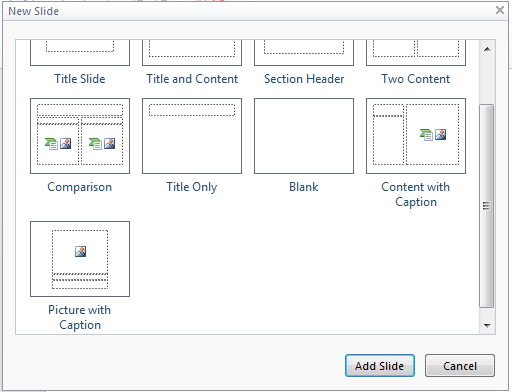
You get a choice of different types of slide when you add a new one:

image

Something I wasn’t expecting is a great choice of Smart Art:

image image

That’s pretty impressive 🙂

The Slideshow works perfectly well but it opens up in a new browser window, so it gets stopped by pop-up blockers.

The big thing that’s missing is Transitions though…maybe they’ll be coming soon…

OneNote:

Same as Word, OneNote isn’t available yet:

image

Microsoft Office 2010 beta: A Look


The beta of Office 2010 is available now from MSDN and Technet and this is a look at what’s new, what’s fixed and what caused me problems…hopefully it will be interesting and useful for you 🙂

Installation and some issues:

The first thing to note is that you can’t upgrade from the 2010 Technical Preview; this means you’ll need to uninstall and do a reboot. I had a bit of a hairy moment where I logged in after the reboot and was presented with a guest account…I had a little “oh dear” moment thinking I’d managed to screw up my machine! Thankfully it was just a little glitch, I logged out and back in and all was well.

I double clicked the .exe and…I got the “cannot upgrade from previous versions” message again! I had a little stress and then started looking for the culprit…turns out it was the Office Outlook Connector that was getting in the way. If you’ve got that installed so you can access Hotmail from Outlook, make sure you uninstall it 🙂

After the install was complete, which took about 20 minutes, I started up OneNote…and got a warning box that I had possibly counterfeit software! It told me it was for “corporate or institutional use” only and that I had to connect it my corporate domain…WHAT?! I was told on Twitter that it had worked fine for other people so I tried again…added the key & clicked “Install Now” again. The next time I opened up OneNote it asked me to activate it online, which thankfully worked!

So now I’ve got it all installed and activated but it was a bit of a rollercoaster ride! To be fair, this machine has had a few issues with various iterations of Office over the years so I guess there is something not quite right in the registry!

What’s New?

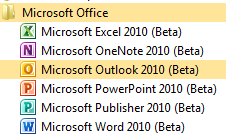
The first thing I notice is that the Office components have all got new icons:

image

Outlook:

The Outlook Connector doesn’t recognise the beta and installation fails; however as you’re setting up Outlook, it offers to go off and install the Connector for you. I gave it a try and it pulls down a different beta file…clearly made for Office 2010 as it installed without a problem.

Having said that, the Outlook setup wizard doesn’t recognise that it’s installed, which is pretty annoying, and so goes off to find the settings online. After checking and double checking my account details to no avail, I tried another reboot…lo and behold, this time, it recognised that the connector was installed and went through with the account setup 🙂

Web test:

The folder structure on the left looks different than the Technical Preview and I noticed this:

image

See Web test at the bottom…what could it be? Let me show you:

image

That’s right, Twitter inside Outlook as default…that’s pretty cool 🙂 Once you’ve logged in, you can leave the Web Test folder and still be logged in when you come back.

Social Media Integration:

At the bottom of a new email, you now get this:

image

If you expand it using the arrow on the right, you get:

image

Click to add networks and you get:

image

Which hints at the social networking features present in Sharepoint 2010 🙂 It says there are more providers available online, but the link just takes you to a general Office site at the moment 😦 Once this is up & running, it will be pretty awesome…having, and I’m guessing at which will be included, Twitter, FaceBook & LinkedIn info and profiles available inside Outlook will be great. I’m not on Facebook (I know!) but I use the other two, especially Twitter, quite heavily for networking with suppliers, customers and colleagues.

Blurring the divide between “Social Media” and “Corporate Resources” is a great move, one aimed at this “New World of Work” that will resonate with the graduates coming into the workplace as well as us cool, hip (!) people that get it too. I can imagine some managers/directors being a bit unsure about this but I’m confident they’ll quickly see the benefits…just like corporate IM.

I’ve linked one of my Live Accounts into Outlook and just sent my first test email. It asked me to complete a “captcha” to verify my account before it would send it…something I don’t remember 2007 doing? You only need to do it once 🙂

New network pane:

Once you open up a new mail to someone who has emailed you, you get a message that Outlook wants to run an add-on. Click to run it and then Outlook starts showing you related mails and items.

image

I have to say that it takes quite a while for new mails to show up in the networking pane…hopefully this will be improved in the final version.

Also, I’m finding that I’m needing to close and re-open Outlook for all the changes to take place and, while it’s showing emails, attachments aren’t showing up in the pane. Again, I think this is down to it’s beta status.

This is very much a work in progress…I posted early so people could see the screenshots 🙂

The Backstage Icon look a bit different too, a bit more boring:

image

Was there the option to swap colour schemes in 2007 and/or the 2010 tech preview? I’m quite liking the black:

image

This leads me onto something I realised the other week. I’ve been paying much more attention to the ins & outs of Office 2010 than I ever did 2007 and so finding all kinds of great new features. However, I can’t be 100% sure if they’re new to Office or just new to me 🙂 There are a few in Outlook where I think this may be the case…if so, feel free to let me know in the comments!

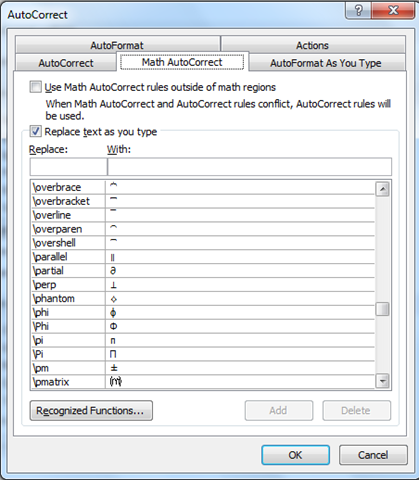
Options –> Proofing –> AutoCorrect Options

That takes you to the section that shows you what things are replaced with what. There are things such as “yuor = your” but it also shows you how to make the sign for Pi and much more…pretty interesting:

image

image

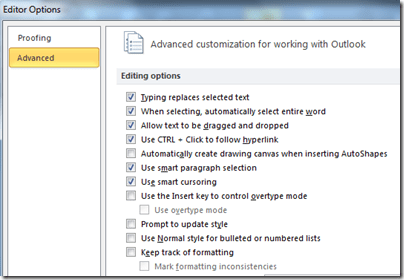
Another feature I like the look of is “Keep track of formatting”:
image


As for the other components:

  • Word
  • Excel
  • Powerpoint
  • OneNote

I have to say that they all look pretty much the same to me, at least at this early stage!

Office 2010 Beta available


Just a quick post to say that, if you’ve got a Technet or MSDN account, you can go and download the Office 2010 beta RIGHT NOW! 🙂

I’ve been running the Tech Preview for a while and it’s great, but there are a few niggles and glitches that are quite annoying. I’m excited to (hopefully) have these fixed in the beta and also to see what new features appear.

Once I’ve had a play around, I’ll come back and let you know how it went!

Microsoft Semblio


Microsoft Semblio is a new iteration of their development platform which utilises .NET and WPF (Windows Presentation Foundation) and is specifically targeted towards the educational market.

Semblio can be used to create information rich, graphically engaging, immersive learning materials using a wide range of multimedia, all aimed at enhancing the learning experience for students (and indeed, the teaching experience for teachers!). As it is based on the .NET Framework:

“it works across software, services, and learning management systems.”

However, it isn’t just for developers. The Semblio assembly tool, which will ship with Office 2010, will:

“allow multiple content types to be combined into a single, rich, multimedia presentation, all in a single, familiar, and easy-to-use Microsoft Office-like application”

image

This has got something of a Web 2.0 “mashup” stle about it and will certainly be familiar and more engaging for students than more traditional methods. This next screenshot shows the kind of interactivity that can be expected:

Semblio screenshot1

Using the slider to increase/decrease the temperature and seeing the effects on the water…

Benefits:

This can either mean that schools will have the ability to create exciting learning materials in-house as well as making it easier for partners to create such materials too. You can:

  • Increase the value of your content by enabling educators to customize materials to their specific requirements.
  • Engage today’s students and foster exploratory learning with packaging and arrangement of dynamic, interactive, and rich instructional material.
  • Improve efficiency during content creation by enabling nontechnical subject matter experts to participate in the content creation process
  • Reduce the cost of going digital by creating your content once, then delivering it to all customers regardless of platform.

To me this looks like a great new addition to the Office suite of products and also a great addition to schools, for students and teachers alike. Having been on visits to various schools this year, it’s clear that they’re much more advanced that back in my day (!) and can sometimes rival corporations when it comes to technology adoption.

VLE’s (Virtual Learning Environments) such as Moodle, and products such as Sharepoint have made big changes to learning over the past few years; and I can see Semblio really making a mark. These interactive lesson modules delivered in Moodle accessed via Sharepoint would give a great experience for students at home/learning remotely.

I’d be interested to hear what people involved with Education think about this…be it students, teachers, IT managers, suppliers, coders etc 🙂

Get Started:

Download the Semblio SDK.

Download Visual Studio 2008

Get familiar Service pack 1 of .NET 3.5 platform

Get familiar with WPF

If you want to get more in-depth, grab the programmer’s guide here.

Other Links:

Semblio: How it works

Semblio Blog