Windows 7 Location Aware Printing


This is a Windows 7 feature I had forgotten about-Location Aware printing. Ever get it where you take your laptop into the office after a few days of working from home, hit print…then wonder when on earth it’s going to appear on the printer…then after a little while you realise you’ve printed it at home (or vice versa) and feel all daft?! Windows 7 Location Aware printing will stop all that 🙂

You can set default printers for certain networks I.e Epson “whatever” at home, HP “thingamajig” at work etc and Windows 7 will know where it is and print accordingly…nice!

Location Aware

Windows 7 Presentation Mode


Windows 7 just keeps surprising me with it’s great new features; I’ve just seen Presentation Mode which I think is great. It really shows that MS have been listening to feedback and putting a lot of thought into how their OS is used.

Presentation Mode is found in the Mobility Centre (Windows Key + X) and lets you control your machine’s behaviour while you are giving presentations. You can:

  • Stop the Screensaver coming on
  • Set the volume level
  • Display a different wallpaper

A lot of us have wallpaper of our kids, wives/girlfriends/husbands/boyfriends etc but maybe don’t want to have everyone in the meeting/seminar room to see it for whatever reason, and this is a simple, easy way to do it.

Presentation mode - new

As I say, a great example of Microsoft listening to it’s users 🙂

*Update* As Frederic points out in the comments-this isn’t actually a new feature of Windows 7…it’s there in Vista too! I’ve been using Vista pretty much since it came out and I’ve never come across Presentation Mode and I’ve never heard anyone talk about it; and I think that is a result of the differences between the two Operating Systems. People are just more excited about Windows 7 and that is definitely helping get word of these features out and about 🙂

Bingtones


To coincide with the release of the awesome Bing decision engine, Microsoft have made 3 bing-themed ringtones, or Bingtones, available.

Go grab them here and see what you think 🙂 I’m a little worried to say that I quite like Bingtone 2!

Thanks to Pocket PC Thoughts.

Windows 7 Free Training Courses


We’ve got an official release date for Windows 7 now (22/10/09) so there’s now a definite time by which you need to be up to speed/certified on the latest OS from Redmond. The Register is here to help, they’ve got 3 introductory courses available here:

http://www.theregister.co.uk/2009/06/02/free_windows7_training/

or you can go directly to the courses here:

http://cblms.com/ekp/servlet/ekp/pageLayout

that are completely free of charge and look pretty good 🙂 Although having said that-the self test on the Information Workers “Finding & Organization” module wouldn’t work for me!

I’d be interested to hear what you think…

Windows 7 Release Date announced!


The Windows 7 Release Date has officially been announced by Microsoft. The most important OS related date for a LONG time is:

October 22nd 2009

That is the day that Windows 7 will be generally available…and I can’t wait! Less than 5 months to go until we can all get the latest & greatest OS in all it’s glory 🙂

Microsoft have confirmed that this is the General Availability date they are aiming towards and technology partners such as HP are confident it will happen. Phil Mckinney, CTO of HP said:

“We’re locked and loaded for the launch…The quality of code is just absolutely stellar.”

Windows 7 and Video Transcoding


Windows 7 will natively support GPU accelerated video transcoding, Microsoft’s Murray Vince revealed yesterday.

From www.bit-tech.net:

“The implementation was seamless as Henry simply dragged and dropped the high definition video file onto a Sony Walkman portable media player in Windows Explorer, where it automatically started transferring the file onto the Walkman.

This is yet another feature that makes Windows 7 easier to use and more people friendly.

Microsoft MED-V & AntiVirus Exclusions


MED-V (Microsoft Enterprise Desktop Virtualisation) is their program that allows legacy app use on an enterprise wide basis and is based on Virtual PC technology.

It seems that some anti-virus programs have a habit of interfering with parts of the virtualisation if not properly configured. Steve Thomas, a Senior support escalation engineer at Microsoft, has drawn up a list of file extensions that should be masked to co-exist wth Anti-Virus on the network:

*.VHD – These represent the Virtual Hard Disk Image files. These will appear on test workstations when test images are being used to finalize workspace policies.
*.VUD – These represent Virtual PC Undo Disk Files. These will appear on test workstations when test images are being used to finalize workspace policies.
*.VSV – These represent Virtual PC Saved State files. These will be on all MED-V clients running Workspaces.
*.CKM – This is the packed image format used by MED-V (Kidaro Compressed Machine.) These will be present on MED-V Servers, Image Distribution Servers, locally packed images on MED-V Administration workstations, and as pre-staged images on clients.
*.VMC – These represent the Base Virtual Machine Settings File. Will be found on all MED-V Clients and Test Workstations.
*.INDEX – These are index files used by the TrimTransfer Feature. These will be found on both clients and servers.
*.EVHD – These are the encrypted virtual hard disk files used on MED-V Clients running workspaces.”

Info from SoftPedia.

Microsoft Bing put to the test


Microsoft Bing went live this morning; I’ve been playing around with it and I’m very impressed!

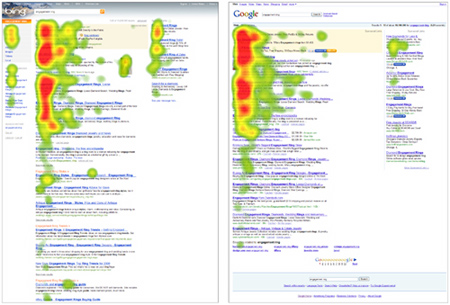
The first thing I did was search for my blog and I noticed the new thing to the side of the results which, when hovered over, gives you a preview of the site like so:

Blog bing

I’m also very impressed with the image search-it seems to bring back better results than Google and the “Related” links on the left always seem to be relevant.

The next thing that impressed me, and made me change my homepage over to www.bing.com (from Google) was the relevance of search results, especially when compared to Live Search. For some reason, I can never remember the URL for Mary Jo Foley’s All About Microsoft blog so previously,I would Google it and simply click the top result. However, when I tried using Live Search, the top results were all various articles rather than the main homepage-and that made it a couple of clicks longer than with Google. Not much difference I know, but in these hectic 21st century days-it all counts 😉 Now though-I can Bing it and it’s the top result-happy days!

I am a big fan of Microsoft (as you might have gathered) and I always wanted to use Live Search, but it just wasn’t good enough…now that Bing is here though, I think we’ll see Redmond’s market share jump up quite a bit. They’ve definitely got at least one new user…

Windows 7 AutoRun Changes


Microsoft are making a number of advancements with Windows 7 (see Safe Unlinking) and there’s another change being made-this time to the AutoRun feature.

More and more malware is using the Autorun feature as a way of getting itself onto machines, the most high profile being Conficker; so MS have moved to prevent this in their latest Operating System.

What is AutoRun?

AutoRun is a technology used to start some programs automatically when a CD or another media is inserted into a computer. The main purpose of AutoRun is to provide a software response to hardware actions that a user starts on a computer (from MS Security Research & Defense Blog).

What are MS doing?

The Microsoft engineers have made changes in Windows 7 to help prevent the spread of Malware:

1) AutoPlay will still work for CD/DVDs but it will no longer work for USB drives. For example, if an infected USB drive is inserted on a machine then the AutoRun task will not be displayed. The dialogs below highlight the difference that users will see after this change. Before the change, the malware is leveraging AutoRun (box in red) to confuse the user. After the change, AutoRun will no longer work, so the AutoPlay options are safe.

AutoRun1autorun2

This, and other changes, can already be seen in the Windows 7 RC  that is available for download now. Microsoft also plan on making these changes available for XP & Vista users. You can see full details over at the MS Security Research & Defense Blog.

Windows 7 Starter 3-App Limit Removed


Good news for all netbook owners is that MS have decided to remove the 3 application limit from Windows 7 Starter Edition, as first reported by Paul Thurrott.

I wasn’t convinced that the limit of 3 separate running applications was particularly troublesome but it can’t hurt for it to be removed can it?!