What’s New in SQL Server 2008 R2


SQL Server 2008 R2 aka Kilmajaro is due for release on May 6th, 2010 and is a much more Business Intelligence focused release. It has a bunch of new features as well as a number of improvements to existing features.

What’s New?

There are three main new features which we’ll take a look at here:

Master Data Services:

This is a “database, configuration tool, Web application, and Web service” that is used to “manage your organization’s master data and maintain an auditable record of that data as it changes over time”. This can then serve up the data for BI & Reporting tools such as Sharepoint, SSRS, SAP Crystal Reports etc for use around the business.

For information on architecture, deployment, security and more, see here. A great getting started guide can be found here

PowerPivot for Sharepoint

“Microsoft SQL Server PowerPivot for SharePoint extends SharePoint 2010 and Excel Services to add server-side processing, collaboration, and document management support for the PowerPivot workbooks that you publish to SharePoint”.

PowerPivot enables Excel workbooks to easily work with over 1,000,000 rows of data and still perform quick calculations…see my other post here.

3 tier diagram of client, middle, backend add-ins

.A great MSDN look at PowerPivot for Sharepoint can be found here.

Multi-Server Administration and Data-Tier Application:

This “forms a central repository for performance data and management policies that tailor the operation of instances of the Database Engine”. It also includes the ability to connect to a SQL Azure Database.

More info on the manageability side of SQL 2008 R2 is here.

What’s Enhanced?

SQL Server Reporting Services (SRSS) have been given a huge boost in SQL 2008 R2, to help bring them closer to dedicated Business Intelligence platforms such as SAP Business Objects Crystal Reports Servers and Business Object EDGE.

Sharepoint Integration: New features include:

  • Support for multiple Sharepoint Zones
  • New Data extension
  • Query designer for Sharepoint Lists as a data source
  • Right to Left text w/Arabic  & Hebrew

and more. You can now use data held in lists inside Sharepoint and include that in your reports, for more info head over to Getting Data from a SharePoint List Data Source Type (Report Builder 3.0).

Report Parts: This is a great feature which allows you store parts of reports on the server, to be re-used by you (or others) at a later date. This means if you’ve got someone who’s awesome at making charts, they can pre-create them and load them up on the server for the benefit of the rest of the team/business 🙂

Report Part Publishing LifeCycle:

image

You can publish the following report parts:

  • Charts
  • Gauges
  • Images and embedded images
  • Maps
  • Parameters
  • Rectangles
  • Tables
  • Matrices
  • Lists
  • This makes it quite similar to SAP Xcelsius but I don’t think it is as fully featured and also, and perhaps most importantly, it doesn’t seem anywhere near as end user friendly.

    MSDN have got more info on Report Part Publishing here.

    Wrap Up:

    I hope this has gone some way to explaining some of the new features of SQL Server 2008 R2 and that it helped show how these can help you and your business 🙂
    The full MSDN article with almost literally 100’s of how to’s, guides and FAQ’s is here:

    http://msdn.microsoft.com/en-us/library/bb500435(SQL.105).aspx

    A deeper look @ PowerPivot


    PowerPivot for Excel

    PowerPivot for Excel supports self-service business intelligence in the following ways.

    • Current row-and-column limitations in Excel are removed so that you can import much more data. This goes far beyond 1,000,000 rows!
    • A data relationship layer lets you integrate data from different sources and work with all of the data holistically. You can enter data, copy data from other worksheets, or import data from corporate databases. You can build relationships among the data to analyze it as if it all originated from a single source.
    • Create portable, reusable data. Data stays inside the workbook. You do not need manage external data connections. If you publish, move, copy, or share a workbook, all the data goes with it.
    • PowerPivot data is fully and immediately available to the rest of the workbook. You can switch between Excel and PowerPivot windows to work on the data and its presentation in PivotTables or charts in an interactive fashion. Working on data or on its presentation are not separate tasks. You work on both together in the same Excel environment.

    PowerPivot lets users build relationships between completely different data sources and still have all the data held entirely within the workbook.

    Try it out:

    You can download PowerPivot for Excel here. Note: It requires Office 2010 beta.


    3 tier diagram of client, middle, backend add-ins


    PowerPivot for Sharepoint:

    “PowerPivot for SharePoint adds services and infrastructure for loading and unloading PowerPivot data”. The PowerPivot System Service tracks usage of PowerPivot workbooks across the app servers on the farm and deals with “setting up new connections to data that is already loaded in memory, and caching or unloading data if it is no longer used or when there is contention for system resources.” It then presents server health and usage data in reports, enabling admins to see how well the system is performing.

    Excel Services renders the Presentation layer of a Pivot workbook  while the Analysis Services instances detect, extract and process the Pivot data. Here’s a diagram showing how a query request is processed:

    Data processing request diagram

    You can see a full overview over on the MSDN site here.

    Try it out:

    You can download PowerPivot for Sharepoint here. Note: It requires the CTP of SQL 2008 R2  AND Sharepoint 2010 beta.

    Installing PowerPivot for Sharepoint

    There are a number of pre-requisites and steps to installing the product, and they can all be found here:

    http://msdn.microsoft.com/en-us/library/ee210708(SQL.105).aspx

    Microsoft Black Screen of Death


    Recently, a new buzz phrase has risen up…”Black Screen of Death”. Supposedly Microsoft’s latest updates for November have been causing user’s machines to boot up into blackness with no system tray, side bar, desktop etc. The cause, according to PRevX, is that the registry key:

    HKEY_LOCAL_MACHINE\Software\Microsoft\Windows NT\CurrentVersion\Winlogon\Shell key

    was being edited.

    This issue was brought to light by security firm PrevX, who said “millions” of people have been affected. However, actually finding someone who’d experienced one has proved very difficult…even on Twitter and the internet at large. This was strange but it didn’t stop it becoming the #1 story on the BBC site today and starting to become quite a talking topic. Microsoft have just released a statement about this saying:

    “We’ve investigated these reports and found that our November Security Updates are not making changes to the system that these reports say are responsible for these issues…Thus, we don’t believe the updates are related to the “black screen” behaviour described in these reports.”

    As the information and issues weren’t given directly to Microsoft, they are unable to give a definite answer as to what is causing the problem. However, the important thing is to reassure users that Microsoft Updates are safe and should still be applied regularly as normal.

    You can see the full MS statement here:

    http://blogs.technet.com/msrc/archive/2009/12/01/reports-of-issues-with-november-security-updates.aspx

    Prevxlogo.gif

    Thoughts

    It is still an odd state of affairs as PrevX are a reputable company with some great technology that has really helped me, and our customers, out of some sticky situations. So it’s unlikely that they’d just make it up but perhaps almost as unlikely that they’d be this wrong about something they’ve publicised so much. On the other hand, it’s even less likely that Microsoft would be wrong! So where does that leave us? To be honest I’m not sure…could it be that they’re both right?

    MS note that “Black Screens” can be caused by the “Daonol” family of Malware…but “Black Screens” are known in Windows…as this Wikipedia page shows.

    File:EMM386.PNG

    A Windows 3.0 BlSOD error message.

    Maybe if you have a machine infected with certain Malware AND you do the updates, then the “BlSOD” is triggered?

    I honestly don’t know but I’m intrigued to learn more and see how this case is solved!

    Update: They’ve Apologised

    PrevX have released a statement on their blog confirming Microsoft’s statement that the November updates from MS did NOT cause the Black Screen of Death.

    “Having narrowed down a specific trigger for this condition we’ve done quite a bit of testing and re-testing on the recent Windows patches including KB976098 and KB915597 as referred to in our previous blog. Since more specifically narrowing down the cause we have been able to exonerate these patches from being a contributory factor.” (Bold mine)

    You can read their full statement here:

    http://www.prevx.com/blog/141/Windows-Black-Screen-Root-Cause.html

    Thanks to @Jamestutt for letting me know

    SQL Server 2008 R2 Release Date


    SQL Server 2008 R2 AKA Kilimanjaro now has a release date..May 6th 2010.

    A post over on one of the MSDN blogs confirms this:

    image

    This tightens it up from “1st half 2010”, which is good for partners and customers…enabling us all to plan a bit better.

    Props to Mary Jo Foleys for this.

    Office 2010 coming in June


    Office 2010 will be with us in June. This was confirmed by a (now vanished) MS web page, stating that Office 2010 would be released in June 2010. I nearly didn’t bother posting this as it doesn’t seem, to me at least, to be news. I’ve been stating to colleagues and customers that Office 2010 will be here around April/June for a while…based on info already released by Microsoft.

    However, I thought I’d better mention it so I don’t look like I’ve missed something 😉

    Outlook 2010 Social Connector


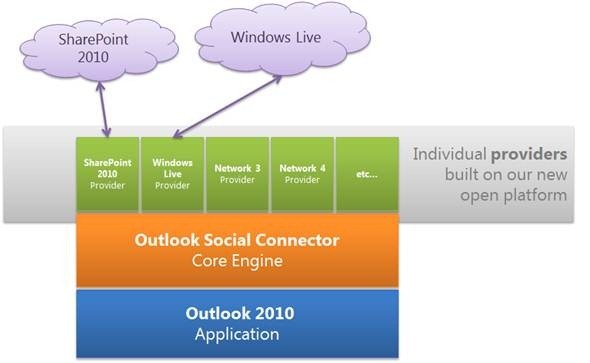
    Outlook Social Connectors have been announced for Outlook 2010; these will allow you to connect with social media sites directly from your email client.

    clip_image008_thumb

    The initial announcement is that a connector to business networking site LinkedIn will be announced early next year:

    “Simply click on a message from a co-worker to discover what new connections they’ve made on LinkedIn, or click the LinkedIn badge underneath a photo to jump right to a person’s profile page on the Web.”

    I have to say I’m surprised that Twitter isn’t in there from the start but perhaps that would seem a little gimmicky? However, don’t worry as:

    anyone can build a provider to connect the OSC to a social network, their company’s line-of-business applications, or literally any system that can produce streams of activity about its users”

    That’s right! Just as numerous 3rd parties have built some excellent apps for Twitter, people will soon be able to create connectors to give us Twitter in Outlook…which will be awesome! Plus I imagine that FaceBook will be added in pretty sharpish too, for all you FB’ers out there 🙂 You will be able to download the SDK from MSDN tomorrow (19-11-09).

    image

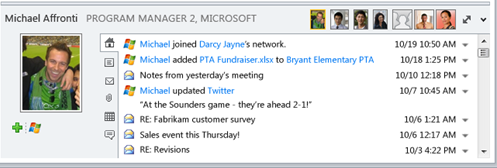
    This screenshot from Microsoft (which might be a mockup?) shows what it will look like further down the line…you can see emails, Live updates, Twitter updates, documents…pretty fantastic!

    I’m very excited about this and will be very interested to see what connectors people start making. If you’re a dev and you’re looking for testers – let me know 😉

    Go check out the Office blog here for more details.

    Microsoft Office Web Apps


    Microsoft’s Office Web Apps have garnered a lot of interest recently as a new way of interacting with Office, and as a competitive move against Google Docs. Despite me having had the Tech Preview of Office for a while (and indeed, I installed the beta tonight), I’ve just got Web Apps in my Windows Live SkyDrive…so let’s take a look 🙂

    I now have a button entitled “New”:

    image

    Excel Workbook:

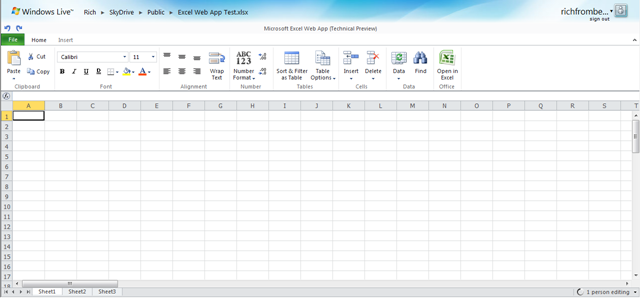
    After giving the workbook a name, you’re presented with what is easily recognisable as an Excel Workbook:

    image

    You can see that most of the ribbons tabs are missing, here we have just “Home” and “Insert”, but I can do pretty much everything I generally need to do in Excel. Admittedly I’m nowhere near a Power User but I think I’m probably a typical user..

    FAQs:

    Can I do Sums? Yes:

    image

    Can I drag a formula down into other cells? No

    Can I create Charts? No

    Can I change font size, colour and type? Yes

    Can I insert tables? Yes

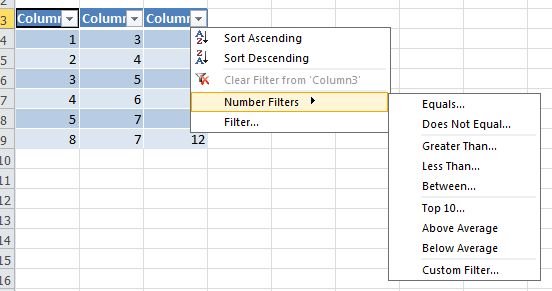
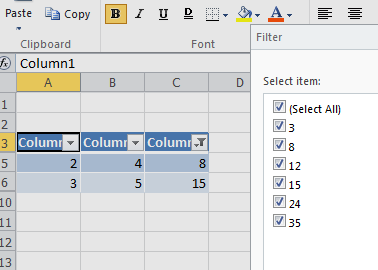
    Can I do filters? Yes, if you insert the data into a table:

    image

    image

    Can I paste into Excel Web Apps from other programs? Yes

    The “File” menu has some extra options too:

    image

    Word:

    Word Web App isn’t available yet:

    image

    Powerpoint:

    Powerpoint Online is similar to Excel, in that it is cut down but contains all the basic features you’re likely to need:

    image

    image image

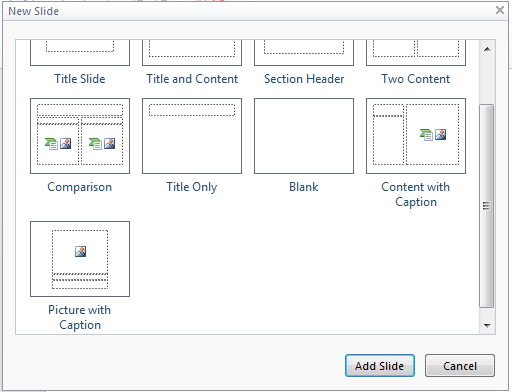
    You get a choice of different types of slide when you add a new one:

    image

    Something I wasn’t expecting is a great choice of Smart Art:

    image image

    That’s pretty impressive 🙂

    The Slideshow works perfectly well but it opens up in a new browser window, so it gets stopped by pop-up blockers.

    The big thing that’s missing is Transitions though…maybe they’ll be coming soon…

    OneNote:

    Same as Word, OneNote isn’t available yet:

    image

    Microsoft Professional Developers Conference (PDC) 2009 Day 1


    Today was the first day of Microsoft’s PDC with a keynote from Ray Ozzie & Bob Muglia and, as you’d expect from “The Ozmeister” (as I’m now calling him!), the “Cloud” featured pretty heavily in the form of Windows Azure.

    Windows Azure Launch Date: Windows Azure will officially launch 01/01/10 (January 1st 2010) and, as a little sweetener, the 1st month will be free 🙂

    WordPress runs on Windows Azure: This is pretty cool – who knew?!

    Oddly Specific runs on Windows Azure: From the creator of “I Can Haz Cheezburger?” comes a new site “Oddly Specific”. Funny AND runs on Windows Azure.

    Back off, grabby mcgee.

    Microsoft Project Dallas: This is an “information and brokerage service” designed to allow access to commercial and reference data from people such as:

    • Associated Press
    • NASA
    • National Geographic
    • UN

    and more.

    The aim is to create Data As A Service (DAAS) and let data become a commodity…this could be huge!

    Microsoft Project Sydney: This will enable you to connect existing in-house/on-premise services with those running in the cloud on Azure. This is a huge leap forward for Azure becoming an integral part of corporate environments.

    Microsoft AppFabric: Windows Server AppFabric is:

    “set of integrated technologies that make it easier to build, scale and manage web and composite applications that run on IIS”

    It has 3 main parts to it which are:

    • Caching
    • Workflow Management
    • Service Management

    What was once known as “Dublin” is now makes it easier to build/manage services using Windows Workflow Foundation & Windows Communication Foundation.

    Another codename that’s been wrapped into AppFabric is “Velocity”. I haven’t heard of this before but it provide caching capabilities to

    “provide high-speed access, scale, and high availability to application data”

    You can see more info and some AppFabric samples here:

    http://msdn.microsoft.com/en-gb/windowsserver/ee695849.aspx

    These are the main points I’ve picked up today from Twitter using the hashtag #PDC09 as I’m not in L.A myself 😦 As more details become available, I’ll update this/do some new posts.

    Also, tomorrow’s keynote is going to include talk of Internet Explorer 9 (that’s right NINE!) so I’ll be covering that ASAP… 🙂

    Microsoft Office 2010 beta: A Look


    The beta of Office 2010 is available now from MSDN and Technet and this is a look at what’s new, what’s fixed and what caused me problems…hopefully it will be interesting and useful for you 🙂

    Installation and some issues:

    The first thing to note is that you can’t upgrade from the 2010 Technical Preview; this means you’ll need to uninstall and do a reboot. I had a bit of a hairy moment where I logged in after the reboot and was presented with a guest account…I had a little “oh dear” moment thinking I’d managed to screw up my machine! Thankfully it was just a little glitch, I logged out and back in and all was well.

    I double clicked the .exe and…I got the “cannot upgrade from previous versions” message again! I had a little stress and then started looking for the culprit…turns out it was the Office Outlook Connector that was getting in the way. If you’ve got that installed so you can access Hotmail from Outlook, make sure you uninstall it 🙂

    After the install was complete, which took about 20 minutes, I started up OneNote…and got a warning box that I had possibly counterfeit software! It told me it was for “corporate or institutional use” only and that I had to connect it my corporate domain…WHAT?! I was told on Twitter that it had worked fine for other people so I tried again…added the key & clicked “Install Now” again. The next time I opened up OneNote it asked me to activate it online, which thankfully worked!

    So now I’ve got it all installed and activated but it was a bit of a rollercoaster ride! To be fair, this machine has had a few issues with various iterations of Office over the years so I guess there is something not quite right in the registry!

    What’s New?

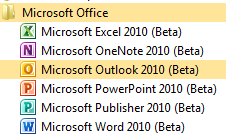
    The first thing I notice is that the Office components have all got new icons:

    image

    Outlook:

    The Outlook Connector doesn’t recognise the beta and installation fails; however as you’re setting up Outlook, it offers to go off and install the Connector for you. I gave it a try and it pulls down a different beta file…clearly made for Office 2010 as it installed without a problem.

    Having said that, the Outlook setup wizard doesn’t recognise that it’s installed, which is pretty annoying, and so goes off to find the settings online. After checking and double checking my account details to no avail, I tried another reboot…lo and behold, this time, it recognised that the connector was installed and went through with the account setup 🙂

    Web test:

    The folder structure on the left looks different than the Technical Preview and I noticed this:

    image

    See Web test at the bottom…what could it be? Let me show you:

    image

    That’s right, Twitter inside Outlook as default…that’s pretty cool 🙂 Once you’ve logged in, you can leave the Web Test folder and still be logged in when you come back.

    Social Media Integration:

    At the bottom of a new email, you now get this:

    image

    If you expand it using the arrow on the right, you get:

    image

    Click to add networks and you get:

    image

    Which hints at the social networking features present in Sharepoint 2010 🙂 It says there are more providers available online, but the link just takes you to a general Office site at the moment 😦 Once this is up & running, it will be pretty awesome…having, and I’m guessing at which will be included, Twitter, FaceBook & LinkedIn info and profiles available inside Outlook will be great. I’m not on Facebook (I know!) but I use the other two, especially Twitter, quite heavily for networking with suppliers, customers and colleagues.

    Blurring the divide between “Social Media” and “Corporate Resources” is a great move, one aimed at this “New World of Work” that will resonate with the graduates coming into the workplace as well as us cool, hip (!) people that get it too. I can imagine some managers/directors being a bit unsure about this but I’m confident they’ll quickly see the benefits…just like corporate IM.

    I’ve linked one of my Live Accounts into Outlook and just sent my first test email. It asked me to complete a “captcha” to verify my account before it would send it…something I don’t remember 2007 doing? You only need to do it once 🙂

    New network pane:

    Once you open up a new mail to someone who has emailed you, you get a message that Outlook wants to run an add-on. Click to run it and then Outlook starts showing you related mails and items.

    image

    I have to say that it takes quite a while for new mails to show up in the networking pane…hopefully this will be improved in the final version.

    Also, I’m finding that I’m needing to close and re-open Outlook for all the changes to take place and, while it’s showing emails, attachments aren’t showing up in the pane. Again, I think this is down to it’s beta status.

    This is very much a work in progress…I posted early so people could see the screenshots 🙂

    The Backstage Icon look a bit different too, a bit more boring:

    image

    Was there the option to swap colour schemes in 2007 and/or the 2010 tech preview? I’m quite liking the black:

    image

    This leads me onto something I realised the other week. I’ve been paying much more attention to the ins & outs of Office 2010 than I ever did 2007 and so finding all kinds of great new features. However, I can’t be 100% sure if they’re new to Office or just new to me 🙂 There are a few in Outlook where I think this may be the case…if so, feel free to let me know in the comments!

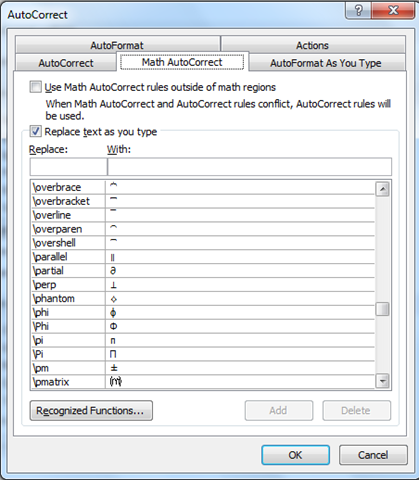
    Options –> Proofing –> AutoCorrect Options

    That takes you to the section that shows you what things are replaced with what. There are things such as “yuor = your” but it also shows you how to make the sign for Pi and much more…pretty interesting:

    image

    image

    Another feature I like the look of is “Keep track of formatting”:

    image


    As for the other components:

    • Word
    • Excel
    • Powerpoint
    • OneNote

    I have to say that they all look pretty much the same to me, at least at this early stage!

    Microsoft PDC 2009


    Microsoft’s annual Professional Developers Conference (PDC) 2009 starts next week on Tuesday 17th (to the 19th) and I’m hoping we’ll see some great announcements and revelations, just like last year.

    Windows 7 is out now so all eyes are turned towards “Wave 14”, specifically Office 2010 and Sharepoint 2010…at least these are what I’m looking for more info on! It’s expected that the official release of the Office 2010 beta will be announced, as well as a beta of Office Web Apps.

    The other big announcements will be around Windows Azure, which will be coming out of “Community Technical Preview” at the conference; so we’ll get more info on pricing and licensing.

    I’m hoping there will be some BPOS news as that’s something of a pet area of mine, so it’s always good to learn more 🙂 I can see there’s a session titled “SharePoint Is Not Just On-Premise: Developing and Deploying Solutions to Microsoft SharePoint Online”…this is based on Sharepoint 2010 so should give some good hints and insight into what will be coming next year.

    I’m not going to be there but I’ll be following it online and via Twitter so I’ll be posting all the big news for sure 😉

    The keynotes will be streamed like from http://microsoftpdc.com/ starting at 08:30 PST (16:30 GMT) and feature:

    Day 1: Ray Ozzie (Chief Software Architect) & Bob Muglia (President Server & Tools)

    Day 2: Scott Guthrie (VP Developer Division), Kurt Delbene (Senior VP Office Business Productivity) and “Special Guest”

    Not sure why but my guess is that the Special Guest will be Alec Baldwin…let’s see how wrong I am on that!