BizTalk licensing changes in April


Some BizTalk changes coming next month:

Biztalk 2013 will be on the pricelists from April and is moving to a per-core licensing model. As with SQL 2012, 1 license will cover 2 cores.

BztlkSvrStd 2013 ALNG MVL 2Lic CoreLic

BztlkSvrEnt 2013 SNGL OLP 2Lic NL CoreLic

BztlkSvrBrnch 2013 ALNG MVL 2Lic CoreLic

Microsoft reverse decision on Office 2013 licensing


It recently came to light that Microsoft had changed the Office 2013 FPP licensing, meaning users were no longer allowed to transfer a copy of Office 2013 from one machine to another – even in the event of that machine breaking.

This was not received well by most people and there have been a lot of blog posts, tweets, conversations about this; almost all of them negative about MS making things “more expensive”, “pushing users to the cloud” etc.

In an interesting development, Microsoft have now reversed that decision:

As a result of customer feedback to Office 2013 retail license transferability terms, we are changing the Office 2013 retail license agreement to allow customers to transfer the software from one computer to another.

The End User License Agreement text accompanying Office 2013 software will be updated in a future release, however this change is effective on March 6, 2013 at 6am PT. This amendment applies to Office Home and Student 2013, Office Home and Business 2013, Office Professional 2013, as well as Office 2013 standalone applications. These transferability options are equivalent to those found in the Office 2010 retail license terms.

This is a great example of Microsoft listening to feedback from end users and moving, really quite quickly, to rectify the issue at hand. I think this is a positive step from Microsoft and shows that customer feedback, particularly via social media, really does work!

To see the official Microsoft post, head over to:

http://blogs.office.com/b/office-news/archive/2013/03/06/office-2013-retail-license-agreement-now-transferable.aspx

HP Elitepad 900


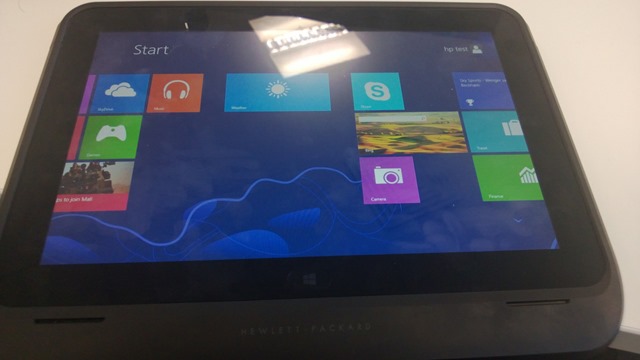
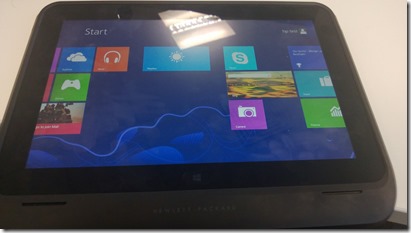
HP announced the Elitepad 900 a little while ago and it didn’t seem to create that much buzz, with me personally or the tech-sphere in general really. The only thing I knew about it was that it doesn’t meet the 1368×768 minimum resolution to enable the “snap” feature in Windows 8. I’ve been concentrating on the Samsung & Lenovo offerings and that’s where we’ve been seeing the customer interest too (the still elusive Surface Pro aside); but having played with one today my opinion has changed.

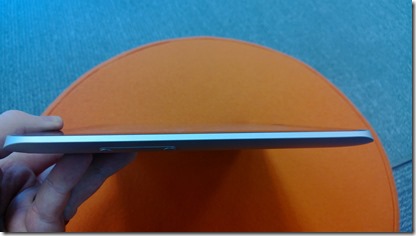
It looks good. It feels good. It’s sleek. It’s light.
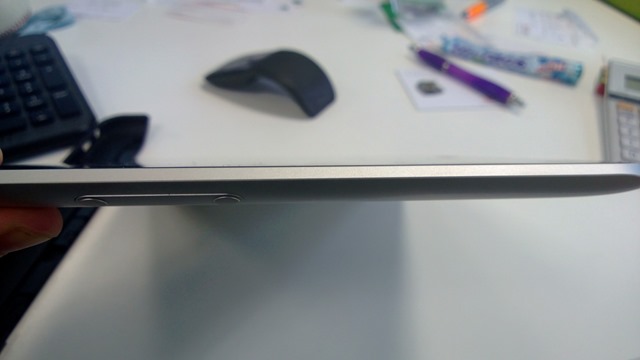
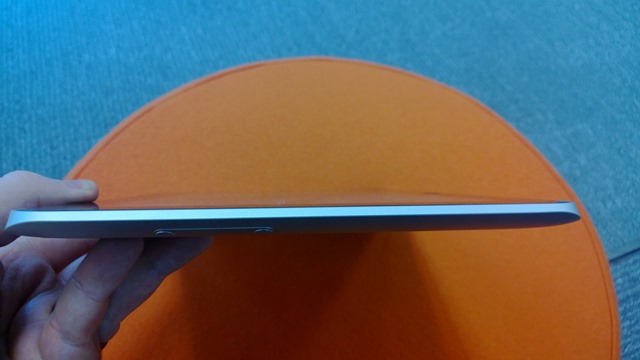
WP_20130129_001   WP_20130129_007 WP_20130129_021

You’ll notice as you admire those images that it’s sleek edges are uninterrupted by ports, of any kind – this is certainly odd. The HP ElitePad 900 has available for it a range of “expansion jackets” – the one I had today was the “Expansion Jacket”:

WP_20130129_002

The above jacket comes in 2 parts & clips around the device to offer a good range of ports:

WP_20130129_005

  • 2 x USB 2.0
  • 1 x HDMI
  • 1 x HCSM/MMC card slot
  • 1 x Combo stereo/headphone port

It seems you can use the jacket as a form of easel for the tablet but that wasn’t apparent to me whilst handling it today.

That rectangle you see in the centre of the jacket (in the first picture) is an additional battery which adds around 80% to the battery life of the device – handy for long days away from chargers! It appears that the battery is not part of the jacket but rather an additional option (see this HP page here & the spec page here).
WP_20130129_003 

Even jacketed, the ElitePad 900 still looks quite stylish and is still easy to handle and hold. As this jacket contained the additional battery it did add a noticeable amount of extra weight, making the device too heavy to hold for any real length of time. The jacket on its own is 260g while the battery is another 190g, so a total of 450g added to a tablet that weights 680g (1.5lbs) – making a total of 1130g (2.49lbs).

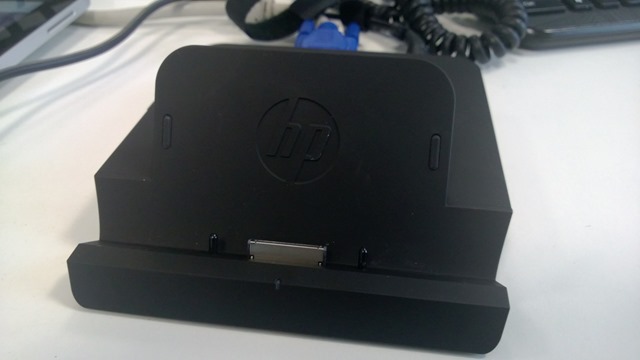
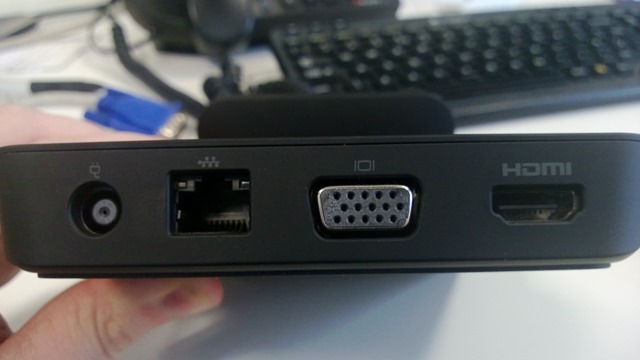
Another accessory available for this tablet is a comprehensive (and very well made/heavy at 1.48 lb) docking station, giving you those required ports when at desk.

 WP_20130129_016  WP_20130129_017 WP_20130129_018 WP_20130129_019 

You get:

  • 3 x USB 2.0
  • 1 x powered USB 2.0
  • 1 x Combo stereo/headphone jack
  • 1 x HDMI
  • 1 x VGA
  • 1 x RJ45
  • 1 x Smart AC Adapter

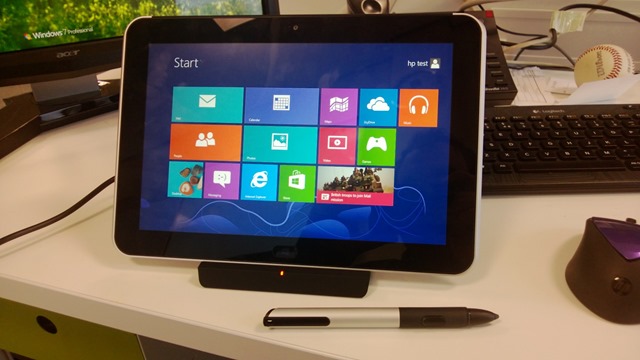
making it a very well connected device. You can dock it with or without the expansion jacket :

 WP_20130129_009 WP_20130129_013 WP_20130129_014 WP_20130129_015

but it seems i forgot to take pictures of it jacketed in the dock! You’ll notice the stylus pen in a couple of those pictures – this is also an additional option for the ElitePad, although sadly it wasn’t working on the unit I trialled. I find pen input on the Samsung 700t to be excellent and very useful so it’s good to see this as an option for business users.

I used the VGA port to connect the device to my monitor and use it as a second screen, which worked very well. Also, the snap feature is then available.

ElitePad 900 Specs

The spec of the device are reasonable:

  • Intel Atom Z2760 (1.5GHZ, “upto 1.8GHZ using Intel Burst & Hyper Threading)
  • 2GB RAM
  • 32GB or 64GB Flash storage
  • 10.1” 16:10* 1280 x 800 Gorilla Glass 2 screen
  • 2 x cameras (1080p front, 8MP w/LED rear)
  • 9.2mm thickness
  • Wireless 802.11 a/b/g/n
  • Bluetooth
  • HP hs2350 HSPA+ Mobile Broadband module w/GPS Support**
  • HP hs3120 HSPA+ Mobile Broadband*

*This gives users an extra 5% usable space over a 16:9 screen (according to HP)

**Not all models will have 3g capabilities.


Accessories and costs

The docking station is $149 (HP Site)

The expansion jacket is $99 (HP Site)

The expansion battery is $149 or $99, depending which page you look at (HP Site or HP Site)

The ElitePad case is $39 (HP Site)

There will also be a “Productivity Jacket” which gives:

  • integrated keyboard
  • “”several additional ports”
  • SD Card reader

and allows you to use the ElitePad like a clamshell notebook. I can’t find final specs or a price for this as yet. HP say it will be available “Spring 2013”, here’s a picture until then:

image

The pen is an additional item but I can’t see a price for that either.

The full range of accessories is:

  • • HP ElitePad Productivity Jacket
  • •HP ElitePad Expansion Jacket
  • • HP ElitePad Rugged Case
  • • HP ElitePad Case
  • • HP ElitePad Jacket Battery
  • • HP ElitePad Jacket and Battery
  • • HP ElitePad Docking Station
  • • HP Tablet Stand
  • • HP Executive Tablet Pen
  • • HP ElitePad USB Adapter
  • • HP ElitePad SD Card Reader
  • • HP ElitePad Serial Adapter
  • • HP ElitePad 10W A/C Adapter
  • • HP ElitePad HDMI & VGA Adapter
  • • HP ElitePad Ethernet Adapter
  • • HP ElitePad Smart A/C Cable
  • • HP Multi-Tablet Charging Module

The multi-tablet Charging Module will be very useful for companies looking to have a number of tablets as pool/loan devices. This will give an easy, tidy way of keeping them safe and charged.

Conclusion

My biggest issue is the  lack of connectivity ports without the jacket; I find it far from inconceivable that people will leave the jacket at home when they set off in the morning, in the hotel room when they checkout, on the adjacent seat on the train etc. etc. and then you’re stuck. Yes, you can have additional jackets dotted around but that is an extra cost and certainly not ideal. That said, it’s been pointed out to me (by the HP Category Manager) that it does ship with a USB adapter. This means even without the jacket/s users will still have a USB port through which to connect peripherals.

Not having the snap feature is mildly annoying but I feel one would quickly get used to not having that at your fingertips, so no biggie there. Interestingly, HP’s line on leaving out snap is this:

Snap doesn’t currently work with Outlook – or some other business applications – which are pretty vital for day-today
commercial use. Here’s the thing: The ElitePad supports the Windows 8 Snap feature when docked and
connected to an external monitor. So, it’s a consumer-centric function that isn’t yet optimized for a business tablet.

I do think the Atom processor and 2GB RAM could give some organization cause for concern as to whether this will be powerful enough as a laptop replacement. Having plentiful and quick access to trial units will be the best/only way to get past this in many instances – letting customers trial the device in real world settings and see how it fares.

All in all I’m very impressed with HP’s ElitePad 900. It’s clearly aimed at businesses and they’ve done a good job of providing everything they will need, making this a real contender for large scale enterprise rollouts and laptop replacement efforts. I’m very excited to talk to customers about this device and get their feedback – that’s always the key part!

Windows RT tablets, Reviews & iPads


I had a Twitter conversation with a couple of bloggers from ZDNet today and don’t feel that it was resolved. I don’t know if I’m wrong, if they didn’t understand my point, if they just wanted me to leave them alone or a bit of all three…but here’s the gist.

Matt Baxter-Reynolds (@mbrit) posted a review of the Lenovo Yoga 11 (see it here) which included the following:

“It can’t be a tablet because it weighs too much. It comes in at 1190g (2.6lbs). (For comparison, an iPad mini with silicon case weighs 376g — meaning a stack of about three of them weigh the same as the Yoga”

Now I don’t see how this is a true/fair comparison. The Yoga is almost 50% bigger than an iPad mini (11” vs 7.9”) AND includes a keyboard. I find it very doubtful that any consumer will be tossing up between these 2 devices…one is a small tablet and the other is a small laptop that converts to a tablet form factor. This was the first point I made on Twitter…it feels like the iPad comparison has been thrown in there more to further the “ipads are better than Windows tablets” cause – even when they’re apples and oranges. (No pun intended).

The conversation then moved onto the fact that the Yoga is, at 2.8lbs, too heavy to be a tablet. Now that I agree with…if you’re looking at it being used as a tablet 100% of the time. However I don’t think people will be using it like that. If you want a Windows RT tablet, that will be a tablet ALL the time, there are plenty of other choices…get a Surface or a Samung Ativ Tab; these give you the same OS in a much lighter package.

The most common usage scenario I see for the Yoga (and other convertible devices of this ilk) is 80/20 – a laptop 80% of the time and then being converted to a tablet ~in certain scenarios ~ when required. Thus users get all the benefits of having a full keyboard (a big reason for the extra weight) when working in Office etc with the flexibility to switch it up when needed.


image 

image

I made the point that there ARE cases where it’s ability to transform is useful without it’s weight being an issue – these are primarily desk based scenarios. James Kendrick at this point said:

image

Now this I don’t agree with at all. You’re in a meeting with a colleague or two and you want to review some documents on your device…is it only me who would prefer to do that in tablet mode, echoing the more natural feeling “looking at paper documents”, rather than all 3 people huddling round a laptop screen?

You’re in a larger meeting, say 8 people around the boardroom table, and have PowerPoint slide you’d like everyone to take a look at. It’s going to me MUCH easier to flip your Yoga into tablet mode and pass that around than a full on laptop.

I think it’s quite widely felt that, in a meeting setting, the screen of a laptop makes an effective barrier between the people involved. Again, flipping your Yoga into tablet mode allows you to negate that, hopefully making everyone feel more comfortable and keeping them engaged etc., and the weight won’t matter because you’re not carrying it.

The feeling that a tablet is only of use if you’re carrying it is, in my opinion, missing part of the picture.

My initial point was that comparing the Yoga to the iPad Mini is not a true comparison, perhaps a little disingenuous and done to tap into that Apple vs Microsoft battle so often prevalent with tablets – even though it’s not really part of the discussion. I re-iterated that point, to which James Kendrick replied:

image

Which doesn’t really make any sense! The above is not the same as comparing an 11” convertible laptop with keyboard to a 7.9” tablet without a keyboard.

I’m keen to understand if it’s just me who sees it like this or if there’s anyone out there that agrees with me, so I welcome your feedback!

Windows RT has been Jailbroken


Here’s quite an interesting development for a Monday morning….Windows RT, Microsoft’s new tablet OS, is no longer restricted to just apps obtained through the Windows Store.

It is now possible to run unsigned ARM-compiled apps on the Windows RT desktop, using  an exploit in memory to make in possible to run desktop based apps, other than Office 2013 & IE 10. It seems that as it’s an in memoery exploit, it won’t persist – meaning it will have to be “re-cracked” each time the device is turned on. This may well mean it finds little favour with users but is, if nothing else, a big step forward in this arena.

This opens up the possibility of a homebrew market for Windows RT, enabling developers to create apps without going through the costs and processes associated with the official Windows Store route.

That said, I’ve been told on Twitter that it’s only £35 a year for personal Windows Store registration (which comes with free development tools) and isn’t a particularly arduous process to get an app accepted by Microsoft (thanks @CraigHawker); which doesn’t really seem like it will be preventing many developers from getting started on Windows RT app creation.

The other potential outcome is that it will lead to app piracy, enabling people to install apps that they haven’t paid for.

Thanks to The Verge for finding this.

Merry Xmas to all Software Ruminators!


2012 is the 5th year I’ve been blogging and it keeps getting better – at least for me! I really enjoy writing these posts and helping bring some clarity to the often confusing world of Microsoft licensing – I hope you all enjoy reading them…or at least find them useful 🙂

Some choice stats:


I’d also like to give a shout out to the excellent Mary Jo Foley of ZDNet for the great conversation at WPC and also the blog links and retweets throughout the year – most appreciated, thank you very much! 🙂

Microsoft have given me a lot of things to blog about in 2012 and hopefully 2013 will be the same. Thank you to everyone who has visited this blog, tweeted a link, shared it in LinkedIn, shared it on Facebook etc – it’s hugely appreciated 🙂

See you next year.

Cheers

Rich

ITAM Review: Windows 8 Licensing Guide


If you’re looking to get a better understanding of Windows 8 and it’s licensing, including new additions such as Windows To Go and Companion Subscription Licenses, head over to ITAM Review and check out their guide – written by yours truly:

http://www.itassetmanagement.net/2012/12/20/windows8/

This is a great site for all things Asset Management related so if you’re interested in licensing and/or Software Asset Management (SAM) – check out the rest of the site too 🙂

Who to follow on Twitter


Engadget posted a list yesterday of “Who to follow on Twitter” for Microsoft and I’m happy today that (after a gentle reminder!), I’m on there 😊

Sitting alongside such luminaries as Mary Jo Foley, Ed Bott, Tom Warren & Todd Bishop is pretty cool! Check out the full list here:

http://www.engadget.com/2012/12/17/who-should-i-follow-on-twitter-microsoft-edition/

Surface Pro Pricing Announced


Microsoft’s Surface RT tablet has been out for just over a month and is generating a lot of interest from business customers. However, due to RT’s inability to run legacy software (non-RT versions of Office, Adobe Acrobat, LOB apps etc) the general conversation has gone like this:


“Wait for the Surface Pro”

“When’s it out”?”

“January”

“How much is it?”

“Erm…not sure”, we’re still waiting to hear from MS”

Well, now we’ve heard. Officially announced by Microsoft, the pricing is:

Surface Pro 64GB = $899

Surface Pro 128GB = $999

Converting them in GBP at today’s exchange rate gives:

Surface Pro 64GB = £560

Surface Pro 128GB = £623

but it is rare that costs of software & devices so truly follow the exchange rates, so it will be interesting to see the final UK price.

These are actually cheaper than those “leaked” from Germany a few weeks ago (Microsoft Surface Pro Pricing Leaked) which is great, as many considered those leaked costs to be too low to be true!

The specs haven’t changed and are as detailed in this post (Microsoft Surface Pro), giving quite the bang for one’s buck.

One thing that hasn’t been confirmed today is Microsoft’s plans for the sale and distribution of these devices. Will the retain the “direct from MS” strategy of the Surface RT or use the more common model of selling via retail stores as well as via the “Channel”, the network of distributors, resellers, VAR and other partners. The latter is the current way that most businesses purchase their laptops (as well as other IT equipment) and if Microsoft choose not to let them into the party, that will be a very poorly received decision…both by resellers and their customers.

The majority of businesses are not set up to make multiple, sizeable purchases via credit cards on websites and they don’t want to change that – thus Microsoft could be losing sales to their OEM partners (which they will at least say isn’t a bad thing) or perhaps Apple. If there are businesses out there happy/prepared to purchase directly from the MS site, there will then be scores of distributors/resellers upset at missing out on potential sales to their customers.

I’m of the opinion that the Surface Pro must, and will, be available via the Channel and retail stores but it would be nice to see it confirmed by Redmond.

Windows 8 Shortcut Keys


The usability of Windows 8, particularly on non-touch devices, is a hot topic with many claiming that it’s “touch first” design makes it harder to access things on a desktop or laptop. I personally don’t find it much of an issue on a desktop with an external mouse but have, I admit, found it a little frustrating sometimes when using a laptop trackpad as there can be quite a lot of cursor movement. TO this end I’ve started using keyboard shortcuts more than ever before – they’re quick, easy and make working with Windows 8 even more fluid and enjoyable.

Some of my favourite shortcuts are:

Win+C = Brings in Charms bar from right

Win+i = Bring up Settings menu from right

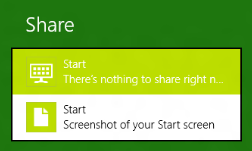
Win+H = Brings in Share menu from right

Win+Q/F/W = Brings in Search Apps/Files/Settings screen from right

Win+tab = Brings up the “Modern App Taskbar” (aka list of open apps) from left – holding win and pressing tab then scrolls through the apps

I find I use at least a couple of these each time I use my Windows 8 laptop and they definitely make it easier for me – I hope they do for you to!

Over on Technet, there is a great post with a very comprehensive list of keyboard shortcuts, many/most not just specific to Windows 8 either – check it out here:

Windows 8- For Those of us who Still Prefer Keyboard Shortcuts to Touch Screens – WE SALUTE YOU!