Cloud Platform Suite


This is a new licensing program that will be available on the January 2014 SPLA price list. It is aimed at Service Providers who run heterogenous environment – that is environments with a mix of Operating Systems such as Windows, Linux & Unix.

It is licensed in a “Host and Guest” model – the Host license covers the hardware and you will then purchase a Guest license for each Windows VM you wish to run.

Host SKU: Includes Windows Server 2012 R2, System Center 2012 R2, and Windows Azure Pack, host capabilities and rights to manage all guests

Guest SKU: Includes Windows Server 2012 R2 guest capabilities

For more info, check out my good friends over at Licensing School:

Permalink to Cloud Platform Suite

Adding Azure to an Enterprise Agreement


It’s now easier than ever for customers to add Windows Azure to their Enterprise Agreement (EA).

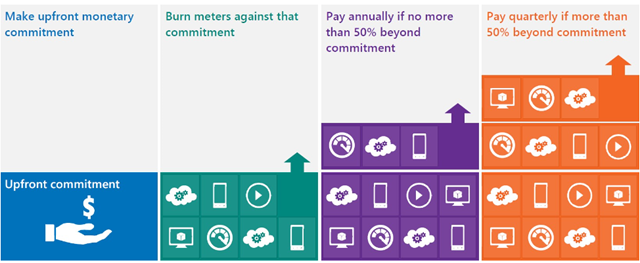
You commit upfront to a monthly amount that you feel will cover all your needs, and that monetary commitment can be utilised in any way within Azure.

image

Previously, you would receive great payment terms for your monetary commitment but – should you go over that amount (known as “overage”) – the extra usage would be charged at much higher rates. This effectively punished organizations who thought “wow, this Azure stuff is cool” – but no more, Overage is now charged at the same rates as the initial agreed amount. This makes increasing the usage of Azure a much more compelling proposition.

See Josh Waldo’s full post here:

http://www.digitalwpc.com/Community/Perspectives/Pages/Windows-Azure-added-to-Enterprise-Agreement-Use-it-to-power-your-solutions-.aspx?wt.mc_id=corp_mpn_tw_dwpc_joshwaldoazureagreement#fbid=7Lt8ur4Ygjd

Office 365 Admin Access in Exchange Online


Office 365 Wave 15 (the current release) brought with it a new admin console, that consolidates and streamlines access to most requirements. That said, one of the common worries for IT managers is around loss of control when compared to administering their on-site infrastructure.

A great tip from @12knocksinna shows how to gain access to an extra level of features:

image

To access this, simply fire up OWA and then change /OWA to /ECP in the URL an hey presto –  you’re in!

I’m sure I remember these features being available in the beta release of Wave 15 – anyone else?!

See Tony’s full blog about it her:

http://m.windowsitpro.com/blog/wave-15-office-365-admin-interface-unifies-applications-lacks-some-functionality

PowerPoint Progression with Windows Phone


This is a great, nifty invention that’s just come out of Microsoft Research.

I quite like wandering around…out in town, at work and in general. When I’m presenting, I can’t really do it though, as I need to be close to my machine to click “next”…well no more!

Office Remote turns your Windows Phone 8 device into a remote control for your Office 2013 presentation apps  (Word, Excel & PowerPoint). I’ve just downloaded the bits and tested this out with my upcoming Cloud presentation – it took about 2 mins to setup and works perfectly. You need:

It shows the elapsed presenting time, clear forward/backwards buttons and even shows your speaker notes on your phone!

office remote

I’ll definitely be using this when I present at Old Trafford on Thursday 🙂

Other use scenarios include:

  • PowerPoint: Large, easily accessible buttons on the phone enable you to start a presentation, advance slides forward or backward, view thumbnails and jump to a particular slide, access speaker cues while viewing the presentation time and the progress of slides, and deliver accurate, non-shaky direction with the on-screen laser pointer.
  • Excel: Simple gestures enable jumping not just between spreadsheets and graphs, but also among any named objects. Spreadsheets can be changed with a mere finger swipe, and navigation is available through rows or columns. In addition, you can use PivotTables or filters and change zoom levels, all with an Office Remote-equipped phone.
  • Word: Zoom control is available in this application, as well, and Word docs can be scrolled by screen or by line.
  •  

    You can see more about it here: http://blogs.technet.com/b/inside_microsoft_research/archive/2013/11/18/advance-your-presentation-with-your-phone.aspx

    Office 365 Cross Family Transitions


    At the 2013 WorldWide Partner Conference (WPC), Microsoft announced plans to make it easier for customers to switch between Office 365 plans – this was greeted by smiles & cheers from many!

    The initial introduction worked only for a few cases but the supported switching scenarios have now been expanded to include:

    From To
    Small Business MidSize Business
    Enterprise E1
    Enterprise E3
    Enterprise E4
    Small Business Premium MidSize Business
    Enterprise E3
    Enterprise E4
    Exchange Online Plan 1 Enterprise E1
    Enterprise E3
    Enterprise E4
    MidSize Business
    Exchange Online Plan 2
    Enterprise E3
    Enterprise E4

    Microsoft say:

    “We continue to work on transition solutions for both additional scenarios (e.g., Exchange Online to Midsize Business) as well as for Open subscriptions and Government/Academic SKUs”

    So there will continue to be additions and improvements around this – making Office 365 even more relevant for businesses everywhere.

    Office 365 MidSize Business and Exchange Online Archiving


    Exchange Online Archiving (EOA) is now available as an add-on for Office 365 MidSize Business; this gives MidSize users unlimited archiving as well as legal hold capabilities.

    It’s great to see Microsoft continuing to improve and add to their Office 365 platforms, and this move really helps SMBs to attain Enterprise levels of service.

    The Ordering Process

    Currently, EOA can only be added to MidSize Business licenses purchased via the Advisor model, that is via the Microsoft Online Portal. If you purchased via Open Licensing (so from your reseller partner – and you pay them rather than MS), you need to add just 1 license of MidSize Business via the Advisor Model. That way, you’ll then be able to attach EOA to that license but fear not, the subscription can be applied to all mailboxes on that tenant – including those purchased via Open.

    The process is nice and simple, which is good:

    1. Login to your Office 365 account as the Administrator.
    2. Go to the “Purchase Services” tab in the Admin Console.
    3. Click “Add” to purchase one additional seat of Office 365 Midsize Business.
    4. You can add Exchange Online Archiving at the same time as you add the direct bill seat of Midsize Business:
    5. Select the “Optional Add-ons” dropdown and enter the number of licenses of EOA you want to purchase.
    6. Add to the cart and proceed to payment by clicking “check out.”
    7. Follow the wizard to complete your payment with a purchase by credit card or other locally available payment method.

    Microsoft Student Advantage


    Microsoft have announced another great benefit available to education customers:

    “Any academic institution that licenses Office for staff & faculty can provide Office 365 Office Pro Plus to students AT NO ADDITIONAL COST”

    This, known as Student Advantage, starts from December 1st.

    Its aim is to help give students the skills they’ll need to be successful out in the world of work, whilst helping schools manage costs – certainly a worthy aim!

    You can read more here:

    http://blogs.technet.com/b/microsoft_on_the_issues/archive/2013/10/14/microsoft-announces-new-student-advantage-program-to-prepare-students-for-tomorrow-s-jobs.aspx#!

    Server & Cloud Enrollment


    Microsoft make yet another change to their licensing programs, aimed at making it easier for organizations to license what they need.

    The Server & Cloud Enrollment (SCE) is related to an EA (Enterprise Agreement) offers four components:

    • Core Infrastructure
    • Application Platform
    • Developer Platform
    • Windows Azure

    Customers can choose any of these components individually or group them as needed. When choosing any of the first three components, customers will also have access to Windows Azure at the best pricing available.

    How to get started

    To enroll in an SCE, customers make an enterprise-wide commitment to one or more components.  This means committing to full Software Assurance coverage across the installed base of an SCE component and in the case of System Center, committing to full System Center coverage on their Windows Server installed base through Core Infrastructure Suites (CIS).

    Benefits include:

    • 15% off L+SA products and 5% off SA products, as well as 5% off Azure when another component is included.
    • New subscription-based licensing options are available alongside perpetual licenses.  This gives customers access to more flexibility when they need to retire workloads, consolidate, or migrate to the cloud.
    • Core Infrastructure Suite (CIS) committed customers receive incremental rights to use System Center to manage Azure virtual machines and resources at no additional cost.
    • Microsoft Premier Service’s customers may also qualify for unlimited problem resolution support for SQL Server, Windows Server and System Center, BizTalk Server and SharePoint Server.
    • All the benefits of Software Assurance (SA).  This includes access to License Mobility for many of our applications, which enables even more seamless migrations to the cloud.

    The SCE makes it easier for customers to standardise on MS technologies, easier for customers to migrate to the Cloud and simplifies the licensing involved.

    More info is available in the datasheet here:

    Server and Cloud Enrollment Datasheet and FAQ

    What’s new in Windows Server 2012 R2


    Microsoft’s latest server operating system, Windows Server 2012 R2, is due with us on October 18th so let’s take a look at what’s new in the upcoming release.


    People Centric IT (PCIT): Borne out of/related to Bring Your Own Device (BYOD), PCIT is a key component of all Microsoft’s upcoming server releases including System Center and Intune.

    The Workplace Join feature will enable users to register their devices in Active Directory (AD) and then to enroll them for management in System Center / Intune.

    As part of that Workplace Join, we’ve created a user@device record in the Active Directory. In this way, we’re enabling your existing AD infrastructure to be extended to accommodate mobile devices. This allows us to provide the IT Pro with an inventory of devices and their users, and to audit the access that will be subsequently granted to those users on those devices. The certificate issued to the device includes both the identity of that device and the identity of the authenticated user. Access to resources published via our Web Application Proxy (see below), or to any other resource that relies on AD FS for authentication, will rely on this certificate for authentication.

    One thing worth noting: The act of registering the device to Active Directory does not allow IT to control the device in any manner — that’s is covered by enrollment. Workplace Join is only used to govern access to corporate resources and to enable SSO.

    The new Company Portal gives users a central place to perform common tasks such as:

    • Access internal apps
    • Manage their devices with remote wipe etc.
    • Access their data with Work Folders integration

    What are Work Folders you may ask, well:

    Work Folders address the bring-your-own device (BYOD) scenario, enabling users to store and access work files on personal PCs and devices as well as corporate PCs. Users gain a convenient location to store work files and access them from anywhere, while organizations maintain control over corporate data, storing the files on centrally managed file servers and optionally specifying user device policies such as encryption and lock screen passwords.

    Work Folders can be deployed alongside existing deployments of Folder Redirection, Offline Files, and home folders. Work Folders stores user files in a folder on the server called a sync share, and you can specify a folder that already contains user data, enabling you to adopt Work Folders without migrating servers and data or immediately phasing out your existing solution.

    This all makes it easier for users to be able “work anywhere” as:

    As part of enrolling for management, users can have their devices provisioned with certificates, WiFi profiles, VPN profiles, and DirectAccess configuration. The VPN profiles can be associated with DNS names or specific applications so that they automatically launch on demand. This allows users to work remotely and always be connected to the corporate network without the need to initiate a VPN connection.

    A new feature in Server 2012 R2, SCCM 2012 2 and Windows 8.1 enables apps to initiate the VPN connection when launched.

    Another big BYOD addition is this:

    With the R2 wave of releases, we have added the ability to selectively wipe corporate information while leaving personal data intact.

    That’s a huge thing with BYOD, if users are using their personal devices for work it stands to reason their will be personal data on the device – holiday pictures, music etc. – and the risk of losing all that due to a corporate wipe has put many people off. Some may say that is the price one pays for BYOD but it doesn’t have to be the case and it’s great to see it baked into the new MS products.

    Other areas added to in Windows Server 2012 R2 include:

    • Identity Management
    • IAAS (Infrastructure As A Service)
    • Hybrid Networking
    • Cloud Integrated Disaster Recovery

    To see much more in depth, technical info around all the above (and more) head over to:

    http://blogs.technet.com/b/in_the_cloud/archive/tags/what_2700_s+new+in+2012+r2/

    Switching between Office 365 plans


    It was announced at WPC 2013 that Microsoft would be making it easier for Office 365 customers to move between the various plans and now, less that 4 weeks later, the first move has been made.

    This first update makes it MUCH easier to move to a higher plan within the same family. Considering that this scenario is the customer saying “I want more features and will give you more money for them” it was an oddly difficult process; it required a call to support, cancelling subscriptions and manually re-assigning licenses! Now it is all done with a simple, automated self-service wizard in the Admin portal – happy days! The current options are:

    image

    NB: As the moment, only subscriptions of 300 or fewer users can be switched with this method. Also, this is only available to those with the new portal – if you’re still waiting for the upgrade this won’t be there.

    Future Updates

    Microsoft are also working on expanding the switching options to make it possible to move between families. Later this year the following will be available:

    image

    Giving people the ability to easily move from Midsize Business to E3 will be a great option.

    For more info head over to http://blogs.office.com/b/office365tech/archive/2013/08/01/office-365-customers-can-more-easily-switch-plans.aspx

    Cheers

    Rich