Asset Inventory Service (AIS)


Asset Inventory Service (AIS) is one of the core components of the Microsoft Desktop Optimization Pack (MDOP) and, as the name suggests, is aimed at helping customers to manage their assets.

Why Manage Assets?

Software Asset Management (SAM) should be a key part of a businesses processes these days, as ensuring software compliancy is a big thing. In a nutshell, SAM is making sure you have the right number of licences for the number of users you have and making sure they were purchased correctly. Licence Compliancy is a big thing for Microsoft and they, as well as most other major software vendors, have a dedicated SAM team to help customer (and partners) with this process.

Even with the best will in the world it can be hard for customers to remain compliant, if they don’t have a SAM system in place. I recently visited a customer who, through one person deploying an incorrect system image a number of years ago, have found themselves under-licensed by a substantial amount, which must now be corrected-and that has a not-insignificant cost attached to it.

Microsoft AIS is a SAM system that can help customers keep track of their assets:

Ensure compliance to reduce risk:

By getting the most complete view of the software installed on enterprise PCs, you can determine whether licenses have been deployed. You can also tell whether all software is compliant with license agreements, key industry standards such as Sarbanes-Oxley and HIPAA, and corporate policies. By identifying applications that are out of date or that don’t comply with corporate policy, Microsoft Asset Inventory Service can help IT staff find unapproved applications that may be causing conflicts.

Improve forecasting and budgeting:

Data can be gathered on all software assets in a single query without consuming the IT Dept’s time or interrupting users.. AIS captures a comprehensive list of all the applications installed on each machine which is then reconciled against the AIS Application Knowledgebase. This contains hundreds of thousands of software titles, to create a detailed inventory of the software that is in use in your organization. This information can be transformed into browser-based reports that help your IT staff manage software assets and forecast future needs. The service also analyzes how Microsoft Volume License agreements are deployed to help you more easily manage true-ups, renewals, and license reallocation.

As well as under-licensing, enterprises can also determine if they’re over-licensed; this can happen if a number of people leave and so you have Office licences in reserve for example…many companies automatically purchase a new licence for each new starter-AIS can help stop them over-spending.

Samantha Fox

Software Asset Management-Not this SAM 😉

Dictionaraoke


Haha, I’ve just stumbled across this online and it’s pretty awesome…it’s classic hits performed by online talking dictionaries 🙂

Black Sabbath’s “IronMan” is particularly excellent-go check them out at:

http://www.archive.org/details/dictionaraoke

Admittedly some of them are more noise than anything, but the one’s that work definitely work in my opinion 😉

Importing Journaled data into Exchange Online


I was asked a great question via the comments on my blog, which was:

“Can BPOS accept journal data that has been exported from an existing Exchange system?”

With some help from the great people in the Worldwide BPOS teams at Microsoft I have an answer…and that answer is YES 🙂 It is possible to import already journaled data into Exchange Online, meaning you can easily move from Exchange Onsite to Exchange Online.

How to do it:

  1. There are a few caveats to this process:Data must be in .PST format only. Alternative file format types such as MIME, EML, MSG, or Lotus Notes are not accepted.
  2. You must submit historical data files on an external hard drive or USB memory stick.

This one is a little bit odd-I assume the reason you can’t transfer the data online is due to the sheer volume of data that may well be in question and so “sneakernetting” it would be quicker; but couldn’t DVD’s be used? I suppose that an External HD would mean the data could all be read in without any human intervention along the way, while a bunch of DVD’s would require someone to insert/eject them? (Feel free to add your thoughts).

You need to create a “mapping” file which for Exchange 2000, 2003 & 2007 can be done via:

1.Start a command prompt. (Click Start, click Run, type Cmd, and then click OK.)
2. At the command prompt, type or copy and paste the following and press enter:
C:\> csvde -l “mail,legacyExchangeDN” -r “(objectClass=user)” -f customer_name-map-file.csv

For Exchange 5.5:

1. Open the Microsoft® Exchange Server 5.5 administrative program and choose the option for a tools-directory export.
Historical Data File Format and Submission Procedures Microsoft Exchange Server
4
2. There will be an option to choose mailboxes, custom recipients, and distribution lists (select all).
3. Select the export file option and choose a destination for the file you are about to create. The file that is exported will be in a CSV format.
Please remember to include this file with your historical data. The file should be named: customer_name-map-file.csv

Once you have all that it’s loaded onto your External drive/USB stick, you need to package it up and physically mail it off to Microsoft with the following details:

Bulk Data Services Group

Attn: Betti Johnson (Ticket Number)

Alias: bettijo

3720 159th Ave NE

Redmond, WA 98052

Ph. 1 (425) 703-3237

I am checking to see if there is a separate address for EMEA (and indeed other regions) and also how much this service costs, as the pdf datasheet hints at a charge. *Update* I’ve just been told that the charge is $50 per GB (one time fee) for the import and that you must send the data to the US.

The datasheet can be found here.

Impressions of VMWorld


As you may know, this week is VMWorld 2009, VMWare’s virtualization event for partners and customers. I’m not attending but I am following a great number of people on Twitter who are there and I have to say, it’s not doing VMWare much good in my eyes.

The first mark against them was the furore over the restrictions placed on Microsoft & Citrix. Yes-they’re competitors but:

  • Banning them from sponsoring the event
  • Restricting them to 10×10 booths
  • Stopping them from doing demo’s of their product
  • Stopping local hotels from renting conference rooms to them

just strikes me as childish and only serves to make VMWare look worse.

Now I’ll admit that I’m a big Microsoft fan and not much of a VMWare fan but I think even VMWare supporters must be having second thoughts 🙂

In one of the sessions today VMWare displayed a slide to demonstrate Microsoft driver crashes but the slide was 3 years old, and the data was 4 years old!

This attitude of “don’t show competing products", don’t use these rooms, don’t do this, don’t do that” is the same attitude that Microsoft were guilty of displaying a few years back. Microsoft saw a lot of people turn against them, both partners and customers, and it set them back in many areas. Microsoft had to make a real effort to change their corporate attitude from the top down and thanks to that, and the large number of loyal partners/customers, they were able to turn it around…these days MS are recognised by (nearly) everyone as much more open and accommodating to competitors and their products.

I’m not sure that VMWare will be able to make a similar change and, if they do, I don’t think it will be in time to save their market position…

Windows 7 Enterprise Trial


  • Windows 7 Enterprise is the most feature rich version of Windows 7 and offers much more than Windows 7 Pro including:
  • Direct Access
  • Branch Cache
  • App Locker
  • Bit Locker (To Go)
  • 4 Virtual licences

and more…

The only way to obtain the Enterprise version is to purchase Windows 7 Pro with Software Assurance.

Microsoft have released a 90 day trial of Windows 7 Enterprise which is generally available online, rather than restricted to Technet/MSDN, giving an even wider audience the chance to see what benefits Microsoft’s new OS will bring to them.

You can see more info and download the trial here. The trial is available in the following languages:

  • English
  • French
  • German
  • Spanish
  • Japanese

If you haven’t had the chance to play with Windows 7 and it’s Enterprise features, I implore you to download this trial 🙂 Move quickly as the trial is on a” first come first served basis” until March 31st 2010.

Exchange Online SMTP Enabled


It’s now possible to serve SMTP clients via Exchange Online-meaning you can have mail originating outside the online environment. I’ve had a few people ask me about this and the use has always been so that automated applications can send mail via Exchange Online…such as an SQL server auto sending a report etc.

To connect the SMTP client to Exchange Online you’ll need to give it the Fully Qualified Domain Name (FQDN) which will be:

  • North America: Smtp.mail.microsoftonline.com
  • Europe: Smtp.mail.emea.microsoftonline.com
  • Asia Pacific: Smtp.mail.apac.microsoftonline.com

You’ll also need to use Port 587 and TLS (Transport Layer Security).

Full info can be found over at the Technet BPOSitive blog.

Yet another great new feature that serves to make Exchange Online and BPOS a great choice for companies of all kinds & sizes…

ZuneHD in Europe?!


I’ve just been told on Twitter that there is a rumour, and it’s to be stressed that this is a rumour, that Microsoft may still be planning on using the Zune HD to launch the product into EMEA (Europe, Middle East and Africa)!!!

That means that this sweet ass gadget:

could be in our shores, in our stores and, more importantly, in our hands 🙂 In my opinion, the new Zune is much sexier than anything I’ve seen from Apple…

The specs for this are:

  • 3.3 inch OLED display capacitive touch screen (480×272 16:9 aspect ratio).
  • Size: 2.07″x4.08″x.35″ (52.7 mm x 102.1 mm x 8.9 mm)
  • Weight: 2.6 ounces (74 grams)
  • Runs on Nvidia Tegra APX with 8 independent processors.
  • Multi-touch technology.
  • 16/32 GB
  • Built-in accelerometer.
  • HD radio tuner.
  • 720p high definition video support and output (additional dock required).
  • Wi-Fi connectivity 802.11b/g with Open, WEP, WPA, and WPA2 authentication modes and WEP 64- and 128-bit, TKIP, and AES encryption modes.
  • A Wi-Fi version of the Zune Marketplace.
  • Web browser (based on Internet Explorer Mobile 6 for Windows CE).
  • Games
  • Unicode Support
  • Equalizer
  • Music, up to 33 hours (wireless off); video, up to 8.5 hours
  • Battery : 3.7 Volt, 730 mAh Lithium-Ion Polymer battery
  • I’ve wanted a Zune for ages so if this is true-it’d be AWESOME 😉

    *Update* Looks like it truly was a rumour, as the Zune HD isn’t available in Europe (or anywhere else for that matter) 😦

    New features and Improvements in Microsoft Hyper-V R2


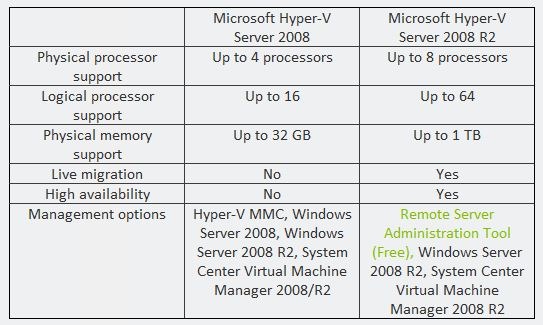
    As I’m sure you’ve heard on the old internet, Microsoft’s Hyper-V R2 is done and dusted. The main new feature is Live Migration, meaning MS can now match the “VMotion” feature offered by VMWare, but there is a whole host of new features and improvements in the latest version. Let’s take a look:


    Hyper-V Compare

    Hyper-V R2 also includes:

    (a) High availability and live migration for managing a dynamic IT infrastructure

    (b) Support for 64 logical processors future proofing our customers to scale up with the hardware

    (c) Support for running up to 384 virtual machines with up to 512 virtual processors

    (d) Processor compatibility mode for live migration across different processor SKU’s from the same vendor

    (e) Hot add/remove virtual storage

    (f) Networking enhancements (VMQ, Chimney, support for Jumbo Frames)

    (g) Simplified management using sconfig

    (h) Boot from flash

    See the original post here.

    MED-V: More info


    MED-V (Microsoft Enterprise Desktop Virtualization) is part of the Microsoft Desktop Optimization Pack (MDOP) and has come to the fore somewhat recently, along with Windows 7’s XP Mode.

    A number of people had heard of MED-V and knew that it let you run older apps in a virtual environment on new OS’s (such as Windows 7). Then, when MS announced XP Mode for Windows 7 the question became “Why do we need MED-V?”. In short we need MED-V because it’s excellent-so let’s look at why 🙂

    XP Mode allows single users to run an app in a local XP VM, and that’s it. It’s a local instance which needs to be looked after by that user/helpdesk but individually on that machine…MED-V however, gives numerous central management controls and that is where it comes into it’s own.

    The four key points it offers are:

    • Virtual Image Repository
    • Centralized Management and Monitoring
    • User Policy and Data Control
    • Seamless user experience

    Virtual Image Repository: This gives a company a central repository to store all the different virtual images they need (XP, Mac OS, Linux etc) which can then be retrieved by end users and/or automatically deployed. There is also an automated process for keeping the VM’s updated with any changes to the build image. Med-V also allows for automated first-time setup such as:

    • specifying computer name
    • setting up the network
    • joining the domain.

    Centralized Management and Monitoring: MED-V can be integrated into Active Directory (AD) to enable VM provisioning based on group policies. There are features aimed at helping Helpdesk too including a central database of all client activity and the ability to easily revert a VM back to it’s original state.

    User Policy and Data Control: One of the cool features MED-V offers here is the ability to automatically re-direct specified websites to the Virtual Machine, so if a certain site only runs in IE6 and corporate standard is IE 8, the VM will handle it.

    Seamless user experience: Virtual Machine applications are available via the host OS Start menu and apps published via MED-V are still available when offline.

    So MED-V is a grown up version of XP Mode that gives corporates the ability to easily, safely and centrally manage a Virtual environment for application compatibility.

    All this information is from the awesome free MS e-book “Understanding Microsoft Virtualization Solutions” and there’s a whole lot more in there too…go download it here.

    Microsoft OCS & Roundtable


    I had a great Live Meeting with a customer day where we discussed how Microsoft Office Communications Server 2007 and the MS Roundtable device is helping them in their organization…and I have to say it was one of the most positive chats I’ve had with a customer for quite a while!

    They are a very large international organization with operations on pretty much every continent (save Antarctica I believe) with 100’000s of users across 100’s of countries. As you can imagine, that means there are a lot of meetings to be had and thus a lot of flights to be made and hotels to be stayed (in). There international travel costs come to 1,000’000’s of Euro’s a year and that is something they wanted/needed to cut-especially in the recent climate.

    Using Live Meeting and Roundtable for Video Conferencing means some individual sites are saving over £1,000 per week in travel costs alone! Certain people were flying to Europe 3 times a month and that has now been reduced to once every 2 months at the most…as well as the cost savings, the reduction in carbon emissions is phenomenal 🙂 Since it’s installation, OCS has been used for 12,000,000 minutes of remote conversation!!!

    The customer termed Live Meeting/OCS & Roundtable as “the dog’s bollocks” 😉

    Live Meeting’s ability to share desktops and applications as well as Powerpoint slide shows makes it the perfect medium for showing remote workers how to use a new system, showing technicians the error you’re experiencing as well as standard presentations etc. Also, the fact that you can take control of a remote desktop means Helpdesk’s can use it to quickly see and solve user’s issues. The Roundtable, with it’s full 360 degree panoramic display helps remote users feel more connected to the information being delivered and the people delivering it!

    One situation where Video Conferencing comes in very handy is with pregnancy. Both us internally and the customer I was talking to have got staff who’s wives are very close to giving birth…but there are also important European meetings close on the horizon…”ruh roh” as Scooby may say! Usually the choice would be:

      • Don’t go
      • Go and risk missing the birth

    Neither of these are brilliant solutions, so Video Conferencing gives us a 3rd option:

      • Stay here and conference in with full video and VOIP audio.

    That way the user can still make their contributions as well as learn from everyone else, while being close enough to home to dash off to the hospital at a moment’s notice!