More focus on Microsoft VLSC problems


The Microsoft VLSC website has been suffering issues for a month now (as this post chronicles) but it has been hard to get anyone to pay much attention to it. Now however, Bill Snyder over at Infoworld has written an article about the issues which will hopefully get us closer to getting a response from Microsoft. Check the article out here:

http://infoworld.com/t/cloud-computing/microsoft-snafu-calls-question-its-cloud-reliability-513

As you can see from the title, Bill makes some good points about Microsoft’s reliability as a Cloud Service provider. These are points that I’ve been thinking more and more recently and I do feel there’s something here that needs to be addressed by Microsoft.

Let me know what you think of the article…

Sharepoint 2010 “Failed to Register Services”


I’ve been doing some playing around with Sharepoint 2010 and ran across a problem last night, after uninstalling Office Web Apps. I re-ran the Product Configuration Wizard as advised and it failed on step 6, leaving me unable to access the sites or central admin 😦

I had a look in the event logs and saw that it had “failed to register services” so a quick Bing took me to blog of Antonio Vargas which said:

To resolve this problem you need to go to the Registry Editor and delete SPSearchService entry.

Steps:

  1. Go to the Start Menu and then click Run.
  2. Write regedit on Run box.
  3. Navigate to the SharePoint registry entries on HKEY_LOCAL_MACHINE\SOFTWARE\Microsoft\Shared Tools\Web ServerExtensions\14.0\WSS\Services.
  4. Delete SPSearchService entry.
  5. Run the SharePoint Configuration wizard again.

I tried it and it worked a treat 🙂 Thanks Antonio and I hope this helps others out there too.

A word of warning: Having followed the above steps, I now seem to be without search capabilities inside Sharepoint now 😦

Office 2010 line up revealed


Office 2010 is a little bit closer as today Microsoft announced the FPP (Full Packaged Product aka Box Copy) SKU lineup, along with US retail pricing.

The Tech Preview & Beta have been very well received with the current beta being downloaded over 2,000,000 times already! Now consumers & small businesses can see what versions are available and which Office products they will contain.

Office Home & Student:
This version has proved very popular on Office 2007, giving great flexibility for home users & students while also offering great value for money. The 2010 release includes:

Word 2010
Excel 2010
PowerPoint 2010
OneNote 2010
Office Web Apps

It will continue to allow installation on three PCs in one house; which is a huge draw for everyone 🙂

Office Home & Business:
This is aimed at small businesses and includes all the above plus Outlook 2010.

Office Professional:

This is the top level version of Office available outside of Volume Licensing, and is comprised of:

Word 2010
Excel 2010
PowerPoint 2010
OneNote 2010
Outlook 2010
Publisher 2010
Access 2010
Office Web Apps

You’ll notice that Sharepoint Workspace (the new name for Groove) isn’t included…that’s included in Office Pro Plus on Volume Licensing.

Office Professional Academic:

This contains the same products as the regular Office Pro but with Educational pricing, so around 1/5 the cost! The inclusion of Outlook et al make this a great offering for more advanced students such as those in Higher Education.

Although not mentioned in today’s announcement, Standard & Professional Plus will still be available in Volume Licensing with Office 2010. Don’t forget that we will also have Office 2010 Starter as the free, ad supported replacement for MS Works!

I’m excited for Office 2010 both as a user and a partner…how about you?

Happy New Year


image

It’s 2010! Here’s to it being a good, healthy, happy, prosperous, fun, enjoyable, safe year for all 🙂

Thanks again to all my blog visitors & Twitter followers…hopefully this year’s posts & tweets will be to your liking too!

Happy New Year!

Windows Azure MSDN Benefits


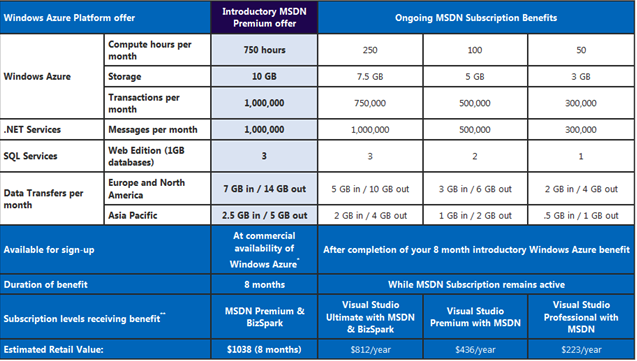
It was announced a little while ago that MSDN Premium subscribers would receive a number of free Windows Azure hours as part of their subscription:

image

and these would be, as expected with MSDN, for test and dev only.

However, I saw over on Eric Nelson’s blog that this is no longer the case. Microsoft have:

“decided to lift this restriction so that you will be able to use your Azure benefits for normal (production) use, if needed”

From January 4th 2010 the introductory Azure offer gives a huge 750 compute hours per month!

As Eric points out, the above offer expires after 8 months so don’t rush to sign up if you’re not going to make use of it straight away…make sure you get your “money’s” worth 😉 After that time period, the level of free access drops down as per the below chart:

image

This is a great way of making Azure easily available to the 1000’s of developers with MSDN subscriptions. It will allow them to test it as a solution, show the company how it will benefit them and then easily move to a production environment with reduced admin and cost.

See Eric’s post here.

VStudio 2010 release date delayed


VStudio 2010, the latest version of Microsoft’s development product suite, was slated to be released March 22 2010; however, according to The Register, that’s no longer the case.

Sosa Somasegar’s (Senior VP of MS Developer Division) MSDN blog tells us that:

“we are going to extend the beta period by adding another interim checkpoint release, a Release Candidate with a broad “go live” license, which will be publicly available in the February 2010 timeframe.

Since the goal of the Release Candidate is to get more feedback from you, the team will need some time to react to that feedback before creating the final release build.  We are therefore moving the launch of Visual Studio 2010 and .NET Framework 4 back a few weeks.” (bold mine)

So there will be a VStudio 2010 RC in February 2010 and the final release of Visual Studio 2010 can be expected probably around the beginning of May 2010.

SQL Server 2008 R2: Licensing Changes


SQL Server 2008 R2 has got a whole host of new features and now it’s got some new licensing too 🙂

The big move is that SQL’s licensing will follow the same path as Windows Server, both in editions and also virtual licence allowances:

  • SQL Server 2008 R2 Standard = 1 VM per licence
  • SQL Server 2008 R2 Enterprise = 4 VM’s per licence
  • SQL Server 2008 R2 Standard = Unlimited VM’s per licence

Here’s a Microsoft diagram that shows many of the main differences between the now 3 editions:

clip_image002

If you currently have SQL Server 2008 Enterprise and Software Assurance there is “a complete transition/migration path” but I don’t have any details yet…they will be available nearer launch on May 6th 2010.

For more info on SQL Server 2008 R2, see my other post here:

Read What’s New in SQL Server 2008 R2

Original post from MS here.

Microsoft Licensing – Rental Rights


Blockbuster And Microsoft ...

Microsoft Rental Rights are aimed at customers who

“rent, lease, or outsource PCs to third parties with qualifying Microsoft Windows or Microsoft Office software”

and are designed to make this previously tricky situation much easier by helping ensure all parties involved are compliant with MS licensing rules

“Rental Rights” are sold with, or on top of, existing volume licences and assigned per device. The rights exist for the life of the licensed device and cannot be re-assigned.

They have been available in a limited number of countries for a few months but, as of January 2010, they will be part of the Worldwide pricelist. The will be available on:

  • Open
  • Select
  • Select Plus

(so not available on Open Value, Enterprise Agreements or Campus/Schools)

for the following products:

  • Windows 7 Professional
  • Office Professional Plus 2007
  • Office Std 2007

Rules for Office

There are a couple of rules changes once Rental Rights are assigned.

Portable Copy:

“You may not use or permit use of additional copies of the qualifying software on a separate portable device or a network device. This prohibition overrides any right you have under the license terms that came with your qualifying software

Office gives you “Portable Installation Rights” which allows users to install their copy of Office on both a desktop AND a laptop. This is very useful for business users but, as you can see above, it is NOT permitted with Rental Rights.

Rules for Windows

Downgrade Rights:

Always a hot topic when it comes to the desktop OS, the ability to use previous versions.

“You may use a prior version of the software in place of the qualifying software only if the qualifying software was licensed under your volume licensing agreement, except for Windows XP Professional licensed from an original equipment manufacturer”

So downgrade rights are available where the original software was purchased via Volume Licensing. The exception to that is OEM XP Pro (so that came pre-installed on the machine).

Rules for both:

Remote Access:

“You may not permit remote access to the qualifying software. This prohibition overrides any right for the primary user of the licensed device or any user of a separately licensed device to access that software under the license terms that came with the qualifying software.”

Virtual Machines:

Rental Rights don’t apply in virtual environments…

“In other words, the primary customer may not create and rent virtual machines.”

How Rental Rights Work:

Here are a couple of diagrams to illustrate the whole thing:

Acquiring Software Assurance:

Software Assurance (SA) gives users many benefits including version upgrades, e-learning, training vouchers and access to MDOP among others. It is becoming more and more useful to more and more organizations in more and more ways…and businesses that lease their machines can take advantage too.

SA isn’t available to the “Primary Customer” acquiring the Rental Rights (i.e. the leasing company) but it CAN be purchased by the end user. So an organization that leases it’s machines on a long term contract can purchase SA on their own Volume Licensing agreement.

Welsh Bing


image

What a great picture of the Millennium Centre in Cardiff, Wales. Nice work Bing!

Office Web Apps on Sharepoint 2010


I’ve recently started building the demo server for our stand at the BETT show 2010 and it’s been a fantastic experience! Installing server 2008 R2 was a breeze and Sharepoint 2010 went on with just one (easily fixable) issue related to a missing hotfix. Once I’d got those up and running, I decided to get Office Web Apps installed…that too, was pretty easy…although I had the help of a great Technet article and a blog over on MSDN to guide me.

First of all, the technet article to installation is:

http://technet.microsoft.com/en-us/library/ee695758(office.14).aspx#bkmk_install_standalone

As you can see, I was putting it on a standalone server – for ease of demonstration if nothing else 🙂

The initial steps are few and simple but nothing appeared to be working. However, if you scroll a little down the page, you’ll see a bunch of

Powershell

scripts like this one:

$machinesToActivate = @(“contosoapp1”,”contosoapp2”)
$serviceInstanceNames = @(“Word Viewing Service”, “PowerPoint Service”,
“Excel Calculation Services”)
foreach ($machine in $machinesToActivate) {
foreach ($serviceInstance in $serviceInstanceNames){
     $serviceID = $(Get-SPServiceInstance | where
         {$_.TypeName -match $serviceInstance} | where
         {$_.Server -match "SPServer Name="+$machine}).ID
     Start-SPServiceInstance -Identity $serviceID
}
        }

image

As the note above shows, these Powershell scripts are only required in certain instances…and of course, I had that instance 🙂 Luckily, just copying the scripts from Technet and pasting into the Powershell window worked perfectly…which was good!

At this point I could see that everything was where it should be and services seemed to be running etc, so I headed over to the demo site I’d set up to test it. Unfortunately I kept getting an error message…so back to Bing, where I found this extremely helpful post:

http://blogs.msdn.com/officewebapps/archive/2009/11/18/9924525.aspx

I had a read through and quickly saw the problem. It was simple and obvious but had confounded me for about 45 minutes (don’t say it!)…it was:

“Activate “Office Web Apps,” listed under SharePoint’s Site Collection Features, on each site collection for which Office Web Apps should be available.”

So that was the missing step…activating it inside Sharepoint…D’oh! Homer Simpson