Windows 8, tablets and hardware


Today is the day.

Windows 8 is finally here for everyone.

I’ve had my Samsung slate running Windows 8 for a few weeks now and I love it. Last week I had my extra hardware accessories arrive which make it even better:

  • Samsung Dock
  • Microsoft Wedge Keyboard
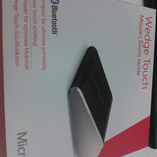
  • Microsoft Wedge Mouse

Demoing the slate to customers with these bad boys hooked up really helps light up the fact that they can be used as a replacement to laptops, in the office as well as out on the road.

WP_001534

That right there looks great doesn’t it?! You can of course connect it to a  monitor for a bigger screen when in the office and then when you need to leave, for a meeting, to go home etc – just pick it up out of the dock and off you go!

Windows 8 Enterprise SideLoading Keys


One of the many new things introduced with Windows 8 is the concept of “Enterprise SideLoading”.

While existing “desktop” apps can be deployed in the same fashion as with previous editions of Windows, “Windows Style” apps are published to the Windows Store and then downloaded from there. Microsoft realise that this isn’t the preferred method for organizations with bespoke apps for LOB (Line Of Business), HR etc, software purchased directly from an ISV etc. and so “Enterprise SideLoading” was born. This enables organizations to publish a Windows Style app directly to machines, circumventing the Windows Store, and is available in a couple of different ways.

Software Assurance

Enterprise SideLoading is a Software Assurance (SA) benefit on the following license schemes*:

  • Enterprise Agreement
  • Enterprise Subscription Agreement
  • Enrollment for Education Solutions (EES)
  • Campus & Schools agreements still running
  • Select Plus with SA
  • Select contracts still running

*Note it is NOT an SA benefit on Open licensing.

meaning customers running Windows 8 Enterprise (obtained via Windows 8 Pro + SA or VDA subscription purchased on the above licensing schemes) can enable this feature on domain joined machines through the “Allow all trusted applications to install” Group Policy setting.

More info on the policy setting can be found here:

http://technet.microsoft.com/en-us/library/hh852635.aspx


Enterprise SideLoading Keys

Organizations who:

  • Choose not to purchase SA on Select/Select Plus & so have Windows 8 Pro
  • Have Windows RT devices
  • Obtain licensing (even with SA) via the Open license programmes

can purchase Enterprise SideLoading license keys in packs of 100, for approximately £2500 RRP…so around £25 per machine.

MAK (Multiple Activation Keys) will be made available via VLSC (Volume License Service Center).

For customers with non-domain joined Windows 8 Enterprise machines, these keys will be made available free of charge.

image

image

This will enable smaller organizations, or those who choose not to take SA, to still deploy apps without going through the Windows Store.

Extras

  • It should be noted that “Each…Enterprise SideLoading license must be permanently assigned to a single device”.
  • For Academic institutions, Sideloading may only be enabled on institution owned devices
  • This licensing is per device NOT per app.

It appears that the info on this isn’t as widespread as I’d thought so hopefully this will help!

Update: Here’s a link to the “Windows 8 & RT Licensing Document” that gives some info on page 12:

Volume Licensing guide Windows 8 and Windows RT

October Microsoft Product List, page 101 has good info:

October 2012 – Microsoft Product List

Activating Windows 8 Enterprise


Windows 8 has hit the RTM (Released To Manufacturing) stage so those people with Software Assurance, MSDN etc are able to install the final copy of Microsoft’s latest OS. However it’s not all plain sailing.

It seems sometimes, with the Enterprise version, it refused to activate. You get the screen overlay in the right hand corner telling you to activate but when you go to settings to do so, it fails. The ones I’ve seen fail with a “DNS name does not exist” and shows that it has a license key already, that ends “CWCK7” despite you not having entered one. There no longer appears to be a way of manually typing the key into the Windows Activation section…so what to do?

I came across an article at here that told me what to do, which is actually quite simple:

slmgr -ipk “valid license key”

That 2nd character is a lower case “L” by the way!

Couple of things I thought I’d mention to make things a bit easier:

First of all – you must run command prompt as an admin.

I must admit I struggled for a while to work out how to run CMD as an admin on my Windows 8 tablet. How do you right click without a mouse?

Simple (once you know/remember how) – swipe up on the app icon and it brings up the app commands at the bottom of the screen. Hit “Run as Admin” and you’re away!

First Windows 8 advert arrives


Windows 8 will be released on October 26th and the first advert has debuted. It’s reported that Microsoft are set to spend $1.5 billion on advertising for this latest OS release…take a look at the first offering here:

Managing Windows RT tablets & Windows Intune Licensing Changes


Windows 8 RT is a new member of the Windows family, and one that’s caused/causing some confusion when it comes to management. It transpired a while ago that Windows RT pcs/tablets will not be able to join Active Directory domains and since then, people have been wondering exactly how they’d manage these devices. Well the answer is here – Windows Intune & System Center Configuration Manager (SCCM) SP1.

“Windows Phone 8 and Windows RT devices will be managed by the next release of Windows Intune.  IT Pros will have the flexibility of using either the Windows Intune or Configuration Manager 2012 SP1 console to set mobile security policies, distribute mobile apps and view reports.  We’ll share more details as we get closer to the next release of Windows Intune.”

As Windows Intune is becoming more of a star, it’s getting some licensing changes too – always a favourite thing of mine 🙂

  1. We are shifting from a per-device to a per-user licensing model.  Each user license for Windows Intune covers up to 5 managed devices.
  2. There will be a Windows Intune user license that includes the rights to System Center 2012 Configuration Manager, enabling organizations to manage those devices through either Windows Intune or Configuration Manager, or both
  3. Organizations that already own System Center 2012 Configuration Manager licenses, such as through the Core CAL, will have access to Windows Intune at a reduced price
  4. We will also make a version of Windows Intune available without rights to Windows Enterprise, thereby lowering the cost for organizations that are not ready to move to the latest operating system.

That final point is something I’ve been hoping to see since the first release of Intune. I’ve always felt that having the desktop OS and a systems management product intertwined muddy the waters and made it a more difficult proposition in many cases; so this is a positive move that will enable Intune to shine in its own light.

It’s also interesting to note that SP1 of SCCM will be able to manage other types of devices including:

  • Windows Embedded Thin Clients
  • Point of Sale (PoS) terminals
  • Digital Signage
  • Kiosks

as well as:

  • Distribution point for Windows Azure to help reduce infrastructure costs
  • Automation of administrative tasks through PowerShell support
  • Management of Mac OS X clients and Linux and UNIX servers
  • I’m pleased to see this move to bring Windows RT into the management fold, making it easier for partners AND customers to tell, understand and take part in the Windows 8 story.

    See the whole post over at:

    http://blogs.technet.com/b/server-cloud/archive/2012/09/10/system-center-2012-configuration-manager-sp1-beta-and-windows-intune-update.aspx

    Sideloading Apps in Windows 8


    Many organizations have there own Line Of Business (LOB) systems that they use internally, and in Windows 8 there are 2 ways of installing these on machines:

    • Via the Windows Store
    • Sideloading (I.e. bypassing the Windows Store)

    How to Sideload:

    Sideloading is a Software Assurance (SA) benefit & the document I have from MS says:

    “Windows EA, Select SA, and EES customers will be granted sideloading license rights”

    It doesn’t mention Open SA customers there but I see no reason they would be excluded, so I will ask for clarification on that.

    The requisite license keys for this will automatically be provided via the VLSC.

    If you do not have SA, Sideloading is still possible…for a charge:

    WinSideLoad-H 8 Sngl OPEN 100 License = £2,435

    Purchase this license and you will then receive the license keys via the VLSC.

    Of course, it is still free for companies to publish their apps via the Store, but this method affords them more privacy.

    I have to say I’m not 100% sure why the ability to sideload outside of SA has a fee attached too it. Is it in an attempt to ensure companies are serious about the apps they deploy, and stopping them pushing out willy nilly, poorly created apps that will detract from the Windows 8 experience?

    Microsoft Surface Tablet


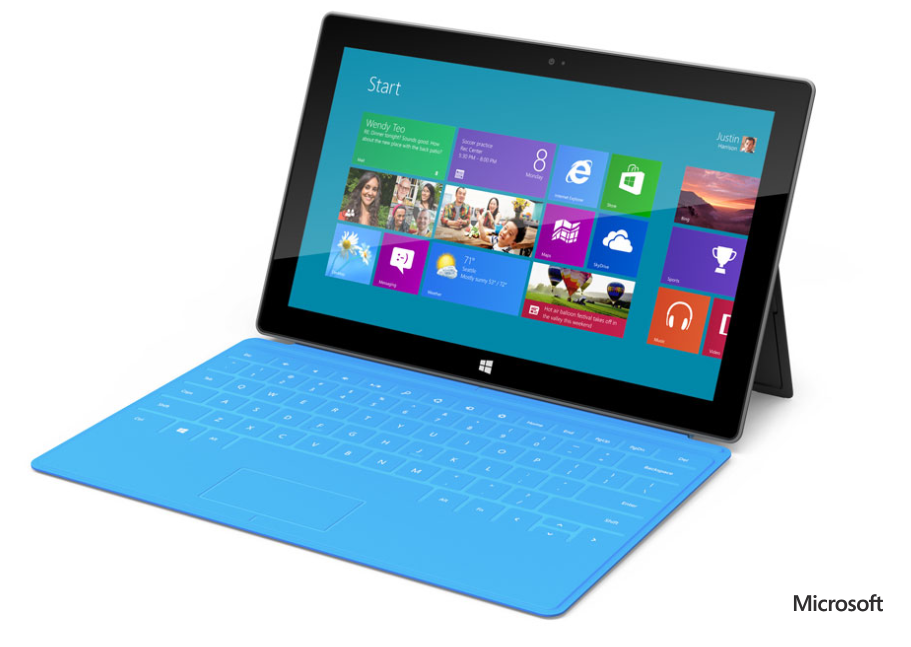
    Well, Monday’s hyped up yet super secret announcement has been made…and it’s brilliant! Microsoft are introducing their own Microsoft branded tablets – “The Surface”, and they look stunning:

    image

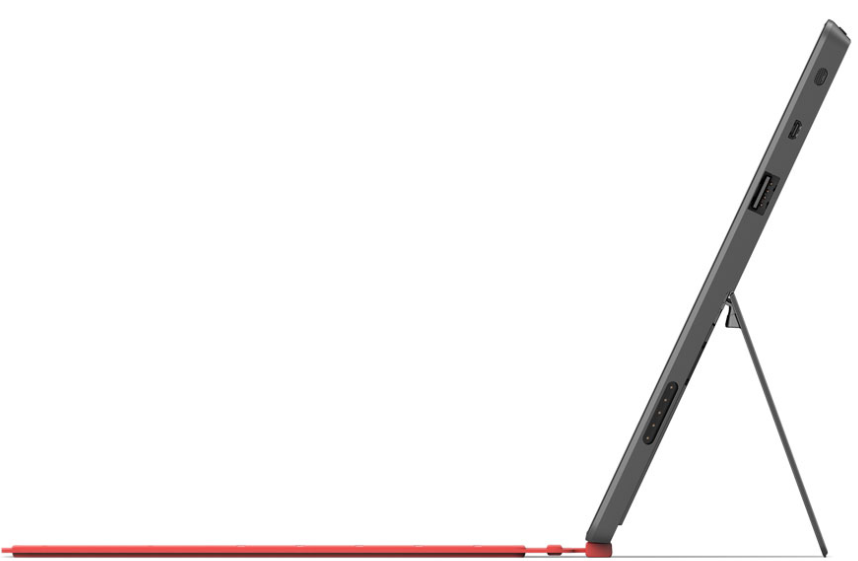
    Just look at it. Glossy bezel, rounded corners, integrated kickstand AND A COVER THAT IS A KEYBOARD! I really can’t get over that, it’s such an ingenious innovation and a great unique selling point…not only that but it’s just 3mm thick.

    image

    Down to details – there are 2 versions of the Surface tablets:

    OS Windows RT Windows 8 Pro
    Weight 676g 903g
    Thickness 9.3mm 13.5mm
    Screen 1.06” Cleartype HD 10.6” Cleartype Full HD
    Battery 31.5 W-h 42 W-h
    Connections microSD, USB 2.0, Micro HD Video, 2xMIMO Antennae microSDXC, USB 3.0, Mini DisplayPort Video, 2xMIMO Antennae
    Productivity Office 15, Touch Cover, Type Cover Touch Cover, Type Cover, Pen w/ Palm Block
    Practical VaporMg Case & Stand VaporMg Case & Stand
    Hard Drive 32GB, 64GB 64GB, 128GB

    For now that’s all we’ve got in the way of confirmed features – but it’s a good start in my opinion…definitely enough to let me know that I want one. The 2 missing features that I’m most interested in are CPU & RAM – the latter especially as the iPad’s 768MB lets it down quite a lot.

    I’m taking it that the keyboard cover comes with the tablet as standard rather than being an optional accessory – I hope that’s right!

    Nothing too much has been said about the pricing other than the Pro version will be “priced similarly to a comparable ultrabook” which I’d say puts it between £700 & £1000…and also suggests it will be rolling with Core i5 processors and 4GB+ of RAM. If that’s right it will be a portable beast Smile

    The interest & buzz has been really great to see too. I saw people on Twitter who usually only tweet about MUFC talking about the Surface and saying how cool it looked and I’d fielded 2 customer enquiries by 09:20 at work this morning – love it!

    Windows 8 Editions


    Microsoft have announced the editions of Windows 8 that will be available:

    • Windows 8
    • Windows 8 Pro
    • Windows 8 Enterprise
    • Windows RT

    Let’s take a look at each edition and what you get.

    Windows 8

    This is the new incarnation of “Home Premium” as it cannot join a domain or be managed via group policy. New/updated features include:

    • Updated Windows Explorer
    • Updated Task Manager
    • Better multi-monitor support
    • Ability to switch languages on the fly (previously ENt/Ultimate edt only!)


    Windows 8 Pro

    This is, as the name suggests, the new “Professional” offering of Windows and it brings with it a few new things:

    • Boot from VHD
    • Client Hyper – V
    • Bit Locker & Bitlocker to Go

    Now the first 2 are pretty cool and will come in very handy but in my opinion, that 3rd one is the biggie:

    Hard Drive and USB encryption built in as part of the OS!

    Previously Bitlocker was available only as an Enterprise feature which required SA to be purchased on top of the Windows 7 Pro SKU, and for the last almost 3 years we’ve had customers asking:

    “Why isn’t this in the Pro version?”

    so it’s great that it now is Smile

    Windows RT

    This has previously been known as “Windows on ARM” or “WOA” and is exclusively for devices powered by ARM processors. These devices will typically be thinner, lighter and have better battery life than regular devices so it’s aimed very much at the tablet market.

    One of the interesting features is that Windows RT is listed as including Microsoft Office (Word, Excel, PowerPoint, OneNote). No more solid information has been given on this, leading to some speculation. Over on LinkedIn, Paul DeGroot has said:

    image

    I imagine it will be something akin to what is built into Windows Phone, certainly not equivalent to the full desktop version but more than capable of handling what users need to do when they’re out and about – perfect for tablets once again and a great USP against Apple & Android devices.

    One of the big differences with Windows RT is that X86/X64 software and desktop software cannot be installed on it, again keeping it focused on the tablet market…just like the iPad iOS and responding to people’s claims of Windows being too “bloated” to run on a tablet.

    There is also a lot of noise being made about the name “Windows RT” and how it’s rubbish and no-one will know what it means etc. but I genuinely feel that’s people just complaining for the sake of it.

    • What does iOS mean?
    • What does Ice Cream Sandwich mean?

    Nothing yet devices with those OS’s are still selling pretty well so I really don’t see it being a problem Winking smile

    The Windows Team Blog post has got a great, although not exhaustive, comparison chart between the 3 above versions here:

    http://windowsteamblog.com/windows/b/bloggingwindows/archive/2012/04/16/announcing-the-windows-8-editions.aspx


    Windows 8 Enterprise & enhanced Software Assurance

    Microsoft have kept the Enterprise edition of Windows going, reserved as always for customers purchasing Windows 8 Pro with Software Assurance.

    As you’ve seen above, 2 features previously restricted to Enterprise have been moved into the Pro SKU (BitLocker and Multi-User Interface) but the other key differentiators from Windows 7 are there including:

    • Direct Access
    • Branch Cache
    • AppLocker
    • VDI Enhancement

    as well as a couple of new ones:

    • Windows 8 App Deployment – “Domain joined PCs and tablets running Windows 8 Enterprise will automatically be enabled to side-load internal, Windows 8 Metro style apps”
    • Windows To Go – “a fully manageable corporate Windows 8 desktop on a bootable external USB stick.”

    That second addition aims to ease the pain around BYOD (Bring Your Own Device), which going to be a huge thing over these coming months and years.

    Microsoft are also adding new benefits to Software Assurance on Windows 8 Pro, which will include:

    • Windows To Go Use Rights: Windows To Go will allow companies to support Bring Your Own PC scenarios and will give employees who need to work from home more secure access to their full corporate environment. With Windows To Go use rights under Software Assurance, an employee will be able to use Windows To Go on any company PC licensed with Windows SA as well as from their home PC. Additionally, through a new companion device license for SA, employees will be able to use WTG on their personal devices at work.
    • Windows RT Virtual Desktop Access (VDA) Rights: When used as a companion of a Windows Software Assurance licensed PC, Windows RT will automatically receive extended VDA rights. These rights will provide access to a full VDI image running in the datacenter which will make Windows RT a great complementary tablet option for business customers.
    • Companion Device License: For customers who want to provide full flexibility for how employees access their corporate desktop across devices, we are introducing a new Companion Device License for Windows SA customers. For users of Windows Software Assurance licensed PCs this optional add-on will provide rights to access a corporate desktop either through VDI or Windows To Go on up to four personally owned devices.

    These again make strides towards addressing the changes being brought about through BYOD and remote working.

    You can see more info on the Windows Team Blog here:

    http://windowsteamblog.com/windows/b/business/archive/2012/04/18/introducing-windows-8-enterprise-and-enhanced-software-assurance-for-today-s-modern-workforce.aspx

    That said, it will be interesting to see what changes (if any) are made to Office licensing (most probably through SA again) to bring it into line with BYOD needs…but that’s a separate topic Winking smile

    Windows Server 8 beta also available


    Windows Server 8 also has a preview available today so head over to:

    http://technet.microsoft.com/en-us/evalcenter/hh670538.aspx

    to grab it.

    Mary Jo has again got a quick list of some new features:

    • Users can choose Server Core Installation or Server with a GUI (the equivalent of the full installation option in Windows Server 2008 R2). Server Core is the default option.
    • Increased scale and performance for Hyper-V virtual machines. Up to 1 terabyte of memory – up from 512 GB in the developer preview. There’s also an increase in virtual disk size supported, to 64 TB, from 16 TB in the Dev Preview
    • Easier deployment of IIS 8
    • Surfacing of ReFS, the new Resilient File System, in Windows 8, as well as support for new storage and server cluster mangement technologies
    • Metro-Style Remote Desktop app and VOIP integration with Remote Desktop Services


    The improvements around Virtual mMachines and the new ReFS file system are big news and our customers are asking about release dates already Smile

    WIndows 8 Consumer Preview is available


    The Windows 8 Consumer Preview is here.

    Microsoft have just announced the availability at Mobile World Congress in Barcelona and the links are live over at:

    http://windows.microsoft.com/en-US/windows-8/iso

    There are apparently over 100,000 changes in this edition over the Developer Preview we saw a few months back! Mary Jo Foley tells us these include:

    • Addition of the “semantic zoom” panning feature (that Microsoft demonstrated last September, but didn’t include in the Developer Preview). This should make it easier for users to navigate Windows 8 with touch and with mice/keyboards
    • App bar that shows commands when users want them via a bar in the bottom of the screen
    • Replacement of the Start button with a Start preview thumbnail. The preview lets users to right click to get quickly to familiar Windows features, like Windows Explorer, Search, Desktop, etc.
    • Improved app switching by mousing to the top left corner of the screen to allow users to more quickly scroll through their stack of recently opened/closed/used apps
    • Consolidation of passwords and credentials into a single “Microsoft Account.” This should make it easier for users to move his/her settings to other PCs.
    • Inclusion of new previews of various Microsoft apps, including People, Mail, Calendaring, Messaging and SkyDrive apps. (Many of these seem to emulate the similarly named hubs on Windows Phone.)

    (Check out her great post on Windows 8, Server 8 and more here – http://www.zdnet.com/blog/microsoft/its-windows-8-download-day-heres-what-we-know/12058)

    I’m 62% of the way through my download so once it’s done I’m hoping I’ll get the chance to boot it up and see how awesome it is Smile