Microsoft XP OEM Downgrade discontinued


Microsoft Windows XP is still used by the majority of business around the world and it’s proving hard to get some people away from it. Well, Microsoft and it’s hardware partners are moving to make it more difficult to stick on XP and this is, in my opinion, a good thing.

What’s Happening?

From October 22nd 2010, downgrade restore media will not ship in PCs or Notebooks from HP.

If customers still require XP downgrade media, they will need to speak to HP support. A key bit of information is that this service will

“be available through HP Support until the end of July 2011”

which suggests in 10 months time, this service will be discontinued completely.

This isn’t specific to HP and is in fact a Microsoft directive that applies to all hardware OEM partners, although I believe the cut off dates may vary slightly.

Microsoft Windows Intune: Online Systems Management


Microsoft Windows InTune is the new Cloud based systems management tool from Microsoft, formerly known as “System Center Online” and has been long awaited. The ability to manage multiple locations/organizations from one central, online point is attractive to a lot of people for a lot of reasons…so let’s take a look @ InTune.

There are at least 10 sections inside InTune so I’m going to cover them in a number of posts, we’ll start with – System Overview:

image

image

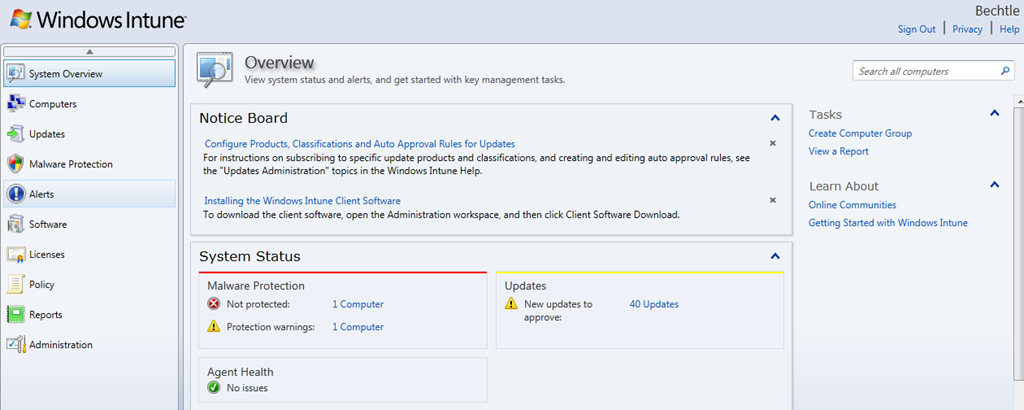
This is the first screen you see when you log in to the Windows InTune Admin Console and it immediately gives you a great overview of yours systems. It shows:

  • If Machines are infected/unprotected
  • If there are updates for your machines
  • A number of other alerts

Malware Protection:

From here you can see which machines have Malware protection turned off completely and also if they have overdue scans or specific parts of the protection, such as USB device scanning, turned off.

1 click takes you to a list of machines, from where you can turn on protection.

Updates:

This, not surprisingly, gives you a list of all the updates that are available for you machines be they for the OS or applications.

One issue with this is that, as default, it shows you ALL possible updates:

image

however, these can easily be filtered:

image

image

Another problem I have noticed is that it wants to give my laptop updates for Office 2007, as well as Office 2010; oddly, this doesn’t happen with my other 2010 machines. I had a number of issues when upgrading Office versions and I’m inclined to believe that there are some Office 2007 remnants on the machine that are being picked up by Intune.

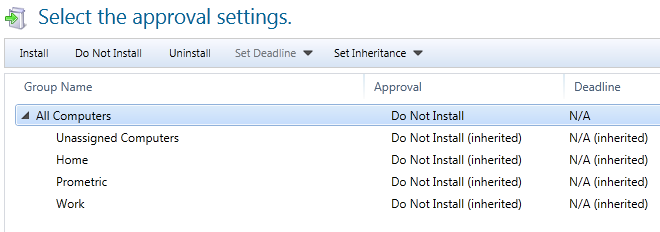
Should you choose to approve an update for a machine/machines, you then reach this screen:

image

Choose the groups on which you want to install the updates, click approve and job done!

I feel it would be a smoother experience and require less clicks, if you could see the machine names on the same screen as all the updates. Currently, you must:

  • Select the update
  • click on “x computers need this update”
  • Check the groups/machines
  • Go back to the previous screen
  • Approve Update

Showing the machines names/groups on the initial screen would remove a lot of that.

You can also access the updates via the individual machine screen, I’ll cover that in a later post.

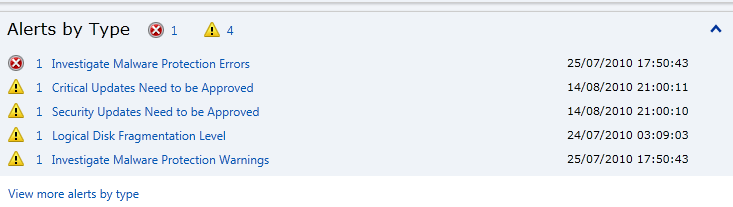
Alerts by Type:

This section, as well as the above, also includes other types of alerts…not just updates and malware. This is where InTune starts to differentiate itself from other products, for example:

image

If I click through, it tell me:

image

That is pretty cool, and something that is very useful for System Admins. I didn’t expect InTune to cover things like this, certainly not in the beta, so I’m pleasantly surprised Smile However, you can’t initiate the defrag from InTune.

The 2 options on the right hand side “Create Computer Group” and “View a Report” will be covered in later posts.

Summary:

This is a brief look at just the first screen of Microsoft Windows InTune but I’m sure you will agree that it already looks very interesting. So stay tuned for the remaining posts in this series (at least 9!) and ask any questions you may have in the comments Smile

Cheers

Rich

Microsoft VLSC N-2 Media Downloads


Microsoft’s VLSC (Volume Licensing Service Center) is the central portal for volume licensing customers to manage and download licence keys and media.

Microsoft’s Volume Licences all include “Downgrade Rights” which let you run previous version of the software, for instance:

Buy Windows 7, install XP or Buy Office 2010, install 2007

However, Microsoft have only ever provided the media for 1 previous version AKA N-1 so:

Windows 7 = Vista

Office 2010 = Office 2007

Exchange 2010 = Exchange 2003

If you needed to downgrade further than that, you were required to provide your own media…usually from a previous install.

That being said, Microsoft are now changing that!

From July 2010, VLSC users have been able to access:

  • Windows XP
  • Windows Server 2003 R2

and from September 2010, the following N-2 downloads will be made available:

  • Office 2003
  • SQL Server 2005
  • Exchange Server 2003

This will make it easier for organizations who still need to run these older versions.

(via Eric Ligman)

Microsoft BPOS: More new features


Microsoft BPOS has, yet again, been something of a star of the Worldwide Partner Conference and a bunch of new features have been confirmed/announced. They are:

Exchange Online:

  • Voice mail with Unified Messaging
  • Integrated archiving
  • Retention policies and legal hold
  • Transport rules
  • Multi-mailbox search
  • Conversation View
  • MailTips
  • Enhanced Web-based administration
  • Role-Based Access Control
  • Remote PowerShell
  • Free/busy between cloud and on-premises
  • Cross-premises management
  • Native migration tools


    Sharepoint Online:


  • Portal site templates
  • Extranet access
  • Anonymous Access
  • Multi-Lingual UI
  • Office 2010 integration
  • Tagging, Rating, Tag Cloud
  • Activity Feed, Social Networking, Note Board
  • Improved Wikis & Blogs
  • Content publishing
  • Navigation controls
  • Cross site-collection search
  • Phonetic search
  • People search
  • Visio Services
  • Excel Services
  • Sandboxed Solutions
  • Improved workflows
  • Improved SharePoint Designer 2010
  • Access Services
  • Better controls of FQDNs


    Office Communications Online:


  • P2P A/V across firewall
  • File transfer across firewall
  • Presence with pictures
  • Federation
  • IM with Windows Live


    Platform Updates:


  • Free/Busy co-existence
  • Single Sign On
  • Identity federation
  • Redesigned admin interface
  • More administration and access control

    There are some really awesome additions here, which will make BPOS hugely more attractive and credible to users in the mid-market segment. Some of the game changes are, in my opinion,:

    Exchange Online:

    • Transport Rules
    • Legal Hold
    • Unified Messaging
    • Remote Powershell

    Sharepoint Online:

    Extranet & Anonymous Access

    Cross Site Collection Search

    Visio, Access & Excel Services

    Office Communications Online:

    Federation.


    These new features bring Microsoft’s Online Services so much closer to feature parity with their existing on-premise brethren which is what I, and most people, have been waiting/asking/pleading/clamouring for. The number of times I’ve had a customer opportunity collapse due to BPOS missing a standard and relatively basic feature isn’t funny!

    This is a very positive move from Microsoft which will make the world of Online Services a much better place for Microsoft, it’s partners and our customers 🙂

  • Microsoft Windows Intune: Second Beta


    Microsoft Windows Intune is a new product aimed at managing pcs in a new way. My original post can be found here:

    Read Windows Intune

    The initial beta was restricted to the US, Canada, Mexico & Puerto Rico and 1000 participants. Microsoft have now opened that up to another 10,000 users in the following countries:

    image

    To be eligible you need to deploy it to at least 5 machines and start within 1 week.

    If you’re interested, go and sign up here:

    http://www.microsoft.com/windows/windowsintune/windowsintune-experience.aspx

    Pricing

    The pricing of Windows InTune has now been confirmed for the States and it is:

    $11 per user per month

    That gets you:

    • Cloud based Desktop Management service
    • Anti Virus and Anti-Spyware
    • Windows 7 Enterprise Desktop Upgrades

    and, for an extra $1 per user per month, you can get the whole MDOP suite too. More MDOP info here:

    Read Microsoft MDOP

    Partner Features

    Many partners will be looking to InTune to provide them with a new way of generating revenue, through the ability to remotely manage their customers machines. This will reduce the need to travel thus saving money on hotels and petrol and increasing profit margins. Microsoft have quickly, and cleverly, added in a new feature aimed at making this as easy as possible…the “Multi – Account Console”:

    This will allow partners to quickly and easily see a top level view of all the customers they manage and, through filtering, spot those needing urgent assistance immediately.

    Feedback:

    There is already a lot of positive feedback on Windows InTune from the first beta, such as:

    “I save about 40% of the time I used to spend managing PC updates, thanks to Windows Intune. It frees me up to focus on developing more custom applications—and bring on more customers”

    “I think we could expand our customer base by at least 10-15 percent immediately”

    “It accelerates their (customers) decision to make the move (to Windows 7)”

    The Future:

    Early 2011 will see the general availability of Windows Intune in the countries listed in the 1st screenshot above. It will then move to more European & Latin countries as well as “select” Asian locations.

    I’ve signed up to the beta and will hopefully have some post following up on that experience soon.

    The MS Blog post can be found here.

    Microsoft Product Activation: How to contact


    Microsoft Product Activation are the guys you need to contact for anything to do with licence keys.

    For instance say you’ve bought Project 2010 but want/need to downgrade to 2003 (for some reason!). You’ll only get 2010 & 2007 in VLSC so to get a 2003 licence key you’ll need to speak to Product Activation. For me at least it’s one of those numbers that I’ve used in the past but I can NEVER remember it and although I ALWAYS make a note of it each time I find it, I can NEVER find that either! So having just done it again I thought I’d do a quick post to make it easier for me, and everyone else to find 🙂

    The UK number is:

    0800 018 8354

    and the complete list can be found at:

    http://www.microsoft.com/licensing/existing-customers/activation-centers.aspx

    ps: If downgrading 2 or more versions, you’ll also need to provide your own media.

    Microsoft BPOS & Messagelabs


    Can Exchange Online co-exist with Messagelabs or other 3rd party scanning tools?

    That is the question I have been investigating for the past week or so…and I have an answer…sort of…nearly.

    First things first, yes I know Exchange Online includes ForeFront Online Protection for Exchange (FOPE) and I also know that it is a very good product.

    However there are a number of situations where customers would like a2nd option too. This could be because they’re mid way through a contract, because they’d like a “safety net” or indeed because they just don’t like Forefront.

    I first looked into it last year and got a definite “Yes it can be done”; I used that as the basis for a customer conversation around 3rd party support. The customer then spoke with BPOS support around how to implement it…and they advised that it couldn’t be done! This was something of an issue and set me off on a quest to get a concrete answer, one way or the other.

    I posted a question up on the Technet Exchange Online Forum but didn’t get a response so after much confusion internally at Microsoft, conversations with business groups and technical support teams, the final answer was:

    “It isn’t supported but it should work”

    So this wasn’t as good as my original “yes” but a vast improvement over “No”, which is something.

    This is yet another issue that will be resolved with the arrival of Wave 14:

    An update to FOPE, scheduled for release at the same time as BPOS wave 14, will include new connector functionality that will enable this scenario.

    So within the next 6 months we’ll have full support for 3rd party mail scanning tools, which will be one less thing to worry about 🙂

    Office 2010 Activation


    Microsoft Office 2010 purchased through Volume Licensing now needs activating in the same way as Windows. Previously this only applied to Office through the OEM & FPP channels. This is a new introduction with 2010 and is surprising some people.

    There are the same options to activate as with Windows, which are:

    • KMS (Key Management Service)
    • MAK (Multiple Activation Key)
    • MAK Proxy

    KMS:

    KMS uses a host computer to establish an activation service on your local company network. With a KMS host you can activate thousands of computers at the same time when they regularly connect to the company network. If you use a KMS host to activate Windows, you can use the same host to activate Office 2010.

    MAK:

    With MAK, each computer activates Office 2010 with the Microsoft hosted activation servers over the Internet or by phone. MAK is recommended when you have fewer than 50 computers to activate, and for computers that are not regularly connected to the company network.

    Planning activation:

    KMS:

    A single internal server authenticated with Microsoft and in turn, the organization’s devices authenticate to that machine.

    KMS activation through firewall

    A KMS “Client Key” is installed inside every Volume Licensing copy of Office 2010, which means that no action is required by the end user and that a product key doesn’t need to be entered for the clients. All an administrator needs to do is activate the 1 KMS host reducing the amount of time spent on this task.

    The KMS service does NOT require a dedicated server and can happily sit on a machine already in production. The Operating System requirements are:

    Windows Server 2003

    Windows Server 2008 R2

    Windows 7 purchased through Volume Licensing <—This means OEM & FPP/retail won’t work

    Devices are required to “re-authenticate” every 180 days.

    Technet article is here:

    http://technet.microsoft.com/en-gb/library/ff603508.aspx

    MAK:

    MAK activation at each desktop occurs directly with Microsoft, rather than via an internal server.

    MAK independent activation via Internet

    If machines are unable to connect to the internet, MAK activation can be via telephone too.

    This method works well for smaller organizations and also sub-sets of larger organizations, such as mobile divisions who are away from the corporate network a lot.

    MAK gives you a number of activations equal to the number of licences purchased.

    Technet article is here:

    http://technet.microsoft.com/en-gb/library/ff603511.aspx

    MAK Proxy:

    MAK Proxy activation uses VAMT (Volume Activation Management Tool) 2.0. Using this method, one designated machine collects activation info from multiple other machines and then sends a single centralized request for activation to Microsoft. Only the VAMT device connects to Microsoft’s servers, reducing bandwidth usage.

    MAK Info:

    MAK activation does NOT require periodic re-activation however it will be needed if significant changes are made such as replacing the hard drive or re-installing Windows. This will reduce the number of available activations, so if you:

    Have 100 licences

    Install on 90 machines

    Re-install Windows and re-authenticate Office on 10

    You will have 10 machines on which you cannot activate Office.

    In this case, you would need to contact Microsoft to increase the number of available activations.

    However if you use MAK Proxy, you can save the Confirmation ID given via VAMT and simply re-apply that to re-activate machines without reducing the number of activations available.

    VAMT 2.0:

    Volume Activation Management Tool (VAMT) 2.0 is a managed MMC plug-in. VAMT uses Windows Management Instrumentation (WMI) to configure managed systems. A convenient command line interface (CLI) allows automated, scheduled VAMT tasks without UI interaction.
    Using the VAMT console, administrators can perform many activation-related tasks on remote computers:

    • Manage product keys obtained from the Volume Licensing Service Center (VLSC) or other sources including retail and Microsoft subscription programs such as MSDN, TechNet and partner programs — and product activations using those keys.
    • Activate remote systems using Key Management Service (KMS), Multiple Activation Key (MAK) or retail activation methods.
    • Perform disconnected proxy activation and reactivation of systems without each system having to connect with Microsoft activation services individually.
    • Assist with license compliance by enabling IT administrators to monitor system license state, including whether systems are licensed and running genuine Windows or Office.

    You can download it here:

    http://www.microsoft.com/downloads/details.aspx?FamilyID=ec7156d2-2864-49ee-bfcb-777b898ad582&displaylang=en

    Troubleshooting

    The Technet Troubleshooting page can be found here:

    http://technet.microsoft.com/en-gb/library/ee624355.aspx

    which will hopefully cover off any issues you may be having.

    Microsoft Licensing: Do I need a Volume Licence Key (VLK)?


    Microsoft Volume Licence Keys (VLK) are needed to install any Microsoft product.

    If you buy box copies (FPP) or OEM, you’ll get the licence key on the machine/disc.

    If you purchase through Volume Licensing (Open, Open Value, Select, Schools etc) you go to the VLSC website, go to the product keys section and away you go. While this is true for the vast majority of products, there are a few exceptions to this rule. These products won’t have a VLK listed in the VLSC site. One that usually surprises people is SQL…this doesn’t have a licence key available online.

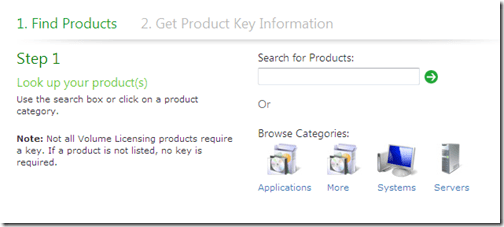
    Rather than trying to list any & all products that this applies to, I’m going to give you the link to the:

    Product Activation & Key Information

    page on the Microsoft site.

    Here you can search for the product in question and if it doesn’t return a result, it doesn’t need a licence key.

    image

    Hope this helps 🙂

    Office 2010 Components


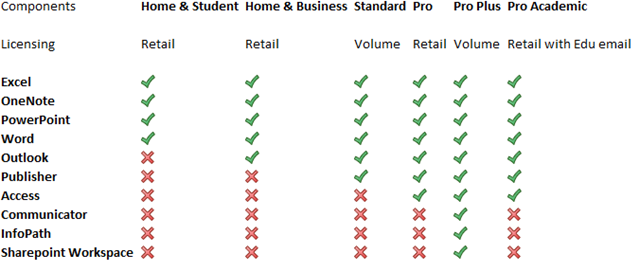
    Office 2010 has hit RTM (Release To Manufacturing) and is just about to start making itself available to users in it’s final version. Most people are aware that there have been some changes with what is included in which Office editions but I don’t think I’ve seen a full breakdown yet, so here you are 🙂

    image

    A couple of major changes are:

    No more Office Enterprise

    New Pro Academic Option

    and one that is quite big but isn’t really getting mentioned:

    OneNote is now in ALL versions of Microsoft Office 2010 (except Starter); previously it appeared in just the Enterprise SKU. OneNote is a great application (What is OneNote?) and this will help increase it’s adoption among home users and also within Corporate Environments.

    You can see more on Technet here.