Microsoft Office 2010 Tech Preview: First Hand Look


I had hoped to get a full post together on the first day the tech preview became available but I had some issues with the installation, and that took a good few hours to sort out.

I have, somehow, ended up with a seemingly corrupt install of Office 2007 as Office 2010 is unable to upgrade it and I can’t remove it either! Eventually I tried installing 2010 alongside 2007 and it worked, the downside is that you can’t have 2 versions of Outlook together so I’m stuck on 2007 for that…however I’ll install it on another machine ASAP and hopefully Outlook will work on that 🙂 I managed to get rid of Office 2007 after 2 hours of deleting and registry editing so I now have it all installed! (I’ll do a separate post on how I did it).

Excel 2010:

Excel 2010 First Opened

That’s Excel 2010 opened for the first time-not much difference although I think it looks a bit “cleaner”.

Sparklines:

Excel 2010 Sparkline

These were one of the big features from the WPC demo of Office 2010 and they’re as awesome as they seemed. This feature is going to make Business Intelligence and the sharing of information so much easier (to understand and present) and more worthwhile; I think this is going to make a real difference in the world of work-it certainly will for me! I’ve got a spreadsheet at work that covers all our major software vendors and includes sales and profit for each one as well as overall totals, various comparisons between years and more. Currently this has multiple tabs that just contain trending charts, making it awkward to present and impossible to screenshot/print. With Sparklines in Excel 2010, I can show the trend in a single cell at the end of the data range, allowing me to consolidate it down to just one sheet!

There is an excellent post on Sparklines over on the Excel team blog here which features some great examples of how they can be used.

OneNote 2010:

One Note 2010 New Features

I haven’t had much of a play with OneNote yet but one thing I have noticed is it seems that OneNote no longer auto copies screen clippings into the Unfiled Notes section…I think I like that 🙂

Word 2010:

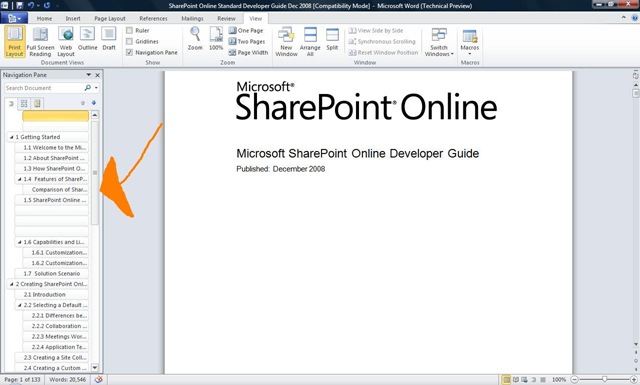
I don’t actually use Word that much and when I do it’s usually pretty basic, so it may well take me a while to find all the new features. However one that I’ve found straight away and is very useful is the Navigation Pane, which makes it much easier to read and work with large documents.
Word 2010 Navigation Pane Arrow

As you can see on the left hand side, the Navigation Pane has identified all the section headers in the document and allows you to jump around simply by clicking them-no more slightly random scrolling up and down 🙂 This is a truly great addition!

Outlook 2010:

I’ve not yet got any good screenshots of Outlook 2010 as I’ve discovered that the Hotmail connector doesn’t work with the new version, which is a shame. I’m sure that will be resolved by the final release though! I’ll get some screenshots from work but I’ll need to block out any confidential/customer info etc first so that’ll be next week.

I can however attest that Outlook 2010 is great. I was a BIG fan of the improvement in Outlook 2007 and the new version builds on those very well. There are no huge new killer features but there are lots of little ones such as:

Quick Steps: A set of handy time savings shortcuts which allow you to, for instance, forward a mail directly to your manager with 1 click, send an email just to your team, forward a mail and automatically add “FYI” to the subject line and more. It’s also possible to create your own Quick Steps, just like macros.

Calendar: When you receive a meeting invite, you can now see a preview of your calendar inside the mail-handy!

PowerPoint 2010:

Powerpoint has always been full of features I’ve never quite got round to using and I’m sure that is true of 2010 too, but one that I like is the ability to “Broadcast Slideshow”. This allows you to quickly and easily share your presentations with others in remote locations:

Powerpoint 2010 Broadcast 1

 Powerpoint 2010 Broadcast 2 Powerpoint 2010 Broadcast 3

This will be useful for informal collaboration with colleagues where you just want/need quick opinions and helps further Microsoft’s Collaboration through Office strategy.

General Features

Backstage: Gone is the menu/sub-menu structure for print preview, open, save as etc and in it’s place is Backstage:

Word 2010 Backstage

 The Office Sync Center:

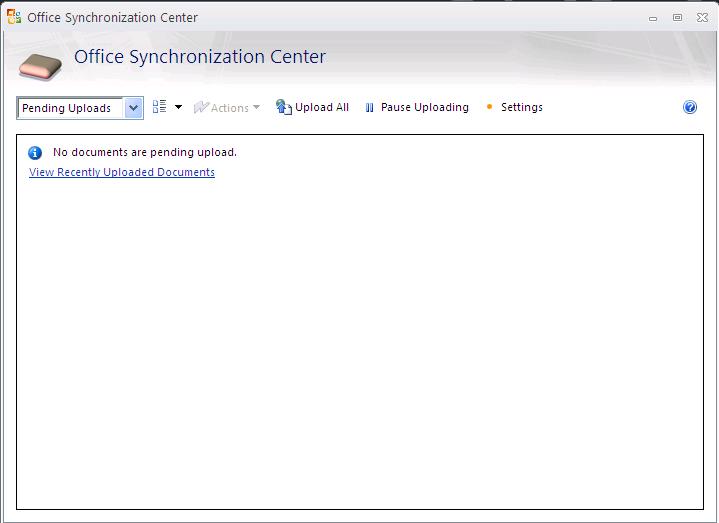
This is a new thing AFAIK that I noticed when uploading some documents to our Sharepoint Online BPOS installation.
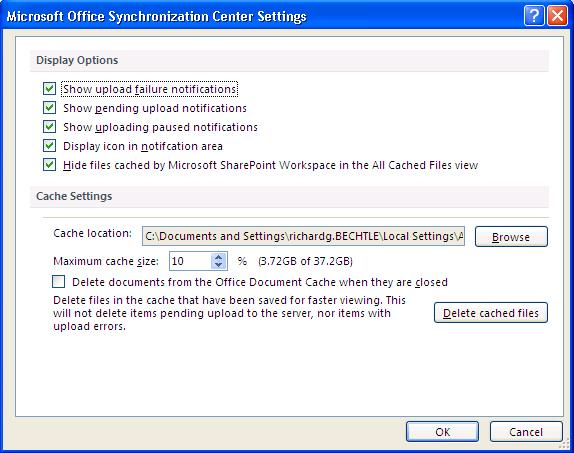
Office 2010 Sync Center

Office 2010 Sync Center Settings

This gives you a great overview of which files have been uploaded and if they were successful or not. It also shows a history of recently uploaded files which works well for me as I often forget whether I’ve done it or not 🙂 This seems like yet another great addition in Office 2010…

Summary:

This post isn’t finished, at the very least I’ll be adding in some screenshots and more info on Outlook. However as I come across new features in the various programs I’ll add them into this post as I go.

All in all, Office 2010 looks like a solid forward move for the Office suite and should see good adoption across the board-although perhaps more in the business rather than home space. The inclusion of more business intelligence, more collaboration and more time saving tricks is a sure winner and Sharepoint Workspace Manager (SWM formerly Groove) will only further that I’m sure.
Microsoft Application Platform Agreement


Another new licensing model from Microsoft is the Application Platform Agreement (APA) which will be available from October 1st. This is an add-on to the existing Enterprise Agreement (EA) and gives companies a subscription to a set of products defined as the “Application Platform”-these are:

  • SQL Server
  • BizTalk Server
  • Windows Server
  • Sharepoint Server
  • Visual Studio Team Edition
  • System Center Server Management Suite Enterprise

There are then 2 further enrolments available:

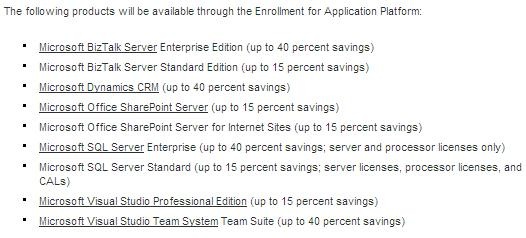
  • Enrolment for Application Platform (EAP)

Enrolment for Application Platform

*Update* More info on this has come out of MS, including the following:

What is available on EAP?

image

  • Benefits of EAP include:

    Low Upfront Costs

  • Savings of up to 40%
  • Rapid adoption of the latest technology
  • Unlimited Deployment Rights for the included products
  • Predictable costs

More info can be found on the MS Blog here.

This screenshot is taken from the MS Partner site. The Enrolment for Application Platform allows customers to obtain perpetual licences rather than non-perpetual subscription licences.

  • Enrolment for Core Infrastructure (ECI) 

This isn’t mentioned on the Partner site but is referenced elsewhere (silicon.com) as including:

  • Windows Server
  • System Center
  • Forefront Client Security

*Update* I’ve now seen more info on this from Microsoft which includes the following:

Suites included on ECI:

clip_image001

  • The Standard edition allows you to run and manage up to one OSE
  • The Enterprise edition lets you run, manage, and secure up to 4 OSEs on a 2-processor box
  • The Datacenter edition allows you to do the same for an unlimited number of OSEs on a 2+ processor box

    It also states that from November 1st, there will be special SKU’s available to allow end users to migrate from existing stand-alone products to the new ECI versions.

    This image is a good initial indicator if ECI will fit your organisation:

    clip_image002

    You can see more over at Emma Healey’s “Lady Licensing” blog here.

    I have seen people worrying about the non-perpetual nature of these subscription licences such as ZDNet, where the article starts:

    “Microsoft (unsurprisingly) doesn’t tout the fact, but its newest licensing agreement could leave enterprise customers product-less if they don’t renew it.”

    However I think it’s pretty clear that it’s a subscription model and it’s well known that all MS subscription licences are non-perpetual (OVS, Schools Agreement, EAS etc); it isn’t MS trying to “trick” people at all which is what I feel some people are trying make out. Also, the APA customers will be in contact with their LAR’s and also Microsoft account managers to work on the details of the agreement and if it is feasible etc-so the subscription aspect will be made clear at this point if not before…it’s not the kind of thing a customer could just buy on a whim without any advice.

    For large customers, this could definitely be a great way to save money and streamline software adoption & standardization. However, from a licensing/information point of view it is something of a mess at the moment with no single place having all the information a customer (or a MS partner) requires. Hopefully this will be rectified quickly and certainly before October!

  • Microsoft Virtual Desktop Infrastructure (VDI) Licensing


    During this year’s Worldwide Partner Conference in New Orleans, Microsoft announced 2 new VDI licensing models. Although this is pretty big news if you’re in that space, VDI isn’t really a technology of the masses so this news hasn’t been hugely reported-but hopefully I can change that just a little bit 🙂

    There are two new licences available:

    Microsoft Virtual Desktop Infrastructure Standard Suite

    Microsoft Virtual Desktop Infrastructure Premium Suite

    Microsoft’s aim is for these to

    “make it simple for customers to purchase the comprehensive Microsoft VDI technologies while providing excellent value compared with competing VDI offerings.”

    What do they include?

    Both version contain the essential products for setting up, configuring and managing an efficient and effective VDI environment:

    • Hyper-V Server
    • System Center Virtual Machine Manager (VMM)
    • System Center Configuration  Manager (SCCM)
    • System Center Operations Manager (SCOM)
    • Remote Desktop Services (RDS) CAL (formerly Terminal Service CAL)
    • Microsoft Desktop Optimization Pack (MDOP) <– Further clarification shows that MDOP is an optional extra.

    The Premium version will also include:

    • Additional use rights for RDS
    • App-V for RDS

    to

    “enable mixed environments with not only VM-based remote desktops, but also session-based desktops and applications.”

    The RDS CALs in the Standard bundle can only be used for VDI and not regular Terminal Server instances or “session based desktops” as they’re known now.

    Once you have one of these bundles, the only other thing  you need to correctly licence VDI is Virtual/Vista Enterprise Centralised Desktop (VECD)-for more info on that see my other post here.

    How is it licensed?

    The licensing could have become quite complicated as the components can be licensed in various ways but, quite possibly in reaction to general feedback on licensing, have made this nice and simple:

    “As with VECD, the number of VDI Suite licenses equals the total number of client devices that accesses the VDI environment.”

    Also, as it’s a subscription you’ll always be up to date with new releases.

    What does it cost?

    The licences are set to be made available in Q4 2009 so from October onwards. The only pricing I’ve seen is in dollars (and not a definite final figure) but that is $21 per year per device for Standard and $53 for premium…that is some awesome pricing! Even if the usual “swap the $ for a £” happens, that’s still much cheaper than licensing them separately and it seems much cheaper than competitors (i.e. VMWare).

    Summary:

    This is a great move on Microsoft’s part and will really help drive VDI adoption-particularly in the mid-market sector as it’s not only more cost effective but much easier to manage than buying the components separately.

    The Technet blog article can be found here and thanks to Brian Madden too.

    Re-enabling audio devices in Vista


    This might be obvious to pretty much everyone else but I’ve just had an issue with audio devices in Vista so I thought I’d share the solution-just in case 🙂

    I was trying to record some sound from my PC but it kept picking up sound from the built in mic which was quite annoying. So I went to the Sound section, right clicked the deivce and “disabled” it…it then disappeared from the list! Furthermore I now couldn’t record ANYTHING so I needed to get it back, but how? I had a little look around in Control Panel until a Bing search eventually led me here, which shows that you simply need to right click in the white space and “show disabled devices”…nice and simple 🙂

    Office 2010


    office_2010Microsoft Office 2010 was a big star of today’s opening keynote at Microsoft’s WPC 2009 event, and boy did it shine brightly! The new version of Office is always exciting and there have been some features leaking out recently, mainly around Outlook with it’s “mute button” and conversation threading etc, but the video demo’s today were amazing.

    Unfortunately the keynote video isn’t available on demand yet  is available on demand now at www.digitalwpc.com (as I couldn’t get over to N’Orleans), so I’ll have to try and remember the new features that I saw for now 🙂

    Word 2010: One new feature of Word is an improved Copy & Paste function. At first glance you wouldn’t think you could do much with it, but it is actually a great new addition-it gives you a live preview of what you’re about to paste…clever eh? I often hit “Ctrl + V” only to find that it’s something completely different than I expected so this will definitely come in handy… as Stephen Elop (MS Business Division President) says, the aim is to get users away from the pattern of “paste, oops, undo”.

    Powerpoint 2010: Two big additions to Powerpoint 2010 are Photo Editing & Video Editing. These give you the ability to crop the image/video, change colours and hues, add borders etc all within Powerpoint; that will definitely make creating slide shows quicker, easier and more enjoyable!

    Another great feature is the ability to “broadcast” your slideshow via a Live-Meeting style effort so people can see it in real-time. This feature extends to users of mobile devices and not just Windows Mobile-iPhones too!

    ppt 2010

     Excel 2010: Many of the new features in Excel 2010 are centered around Business Intelligence (BI). One such feature is Sparklines: these give a snapshot of data trends in a single cell, which makes charting many different data ranges in one datasheet much easier, and much more attractive for readers 🙂

    Outlook 2010: Outlook now has the ribbons interface to bring it in line with Word, Excel etc and also contains many new features. Namely the “Mute Button” which will allow you to remove yourself from the “Reply All” floods that occue when someone accidentally puts the addresses in “To” rather than “Bcc” and everyone, for some reason, decide that they need to “Reply All” each time. This quite quickly makes your inbox a joke…now however with a simple click of the mouse they’re all gone…plus it also keeps any future replies from appearing too 🙂

    Another new Outlook feature I’d forgotten about is Mail Tips, which provides info & hints to help prevent you making daft mistakes! Just added 250 names in the “To” field-it’ll tell you…sending a mail to someone who’s out of office-it’ll tell you…added people outside of your organization-it’ll tell you (to help prevent confidential info leaking out) and much more 🙂

    Conversation View lets you group emails by conversation helping clear up inbox clutter. This is a BIG one for me!

    Sharepoint 2010: This wasn’t really demo’d during today’s keynote so I don’t have much to say (yet) other than it has the ribbon interface and “embraces” social media/web 2.0.

    Office 2010 now supports co-authoring, this means that multiple people can work on the same document at the same time without users receiving the “this document is already in use” error…this is really something and gives a pretty big middle finger to other pretenders to the crown such as Google Apps and Zoho.

    So far I’m very impressed with what I’ve seen of Office 2010 and by the end of the week I expect to be even more impressed!

    A great top 10 features list can be found here, props to Sarah for this 🙂

    Thanks to Techcrunch for the pics…

    Windows 7 available in September


    Microsoft today announced that customers who purchase via Volume licensing (which is the majority of businesses I’d have thought) will be able to order Windows 7 from September 1st!

    Another Windows 7 announcement from the 1st day of Microsoft’s Worldwide Partner Conference 2009 was that there will be a 6 month promotion making Windows 7 up to 15% cheaper than Vista.

    Microsoft BPOS Partner features


    Already this year’s Microsoft Worldwide Partner Conference (WPC) is seeing great announcements and, if my time conversion is right it only started no more th an 1 hour ago!

    These first announcements are around Microsoft BPOS and primarily concern MS Partners who resell Microsoft’s Online Services.

    Partner Order on Behalf Of: This is a feature that I and pretty much every other BPOS partner has been waiting for; the ability to place BPOS orders on behalf of our customers. The current model of sending the customer off to purchase online themselves is quite alien to how this is usually done and can lead to confusion all around. Being able to order ourselves makes it easier for partners to be truly Value Added Resellers.

    “..The feature allows partners to initiate trials, specify the services and quantities they recommend for their customers, pre-configure orders for their customers to complete..”

    Partner Commerce Dashboard: This is again a great addition for Partners. This gives a consolidated view of the status of trials and orders for all the partner’s customers. The data can be exported to CRM systems via Excel too.

    They have also announced that Delegated Administration to Partners will be available by (Oct-Dec) Q4 2009. This means that customers will be able to let their Value Add Reseller (VAR) perform certain tasks on their behalf, this again fits in better with the current model a lot of Partners/Customers have.

    Original post over on the MS Online team blog here.

    Microsoft Office Web Revealed


    Microsoft have made more details on the Office web products available, a little before this year’s Worldwide Partner Conference kicks off.

    Office Web Applications will include:

    • Word
    • Powerpoint
    • Excel
    • OneNote

    will work on Macs as well as PCs and will run in Firefox too 🙂

    It looks like Neowin may have seen something they weren’t yet supposed to as the link to the Office Web demo video isn’t currently working…

    However one video that is working is this here on Mobile Office 2010. It shows that documents can be rendered server side meaning that “just about” every smart phone out there can view them…yep that includes Blackberry & iPhone too.

    Microsoft Security Essentials beta


    You  may have seen that, a few weeks ago, Microsoft announced the beta of Microsoft Security Essentials (MSE); their free anti-virus/anti-malware software aimed at home users. The beta was limited to 75,000 downloads so I registered within 20 minutes of it going live on MS Connect and got ready to download it…unfortunately the website had a different idea. It told me that I wasn’t eligible to download the beta and that was that-I logged out empty handed 😦

    I kept checking over the following days to no avail while, at the same time, Microsoft emailed me to see how my trial was going…I couldn’t believe they were mocking me so! I just logged in now to see if there had been any update on my application for the Office 2010 trial-it’s gone from “Pending” to not being there anymore- but as an unexpected bonus the download for MSE was there 🙂

    I’ve just got it installed and had it run it’s first scan and it’s looking good. It was a quick 5/6 click install process and it was scanning already-very impressive…here are some screenshots:

    Something I’m quite surprised to see is that MSE contains Real Time Protection, helping protect users from zero-day attacks even without pre-defined virus signatures; for a free product-that’s pretty cool!

    The Settings tab allows you to:

    • Set scan schedule
    • Change the default actions
    • Turn Real Time Protection on/off
    • Exclude files & locations
    • Exclude File Types
    • Exclude Processes
    • Choose to scan archive files
    • Choose to scan removable drives
    • Change Microsoft Spynet access

    Spynet is something I hadn’t heard of before and it is Microsoft’s Online Community that collects, collates and processes information on malware and how it is affecting user’s machines. There are 2 levels of “membership” availalable, Basic & Advanced where advanced sends back more information such as file names and locations of affected software etc. It’s default setting is Basic…although it does say that “…personal information might unintentionally be sent to Microsoft” which, while I don’t really mind will probably upset some people 😉

    I’ve only had it installed for about half an hour but so far, it seenms to be pretty comprehensive in what it covers as well as being clear and easy to use. The fact that it provides real time protection AND scans removable drives as well as the basic cover makes me consider if, honestly, there’s any need for home users to look elsewhere.

    Microsoft’s Forefront Business security software shows they’ve got the skills in this area and a lot of other products (Norton, F-Secure etc) are notorious for slowing PC’s down until they’re nigh on unusable-so this seems like a great alternative. When it comes to Anti-Virus I’m a Kaspersky fan but MSE looks to be a worthy competitor…good work once again from Microsoft 🙂

    Microsoft Exchange Online and Shared Folders


    As previous visitors will probably have noticed, I’m quite a fan of Microsoft’s Online Services AKA Business Productivity Online Suite (BPOS). I spend a fair amount of my time talking to customers about how they can online services to better serve their business and how BPOS can fit their needs.

    Something that everyone needs to be aware of is that the online versions of the products aren’t quite as fully featured as their regular, on-site relatives. This means there can be certain situations where the MS hosted version just isn’t a viable option…however MS are constantly working to give them parity with the on-site versions, but it takes time transferring them into a multi-tenant environment. Exchange Online is very nearly feature complete but the biggest missing feature is Public Folders…

    What are Public Folders?

    “Public folders provide an effective way to collect, organize, and share information with others in your organization. They are central, shared folders that anyone can view to share information and ideas. Public folders can contain any Outlook item type, such as messages, appointments, contacts, tasks, journal entries, notes, forms, files, and posts.”

    We use them at work for a number of purposes but once common use is as a repository for licence certificates, agreement details etc that can be accessed by the software team, sales account managers, customers services dept etc-without there being any duplication. Different people have different permissions so us in the software team have full permissions while others have just read only access. Sure, we could do this with Sharepoint (and for some things we do) but as these documents are all emailed-it is, at the minute, easier to keep them within Outlook.

    A good guide to Public Folders can be found here.

    Other things that aren’t technically Public Folders tasks but are inextricably linked are:

    E-Mail Delegates: Delegate access to your mailbox to another individual, or delegate access to particular data with particular privileges. For example, allow an administrative assistant to accept or create calendar appointments on behalf of a manager.

    Send As: Allow someone else to send mail from your mailbox. Your name will appear on the sent from line. For example, allow an administrator to send e-mail as a user (not on behalf of).

    Shared Mailbox: Provide a group of people common access to a specific mailbox. For example, allow a single support alias to be monitored by multiple users.

    Up until a few days ago-these were all impossible to do with Exchange online and that was often a stumbling block in discussions with customers. As the beginning of that sentence suggests-this has now changed 🙂

    I was speaking to a customer last week who was looking for the Shared Mailbox functionality and, after a call with MS, I was able to determine that this feature will become available “this quarter” so by the end of September. This made the customer very happy 🙂

    Shared mailboxes and email delegates will be available as standard functionality whereas Send As will need to be enabled via a Support escalation request.

    A great whitepaper on Public Folders and BPOS can be found here.

    Exchange Online & Sharepoint Online:

    While the lack of Public Folders can at first, seem like a big hurdle to adopting BPOS-in many cases using Sharepoint Online instead is as good if not better!

    Scenario Description

    Exchange public folders are frequently used to set up calendars, task lists, and contact lists for team or company-wide collaboration. People with appropriate permissions are able to view and edit the lists.

    While the Shared Mailbox feature is the traditional way of doing this and, for many people, will continue to be-it can also be done with Sharepoint Online:

    Benefits
    • SharePoint lists provide more contexts for the data, and more flexible ways of working with the data, including combining data from multiple lists and rolling up summaries for reporting.
    • Moderation workflows are built into SharePoint lists, so items can be optionally made visible only after they are approved.
    • Item-level version history can be optionally enabled to track changes to individual items in these lists.
    • Users can subscribe to alerts and feeds to have change notifications automatically sent to them.

    There are many different ways of using Sharepoint Online as a replacement for Exchange Public Folders which are covered in the whitepaper here.