Cloud Platform Suite


This is a new licensing program that will be available on the January 2014 SPLA price list. It is aimed at Service Providers who run heterogenous environment – that is environments with a mix of Operating Systems such as Windows, Linux & Unix.

It is licensed in a “Host and Guest” model – the Host license covers the hardware and you will then purchase a Guest license for each Windows VM you wish to run.

Host SKU: Includes Windows Server 2012 R2, System Center 2012 R2, and Windows Azure Pack, host capabilities and rights to manage all guests

Guest SKU: Includes Windows Server 2012 R2 guest capabilities

For more info, check out my good friends over at Licensing School:

Permalink to Cloud Platform Suite

Adding Azure to an Enterprise Agreement


It’s now easier than ever for customers to add Windows Azure to their Enterprise Agreement (EA).

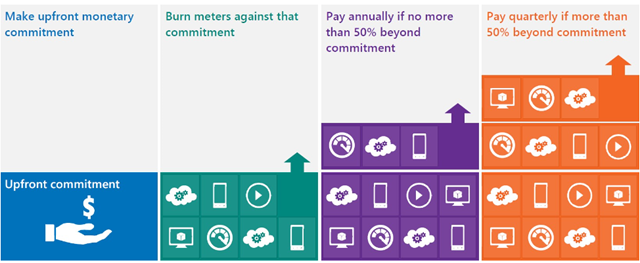
You commit upfront to a monthly amount that you feel will cover all your needs, and that monetary commitment can be utilised in any way within Azure.

image

Previously, you would receive great payment terms for your monetary commitment but – should you go over that amount (known as “overage”) – the extra usage would be charged at much higher rates. This effectively punished organizations who thought “wow, this Azure stuff is cool” – but no more, Overage is now charged at the same rates as the initial agreed amount. This makes increasing the usage of Azure a much more compelling proposition.

See Josh Waldo’s full post here:

http://www.digitalwpc.com/Community/Perspectives/Pages/Windows-Azure-added-to-Enterprise-Agreement-Use-it-to-power-your-solutions-.aspx?wt.mc_id=corp_mpn_tw_dwpc_joshwaldoazureagreement#fbid=7Lt8ur4Ygjd

Office 365 Admin Access in Exchange Online


Office 365 Wave 15 (the current release) brought with it a new admin console, that consolidates and streamlines access to most requirements. That said, one of the common worries for IT managers is around loss of control when compared to administering their on-site infrastructure.

A great tip from @12knocksinna shows how to gain access to an extra level of features:

image

To access this, simply fire up OWA and then change /OWA to /ECP in the URL an hey presto –  you’re in!

I’m sure I remember these features being available in the beta release of Wave 15 – anyone else?!

See Tony’s full blog about it her:

http://m.windowsitpro.com/blog/wave-15-office-365-admin-interface-unifies-applications-lacks-some-functionality

PowerPoint Progression with Windows Phone


This is a great, nifty invention that’s just come out of Microsoft Research.

I quite like wandering around…out in town, at work and in general. When I’m presenting, I can’t really do it though, as I need to be close to my machine to click “next”…well no more!

Office Remote turns your Windows Phone 8 device into a remote control for your Office 2013 presentation apps  (Word, Excel & PowerPoint). I’ve just downloaded the bits and tested this out with my upcoming Cloud presentation – it took about 2 mins to setup and works perfectly. You need:

It shows the elapsed presenting time, clear forward/backwards buttons and even shows your speaker notes on your phone!

office remote

I’ll definitely be using this when I present at Old Trafford on Thursday 🙂

Other use scenarios include:

  • PowerPoint: Large, easily accessible buttons on the phone enable you to start a presentation, advance slides forward or backward, view thumbnails and jump to a particular slide, access speaker cues while viewing the presentation time and the progress of slides, and deliver accurate, non-shaky direction with the on-screen laser pointer.
  • Excel: Simple gestures enable jumping not just between spreadsheets and graphs, but also among any named objects. Spreadsheets can be changed with a mere finger swipe, and navigation is available through rows or columns. In addition, you can use PivotTables or filters and change zoom levels, all with an Office Remote-equipped phone.
  • Word: Zoom control is available in this application, as well, and Word docs can be scrolled by screen or by line.
  •  

    You can see more about it here: http://blogs.technet.com/b/inside_microsoft_research/archive/2013/11/18/advance-your-presentation-with-your-phone.aspx

    Office 365 Cross Family Transitions


    At the 2013 WorldWide Partner Conference (WPC), Microsoft announced plans to make it easier for customers to switch between Office 365 plans – this was greeted by smiles & cheers from many!

    The initial introduction worked only for a few cases but the supported switching scenarios have now been expanded to include:

    From To
    Small Business MidSize Business
    Enterprise E1
    Enterprise E3
    Enterprise E4
    Small Business Premium MidSize Business
    Enterprise E3
    Enterprise E4
    Exchange Online Plan 1 Enterprise E1
    Enterprise E3
    Enterprise E4
    MidSize Business
    Exchange Online Plan 2
    Enterprise E3
    Enterprise E4

    Microsoft say:

    “We continue to work on transition solutions for both additional scenarios (e.g., Exchange Online to Midsize Business) as well as for Open subscriptions and Government/Academic SKUs”

    So there will continue to be additions and improvements around this – making Office 365 even more relevant for businesses everywhere.

    Office 365 MidSize Business and Exchange Online Archiving


    Exchange Online Archiving (EOA) is now available as an add-on for Office 365 MidSize Business; this gives MidSize users unlimited archiving as well as legal hold capabilities.

    It’s great to see Microsoft continuing to improve and add to their Office 365 platforms, and this move really helps SMBs to attain Enterprise levels of service.

    The Ordering Process

    Currently, EOA can only be added to MidSize Business licenses purchased via the Advisor model, that is via the Microsoft Online Portal. If you purchased via Open Licensing (so from your reseller partner – and you pay them rather than MS), you need to add just 1 license of MidSize Business via the Advisor Model. That way, you’ll then be able to attach EOA to that license but fear not, the subscription can be applied to all mailboxes on that tenant – including those purchased via Open.

    The process is nice and simple, which is good:

    1. Login to your Office 365 account as the Administrator.
    2. Go to the “Purchase Services” tab in the Admin Console.
    3. Click “Add” to purchase one additional seat of Office 365 Midsize Business.
    4. You can add Exchange Online Archiving at the same time as you add the direct bill seat of Midsize Business:
    5. Select the “Optional Add-ons” dropdown and enter the number of licenses of EOA you want to purchase.
    6. Add to the cart and proceed to payment by clicking “check out.”
    7. Follow the wizard to complete your payment with a purchase by credit card or other locally available payment method.