Microsoft Online Services are getting ever closer to being a reality in the corporate world, with the official US launch on Monday (17-11-08). The UK launch will follow in the Spring so around March/April 2009.
The first acronym was SAAS or “Software-As-A-Service” with perhaps the biggest example being Salesforce.com, the CRM system. This is an online only model where the customer doesn’t have anything “on-premise” (installed at the customer site) and instead it is all in the “Cloud” (the internet). Microsoft realised that that doesn’t always suit all customers..they often like to have at least some portion of the software installed on-premise too, be it for Disaster Recovery, integration with other existing systems, high levels of customization and many other reasons so they invented Software+Services. The “Plus” is the key..customers can have the software on premise, in the cloud or a mix of both giving them a greater level of flexibility.
Microsoft Online Services AKA BPOS (Business Productivity Online Suite) provides corporate users with Microsoft hosted versions of the software, accessed via the internet. The products included in the BPOS Suite are:
- Exchange Online
- Sharepoint Online
- Office Communications Server (OCS)*
- Live Meeting
*It’s to be noted that OCS isn’t available as yet and will be making an appearance a little while into 2009.
Mary Jo Foley has a new post with info on future S+S offerings from Microsoft. Their stated aim is to have a web-based service to match all their exisitng on-premise offerings and it looks like ForeFront Security and System Center Management tools are the next in the line up. This would likely encompass anti-virus, web/content filtering, firewalls, online backup, disaster recovery and more-quite a good string to their bow.
Some people might wonder what the point of this is and while there are many reasons that customers will looks at BPOS, here are what I see as the 2 key drivers.
The Small to Medium Business (SMB’s)
I first took a real look at BPOS over at the WPC in Houston and right away I could see the potential for SMB’s. These are customers typically around the 50-100 user mark (although they could be smaller/bigger) who love the features of (usually) Sharepoint server and can see that collaboration, enhanced search, wiki’s, portals and more would benefit their business by increasing efficiency. However, they often can’t afford the initial monetary outlay for Sharepoint and/or don’t have the people to deploy, configure and maintain a Sharepoint installation.
Typically this brings an end to the matter until the customer increases in size to make the internal administration do-able or they find a chunk of cash down the back of the sofa 😉 BPOS however, will be a perfect solution as it can resolve both the afore mentioned issues.
Because BPOS is hosted at Microsoft’s DataCenters in The Cloud, the customer doesn’t need to worry about learning the skills to deploy and configure the software at installation, ensuring they have the people and time to perform ongoing maintenance, deploying updates & patches-Microsoft will take care of all that.
Because BPOS is charged on a monthly basis, this allows customers to spread the costs over the course of the 12 months, rather than paying it all in one hit up-front.
The Busy Corporate
In some ways this is similar to the first example but it applies to bigger companies. Most corporates around the 300+ user mark have a very long to-do list..upgrade network switching, implement SAN (Storage Area Network), desktop refresh, move to a virtual infrastructure and so on. Added into/onto a list like this, deploying something such as Sharepoint or Office Communications Server can seem a daunting, perhaps impossible task to system admins. They’ll need to purchase and deploy new servers, perhaps upgrade parts of the network to cope with the increased demand, add extra security and plenty more which can mean that the timescales for deployments such as this are quite lengthy and keep growing.
BPOS can cut through all that. The busy admins don’t need to do anything other than grant users access to the services. As they don’t need to deploy, upgrade or install anything-the implementation timescales can be drastically reduced, which is good for all involved.
BPOS will allow companies to realise the many benefits that these Microsoft products can offer them much quicker than is currently possible.
Although the BPOS suite includes all the mentioned products, they are also available individually which gives customers the flexibility to have, for example, an on-premise Exchange server with a Cloud based Sharepoint server. Alternatively you can have the same product both on-premise and online so a big corporate HQ could have Exchange onsite, while their satellite offices could use the MS hosted version.
As for the licensing side of things, I do have some info. Customers that have current Software Assurance (SA) will be able to purchase the services at a reduced cost to reflect their already increased investment in MS technology, and they will need to keep their SA current alongside their BPOS licensing. This means should they choose to move away from BPOS at a later date, they will still be fully licensed for the most current perpetual versions of the software too. Customers that don’t have SA will have to purchase a User Subscription Licence (USL) to gain access to the BPOS suite. Should they choose to revert back to soley on-premise software, they won’t retain any entitlement to the software (as it is a non-perpetual subscription).
Many people view S+S as a bit of a black art or perhaps a fad but I really think this is a watershed moment for anyone that uses software. The companies that embrace Software+Services from the start, be they MS partners or end users, will really have an advantage over their competitors in the long run. As a Microsoft Gold Partner I’m very excited about the new things that BPOS will bring along 🙂
*Update* I heard today direct from Microsoft that Dynamics CRM will be available as an online version in July 2010, so a little while yet.
If you have any questions or comments about moving to a Microsoft hosted solution, please feel free to leave a comment and I’ll help you out as best I can!
Cheers
Rich

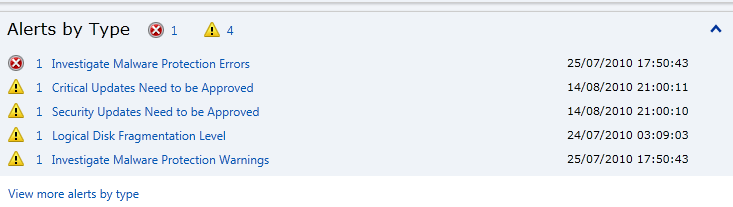




 However, you can’t initiate the defrag from InTune.
 Cloudy with a chance of Licensing