Project Server 2010 & Sharepoint Server


Project Server 2010 is the latest version of Microsoft’s Project planning and collaboration solution, and it can be much more confusing.

The previous version, Project Server 2007, was a stand alone product whereas Project Server 2010 has some dependencies on SharePoint 2010. However finding out exactly what these dependencies were and how necessary they all are was quite a lengthy process, one which I will describe here to save you time Smile

The question is:

“Does Project Server 2010 require Sharepoint Server 2010”

The answer is:

“Yes”

As to which version of SharePoint is required, well that’s where it got interesting!

I could see how sitting Project Server on top of SharePoint would be useful so I imagined that SharePoint 2010 Foundation would do the job. It’s pretty powerful and it’s free – seems the perfect fit to drive a Project Server 2010 implementation. However, a look at Technet brought up this:

image

I found it hard to believe that it would require the ENTERPRISE version, as that isn’t cheap, so I set off to verify this.

Ask Partner:

I spoke to the Microsoft Ask Partner Technical Pre-Sales team and they did the same as me. Said that Foundation would be fine…and then checked Technet!

Still I wasn’t satisfied so I went to the

MSDN

site and there I found this:

image

A diagram of the Server Architecture for a Project Server 2010 implementation from:

http://msdn.microsoft.com/en-us/library/ee767687.aspx

To me, the above says that SharePoint Foundation is perfectly acceptable and that SharePoint Enterprise is only required to serve ASPX pages in the Project Web App.

I’d love to get some feedback as to your thoughts on the above Smile

I went back to the Ask Partner team and they agreed with me.

So at this point it seems that SharePoint Foundation is fine and we’re about done.

However, I also put this request out to the TwitterSphere and one of my favourite people at Microsoft came back and told me to look on page 117 of this month’s Product List, so I did…

image


Project Server 2010 customers will require SharePoint Server 2010 and SharePoint Server 2010 Standard and Enterprise CALs

Despite that, they’re still one of my favourites Smile

The Answer

So that’s it really…both Technet and the Product Lists say that if you want to run Project Server 2010 you MUST also licence SharePoint Server 2010 with Standard AND Enterprise CALs.

My Thoughts

I don’t particularly agree with this, as it adds quite a chunk onto the cost of the solution.

Project Server £3768
Project Pro £684
   
Total £4452
   
SharePoint Server £3768
SharePoint Std CAL £72
SharePoint Ent CAL £63
   
Total £3903
   
Grand Total £8355

The above is based on standard Open Licensing and as you can see, the addition of SharePoint Enterprise almost doubles the solution cost.

I understand that having SharePoint Enterprise gives the client a whole raft of other wonderful tools and I’m a huge fan of SharePoint however, it’s a lot of extra money if you’re not going to use any of the extra features. I feel this will prohibit many businesses from being able to implement a full Project Server solution.

Alternatives

I am currently researching an alternative solution which is based on SharePoint Foundation customisations and from what I’ve heard so far, this could be a great alternative for many people.

Microsoft Kinect Sales Comparisons


Microsoft Kinect has been with us in the UK for 6 days now and 12 in the US. It’s clearly doing very well as Microsoft have revealed that it’s already past the 1 million sold mark which is an amazing achievement, and very well deserved.

A lot of blogs and internet types on Twitter are running with the following comparison:

iPhone = 74 days to 1,000,000 sold

iPad = 28 days to 1,000,000 sold

Kinect = 10 days to 1,000,000 sold

To me, this is a completely pointless comparison. Not only do these items sit in different areas of technology but there is also a significant price difference:

Kinect = £130

iPad = £429

At almost 3.5 x the cost, it’s hardly surprising that the iPad sales went a little slower is it? Plus Kinect is an add-on for the best selling console in the world which gives it a huge, ready (and easy) to engage sales base.

Now don’t get me wrong, I think Kinect is brilliant, I’m a huge fan of Microsoft and think most things Apple do are evil, but I don’t think these comparisons serve anybody well. In fact, I’d go so far as to say they negatively affect Microsoft as it makes them seem desperate to “beat” Apple, enough to use pointless data such as this. The kicker is that it’s nothing to do with Microsoft, it’s not Redmond putting these out but various bloggers and tech sites on the net…however Steve B et al will be on the end of negative effect on consumer mindshare.

Realistically, the only comparison that is anywhere near worthwhile is Kinect’s performance against Playstation Move…and I’m sure it will always win Smile

Computer Weekly Blog Awards 2010 Nomination


The Computer Weekly blog awards are back for 2010, and I’ve been shortlisted in the:

“Individual IT Professional Male”

category, which is pretty exciting!

I can see I’m up against Mark Wilson and Steve Clayton so any and all votes will be most appreciated Smile

I’m also shortlisted in the:

“Company/Corporate: Large Enterprise”

category. I was in this section last year and again find myself up against the likes of TechCrunch, BBC and Cap Gemini!

The voting link is here:

http://www.computerweekly.com/Articles/2010/10/18/243307/Vote-in-the-Computer-Weekly-IT-Blog-Awards-2010.htm

I’m “Software Ruminations” in the list – vote away!

Microsoft Office 365 & BPOS


Microsoft made a big announcement today – Office is available online!

Yes Office Web Apps have been with us for a little while but they are lacking many features and, in the corporate world, you need a full Office licence on your desktop to use them. This however is “proper” online Office so, just like the original BPOS offerings such as Exchange & Sharepoint, it exists solely in the cloud…no on premise(s) software required.

There were also name changes, new products and new prices announced today so let’s take a look at the whole shebang!

Office 365

This is the new name for Microsoft’s cloud services, both existing and new. Family members include:

Office 365 Small Business

Office 365 for Enterprise (BPOS V2)

BPOS Government

Live@EDU

To be honest, I’m not really sure about the name. Maybe it will grow on me but for now at least, it feels a bit cheap and I’ve already seen people asking what happens on day 366 of a leap year Smile

Office 365 Small Business

This cut down version of Microsoft’s cloud offerings is, as the name suggests, aimed at small businesses with up to 25 users and offers:

  • Exchange Online
  • Sharepoint Online
  • Lync Online
  • Office Web Apps
  • External Web Site

for $6 per user per month.

Office 365 for Enterprise

BPOS V2 aka Union will be available in the first half of 2011, as per Mary Jo Foley’s info.

This will give companies:

  • Office Professional Plus
  • Exchange Online
  • Sharepoint Online
  • Lync Online
  • 24×7 Phone Support
  • On Premise(s) licences

It’s to be noted that the upcoming Wave 14 releases of the online products will introduce dozens of new features that make them much more compelling to businesses, such as the ability to federate Lync and host extranets on Sharepoint:

Read Microsoft BPOS- More new features

All this will cost just $24 per user per month – that is really amazing!

Availability

Beta testing across 13 countries has started, with beta sign up available at:

http://www.office365.com

If you can get it to load up for you – I’m having no luck!

Office365 will be available in 40 countries during 2011. It will then expand to include Dynamics CRM 2011 Online (a great product) and then a separate Educational focused offering will arrive, rolling into it Live@EDU.

Follow @Office365 for more info.

I’m already thinking of a number of our clients who will be very interested in Office Online but one question I have already been asked is:

“Can I get Office Online as a separate product?”

I don’t think so but I will check…

Microsoft Kinect & Sky Player


Microsoft Kinect is coming, and it’s going to be awesome.

Sky Player on Xbox 360 is already available and can be pretty awesome.

Microsoft’s Channel 9 have revealed that you’ll be able to combine the two. Yes that’s right, in a little under 6 weeks, you’ll be controlling Sky with Kinect…nice Smile

“Kinect for Sky Player on Xbox 360 will also let viewers control TV with their voice to pause, fast forward, rewind and play content.”

Microsoft Enrolment for Education Solutions (EES)


Microsoft licensing has a new family member, Enrolment for Education Solutions AKA EES.

Currently, there are 2 education specific licensing programs, Schools Agreements & Campus Agreements (I’m not including Open Academic & Select Academic as specific). These offer huge savings over standard licence costs but there are certain requirements that don’t always please people, mainly the requirements to cover ALL eligible desktops, even if they’re already licenced or not to be used for that purpose.

Last year, Microsoft introduced a pilot licensing scheme for education called SESP, which I covered here:

Read Microsoft Licensing- Subscription Enrollment for Schools

Not much has been heard about SESP since then, but it’s influence can definitely been seen in EES.

It’s interesting to note that Live@EDU, the free email+ service for Further/Higher Education establishments will be fully integrated into EES.

What’s different?

The big change is that EES is based on an FTE (Full Time Employee) count, rather than the number of desktops. This will, for almost all schools and colleges, dramatically reduce the number of licences needed.

Another change is the ability to add “non-platform” products in any quantity at any stage of the contract. This will reduce costs as well as help reduce complexity and perceived “pointlessness” of licensing. A good example of this is one we had with a customer a year or 2 ago, where they wanted 70 something Terminal Service CALs but they were required to purchase 700+ as that was their desktop count! Many grumbles were made about that as 600+ of them were never used and seen as a complete waste of money.

Something else that will help organizations further reduce costs is the ability to pro-rate the pricing of additional products, with a minimum charge of 6 months. For example:

Product added in month 3 = full price x 0.75

Product added in month 9 = full price x 0.5

You can also define an organization in a much more granular fashion so it could be:

  • Entire school district
  • Entire school
  • Just Year 11
  • Just the science departments

or more…much more flexible Smile

However you define the organization, the minimum entry point is still 300 units.

What exactly is FTE?

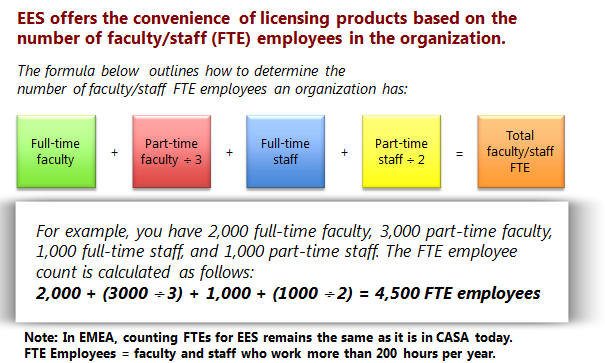
Perhaps not surprisingly, FTE isn’t quite as straight forward as just “Full Time Employees”! The actual calculation is:

image

“Non desktop PC Users” such as maintenance or food service staff can be excluded from the count. MS point out that you must include “student employees”, although I’m not sure what they are?!

Launch

EES is being made available at different time in different regions, and also through different channels. December 2010 will see the limited launch of EES.

In the US & Canada = December launch of EES under Campus Agreement via Distribution & Value Add Resellers (VARs).

In EMEA = December launch of EES to Campus Customer only via Large Account Resellers (LARs) only.

In APAC = December launch of EES under Campus Agreement via LAR only.

It won’t be available to primary & secondary schools in EMEA until March 1st 2011.

Microsoft XP OEM Downgrade discontinued


Microsoft Windows XP is still used by the majority of business around the world and it’s proving hard to get some people away from it. Well, Microsoft and it’s hardware partners are moving to make it more difficult to stick on XP and this is, in my opinion, a good thing.

What’s Happening?

From October 22nd 2010, downgrade restore media will not ship in PCs or Notebooks from HP.

If customers still require XP downgrade media, they will need to speak to HP support. A key bit of information is that this service will

“be available through HP Support until the end of July 2011”

which suggests in 10 months time, this service will be discontinued completely.

This isn’t specific to HP and is in fact a Microsoft directive that applies to all hardware OEM partners, although I believe the cut off dates may vary slightly.

Android App: GMote


A free app Android app saved me £59.99 last week!

I’ve got my desktop hooked up to the tv in the living room for the purposes of watching online media such as Lovefilm, 4oD, SKy Player etc and it’s great. One downside though was my lack of wireless keyboard and mouse. “They’re easy to find” you say, and you’re right…but I’m fussy. I didn’t want 2 separate peripherals, oh no, I wanted a wireless keyboard with an inbuilt touchpad; and these it seem are shockingly difficult to find!

It seems, at least to me, like the kind of thing that would be everywhere but that’s not the case. I looked in all the high street stores and a lot of online sellers and came up empty handed. Eventually I found one in PC World/Currys and how much did they want for this Toshiba crafted gem? That’s right – £59.99. In my opinion that is grossly over priced, so I left it on the shelf and continued to rue my lack of combined wireless peripherals.

Then, while looking at something different online, I came across the GMote app for Android…and this thing is AWESOME! Smile

What does it do?

It turns your Android 1.6+ phone into a wireless remote for your pc! Yes it does!

How?

You install Gmote on your mobile device and the Gmote server on the machine/s you wish to control.

Download the desktop server software here:

http://www.gmote.org/

On there, you point it towards your media files (my music etc) and you’re then able to connect to them from your Android device, search through them and play them on your desktop. You can use your mobile to pause, skip, reverse etc just like a regular remote control.

I can tell you’re thinking “that’s pretty good, but does it warrant the capital “awesome” above?”. That’s not all it does, this is the best bit:

It can remotely control your mouse and has keyboard input ability too!

So I can sit on my couch, open up a web browser and navigate to Youtube, maybe 4 on Demand, Lovefilm Online, Wikipedia, whatever…all from my Android device!

It works really well, is very smooth and it FREE!

Anyone who has an Android device and the need to control a machine – get this app NOW!

Microsoft Windows Phone 7: RTM


Microsoft’s new Mobile Operating System – Windows Phone 7 – has been “Released to Manufacturing”. That means it’s done and the work of the “internal engineering team is largely complete” according to Terry Myerson, Corporate Vice President of Windows Phone Engineering.

Terry’s blog post on the Windows Team Blog gives some fascinating examples of how Microsoft have been testing this new release:

“We had nearly ten thousand devices running automated tests daily, over a half million hours of active self-hosting use, over three and a half million hours of stress test passes, and eight and a half million hours of fully automated test passes”

That is a LOT of testing hours!

The full blog post can be read over at:

http://windowsteamblog.com/windows_phone/b/windowsphone/archive/2010/09/01/windows-phone-7-released-to-manufacturing.aspx

Android Apps: Great ones I’ve found


I’ve had my HTC Hero for 9 or 10 months now and one of my favourite things is the app market. Recently I’ve come across a few new (at least to me) apps that are pretty awesome, and they are:

Astrid Tasks

This is a great to-do list application to help you keep track of all the many tasks you need to do. The best thing about it though, is it links to and synchronizes with Remember The Milk, which is, in my opinion, the best task tracker/to-do list out there.

BBC Browsecast

This app enables you to listen to BBC Radio LIVE on your Android device as well as access BBC podcasts.

To listen live, you can choose from:

  • Radio 1
  • 1Xtra
  • Radio 2
  • Radio 3
  • Radio 4
  • 5Live
  • Radio 7
  • Asian Network

Podcasts from 37 stations are available including the above as well as:

and a host of other regional stations.

The app works really well and will definitely come in handy when I’m out and about…especially for catching footy!

Goal.Com

I found this app during the world cup and it’s a brilliant football app, with a wealth of news as well as scores. It really is one of my favourite apps and I look at it numerous times a day to keep up to date with what’s happening in the football world. It covers such a wide range of the football world that it’s hard to know where to start!

Across the top, you have the following menu choices:

Breaking | Live Scores | Club News | More

Breaking: This updates as and when new/breaking news hits the football world, be it injuries, transfers, comments etc.

Live Scores: This is a super handy section of the app which does what it says – it gives you live scores. Watching the Utd v Everton game, the Goal.com app updated with a minute or so of the goals happening on Sky…very swift – which is exactly what you need. The best thing is the scores aren’t limited to the Premier League either, you can get live updates for:

  • Champions League
  • Europa League
  • Premier League
  • Ligue 1 (France)
  • Bundesliga (Germany)
  • Primera Division (Spain aka La Liga)
  • MLS (America)
  • Copa Libertadores (South American club competition)

Club News: This section is sub divided into:

  • Manchester Utd
  • Chelsea
  • Liverpool
  • Arsenal

and gives the latest news on happening with those clubs.

More: This section is again broken down into the different country leagues/international cups. For some, such as the Premier League and Ligue 1, it gives news updates concerning all clubs in that league. This is really useful for keeping abreast of what’s happening in across the Premier League…it can be as important to know what the other teams are up to as it is your own…especially when you’re doing fantasy football! Not all league get the news feature but they do all have a league table which is again very useful. Being able to see who’s at the top of La Liga and Serie A is really nice Smile

If you’re a football fan I’d DEFINITELY recommend that you download this app!

IMDB

: Yes, I know this has been around for a while but my HTC Hero was stuck on Android 1.5 until my recent upgrade to 2.1 so I’m a little behind the curve on some things! If you have Android 1.6 or above, get this…having the power of IMDB at your fingertips is awesome…and can help settle disagreements where ever you are Winking smile

Last.FM

: This free app allows you to listen to Last.FM stations on the move. I’ve only used this on Wi-Fi but it worked a treat, great streaming and a nice quick app.

MixZing

: I use this instead of the built in music app and I’m a big fan of it. The main things for me are that it’s easy to create playlists and has a great shuffle function.

Sky+

: This app is brilliant. It lets you set things to record on your sky+ box…from your Android handset! I’ve used this loads of times and it’s really easy to do…simply put in your sky.com login details and bang, start remote recording Smile It’s even got a feature that the sky box doesn’t and it’s very useful, it gives you “alternative screenings” of films so you can easily if it’s on again when it won’t clash with your current schedule.

Vlingo Voice

: I was most disappointed to discover that the HTC build of Android 2.1 doesn’t include voice to text (V2T) capabilities. I have no idea why they decided to remove it but it was a feature I was really looking forward to so I was a little put out. However, I then discovered Vlingo, a free app that gives you brilliant V2T functionality…I was pretty amazed at what can be done with this app.

There are a number of things you can do with it (some U.S only it seems) but the ones that I use are:

Text Message: If you say “Text Geoff what are you doing” It will open up a new message, add in the text and then all you  need to do is click “send”!

Email: This is similar to text messages, just say “Email Geoff what are you doing” and, as long as their email address is listed in their contact card, it’ll pop up ready to send.

Twitter: Again, nice and easy just say “Twitter” followed by your update.

You can also use it to update Facebook and even check in on FourSquare!

These are all great apps that I’ve found over the last few weeks and I hope you find them useful too…if you’ve got any to add, hit up the comments!