Managing Windows RT tablets & Windows Intune Licensing Changes


Windows 8 RT is a new member of the Windows family, and one that’s caused/causing some confusion when it comes to management. It transpired a while ago that Windows RT pcs/tablets will not be able to join Active Directory domains and since then, people have been wondering exactly how they’d manage these devices. Well the answer is here – Windows Intune & System Center Configuration Manager (SCCM) SP1.

“Windows Phone 8 and Windows RT devices will be managed by the next release of Windows Intune.  IT Pros will have the flexibility of using either the Windows Intune or Configuration Manager 2012 SP1 console to set mobile security policies, distribute mobile apps and view reports.  We’ll share more details as we get closer to the next release of Windows Intune.”

As Windows Intune is becoming more of a star, it’s getting some licensing changes too – always a favourite thing of mine 🙂

  1. We are shifting from a per-device to a per-user licensing model.  Each user license for Windows Intune covers up to 5 managed devices.
  2. There will be a Windows Intune user license that includes the rights to System Center 2012 Configuration Manager, enabling organizations to manage those devices through either Windows Intune or Configuration Manager, or both
  3. Organizations that already own System Center 2012 Configuration Manager licenses, such as through the Core CAL, will have access to Windows Intune at a reduced price
  4. We will also make a version of Windows Intune available without rights to Windows Enterprise, thereby lowering the cost for organizations that are not ready to move to the latest operating system.

That final point is something I’ve been hoping to see since the first release of Intune. I’ve always felt that having the desktop OS and a systems management product intertwined muddy the waters and made it a more difficult proposition in many cases; so this is a positive move that will enable Intune to shine in its own light.

It’s also interesting to note that SP1 of SCCM will be able to manage other types of devices including:

  • Windows Embedded Thin Clients
  • Point of Sale (PoS) terminals
  • Digital Signage
  • Kiosks

as well as:

  • Distribution point for Windows Azure to help reduce infrastructure costs
  • Automation of administrative tasks through PowerShell support
  • Management of Mac OS X clients and Linux and UNIX servers
  • I’m pleased to see this move to bring Windows RT into the management fold, making it easier for partners AND customers to tell, understand and take part in the Windows 8 story.

    See the whole post over at:
    http://blogs.technet.com/b/server-cloud/archive/2012/09/10/system-center-2012-configuration-manager-sp1-beta-and-windows-intune-update.aspx

    Microsoft Windows Intune


    Microsoft have recently announced that Windows Intune will be available on March 23rd 2011. This is their new product aimed at simplifying PC management for SMB organisations.

    What is it and what does it do?

    Windows Intune is a cloud based, central management system aimed at SMB’s of up to 250 machines (or so).

    “Windows Intune simplifies how businesses manage and secure PCs using Windows cloud services and Windows 7—so your computers and users can operate at peak performance, from virtually anywhere.”

    Intune covers many of the areas that IT Managers find difficult and time consuming such as:

    • Managing Updates
    • Pro-active monitoring
    • Malware Protection
    • Asset Tracking (Hardware & Software)
    • Remote Assistance
    • Setting Security Policies


    As much as it is a Web based management console, it is also more than that…and this piece, despite being pretty huge, doesn’t seem to be getting mentioned that much:

    It includes Windows 7 with Software Assurance.

    For $11 a month (or whatever your currency equivalent will be) you get a hugely impressive central management console, Windows 7 Enterprise (so features such as Bitlocker), new version rights for Windows 8 and beyond and the ability to add on MDOP and give yourself a truly dynamic IT Infrastructure.

    You can read my more in-depth original post here:

    https://richardgibbonsuk.wordpress.com/2010/04/19/windows-intune/

    Can I get a trial?

    You certainly can, head over to:

    http://www.microsoft.com/windows/windowsintune/reminder.aspx

    register, and get notified when trials are available.

    Microsoft Windows Intune: Online Systems Management


    Microsoft Windows InTune is the new Cloud based systems management tool from Microsoft, formerly known as “System Center Online” and has been long awaited. The ability to manage multiple locations/organizations from one central, online point is attractive to a lot of people for a lot of reasons…so let’s take a look @ InTune.

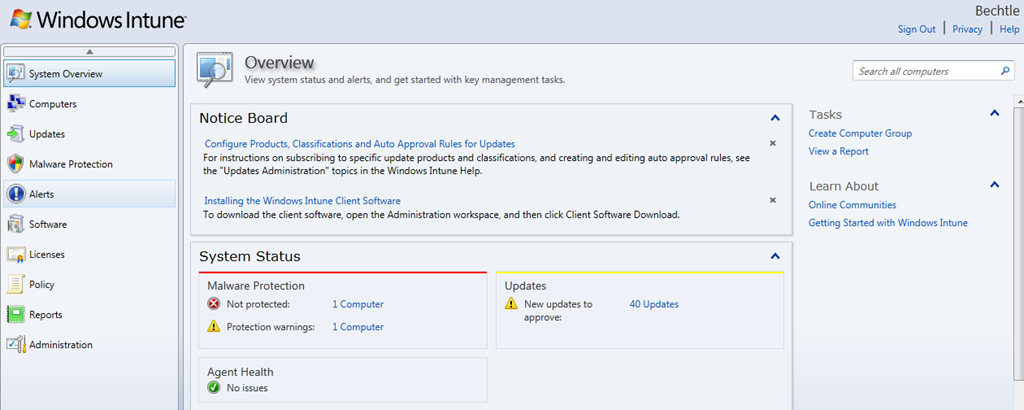
    There are at least 10 sections inside InTune so I’m going to cover them in a number of posts, we’ll start with – System Overview:

    image

    image

    This is the first screen you see when you log in to the Windows InTune Admin Console and it immediately gives you a great overview of yours systems. It shows:

    • If Machines are infected/unprotected
    • If there are updates for your machines
    • A number of other alerts

    Malware Protection:

    From here you can see which machines have Malware protection turned off completely and also if they have overdue scans or specific parts of the protection, such as USB device scanning, turned off.

    1 click takes you to a list of machines, from where you can turn on protection.

    Updates:

    This, not surprisingly, gives you a list of all the updates that are available for you machines be they for the OS or applications.

    One issue with this is that, as default, it shows you ALL possible updates:

    image

    however, these can easily be filtered:

    image

    image

    Another problem I have noticed is that it wants to give my laptop updates for Office 2007, as well as Office 2010; oddly, this doesn’t happen with my other 2010 machines. I had a number of issues when upgrading Office versions and I’m inclined to believe that there are some Office 2007 remnants on the machine that are being picked up by Intune.

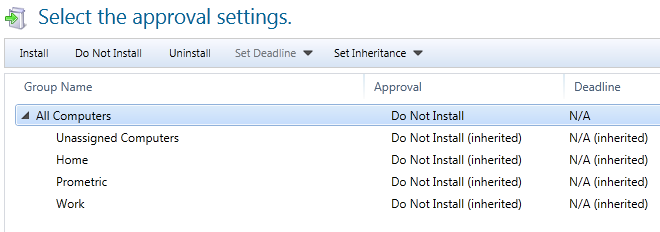
    Should you choose to approve an update for a machine/machines, you then reach this screen:

    image

    Choose the groups on which you want to install the updates, click approve and job done!

    I feel it would be a smoother experience and require less clicks, if you could see the machine names on the same screen as all the updates. Currently, you must:

    • Select the update
    • click on “x computers need this update”
    • Check the groups/machines
    • Go back to the previous screen
    • Approve Update

    Showing the machines names/groups on the initial screen would remove a lot of that.

    You can also access the updates via the individual machine screen, I’ll cover that in a later post.

    Alerts by Type:

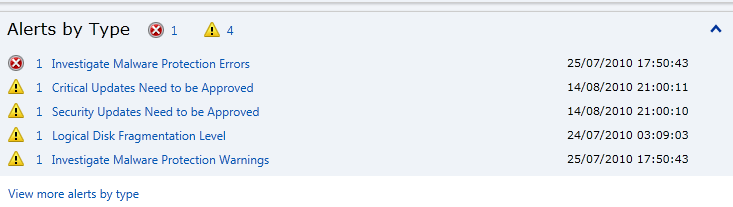
    This section, as well as the above, also includes other types of alerts…not just updates and malware. This is where InTune starts to differentiate itself from other products, for example:

    image

    If I click through, it tell me:

    image

    That is pretty cool, and something that is very useful for System Admins. I didn’t expect InTune to cover things like this, certainly not in the beta, so I’m pleasantly surprised Smile However, you can’t initiate the defrag from InTune.

    The 2 options on the right hand side “Create Computer Group” and “View a Report” will be covered in later posts.

    Summary:

    This is a brief look at just the first screen of Microsoft Windows InTune but I’m sure you will agree that it already looks very interesting. So stay tuned for the remaining posts in this series (at least 9!) and ask any questions you may have in the comments Smile

    Cheers

    Rich