Windows 7 RC Release Date


A “slip-up” on the Microsoft Partner Portal earlier revealed that the Windows 7 RC (Release Candidate) will be with us on 5th May 🙂

I got the Windows 7 beta as soon as it was available which was Build 7000 and I installed that on my desktop at home. There have been numerous leaks of newer builds (we’re up to 7077 now) but I’ve not moved up to any of these for 2 reasons:

1) I’m not sure of the legality of downloading a leaked beta build and I don’t want to get caught up in all that!

2) The hassle of backing up and upgrading for what might be imperceptible changes.

Despite, or perhaps because of that, I can’t wait to upgrade to the RC. To see the many 1000’s of changes and updates that have been made will be excellent.

Windows 7 Release Candidate


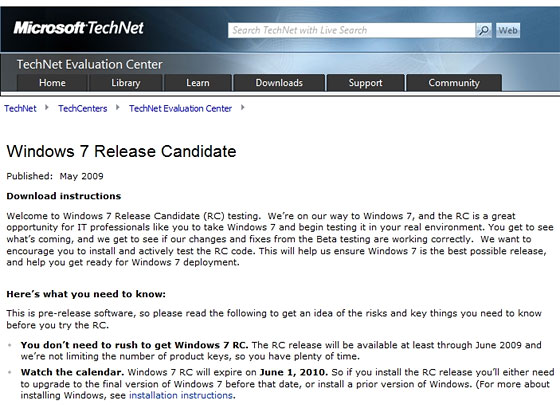
Thanks to some eagle eyed spotting by Ars Technica, we now know that the Windows 7 Release Candidate (RC) is slated for a May 2009 release-(that’s only 5 weeks away!) and will run through until June 2010.

Both 32-bit and 64-bit versions will be available in English, French, German, Japanese, and Spanish. The hardware requirements remain unchanged:

  • 1 GHz 32-bit or 64-bit processor or higher
  • 1 GB of system memory or more
  • 16 GB of available disk space
  • Support for DirectX 9 graphics with 128 MB memory (to enable the Aero theme)
  • DVD-R/W Drive

rcleakdate2

I think this will see another wave of people moving into the world of Windows 7, there are a few people at work who’ve been too scared/cautious to install the beta but can’t wait to get hold of the RC 🙂

Samsung say Windows 7 beats Linux


I just saw over on Endgadget that Samsung’s European Product Manager Patrick Pavel has said he expects Windows 7 to spell the end for Linux on Netbooks 🙂

That’s yet another great compliment for Windows 7-and it’s not even finished yet!

He also said that, depending on licence fees, Samsung would like to include some of the higher end versions of Windows 7 on their netbooks…that would excellent!

No need to wait for Windows 7 SP1


Gartner have said something that I suspect many thought they’d never hear in these post-Vista years…there is no need to wait for Windows 7 SP1 before you get it installed or to quote:

The first Service Pack for Windows 7 is not necessary for the operating system’s stability and security readiness…”

How awesome is that?! Windows 7 is not even at Release Candidate stage and it’s already super stable!

This is yet another example of how different Windows 7 is to Vista and really helps to show the vast improvements Microsoft have made.

Are you looking to deploy Windows 7 in your corporate environment before SP1?

Windows 7 Editions Feature Comparison


There are 6 diffferent editions of Windows 7, starting with the Limited distribution Starter edition through to Windows 7 Enterprise. Each edition builds on the feature set of the one before as the following image shows:

windows-7-editions

Note that Windows 7 Ultimate includes all Windows 7 Enterprise, including multiple-language packs.

Changes to Windows 7 in Release Candidate


This MS blog contains a great look at the numerous improvements that Microsoft have made to Windows 7, all based on beta testers feedback. Some of these changes include:

1. Windows Flip (ALT + TAB) with Aero Peek

8. Jump List length

21. Improved playback support for video content from digital camcorders and cameras

Steven Sinofsky says that they have fixes for nearly 2000 reported bugs/glitches in the pipeline. He also gives his definition of a bug which is “any time the software does something that someone one wasn’t expecting it to do” and “a cosmetic issue, a consistency issue, a crash, a hang, a failure to succeed, a confusing user experience, a compatibility issue, a missing feature, or any one of dozens of different ways that the software can behave in a way that isn’t expected”.

Steven’s whole post can be found here.

These are all improvements that help make it an even more enjoyable experience to use Windows 7-well done team!

Go and check out the list and see how what might well be MS’s best OS has got even better 🙂

Direct Access in Windows 7


Direct Access is a new feature in Windows 7, a new feature that allows users to securely access corporate servers from outside the network…without a VPN. This was perhaps the most eye-catching feature for me and could well change the way that people work all over the world but it is something of a big claim. Pretty much any system admin that I’ve mentioned this to has said “Oh yeah-I’d like to see that? How does it work?” with a heavy dose of cynicism but now I can tell them…well show them a white paper at least!

VPN’s or Virtual Private Networks are used by almost everyone who need to access corporate servers, info etc from outside the network so at home, on the road, from the hotel, wherever…and they’re not the easiest things in the world-for both users and admins. The backend needed to set them up and maintain them can be costly and tricky to manage and I’m sure that VPN problems must be in the Top 5 HelpDesk calls at most companies. We’re constantly visited by account managers and reps from a huge array of manufacturers and nearly every single has to call HQ to get access to emails etc via their VPN…but with the advent of Windows 7 and Windows Server 2008 R2-that could all be over. 

DirectAccess establishes bi-directional connectivity with the user’s enterprise network every time the user’s DirectAccess-enabled portable computer is connected to the Internet, even before the user logs on”


“Clients establish an IPsec tunnel for the IPv6 traffic to the DirectAccess server, which acts as a gateway to the intranet. Clients can connect even if they are behind a firewall.”

System Requirements:

DirectAccess requires the following:

·         One or more DirectAccess servers running Windows Server 2008 R2 with two network adapters: one that is connected directly to the Internet, and a second that is connected to the intranet.

·         On the DirectAccess server, at least two consecutive, public IPv4 addresses assigned to the network adapter that is connected to the Internet.

·         DirectAccess clients running Windows 7.

·         At least one domain controller and Domain Name System (DNS) server running Windows Server 2008 or Windows Server 2008 R2. When smart card-based authentication is required for end-to-end protection, you must use Active Directory Domain Services (AD DS) in Windows Server 2008 R2.

·         A public key infrastructure (PKI) to issue computer certificates, smart card certificates, and, for NAP, health certificates. For more information, see http://www.microsoft.com/pki.

·         IPsec policies to specify protection for traffic. For more information, see http://www.microsoft.com/ipsec.

·         IPv6 transition technologies available for use on the DirectAccess server: ISATAP, Teredo, and 6to4.

Optionally, a third-party NAT-PT device to provide access to IPv4-only resources for DirectAccess clients.

It’s proving quite difficult to truly get the message across in this post without it becoming boringly long (!) so instead go and download the Technical WhitePaper from Microsoft here.



Windows 7 Enterprise SKU


As we all know, there are going to be a number of different version of Windows 7 and, as with Vista, I’m particularly interested to see what extra features/benefits customers will receive if they get the Enterprise SKU. Luckily, Gavriella Schuster over at Windows Team Blog has a post about just that 🙂

As with Vista, the Enterprise SKU is only available to customers who have current Software Assurance (SA) on their desktop OS licences and/or buy new licence with SA. The list of Enterprise Specific features includes:

DirectAccess:This is one feature that I’m really excited by. Being able to get rid of or at least reduce the dependency on, VPN’s would be a huge boost for the vast majority of corporate customers I speak to; and I think this could well be the big driving force that pushed people towards this top end licence.

BranchCache: Helps reduce branch office connectivity problems and network speeds by caching information on local servers.

Enterprise Search Scopes: allows IT administrators to populate links to the commonly used internal sites — for example, SharePoint sites – to the Windows Explorer UI or to the Start menu or in Windows 7, using Group Policy.

BitLocker & BitLocker to Go: protect data on PCs and removable drives, with manageability to enforce encryption and backup of recovery keys. BitLocker to Go extends this to removal USB drives.

AppLocker: is a flexible, easy-to-use mechanism that enables IT professionals to specify exactly what is allowed to run on user desktops. It restricts unauthorized software while allowing applications, installation programs, and scripts that users need. This is also an excellent new feature, controlling what users do on their desktops can be the hardest part of Corporate IT and this goes a long way to making Admin’s lives much easier 🙂

Virtual Desktop Infrastructure (VDI) Optimizations: Windows 7 provides for better user experience in VDI scenarios, with better graphics, audio and local device support.

Multi Lingual User Support: the Language Packs in Windows 7 Enterprise enable you to support up to 36 different languages using a single Windows master image, rather than creating a separate image for each language used in the organization. This will makes things much easier for customers that have centralised IT across Europe and/or companies that have various nationalities in one office (like our HQ).

Also, the allowance to run 4 virtual instances of the desktop OS is still included along with the Sub-System for Unix Apps and it includes the rights to network boot Windows.

I don’t think the uptake of Vista Enterprise has taken the world by storm and I imagine it is lower that MS hoped but I think that will all change with Windows 7. The main reason our clients consider Vista Enterprise is for the virtual licences and that’s it but Windows 7 Enterprise offers a number of good reasons to pay the extra cost.

My Windows 7 Diary on Microsoft Technet


Through the magic of Twitter, I heard that they were looking for user submissions for a “Windows 7 Diary” detailing how people are getting on with installing and using Microsoft’s new Operating System.

I’d been keeping something of a record of my beta testing exploits on this blog anyway (as I’m sure all my regular reader now ha ha!) so I added to that and submitted it. Much to my surprise, mine was chosen to be part of this week’s Technet NewsFlash and also serialised over the week over at Curious George’s Technet Blog (Day 1 is down at the bottom).

Feel free to let me know what you think!

Windows 7 versions


As with Vista, there are going to be various versions of Windows 7, according to CNET:

“Starter, Home Basic, Home Premium, Professional, and Ultimate. Unlike with Vista, however, the Home Basic version will be sold only in emerging markets.”

I’m a huge fan of Windows 7 and also a big fan of Vista AND my job mainly revolves around Microsoft licensing-but even I think all these version is overkill. It confuses people and makes them apprehensive about buying a new licence-and people often hate what they don’t understand; I really think all these extra versions were a big part of Vista’s problem. It also makes it much more likely that people will buy a version of the OS that doesn’t include all the features they want and while MS have gone some way to combat this feature disparity (I.e. Pro will include Media Center), it isn’t perfect.

It seems a lot of people have been worrying that they wouldn’t be able eligible for an upgrade licence unless they were running Vista, but that of course isn’t the case. All those XP users are perfectly able to purchase the Upgrade SKU to their chosen Windows 7 version.

That said, the beta of Windows 7 is fantastic and you should definitely look at upgrading as soon as it’s available 🙂