Applocker & Windows 7


What is Applocker?

Applocker allows you to prevent programs from executing on desktop machines, through central administration. It is one of the many new features of Windows 7, although it is only included in the Enterprise version of the OS.

It is similar to the “Software Restriction Policies” (SRP) from previous incarnations of Windows but much improvement with more power and greater flexibility.

How does it work?

There are 3 kinds of rules available with Applocker:

Path Rules: Allows you to restrict program execution to certain directory paths, such as Program Files etc but is only effective if users are unable to install their own applications. Monitoring and tracking allowed folders can be time consuming and difficult.

Hash Rules: Uses cryptographic hashes of executables to identify them. Very secure but can be time consuming as the hash must be updated after any updates to the program.

Publisher Rules: Identify applications based on digital signatures issued by the publisher. While these are similar to “Certificate Rules” in SRP, they are more sophisticated. You can restrict execution to the:

Publisher (I.e. Microsoft)

Product name (such as Office 2007)

File name (office2007.exe)

File version (14.0.1.1 for example)

All 3 rules can be applied to:

Executables (.exe)

Installer Files (.bat, .cmd etc)

System Libraries (.dll etc)

and all three rules allow the creation “exceptions” such as:

“Allow Publisher “Microsoft” except file name mediaplayer.exe”

In the Windows 7 deployment I’m working on, and I’m sure many, many more, AppLocker is if great interest to System Administrators. It’s ability to block programs will lead not only to increased security but could also be used for increased productivity-particularly in schools.

You can see Microsoft’s Paul Cooke talking about AppLocker here.

For a great look at the technical aspects of using and setting up Applocker-head over to 4Sysops here.

Fixing a Corrupt Office installation


I got my invitation to the Office 201 Technical Preview the other day and, quite excitedly, started to install it on my laptop but after about 10 minutes it failed and stated that the previous version of Office (2007) couldn’t be upgraded. I had a look on Twitter and couldn’t see anyone else with the issue so I figured it was specific to my machine, and I was right! My next move was to uninstall the existing Office 2007 and go for a clean install but oh no, “the uninstall has failed”…”WHAT?!”…I was now in the unenviable position of being unable to remove or upgrade Office 2007.

I got Office 2010 installed alongside 2007 but it wasn’t ideal as I could only have 1 copy of Outlook (2007) and having 2 versions of Office takes up a fair amount of room etc so I wasn’t massively happy about it. I did a quick Bing (yes-I Bing everything now!) and found the following Knowledge Base article:

How to manually uninstall the 2007 Office system if you cannot uninstall it by using the “Add or Remove Programs” feature

This covered the very topic I was having (which proved it wasn’t just me!) and gave step by step instructions on how to get Office 2007 removed from my machine. If you’re having the same issue I won’t bother repeating the steps here but I do have a couple of points to add:

1) This isn’t a quick process-it took about 2 hours of manually deleting files and registry entries.

2) Point 2 of Step 5 (the Uninstall Registry key) didn’t exist on my machine but that didn’t cause any problems.

3) Some of the steps involve deleting folders from your hard drive and while most of these were fine, at least one refused to go down without a fight! I got the somewhat common problem of being told I “don’t have permission to delete the folder”, even though I was the admin on my machine. This threw a spanner in the works so back to Bing it was…and it came up trumps again 🙂

Over on petri.co.il there is a post on how to add a “Take Ownership” option to the right click menu in Vista, through creating a quick registry file. The details are there to be pasted into the file, it’s easy to do and it definitely works, the post is here:

http://www.petri.co.il/add-take-ownership-context-menu-vista.htm

With the KB article and the above addin-you should have all you need to sort out your Office installation and be in a position to re-install a properly working edition…I hope this helps and good luck 🙂

Microsoft MED-V & AntiVirus Exclusions


MED-V (Microsoft Enterprise Desktop Virtualisation) is their program that allows legacy app use on an enterprise wide basis and is based on Virtual PC technology.

It seems that some anti-virus programs have a habit of interfering with parts of the virtualisation if not properly configured. Steve Thomas, a Senior support escalation engineer at Microsoft, has drawn up a list of file extensions that should be masked to co-exist wth Anti-Virus on the network:

*.VHD – These represent the Virtual Hard Disk Image files. These will appear on test workstations when test images are being used to finalize workspace policies.
*.VUD – These represent Virtual PC Undo Disk Files. These will appear on test workstations when test images are being used to finalize workspace policies.
*.VSV – These represent Virtual PC Saved State files. These will be on all MED-V clients running Workspaces.
*.CKM – This is the packed image format used by MED-V (Kidaro Compressed Machine.) These will be present on MED-V Servers, Image Distribution Servers, locally packed images on MED-V Administration workstations, and as pre-staged images on clients.
*.VMC – These represent the Base Virtual Machine Settings File. Will be found on all MED-V Clients and Test Workstations.
*.INDEX – These are index files used by the TrimTransfer Feature. These will be found on both clients and servers.
*.EVHD – These are the encrypted virtual hard disk files used on MED-V Clients running workspaces.”

Info from SoftPedia.

Windows 7 AutoRun Changes


Microsoft are making a number of advancements with Windows 7 (see Safe Unlinking) and there’s another change being made-this time to the AutoRun feature.

More and more malware is using the Autorun feature as a way of getting itself onto machines, the most high profile being Conficker; so MS have moved to prevent this in their latest Operating System.

What is AutoRun?

AutoRun is a technology used to start some programs automatically when a CD or another media is inserted into a computer. The main purpose of AutoRun is to provide a software response to hardware actions that a user starts on a computer (from MS Security Research & Defense Blog).

What are MS doing?

The Microsoft engineers have made changes in Windows 7 to help prevent the spread of Malware:

1) AutoPlay will still work for CD/DVDs but it will no longer work for USB drives. For example, if an infected USB drive is inserted on a machine then the AutoRun task will not be displayed. The dialogs below highlight the difference that users will see after this change. Before the change, the malware is leveraging AutoRun (box in red) to confuse the user. After the change, AutoRun will no longer work, so the AutoPlay options are safe.

AutoRun1autorun2

This, and other changes, can already be seen in the Windows 7 RC  that is available for download now. Microsoft also plan on making these changes available for XP & Vista users. You can see full details over at the MS Security Research & Defense Blog.

Windows 7 Kernel Feature Improves Security – Safe Unlinking


The Windows 7 kernel has a new feature called “Safe Unlinking”, to help increase security and prevent vulnerabilities known as pool overrun attacks. This will make the experience of using Windows 7 faster, more reliable and above all, safer by making it harder for people to launch these attacks.

It sits in the memory allocation section of the kernel and performs a series of checks to detect memory corruption, and potential pool overrun attacks. This is the latest in a succession of new security features that MS have been adding over the last few years including:

  • Stack protection (/GS)
  • Data Execution Prevention (DEP)
  • Heap Protection
  • Address Space Layout Randomization (ASLR)
  • Structured Exception Handler Overwrite Protection (SEHOP)

Peter Beck, from Microsoft’s Security Research & Defense team says:

“This simple check blocks the most common exploit technique for pool overruns. It doesn’t mean pool overruns are impossible to exploit, but it significantly increases the work for an attacker”.

What is an overrun attack?

Wikipedia explains it as:

“Memory (on the heap) is dynamically allocated by the application at run-time and typically contains program data. Exploitation is performed by corrupting this data in specific ways to cause the application to overwrite internal structures such as linked list pointers.”

Safe Unlinking will also help improve the reliability of Windows 7 by performing a Bug Check as soon as an overrun is detected, which will prevent further memory corruption, crashes and errors.

More detailed technical information can be found on the MS Security Research & Defense blog here.

Microsoft Cloud Database Testing


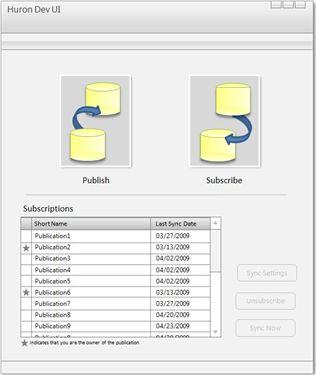
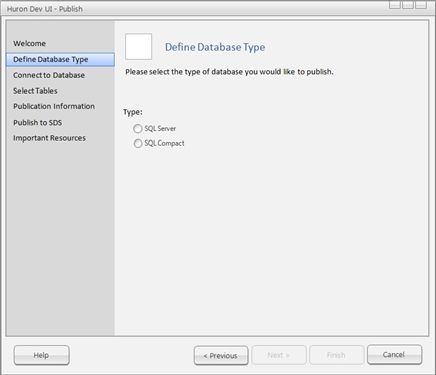
Project Huron, one of Microsoft’s group of cloud-based teams, are asking customers to get involved with testing a first release of their online database synchronization effort; which will be done via the Azure platform & SQL Data Services.

The Huron team said “We are looking for are any customers that are looking to share SQL Server or SQL Compact databases via the cloud and have an existing project that would warrant this functionality…”

The team’s blog says “The goal is to remove the typical complexities (configuration, scalability, security, etc) involved with sharing database information between local databases such as SQL Server and SQL Compact and provide simple UI tools for configuration and sync components developers can embed in existing applications.”

Screen mockups:

huron1huron2

For those of you that are interested in being an early adopter for this-fill in this short email form here:

Project Huron Early Adopter Contact Form

Upgrade Windows 7 Beta to RC


The Windows 7 Release Candidate will be released to the world on May 5th and the many millions of beta testers will definitely want to download and use it; however upgrading straight from the beta to the RC won’t be easy.

Microsoft would prefer that you go back to Vista and then upgrade to Windows 7 RC, that way will give them the correct metrics to analyse the upgrade process. That’s fair enough but it’s a bit of a hassle doing that so there is a way to get from A to B without going via Vista:

Here’s what you can do to bypass the check for pre-release upgrade IF YOU REALLY REALLY NEED TO:

  1. Download the ISO as you did previously and burn the ISO to a DVD.
  2. Copy the whole image to a storage location you wish to run the upgrade from (a bootable flash drive or a directory on any partition on the machine running the pre-release build).
  3. Browse to the sources directory.
  4. Open the file cversion.ini in a text editor like Notepad.
  5. Modify the MinClient build number to a value lower than the down-level build. For example, change 7100 to 7000 (pictured below).
  6. Save the file in place with the same name.
  7. Run setup like you would normally from this modified copy of the image and the version check will be bypassed.

clip_image002_thumb

See more over @ the Engineering Windows 7 blog here.

Microsoft Exchange Online Domain Verification Video


Microsoft Exchange Online gives users a temporary domain like @yourcompanyname.microsoftonline.com which is fine for testing but a bit long and unwieldy for full day to day corporate use; luckily Exchange Online lets you add your own domain. This is done by a couple of easy to use wizards and simply involves adding a CNAME record to your DNS server. While it’s pretty straightforward, it’s always good to see someone else do it first and Arvind Suthar from MSOnline Technet has created a great walkthrough video:

The original post and more info can be found here.

Outlook Auto-Complete


This isn’t a problem I’ve ever experienced but I had to help a colleague out with it today, and it seems to be relatively common.

The problem is where Outlook’s AutoComplete feature for remembering previously used email addresses just doesn’t work, each time you open Outlook-they’re all gone which is pretty annoying. It all comes down to the “.NK2” file that Outlook 2003/2007 uses and there are 2 likely causes:

1) Your .NK2 file has become corrupted somehow

2) You upgraded from Outlook 2000 and the new file wasn’t created.

Outlook 2000 used a “.NICK” file which is unreadable to later versions of the email client, but it seems that an upgrade from 2000 to 2007 doesn’t replace it with the required “.NK2” file. This was the case at work so we simply closed Outlook/deleted the “.NICK” file (some prefer to rename the file rather than deleting it)/re-opened Outlook/sent an email/hey presto a new “.NK2” file appeared and all was well 🙂

The file can be found here:

C:\Documents and Settings\<your username>\Application Data\Microsoft\Outlook

I hope this helps!

Outlook/Sharepoint Problem


I had a funny little issue with my PC at work that took me a fair while to figure out today. I’d set up a new Site Collection in Sharepoint and connected it to Outlook (something that I’d never done before) and it was excellent…I could see all the different documents (Excel sheets, Word docs etc) in Outlook just as I could in the portal…nice 🙂

However after a while I noticed that Outlook was taking it’s time to send mails etc and then when I tried to swap to another application-it all went wrong! Apps started “not responding”, hanging, the works…a quick CTRL+SHIFT+ESC and Task Manager showed OUTLOOK.EXE on 99%…WTF!!! I killed the process tree and restarted Outlook but to no avail…I rebooted my  machine too but it was useless; my processor was maxed out.

I started turning off add-ins in the Trust Center and then noticed 3 search/index related processes in Task Manager so I killed those and disabled indexing of the Sharepoint list I’d created. This was bound to work so I closed and re-opened Outlook and it was on 37%…not brilliant but better, then all of a sudden BOOM-99% again…holy maxed out processor Batman!

After having a look online I became pretty sure that it was related to .PST files but I was equally sure that I didn’t have a .PST file so that left me in something of a conundrum! However I went off to have a look anyway in:

C:\Documents and Settings\<Username>\Local Settings\Application Data\Microsoft\Outlook\<PST File name>

and what I found was interesting. While there was no Outlook .PST there WAS a Sharepoint List .PST…I deleted that and lo and behold, Outlook started behaving again (I also deleted the list from Outlook).

While I was happy to sort the problem out and be able to use my PC properly again, I am sad that I seemingly can’t have Sharepoint lists in Outlook 😦 Perhaps if I’d left it for a while the indexing would have finished and calmed the processor down but I just don’t have time for that…if anyone’s got any ideas please let me know!