Windows Phone 7 Series Development Tools


Today saw the start of MIX 10, Microsoft’s 3 day conference for web designers and developers, and it was all about Windows Phone 7 Series aka WP7 (or Windows Mobile 7 as you might call it).

They announced the availability of a comprehensive set of free tools to support developing Silverlight apps on WP7. This can be download from:

WP7 Developer Kit

and includes previews of:

· Microsoft Visual Studio 2010 Express for Windows Phone

· Windows Phone 7 Series add-in to use with Visual Studio 2010 RC1

· XNA Game Studio 4.0

· Windows Phone 7 Series Emulator for application testing

· Expression Blend for Windows Phone CTP (available as a separate download).

I’m not a developer, although I often wish I was, and this is one of those times! Go get it and make some brilliant apps that will bring me, and countless others, back to the WinMo fold 🙂

An alternative download link is:

http://www.microsoft.com/downloads/details.aspx?FamilyID=2338b5d1-79d8-46af-b828-380b0f854203&displaylang=en

Internet Explorer 9 to support HTML5


Rumours of Internet Explorer 9 started to surface a few months ago at PDC 2009 and now we’re seeing more evidence from Microsoft about what to expect…although not so much when!

There are 2 sessions running at Microsoft’s Mix 2010 event which are:

HTML5: The future of Web Markup Today

and

Future of Vector Graphics for the Web

It already seems there will be a new Javascript engine in IE9 as well as the GPU being used to render pages, and tabbed browsing will be improved.

It’s expected that a CTP (Community Technical Preview) of IE9 will be made available at the MIX 2010 conference which runs 15-17 March 2010…see more here.

More info can be found over on Neowin.

Microsoft System Center Configuration Manager (SCCM) Dashboard


System Center, in particular Config Manager aka SCCM, is becoming more and more popular with customers and clients at work. People looking to start enhancing and automating tasks such as OS deployment, app distribution, patch management etc as well as those who’ve started down this path, often with Altiris, and are now looking for a more rounded solution, are all asking for/happy to listen to information about SCCM. There’s more info on SCCM as a product here but in this post I specifically want to talk about the Dashboard that’s in beta.

About the Dashboard

System Center Config Manager Dashboard’s aim is to make it even easier for IT administrators to access and digest key information about their network and infrastructure, quickly and effortlessly even when not at the Management Console. The Dashboard lets you:

  • Track OS & App deployments
  • Track Security updates
  • Check the health status of computers
  • Check compliance with IT regulations

all via a customizable web interface. It’s based on Windows Sharepoint Services (WSS) so it’s key features include:

  • Easy access to key information without using the Configuration Manager console  
  • Centralized view of Configuration Manager data sets
  • Data can be viewed in graph, table, or Dundas* gauge formats
  • You can create custom dashboards for different departments, based on site user’s group membership.
  • *I will try and confirm is this is limited to Dundas or whether SAP’s Crystal Xcelsius can be used here too.

    Join the Beta Program

    Sign up to the English only Beta here.

    How it works:

    Here’s a great diagram from the technet site:

    Ff369719.image1(en-us,TechNet.10).jpg

    The Process Flow goes a little something like this:

  • An IT Service Manager requests a new data set.
  • The IT Administrator uses the Dashboard Configuration Web Part to define the new data set.
  • The IT Administrator stores the configuration information for the new data set (the information is saved in the Windows SharePoint Services Content database).
  • The IT Administrator adds a new copy of the Dashboard Viewer Web Part to the default Configuration Manager Dashboard and then modifies the Web part to display the new data set.
  • The IT Service Manager browses to the Configuration Manager Dashboard site.
  • Windows SharePoint Services queries the Configuration Manager site database as specified by the data set configuration.
  • Windows SharePoint Services renders the new data set using the Dashboard Viewer Web Part.
  • The Technet page is here:

    http://technet.microsoft.com/en-us/library/ff369719.aspx

    Exchange Online & Android


    The other day at work I was asked if you can connect Android phones to Exchange Online…so I went off to investigate.

    Microsoft’s page gives a list of devices and supported OS’s:

    image

    http://www.microsoft.com/online/mobility/exchange-activesync.mspx

    I’ve got the HTC Hero and so does the person who asked, so that’s the route my investigation took, I opened up the “Mail” section on my phone and went to work.

    The auto-detect feature doesn’t work with Exchange Online (or so it seems) so it’s on to manual setup, which asks for:

    • Email Address
    • Server Name
    • Domain
    • Username (Same as the email address)
    • Password

    Apart from a couple, they’re all pretty self explanatory but there’s one that could trip you up:

    Server Name:

    There are 3 different server URLs depending on location:

    image

    but it just wasn’t working for  me, so I called Microsoft BPOS support. After a bit of a false start, they were very helpful and gave me a call to work through the issues.

    I navigated to OWA through my browser (mail.microsoftonline.com)but couldn’t log in. I then found it was resolving itself to the “red001…” address, which clearly wasn’t right as I’m in the UK, so I cleared all my bookies, cache etc and went back to the setup screen.

    I tried again and still no luck, but then I tried one last thing…entering the server URL without the “https://” and the start. To be honest, I’m not sure why I tried that (although I’m equally sure that someone more techie than me would have tried that first!) but it worked! Entering simply “red002.mail.emea.microsoftonline.com” worked a charm and BOOM, I could see my emails on my Android device. A quick check revealed that the calendar and contacts were syncing too…brilliant 🙂

    I hope that helps anyone wondering if this can be done and/or having trouble getting it working 🙂

    Office 2010 New Feature Videos


    One of the main things I did in preparation for BETT 2010 was create a bunch of videos showing some of the new features in Office 2010. I can talk about them ‘til the cows come home, but it’s always better to see things where possible. The videos were very well received and Office 2010 got a LOT of positive feedback…June should be an exciting time 🙂

    Anyway, I thought I’d put the videos up on here too and hopefully you’ll find them just as interesting & useful as our stand visitors did last week…enjoy!

    Background Removal:

    This is a great feature in Word 2010, making in nice and easy to remove all or part of a picture’s background.


    Broadcast PowerPoint:

    This feature lets you “broadcast” your presentation over the net by giving you a link to share with whoever you need to…allowing people to see your .pptx as long as they have an internet connection:

    Insert Web Video:

    Inserting videos from sites such as YouTube has always been a bit of a pain in Powerpoint…but no more! Powerpoint 2010 makes it super easy…teachers loved this at BETT.

    Edit video inside Powerpoint:

    Inserting videos into Powerpoint has been available for ages, but any editing you needed to do-even basic stuff-has required a 3rd party product. Again, Powerpoint 2010 makes it easier by enabling you to edit the video without leaving the program. Here I’m trimming a bit of Shooting Stars 🙂

    Powerpoint Video Effects:

    More built in video editing here with shadows, borders, reflections and more being easily applied within Powerpoint 2010.

    Create a Video:

    You’ve made a presentation and now you need to make it available as a video file, rather than a slideshow. I believe most people use Windows Movie Maker to do this currently but, with 2010, it’s again all done inside Powerpoint.

    Save to Skydrive/Sharepoint:

    This is a great new feature. It lets you save to your Live Skydrive (25GB free storage!) directly from the Office applications…no more save to folder then upload to Skydrive…it’s all one nice, smooth action 🙂 I don’t do it in the video but you can see there is also exactly the same thing to save to Sharepoint, which should really help drive adoption of Sharepoint in schools. From various discussions I’ve had, many people see Sharepoint as an extra step so:

    Create Document > Save to Folder > Upload to Sharepoint

    and this leads to many people just not bothering as it’s more work and they perhaps don’t see the point of it. Having the ability to save directly to their MOSS site will cut that out and make it just as easy as it’s always been 🙂

    Word Navigation Pane:

    This is quite a small new feature, but I love it! The navigation pane picks up all the  headings, sub-headings etc and enables you to use them to navigate documents; making large documents much less painful!

    Sharepoint 2010 Beta Install Failure


    I’ve been rebuilding our demo Sharepoint Server today and came across an issue which caused installation to fail. If you install Sharepoint 2010 on a Domain Controller, it will fail; luckily, the internet came to my rescue!

    A Bing brought up this post by Sharepoint Joel which has 10 troubleshooting tips for this application…and shoot trouble they did! The one I needed was number 8:

    If you are using SharePoint on DC, the following Windows PowerShell command would need to be run to enable Sandboxed Solutions.
    $acl = Get-Acl HKLM:\System\CurrentControlSet\Control\ComputerName
    $person = [System.Security.Principal.NTAccount]"Users"
    $access = [System.Security.AccessControl.RegistryRights]::FullControl
    $inheritance = [System.Security.AccessControl.InheritanceFlags]"ContainerInherit, ObjectInherit"
    $propagation = [System.Security.AccessControl.PropagationFlags]::None
    $type = [System.Security.AccessControl.AccessControlType]::Allow
    $rule = New-Object System.Security.AccessControl.RegistryAccessRule($person, $access, $inheritance, $propagation, $type)
    $acl.AddAccessRule($rule)
    Set-Acl HKLM:\System\CurrentControlSet\Control\ComputerName $acl

    I ran that and BOOM, Sharepoint Config worked first time 🙂

    If you’re experiencing issues with your install and/or want to see common pitfalls before you start the process, definitely check out his entire post here:

    Sharepoint Joel 10 Tips

    Sharepoint 2010 “Failed to Register Services”


    I’ve been doing some playing around with Sharepoint 2010 and ran across a problem last night, after uninstalling Office Web Apps. I re-ran the Product Configuration Wizard as advised and it failed on step 6, leaving me unable to access the sites or central admin 😦

    I had a look in the event logs and saw that it had “failed to register services” so a quick Bing took me to blog of Antonio Vargas which said:

    To resolve this problem you need to go to the Registry Editor and delete SPSearchService entry.

    Steps:

    1. Go to the Start Menu and then click Run.
    2. Write regedit on Run box.
    3. Navigate to the SharePoint registry entries on HKEY_LOCAL_MACHINE\SOFTWARE\Microsoft\Shared Tools\Web ServerExtensions\14.0\WSS\Services.
    4. Delete SPSearchService entry.
    5. Run the SharePoint Configuration wizard again.

    I tried it and it worked a treat 🙂 Thanks Antonio and I hope this helps others out there too.

    A word of warning: Having followed the above steps, I now seem to be without search capabilities inside Sharepoint now 😦

    Office Web Apps on Sharepoint 2010


    I’ve recently started building the demo server for our stand at the BETT show 2010 and it’s been a fantastic experience! Installing server 2008 R2 was a breeze and Sharepoint 2010 went on with just one (easily fixable) issue related to a missing hotfix. Once I’d got those up and running, I decided to get Office Web Apps installed…that too, was pretty easy…although I had the help of a great Technet article and a blog over on MSDN to guide me.

    First of all, the technet article to installation is:

    http://technet.microsoft.com/en-us/library/ee695758(office.14).aspx#bkmk_install_standalone

    As you can see, I was putting it on a standalone server – for ease of demonstration if nothing else 🙂

    The initial steps are few and simple but nothing appeared to be working. However, if you scroll a little down the page, you’ll see a bunch of

    Powershell

    scripts like this one:

    $machinesToActivate = @(“contosoapp1”,”contosoapp2”)
    $serviceInstanceNames = @(“Word Viewing Service”, “PowerPoint Service”,
    “Excel Calculation Services”)
    foreach ($machine in $machinesToActivate) {
    foreach ($serviceInstance in $serviceInstanceNames){
         $serviceID = $(Get-SPServiceInstance | where
             {$_.TypeName -match $serviceInstance} | where
             {$_.Server -match "SPServer Name="+$machine}).ID
         Start-SPServiceInstance -Identity $serviceID
    }
            }

    image

    As the note above shows, these Powershell scripts are only required in certain instances…and of course, I had that instance 🙂 Luckily, just copying the scripts from Technet and pasting into the Powershell window worked perfectly…which was good!

    At this point I could see that everything was where it should be and services seemed to be running etc, so I headed over to the demo site I’d set up to test it. Unfortunately I kept getting an error message…so back to Bing, where I found this extremely helpful post:

    http://blogs.msdn.com/officewebapps/archive/2009/11/18/9924525.aspx

    I had a read through and quickly saw the problem. It was simple and obvious but had confounded me for about 45 minutes (don’t say it!)…it was:

    “Activate “Office Web Apps,” listed under SharePoint’s Site Collection Features, on each site collection for which Office Web Apps should be available.”

    So that was the missing step…activating it inside Sharepoint…D’oh! Homer Simpson

    VStudio 2010 Editions & Licensing


    VStudio 2010 will be here March 22, 2010 and with it come many advancements. However, this post isn’t to look at the feature differences but rather changes to the editions and licensing.

    VStudio 2008 has got quite a few different versions on licensing:

    • VStudio Pro with MSDN Pro
    • VStudio Pro with MSDN Premium
    • VStudio Team Edition Test
    • VStudio Team Edition Architect
    • VStudio Team Edition Database
    • VStudio Team Edition Development
    • VStudio Team Suite

    This can make it quite confusing for customers to choose the right editions for their teams…”Geoff does testing AND Architecting-which should I get?” or sometimes companies don’t have such defined roles, they just have “developers”. Getting the Suite ensures you get all the features but it’s expensive; this confusion has been known to put people off investing in 2008.

    Editions

    There are now just 3 editions:

    • VStudio Pro with MSDN
    • VStudio Prem with MSDN
    • VStudio Ultimate with MSDN

    This straight away makes it quicker and easier for users to identify the edition best suited to particular user. This will definitely please a number of our customers 🙂

    Another change is that Team Foundation Server is now included with all 3 versions of VStudio, rather than being a separate additional licence adding more confusion (and cost) to the deal.

    Production Software:

    VStudio comes with MSDN which, as it’s name (MicroSoft Developers Network) suggests, is aimed at Developers…giving them access to most/all of Microsoft’s software for testing and development purposes (access level depends on version)…according to Microsoft MSDN gives access to 10,9 Terabytes 🙂

    However it’s a little known fact that VStudio 2008 w/MSDN also entitles you to production licences of a bunch of software. This benefit continues with a few tweaks and the 2010 editions (Pro & Ultimate only) now include:

    • Expression Studio 3
    • Office Pro Plus  2010
    • Visio Premium 2010
    • Project Pro 2010

    That’s a pretty great addition 🙂 It seems that Communicator has been removed…

    Comparison:

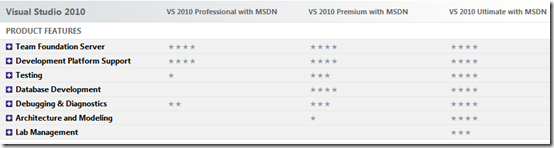
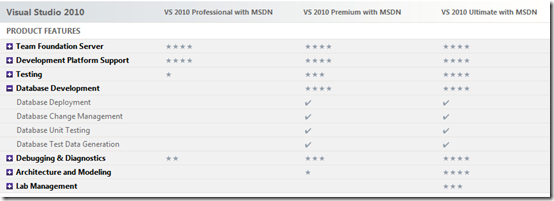
    One of the biggest problems with VStudio 2008 was how oddly difficult it was to find easily comparable information about the different versions. Seeing which versions did what often involved trawling multiple pages/sites, clicking many a link and a general air of uncertainty…but that’s all gone with 2010 YAY! Microsoft have created a great webpage:
    image

    image

    This is a brilliant, one stop shop to show end users (and partners) exactly what each version does, and doesn’t, do…something that will prove invaluable!

    You can access the full version of the chart here:

    http://www.microsoft.com/visualstudio/en-us/products/2010/default.mspx#compare

    Upgrades and renewals:

    Another question I’ve been getting is around how the current 2008 versions will transition to 2010, so here’s what MS say:

    image

    So you can see that if you’ve currently got a Team Edition, you’ll get MSDN Ultimate thus giving you access to all features…bonus 😉

    The chart can be found here.

    Ultimate Offer:

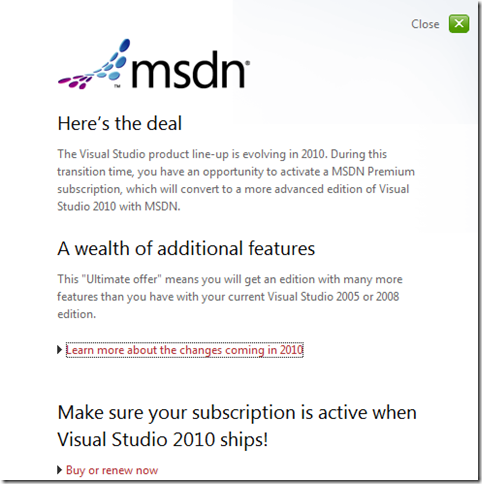
    Microsoft’s website mentions an “Ultimate Offer” around subscription renewals but, to be honest, doesn’t make it particularly clear…at least not to me 🙂
    image

    I think this means that if you’ve got VStudio with MSDN Pro you can renew it as MSDN Premium at no extra cost, but I’m going to get confirmation from MS ASAP.

    Microsoft have certainly made an effort to simplify the world of Dev tools licensing which is definitely a good thing 🙂

    Update on The Ultimate Offer:

    I’ve uncovered some more information on the “Ultimate Offer! (in fact, some came from a customer!) that helps make it a little clearer.

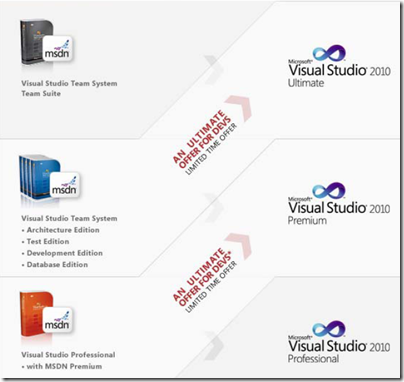
    It’s effectively a free “Step Up” promo so:

    “Eligible MSDN Premium subscription customers (at the time of launch) will gain access to one higher stock‐keeping unit (SKU) level”

    The chart below shows the transition path:
    image

    So if you purchase any of the following editions:

    • Visual Studio Professional 2008 with MSDN Premium
    • Visual Studio Team System 2008 Development Edition with MSDN Premium
    • Visual Studio Team System 2008 Architecture Edition with MSDN Premium
    • Visual Studio Team System 2008 Test Edition with MSDN Premium
    • Visual Studio Team System 2008 Database Edition with MSDN Premium

    on or before March 22nd 2010, you will move up a level free of charge…nice 🙂

    There are a couple of questions I’ve thought of that I’m aiming to get answered and will post them up here once I do.

    Sharepoint 2010 Installation fix


    Today I finally got a chance to install the beta of Sharepoint 2010 and, in short, it’s amazing! However that is for another, bigger post, this is just to tell you about a small problem I came across…and the fix for it 😉

    The installation of Sharepoint went quickly and with no problems, which pleased me immensely as I’d had some major fails with 2007 a while back! The next step is running the configuration wizard and that’s where I hit a snag “Failed to create sample data”. I instantly thought this was going to be a huge issue that’d take loads of time and involve much fiddling and messing about…but thankfully I was wrong 🙂 A quick Bing search took me to the blog of Gilham Consulting and a post there pointed me to Jie Li’s blog over on MSDN, which features a quick and easy fix for this problem!

    Simply head over to MS Connect, download this Hotfix and job is a good ‘un 🙂

    https://connect.microsoft.com/VisualStudio/Downloads/DownloadDetails.aspx?DownloadID=23806&wa=wsignin1.0

    It worked perfectly…ran the wizard again after applying the hotfix and everything was up and running.