Microsoft 365 F5 licenses


Starting February 2021, Microsoft have introduced 3 new “frontline” SKUs:

  • Microsoft 365 F5 Security ($8)
  • Microsoft 365 F5 Compliance ($8)
  • Microsoft 365 F5 Security & Compliance($13)

These are available as add-ons to the existing Microsoft 365 F1 and F3 SKUs and include “the majority of capabilities” from the E5 versions.

The Microsoft announcement is here: https://www.microsoft.com/en-us/licensing/news/new_f5_security_and_compliance_offer_for_frontline_workers

Microsoft 365 Security & Compliance additions


Image by Ryan McGuire from Pixabay

It seems Microsoft will be adding some new security and compliance SKUS in February 2021. According to a post from Bytes, a top UK Microsoft partner and LSP, we will soon be able to purchase:

Premium Compliance Assessments

There will be a range of over 150 assessments available which can be added to any Office 365 E5 or Microsoft 365 E5 plan, at a cost of $2,500 per assessments per month.

10-year audit log retention to Advanced Audit

This will enable organisations to retain audit logs for up to 10 years and can be added to:

  • Microsoft 365 E5
  • Microsoft 365 E5 Compliance
  • Microsoft 365 E5 eDiscovery & Audit
  • Office 365 E5

for $2 per user per month.

Data Connectors to E5

This looks like it will extend Microsoft 365 security and compliance capabilities to 3rd party services such as Slack and Zoom. It can be added to any Office 365 E5 or Microsoft 365 E5 plan and will cost $400 per 500GB of data.

Conclusion

The Data Connectors are, I think, the most interesting. Back in November 2019, Microsoft launched a preview of Azure Arc, which enables organisations to run Azure technologies and policies across other clouds such as Amazon AWS, and this new addition is the same thought process. The first time we saw this was when Satya Nadella opened up Office across Apple and Android – making Office available on those devices enables Microsoft to sell more Office 365 AND reach new customers…customers who may eventually purchase other Microsoft services.

While Microsoft would love everyone in every organisation to use Microsoft Teams, they’re pragmatic enough to realise that will never happen – their competitors’ products will always exist…so why not make some money out of it? 500GB of data isn’t much so that $400 a month will quickly start to become a pretty big number of organisations! It also helps Microsoft retain relationships with these organisations, ensuring they stay updated on respective changes and have reasons to talk – giving the chance for future sales…

I’ll keep an eye for more information and, hopefully, an entry in the February 2021 Product Terms.

Microsoft Security name changes – September 2020


Image by 200 Degrees from Pixabay

Microsoft have always enjoyed a good name change and nowhere has this been more true than their rapidly growing security portfolio. You’ll be pleased to know the pace of change continues following Microsoft Ignite 2020!

What’s changed?

Old nameNew name
Microsoft Threat ProtectionMicrosoft 365 Defender
Microsoft Defender Advanced Threat ProtectionMicrosoft Defender for Endpoint
Office 365 Advanced Threat ProtectionMicrosoft Defender for Office 365
Azure Advanced Threat ProtectionMicrosoft Defender for Identity
Azure Security Center Standard EditionAzure Defender for Servers
Azure Security Center for IoTAzure Defender for IoT
Advanced Threat Protection for SQLAzure Defender for SQL 

So gone are the various ATPs and Security Centers but now, like Marvel, we’ve got a bunch of Defenders to contend with!

There have also been a range of new features additions which will continue to strengthen Microsoft’s security offering including support for Amazon AWS and Google Cloud.

Further Reading

Microsoft SIEM & XDR features and name changes

Microsoft make security magic


Back in 2005, Microsoft bought an anti-virus company called Sybari to, as this ComputerWorld article put it, “give them more of a presence in the enterprise security market”. They rcontinued with the “Antigen” line and had variants for Exchange, SharePoint etc. and used multiple different scanning engines including Norman, Sophos, Kaspersky, and Computer Associates (CA).

I was a reseller at this point, focused primarily on software. It’s going back quite a while now to be fair but I remember it as being very difficult to sell it, or even to have a proper conversation about it. Those were the days of security dominance by Mcafee, Symantec, and CA eTrust – and Microsoft were not taken seriously when it came to security.

Alongside this, they also had “Internet Security & Acceleration (ISA) Server” and “Intelligent Application Gateway (IAG)”. The former subsequently became “Threat Management Gateway (TMG)” and the latter, “Unified Application Gateway (UAG)”. I remember ISA/TMG being relatively successful, certainly more so than the desktop anti-virus, and I also remember being surprised when Microsoft turned TMG 2010 End of Life with no replacement! We had a range of customers who had been using it for years and, as it covered firewall, router, VPN, web cache and more, it had become quite integral to their server side setup; Microsoft choosing not to replace it definitely led to some negative sentiment among organisations! They announced in 2012 that there’d be no further development and it would no longer be available to buy from the end of that year – although it is still in mainstream support until 2020! If you’re still running TMG 2010, I’d love to hear from you! 😁

Regardless of the product and its capabilities though, there was still a lot of anti-Microsoft sentiment, distrust, and cynicism stemming from the various legal cases of the late 90’s/early 00’s – and this seemed particularly strong in the security space.

All this is to show how far Microsoft have come in the security space in this 14 year period. Now, in Gartner’s latest Magic Quadrant for Endpoint Protection Platforms, they are top for “ability to execute” and 2nd (behind CrowdStrike) for “completeness of vision”.

For them to be so far ahead of established security players like Sophos, Trend Micro, and Symantec is fascinating. Gartner state that Windows Defender Antivirus is the market share leader for business endpoints – quite the turnaround! It’s clear the work Microsoft has been doing around Microsoft Defender Advanced Threat Protection (MDATP) (formerly WDATP) is paying off. Among the “cautions” mentioned by Gartner are:

  • Licensing is difficult to navigate
  • Windows 10 E5 is more expensive than competitive offerings
  • The MDATP features aren’t all available on Windows 7/8
  • No support for XP
  • Group Policy settings can be complex

Nothing too major there really, certainly not compared to many of the other participants. As we move towards 2020, Microsoft’s security game is strong. Not just on the desktop but it so many other areas, some of the cloud security and information protection products seem really good and innovative in numerous areas. I think it’s safe to say that Microsoft are a security company now – as well as everything else!

Check out the Microsoft post here – https://www.microsoft.com/security/blog/2019/08/23/gartner-names-microsoft-a-leader-in-2019-endpoint-protection-platforms-magic-quadrant/.


Office 365 and Multi-Factor Authentication


Cloud Services, rightly, throw up a number of questions around security and Microsoft always seem to be making improvements to the, already substantial, security of Office 365.

A recent one is the availability of Multi-Factor Authentication (MFA) for all Office 365 users. This has been available for admins since June 2013 but has now rolled out across the board.

With Multi-Factor Authentication for Office 365, users are required to acknowledge a phone call, text message, or an app notification on their smartphone after correctly entering their password. Only after this second authentication factor has been satisfied can a user sign in.

This will be very similar to the process already in place for Microsoft Accounts, when you sign into a new device and you receive a confirmation text.

Admins can set MFA for some/all users in the admin console, as you’d expect.

The second authentication factor options are:

  • Call my mobile
  • Text my mobile
  • Call my Office phone
  • Notify me through app
  • Show one-time code in app

Currently this isn’t available with the desktop apps of Office 2013 so MS have introduced App Passwords to help increase the security here.

Once an information worker has logged in with multi-factor authentication, they will be able to create one or more App Passwords for use in Office client applications. An App Password is a 16-character randomly generated password that can be used with an Office client application as a way of increasing security in lieu of the second authentication factor.

Roadmap

It’s interesting to see that Microsoft are continuing to invest in MFA with Office desktop applications, and so App Passwords will be only a temporary method.

We’re planning to add native multi-factor authentication for applications such as Outlook, Lync, Word, Excel, PowerPoint, PowerShell, and OneDrive for Business, with a release date planned for later in 2014. This update includes the current phone-based multi-factor authentication, and it adds capability to integrate other forms of authentication such as: third-party multi-factor authentication solutions and smart cards.

Multi Factor Authentication with desktop apps isn’t something I’ve really though about to be honest, but as ever more data is accessed via Office and desktops, it certainly makes sense.

Read more about Office 365 & MFA here:

http://blogs.office.com/2014/02/10/multi-factor-authentication-for-office-365/

Forefront Product Cull


Microsoft are discontinuing a number of their Forefront security products:

  • Forefront Protection 2010 for Exchange Server (FPE)
  • Forefront Protection 2010 for SharePoint (FPSP)
  • Forefront Security for Office Communications Server (FSOCS)
  • Forefront Threat Management Gateway 2010 (TMG)
  • Forefront Threat Management Gateway Web Protection Services (TMG WPS)
  • There will be no further releases of these products and “Forefront Online Protection for Exchange” AKA “FOPE” will, from the next release be known as, “Exchange Online Protection”.

    Additionally, “basic malware protection” is being added to Exchange 2013, although this can be “easily turned off, replaced, or paired with other services”.

    Both Forefront Identity Manager (FIM) & Unified Access Gateway (UAG) are continuing to be actively developed.

    The full Microsoft post is here:

    http://blogs.technet.com/b/server-cloud/archive/2012/09/12/important-changes-to-forefront-product-roadmaps.aspx

    Microsoft Windows Intune: Online Systems Management


    Microsoft Windows InTune is the new Cloud based systems management tool from Microsoft, formerly known as “System Center Online” and has been long awaited. The ability to manage multiple locations/organizations from one central, online point is attractive to a lot of people for a lot of reasons…so let’s take a look @ InTune.

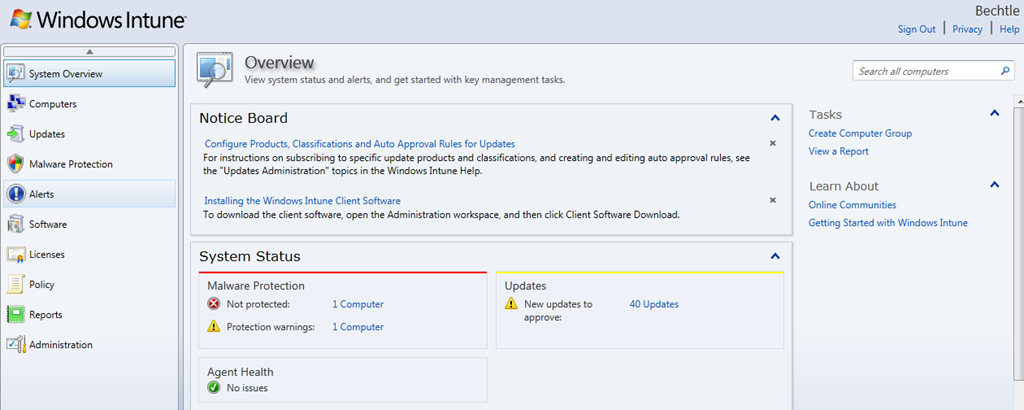
    There are at least 10 sections inside InTune so I’m going to cover them in a number of posts, we’ll start with – System Overview:

    image

    image

    This is the first screen you see when you log in to the Windows InTune Admin Console and it immediately gives you a great overview of yours systems. It shows:

    • If Machines are infected/unprotected
    • If there are updates for your machines
    • A number of other alerts

    Malware Protection:

    From here you can see which machines have Malware protection turned off completely and also if they have overdue scans or specific parts of the protection, such as USB device scanning, turned off.

    1 click takes you to a list of machines, from where you can turn on protection.

    Updates:

    This, not surprisingly, gives you a list of all the updates that are available for you machines be they for the OS or applications.

    One issue with this is that, as default, it shows you ALL possible updates:

    image

    however, these can easily be filtered:

    image

    image

    Another problem I have noticed is that it wants to give my laptop updates for Office 2007, as well as Office 2010; oddly, this doesn’t happen with my other 2010 machines. I had a number of issues when upgrading Office versions and I’m inclined to believe that there are some Office 2007 remnants on the machine that are being picked up by Intune.

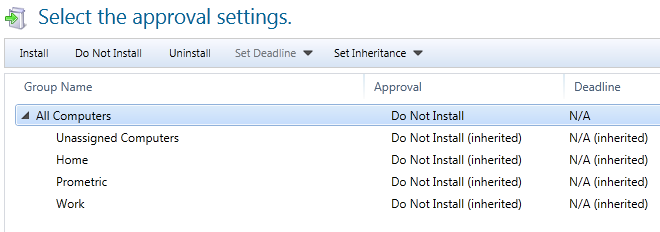
    Should you choose to approve an update for a machine/machines, you then reach this screen:
    image

    Choose the groups on which you want to install the updates, click approve and job done!

    I feel it would be a smoother experience and require less clicks, if you could see the machine names on the same screen as all the updates. Currently, you must:

    • Select the update
    • click on “x computers need this update”
    • Check the groups/machines
    • Go back to the previous screen
    • Approve Update

    Showing the machines names/groups on the initial screen would remove a lot of that.

    You can also access the updates via the individual machine screen, I’ll cover that in a later post.

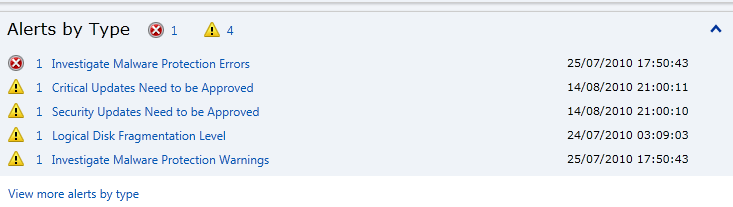
    Alerts by Type:

    This section, as well as the above, also includes other types of alerts…not just updates and malware. This is where InTune starts to differentiate itself from other products, for example:

    image

    If I click through, it tell me:

    image

    That is pretty cool, and something that is very useful for System Admins. I didn’t expect InTune to cover things like this, certainly not in the beta, so I’m pleasantly surprised Smile However, you can’t initiate the defrag from InTune.

    The 2 options on the right hand side “Create Computer Group” and “View a Report” will be covered in later posts.

    Summary:

    This is a brief look at just the first screen of Microsoft Windows InTune but I’m sure you will agree that it already looks very interesting. So stay tuned for the remaining posts in this series (at least 9!) and ask any questions you may have in the comments Smile

    Cheers

    Rich

    Microsoft BitLocker & Security


    BitLocker is Microsoft’s drive encryption software that first appeared in Vista and now Windows 7, along with Bitlocker to Go for USB devices. Having Hard drive and USB drive encryption built into the desktop OS is a great idea, as it reduces the cost & complexity barriers for companies looking to adopt better security practices.

    Recently, a story came out that Bitlocker had been “broken” and that a commercially available tool was now able to bypass the security (I saw this on Ars Technica but I’m sure many other places reported it too). When I saw the headline I thought “Oh sh*t…that’s a fly in the old ointment ain’t it?” (don’t ask me why I was thinking in that style of voice!) but then I read the article and saw this gem in the 1st paragraph:

    “It scans a physical memory image file of the target computer and extracts all the encryption keys for a given BitLocker disk.”

    So this requires the machine to be “hot” i.e. on…as soon as it’s turned off, the memory is dumped and it’s ok…not exactly crack of the century is it?! 🙂 Plus most, if not all encryption offerings from TrueCrypt, PGP etc are vulnerable to this…

    The vast majority of comments on Ars Technica saw this for the ineffectual non-story that it was:


    image

    image

    although there were of course a few people who took this as a chance to point out that Linux was better that Microsoft and all proprietary software evil…but that’s nothing new!

    Ars Technica have made an update to the article saying:

    “this isn’t exactly a "crack" for BitLocker”

    but it doesn’t really show, in my opinion at least, how pointless the story was and doesn’t re-assure that BitLocker is jsut as safe as people thought it was.

    Paul Cooke of the Windows Blog team has a great post all about BitLocker and these recent claims here:

    http://windowsteamblog.com/blogs/windowssecurity/archive/2009/12/07/windows-bitlocker-claims.aspx

    Microsoft Black Screen of Death


    Recently, a new buzz phrase has risen up…”Black Screen of Death”. Supposedly Microsoft’s latest updates for November have been causing user’s machines to boot up into blackness with no system tray, side bar, desktop etc. The cause, according to PRevX, is that the registry key:

    HKEY_LOCAL_MACHINE\Software\Microsoft\Windows NT\CurrentVersion\Winlogon\Shell key

    was being edited.

    This issue was brought to light by security firm PrevX, who said “millions” of people have been affected. However, actually finding someone who’d experienced one has proved very difficult…even on Twitter and the internet at large. This was strange but it didn’t stop it becoming the #1 story on the BBC site today and starting to become quite a talking topic. Microsoft have just released a statement about this saying:

    “We’ve investigated these reports and found that our November Security Updates are not making changes to the system that these reports say are responsible for these issues…Thus, we don’t believe the updates are related to the “black screen” behaviour described in these reports.”

    As the information and issues weren’t given directly to Microsoft, they are unable to give a definite answer as to what is causing the problem. However, the important thing is to reassure users that Microsoft Updates are safe and should still be applied regularly as normal.

    You can see the full MS statement here:

    http://blogs.technet.com/msrc/archive/2009/12/01/reports-of-issues-with-november-security-updates.aspx

    Prevxlogo.gif

    Thoughts

    It is still an odd state of affairs as PrevX are a reputable company with some great technology that has really helped me, and our customers, out of some sticky situations. So it’s unlikely that they’d just make it up but perhaps almost as unlikely that they’d be this wrong about something they’ve publicised so much. On the other hand, it’s even less likely that Microsoft would be wrong! So where does that leave us? To be honest I’m not sure…could it be that they’re both right?

    MS note that “Black Screens” can be caused by the “Daonol” family of Malware…but “Black Screens” are known in Windows…as this Wikipedia page shows.

    File:EMM386.PNG

    A Windows 3.0 BlSOD error message.

    Maybe if you have a machine infected with certain Malware AND you do the updates, then the “BlSOD” is triggered?

    I honestly don’t know but I’m intrigued to learn more and see how this case is solved!

    Update: They’ve Apologised

    PrevX have released a statement on their blog confirming Microsoft’s statement that the November updates from MS did NOT cause the Black Screen of Death.

    “Having narrowed down a specific trigger for this condition we’ve done quite a bit of testing and re-testing on the recent Windows patches including KB976098 and KB915597 as referred to in our previous blog. Since more specifically narrowing down the cause we have been able to exonerate these patches from being a contributory factor.” (Bold mine)

    You can read their full statement here:

    http://www.prevx.com/blog/141/Windows-Black-Screen-Root-Cause.html

    Thanks to @Jamestutt for letting me know