Microsoft: The New Efficiency


At today’s “New Efficiency” launch event, Microsoft CEO Steve Ballmer spoke about Windows 7 deployments and how customers can save money with the latest OS. He particularly mentioned that Windows 7 “will bring $90-$160 saving per pc per year”.

He also discussed the “Consumerisation of IT”, where users bring/force change in Corporate IT via their expectations from using software at home. He said that it isn’t a new phenomenon (it just has a new name) and that it will continue to be a huge driving force in the way that software is designed and used-such as the extra social networking features being added into Office, Exchange & Sharepoint.

This all led to the launch of a new website:

http://vepexp.microsoft.com/thenewefficiency

which contains dozens of videos from MS execs covering topics such as:

  • Discover Windows Optimized Desktop
  • Learn about Optimized Server
  • Experience Unified Communications
  • Explore Business Ready Security

There are a bunch of videos on Exchange 2010 such as:

  • Upgrade & Deployment
  • High Availability
  • Mobility & Active Sync
  • Email Archiving

and more. These are a great source of information on Exchange 2010, some of which I’ve collected here.

The banner below is a great representation of the products & ideas behind the New Efficiency.

image

There are way too many sessions to list here but MS have put together some suggested sessions listings for:

  • Enterprises
  • Mid-Size
  • SMB’s

They contain links to the videos on the New Efficiency site and can be downloaded from my SkyDrive here.

Importing Journaled data into Exchange Online


I was asked a great question via the comments on my blog, which was:

“Can BPOS accept journal data that has been exported from an existing Exchange system?”

With some help from the great people in the Worldwide BPOS teams at Microsoft I have an answer…and that answer is YES 🙂 It is possible to import already journaled data into Exchange Online, meaning you can easily move from Exchange Onsite to Exchange Online.

How to do it:

  1. There are a few caveats to this process:Data must be in .PST format only. Alternative file format types such as MIME, EML, MSG, or Lotus Notes are not accepted.
  2. You must submit historical data files on an external hard drive or USB memory stick.

This one is a little bit odd-I assume the reason you can’t transfer the data online is due to the sheer volume of data that may well be in question and so “sneakernetting” it would be quicker; but couldn’t DVD’s be used? I suppose that an External HD would mean the data could all be read in without any human intervention along the way, while a bunch of DVD’s would require someone to insert/eject them? (Feel free to add your thoughts).

You need to create a “mapping” file which for Exchange 2000, 2003 & 2007 can be done via:

1.Start a command prompt. (Click Start, click Run, type Cmd, and then click OK.)
2. At the command prompt, type or copy and paste the following and press enter:
C:\> csvde -l “mail,legacyExchangeDN” -r “(objectClass=user)” -f customer_name-map-file.csv

For Exchange 5.5:

1. Open the Microsoft® Exchange Server 5.5 administrative program and choose the option for a tools-directory export.
Historical Data File Format and Submission Procedures Microsoft Exchange Server
4
2. There will be an option to choose mailboxes, custom recipients, and distribution lists (select all).
3. Select the export file option and choose a destination for the file you are about to create. The file that is exported will be in a CSV format.
Please remember to include this file with your historical data. The file should be named: customer_name-map-file.csv

Once you have all that it’s loaded onto your External drive/USB stick, you need to package it up and physically mail it off to Microsoft with the following details:

Bulk Data Services Group

Attn: Betti Johnson (Ticket Number)

Alias: bettijo

3720 159th Ave NE

Redmond, WA 98052

Ph. 1 (425) 703-3237

I am checking to see if there is a separate address for EMEA (and indeed other regions) and also how much this service costs, as the pdf datasheet hints at a charge. *Update* I’ve just been told that the charge is $50 per GB (one time fee) for the import and that you must send the data to the US.

The datasheet can be found here.

Exchange Online SMTP Enabled


It’s now possible to serve SMTP clients via Exchange Online-meaning you can have mail originating outside the online environment. I’ve had a few people ask me about this and the use has always been so that automated applications can send mail via Exchange Online…such as an SQL server auto sending a report etc.

To connect the SMTP client to Exchange Online you’ll need to give it the Fully Qualified Domain Name (FQDN) which will be:

  • North America: Smtp.mail.microsoftonline.com
  • Europe: Smtp.mail.emea.microsoftonline.com
  • Asia Pacific: Smtp.mail.apac.microsoftonline.com

You’ll also need to use Port 587 and TLS (Transport Layer Security).

Full info can be found over at the Technet BPOSitive blog.

Yet another great new feature that serves to make Exchange Online and BPOS a great choice for companies of all kinds & sizes…

Advanced Group Policy Management (AGPM)


What is it?

AGPM is a core component of MDOP and “helps customers overcome challenges that affect Group Policy management in any organization, particularly those with complex information technology (IT) environments”.

It’s three key features are:

Change Control: These concepts will be familiar to most, if not all, server administrators-particularly those who use Sharepoint.

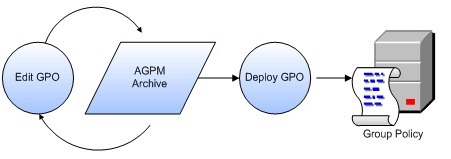
The steps necessary to change and deploy a GPO are as follows:

1. Check out the GPO from the archive.

2. Edit the GPO as necessary.

3. Check in the GPO to the archive.

4. Deploy the GPO to production.

Change Control keeps a version history of the GPO’s, allowing you to quickly roll back to a previous version if needed. Another neat feature is it’s ability to compare different GPO versions, quickly showing what changes were made.

Change Control

Offline Editing: This allows you to test new/altered GPO’s without the worry of messing up your production environment!

AGPM

Role Based Delegation:  This feature differs from standard Group Policy in that it can prevent Admins from approving their own changes. To do this it provides 3 new roles:

· Reviewer. Administrators assigned to the Reviewer role can view and compare GPOs. They cannot edit or deploy them.

· Editor. Administrators assigned to the Editor role can view and compare GPOs. They can check out GPOs from the archive, edit them, and check them in to the archive. They can also request deployment of a GPO.

· Approver. Administrators assigned to the Approver role can approve the creation and deployment of GPOs. (When administrators assigned to the Approver role create or deploy a GPO, approval is automatic.)

Delegation

The whitepaper can be found here.

Updates in MDOP 2009:

The new version of MDOP will be released late October 2009 and makes the following enhancements to AGPM:

Manage Group Policies across different domain forests: ability to copy Group Policy Objects (GPOs) from one domain forest to another, even if the two domains are not physically connected, easily creating a new controlled GPO or replacing an existing one.

Easier GPO tracking with search & filter: ability to filter GPOs according to various attributes, such as name, state, or comment. You can also search for GPOs that were last changed by a particular administrator or on a particular date.

The MDOP Blog post is here.

Microsoft Exchange Online and Shared Folders


As previous visitors will probably have noticed, I’m quite a fan of Microsoft’s Online Services AKA Business Productivity Online Suite (BPOS). I spend a fair amount of my time talking to customers about how they can online services to better serve their business and how BPOS can fit their needs.

Something that everyone needs to be aware of is that the online versions of the products aren’t quite as fully featured as their regular, on-site relatives. This means there can be certain situations where the MS hosted version just isn’t a viable option…however MS are constantly working to give them parity with the on-site versions, but it takes time transferring them into a multi-tenant environment. Exchange Online is very nearly feature complete but the biggest missing feature is Public Folders…

What are Public Folders?

“Public folders provide an effective way to collect, organize, and share information with others in your organization. They are central, shared folders that anyone can view to share information and ideas. Public folders can contain any Outlook item type, such as messages, appointments, contacts, tasks, journal entries, notes, forms, files, and posts.”

We use them at work for a number of purposes but once common use is as a repository for licence certificates, agreement details etc that can be accessed by the software team, sales account managers, customers services dept etc-without there being any duplication. Different people have different permissions so us in the software team have full permissions while others have just read only access. Sure, we could do this with Sharepoint (and for some things we do) but as these documents are all emailed-it is, at the minute, easier to keep them within Outlook.

A good guide to Public Folders can be found here.

Other things that aren’t technically Public Folders tasks but are inextricably linked are:

E-Mail Delegates: Delegate access to your mailbox to another individual, or delegate access to particular data with particular privileges. For example, allow an administrative assistant to accept or create calendar appointments on behalf of a manager.

Send As: Allow someone else to send mail from your mailbox. Your name will appear on the sent from line. For example, allow an administrator to send e-mail as a user (not on behalf of).

Shared Mailbox: Provide a group of people common access to a specific mailbox. For example, allow a single support alias to be monitored by multiple users.

Up until a few days ago-these were all impossible to do with Exchange online and that was often a stumbling block in discussions with customers. As the beginning of that sentence suggests-this has now changed 🙂

I was speaking to a customer last week who was looking for the Shared Mailbox functionality and, after a call with MS, I was able to determine that this feature will become available “this quarter” so by the end of September. This made the customer very happy 🙂

Shared mailboxes and email delegates will be available as standard functionality whereas Send As will need to be enabled via a Support escalation request.

A great whitepaper on Public Folders and BPOS can be found here.

Exchange Online & Sharepoint Online:

While the lack of Public Folders can at first, seem like a big hurdle to adopting BPOS-in many cases using Sharepoint Online instead is as good if not better!

Scenario Description

Exchange public folders are frequently used to set up calendars, task lists, and contact lists for team or company-wide collaboration. People with appropriate permissions are able to view and edit the lists.

While the Shared Mailbox feature is the traditional way of doing this and, for many people, will continue to be-it can also be done with Sharepoint Online:

Benefits
  • SharePoint lists provide more contexts for the data, and more flexible ways of working with the data, including combining data from multiple lists and rolling up summaries for reporting.
  • Moderation workflows are built into SharePoint lists, so items can be optionally made visible only after they are approved.
  • Item-level version history can be optionally enabled to track changes to individual items in these lists.
  • Users can subscribe to alerts and feeds to have change notifications automatically sent to them.

There are many different ways of using Sharepoint Online as a replacement for Exchange Public Folders which are covered in the whitepaper here.


Sharepoint & Outlook Oddity Number 2


After finally getting around to setting up Alerts in Sharepoint for our users, I’ve come across a new issue where users can’t open the alerts in Outlook.

This is Sharepoint 2007 sending alerts to Outlook 2007 and yet they alerts can’t be opened at all, which struck me as quite odd. However it only took a quick Bing search to uncover the issue…it all comes down to Exchange.

Even though Sharepoint & Outlook are on 2007, if the alerts are being sent via an Exchange 2003 server this problem will occur “because Exchange 2003 cannot convert the MIME-type properties to MAPI-type properties correctly if the names of the properties begin with X-.”

Although Outlook needs to be running in Cached mode for this to occur I believe…

There is a hotfix that needs to be applied to the Exchange 2003 server (with SP2) and that is available here.

Big thanks to Joel Oleson for his blog post which gave me the answer here.

Exchange 2010 Public Beta Released


Microsoft today (15/04/09) made the beta of Exchange 2010 available to the public-this can be downloaded here:

Get Exchange 2010 Beta

There are numerous new features in the latest incarnation of the world’s most popular email platform (I think that’s a safe statement to make?!) including:

·         OWA (Outlook Web Access) support for Internet Explorer (IE) 7 and 8, Firefox 3, and Safari 3.


·         MailTips. Are you about to accidentally send a personal e-mail to the whole company? A a time-sensitive e-mail to someone who is on maternity leave for six months? A 30MB attachment to people who have 20MB attachment size limits on their mailboxes? MailTips tells you before you send the message.


·         Conversation view. Have the arrangements for a company party Friday night cluttered up your mailbox to the point where you can’t find the approval e-mail for the urgent customer visit that you need to book today? Switch to conversation view, and collapse those 50 party discussions into one expandable node.


·         Calendar sharing extended to OWA


·         Automatically transcribed text-based preview of voice mail messages

·         Federation – Trust Exchange servers of partner organizations, share calendars, presence. You can schedule meetings with your business partners as easily as you can schedule meetings within the company.

·         Mailboxes can be moved during normal business hours with user online!

      ·      The Exchange 2010 version of OWA will have full parity with Outlook 2010 by the time they both ship; & the Windows Mobile client will come close.

One thing that might surprise some and will probably cause issues for others is that Exchange 2010 will require Windows Server 2008 minimum-so NO Windows Server 2003 support. I’m sure this won’t sit well with everyone but Windows Server 2008 is such a great product, and a huge leap forward from Server 2003, that I’m sure it will only benefit people to adopt it.

I’ve just seen a tweet from @Pbarone that Exchange 2010 will have a “mute” button which will allow you to remove yourself from email threads…that is seriously cool! At least a couple of times a week I find myself caught up in a “reply all/forward” whirlwind where I’m one of say, 6 people that all receive an email and then each of then “reply all” and then that receives multiple replies and so on. It’s very rare that I actually need to see these responses but once one person hits “reply all”, it seems to be the custom for everyone else involved to follow suit…and it can be really annoying so this mute button is a great new feature!